

If you want to return the logical value TRUE in Excel, or drop it into a bigger formula, the TRUE function does exactly that. You type =TRUE() and it hands back TRUE, nothing else.
It takes no arguments and always returns the same constant value, so there is nothing to feed it and it does not spill or work with dynamic arrays. You can even skip the function and type the word TRUE straight into a cell. Excel treats it the same way.
The function mostly exists for compatibility with older spreadsheet programs. In this article I’ll show you how TRUE works, where it actually helps, and the times you don’t need the function at all.
TRUE Function Syntax
Here is the syntax of the TRUE function:
=TRUE()
The TRUE function has no arguments. You just type the function name followed by an empty pair of parentheses.
- (no arguments) – There is nothing to put inside the parentheses. TRUE always returns the same thing: the logical value TRUE.
Pro Tip: You can also type =TRUE (without the parentheses) or just the word TRUE into a cell. All three give you the same logical value.
The TRUE function works in every version of Excel, including Microsoft 365, Excel 2024, 2021, 2019, 2016, and Excel on the web.
When to Use the TRUE Function
Use the TRUE function when you need to:
- Return the logical value TRUE from a formula based on a condition
- Set a logical flag (a TRUE or FALSE marker) in a cell
- Feed a TRUE value into another function that expects one
- Provide a catch-all condition that always matches, like the last test in IFS
Let me show you a few practical examples of how this works.
Example 1: Two Ways to Return TRUE (TRUE() vs TRUE)
Let’s start with the simplest case: just getting the value TRUE into a cell.
There is no dataset here. I’ll type the formula into a blank cell to see what it returns.
I want to return the logical value TRUE.
Here is the formula:
=TRUE()
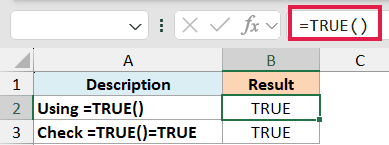
This returns TRUE. The empty parentheses are all the function needs, since it has nothing to calculate.
Now let me prove that the function and the plain word TRUE are the same thing. I’ll check whether one equals the other.
=TRUE()=TRUE
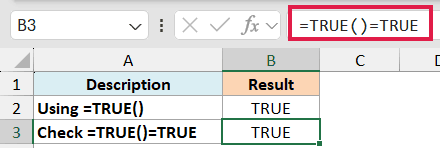
This also returns TRUE, which confirms they match. So in practice you can type =TRUE, or even just TRUE, and skip the function entirely.
Pro Tip: Excel is not case sensitive here. Typing true, True, or TRUE all resolve to the same logical value.
Example 2: Return TRUE or FALSE Based on a Condition
Here’s a more useful scenario. The TRUE function is often used inside IF to hand back a clear TRUE or FALSE.
Below is a support ticket log. Column A has the ticket ID and column B has how many hours it took to resolve. Our service target is 24 hours or less.
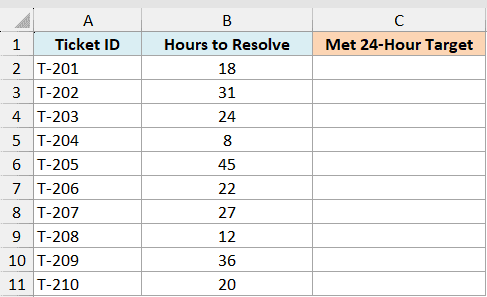
I want to mark each ticket TRUE when it met the 24-hour target and FALSE when it did not.
Here is the formula:
=IF(B2<=24,TRUE(),FALSE())
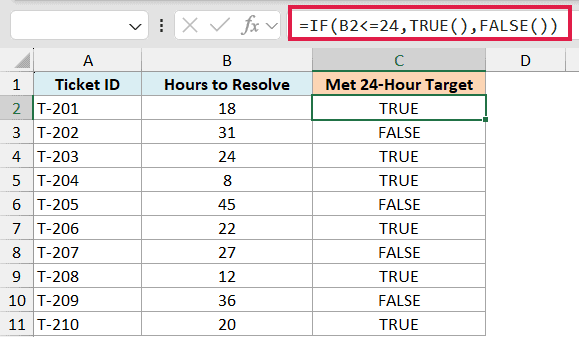
For the first ticket at 18 hours, this returns TRUE. IF checks whether B2 is 24 or less. If it is, the TRUE function returns TRUE, otherwise the FALSE function returns FALSE.
You copy this down column C to test every ticket. Anything resolved in 24 hours or less shows TRUE.
Pro Tip: A shorter version is =B2<=24 on its own. The comparison already returns TRUE or FALSE, so the IF wrapper is optional here. More on that in the next example.
Example 3: Compare Two Columns for a TRUE/FALSE Match
This one shows why you often don’t need the TRUE function at all. Any comparison in Excel returns TRUE or FALSE on its own.
Below is a stock audit. Column A has the count from the system and column B has the count someone did by hand. I want to spot the rows where the two don’t agree.
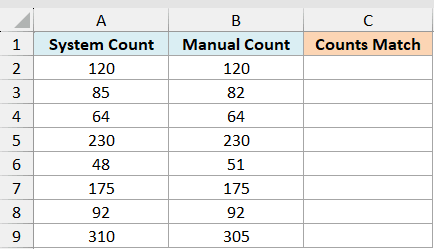
I want to check whether the system count matches the manual count for each item.
Here is the formula:
=A2=B2
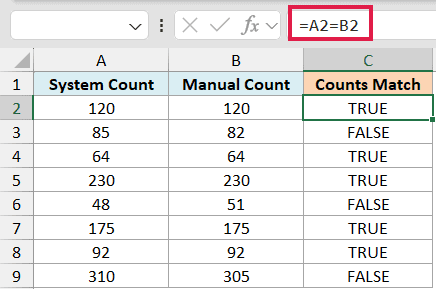
For the first item, where both counts are 120, this returns TRUE. The equals sign compares the two cells and returns TRUE when they match and FALSE when they don’t.
Copy it down and any row showing FALSE is a mismatch worth checking. Notice there is no TRUE function anywhere. Excel produced the TRUE for you.
Example 4: Return TRUE When Multiple Conditions Are Met (AND / OR)
The logical functions AND and OR also return TRUE or FALSE, so they pair naturally with this idea.
Below is an eligibility check. Column B has each applicant’s age and column C has their years of employment. To qualify, an applicant needs to be at least 21 and have at least 2 years of employment.
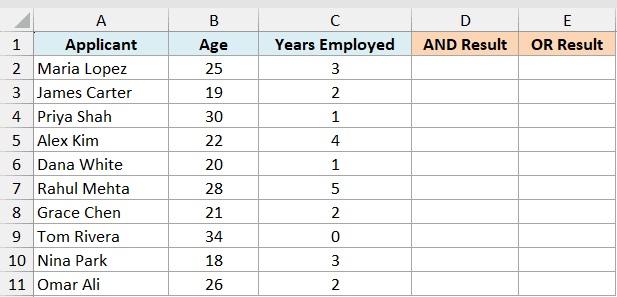
I want a TRUE only when both conditions are met.
Here is the formula:
=AND(B2>=21,C2>=2)
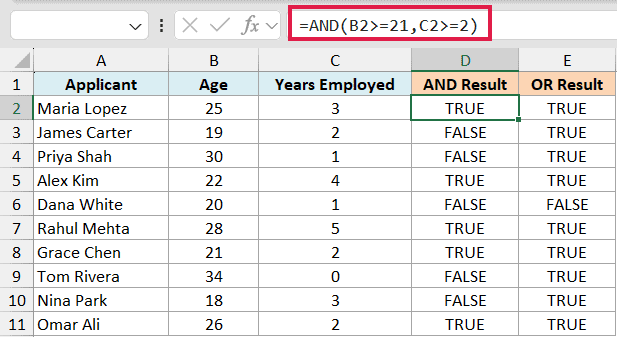
For an applicant aged 25 with 3 years of employment, this returns TRUE because both tests pass. AND returns TRUE only when every condition inside it is true. If either one fails, you get FALSE.
If instead you want a TRUE when at least one condition is met, use OR.
=OR(B2>=21,C2>=2)
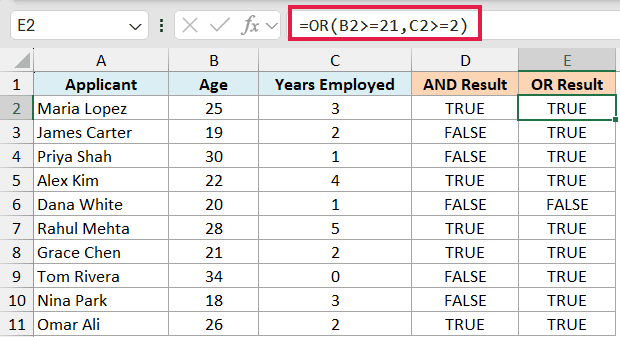
For an applicant aged 30 with only 1 year of employment, AND would return FALSE, but OR returns TRUE because the age test alone passes. OR needs just one condition to be true.
Example 5: Convert TRUE to 1 to Count or Add
Here is a handy trick. Behind the scenes, Excel treats TRUE as 1 and FALSE as 0. That means you can do math on logical values.
Below is a quality check log. Column A has the product ID and column B has whether it passed inspection, stored as TRUE or FALSE.
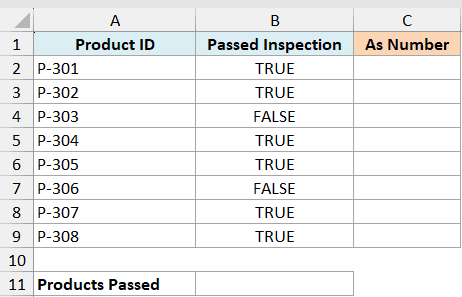
First, I want to see what happens when I multiply a TRUE value by 1.
Here is the formula:
=B2*1
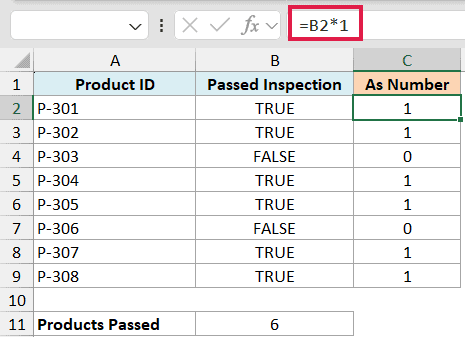
For the first product, where B2 is TRUE, this returns 1. Multiplying by 1 forces the logical value into its number form, so TRUE becomes 1 and FALSE becomes 0.
Now I can count how many products passed by adding up those 1s across the whole column.
=SUMPRODUCT(--(B2:B9))
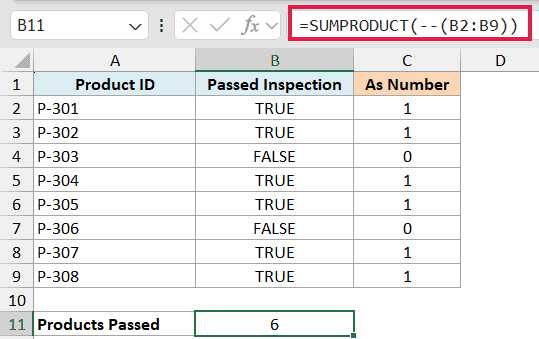
This returns 6, the number of TRUE values in the list. The double minus (–) turns every TRUE into 1 and every FALSE into 0, and SUMPRODUCT adds them up.
Example 6: Use TRUE as the Catch-All in IFS
TRUE has one more trick that is genuinely useful. Because it always returns TRUE, you can use it as a final condition that always matches.
Below is an order list. Column A has the order ID and column B has the package weight in kilograms. I want to assign a shipping tier based on that weight.
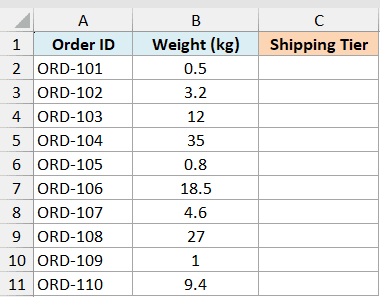
I want to label each order Small, Medium, Large, or Freight based on how heavy it is.
Here is the formula:
=IFS(B2<=1,"Small",B2<=5,"Medium",B2<=20,"Large",TRUE,"Freight")
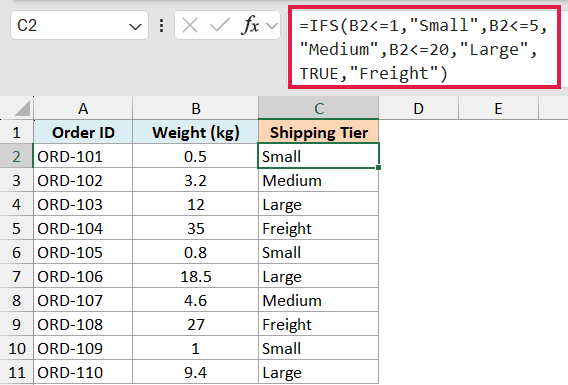
The IFS function checks each condition in order and returns the value for the first one that is true. For a 0.5 kg order, the first test passes and you get “Small”.
The final TRUE is the catch-all. Any weight that skipped past the earlier tiers, like a 35 kg order, lands on TRUE and gets “Freight”. Without it, an order that matches no tier would return a #N/A error.
IFS needs Excel 2019, Excel 2021, or Microsoft 365. On older versions, use a nested IF and put the catch-all value in the final value_if_false spot.
Pro Tip: The TRUE catch-all in IFS is the modern replacement for the old “ELSE” branch you would get from a nested IF. It keeps the formula readable and guards against #N/A.
Tips & Common Mistakes
A few things worth keeping in mind about the TRUE function:
- You rarely need the function itself. Typing =TRUE, or just the word TRUE, gives you the same logical value as =TRUE(). Excel keeps the function around mainly for compatibility with other spreadsheet programs.
- TRUE() and TRUE are identical. The parentheses do not add anything. Use whichever reads better to you, since they always return the same value.
- It has no arguments and does not spill. TRUE always returns a single constant, so you can’t feed it a range and there is no dynamic array version of it. There is nothing to spill.
- Comparisons already return TRUE. A test like =A2>B2 or =A2=B2 returns TRUE or FALSE by itself. Wrapping it in IF(…,TRUE(),FALSE()) is redundant.
- TRUE equals 1 in math. Because Excel stores TRUE as 1 and FALSE as 0, you can count or sum logical values by coercing them with — or by multiplying by 1.
- Don’t put quotes around it. =TRUE() returns the logical value TRUE, but “TRUE” in quotes is just text that looks the same. Text won’t behave as a logical value in calculations.
Wrapping Up
The TRUE function is about as simple as Excel functions get. It returns the logical value TRUE and nothing more, and most of the time you can type TRUE directly instead of calling the function.
Where it earns its place is inside bigger formulas, as the result of an IF, alongside AND and OR, or as the catch-all in IFS. I hope you found this tutorial helpful.
Other Excel Articles You May Also Like:
