

The ISNA function checks whether a value is the #N/A error. It returns TRUE when it is, and FALSE for anything else.
You’ll see #N/A most often when a lookup can’t find what it’s looking for. ISNA lets you spot those misses so you can flag them, count them, filter them out, or highlight them.
In this article, I’ll show you how ISNA works and where it’s still the right tool. I’ll also point out the cases where the IFNA function or XLOOKUP does the job in one step.
Follow along with the example file
ISNA Function Examples.xlsx
ISNA Function Syntax
Here is the syntax of the ISNA function:
=ISNA(value)
- value (required): The value you want to check. This is usually a cell reference or another formula, such as a lookup.
ISNA only returns TRUE for the #N/A error. Other errors, like #DIV/0! or #VALUE!, return FALSE, and so do numbers, text, and empty cells.
Text that looks like the error doesn’t count either. So =ISNA("#N/A") returns FALSE, because the quotes make it plain text, while =ISNA(NA()) returns TRUE.
The ISNA function works in all Excel versions, including 365, 2024, 2021, 2019, 2016, Mac, and the web.
When to Use the ISNA Function
Use this function when you need to:
- Find which cells in a column hold the #N/A error.
- Check whether each item in one list appears in another list.
- Count how many items from one list are missing from another.
- Pull out only the rows where a value came back as #N/A.
- Highlight the rows that have #N/A so they stand out.
Let me show you a few practical examples of how to use ISNA.
Example 1: Check Which Cells Have the #N/A Error
Let’s start with a simple example.
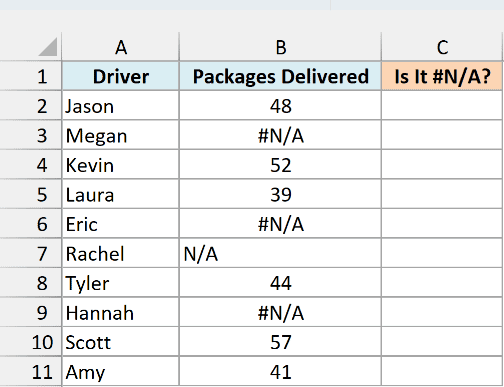
Below is a list of delivery drivers and the packages each one delivered this week, and I want to check which counts are the #N/A error in column C.
Here is the formula:
=ISNA(B2:B11)
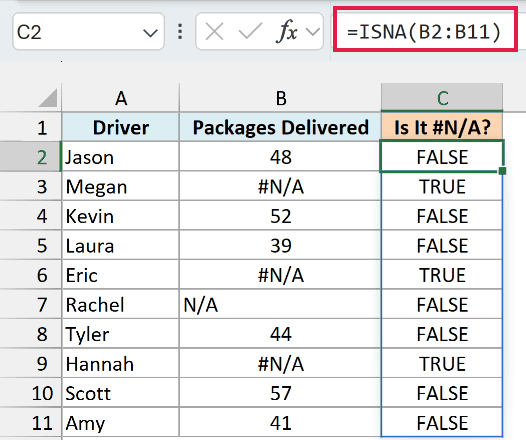
The ISNA function checks every cell in B2:B11 and returns TRUE for Megan, Eric, and Hannah, whose counts are #N/A. Since I gave it a whole range, the results spill into C2:C11 on their own.
Now look at Rachel. Her cell shows N/A, but someone typed it in as text, so ISNA returns FALSE for it.
That’s worth knowing when you clean data. A typed “N/A” isn’t an error, so ISNA won’t find it, and you’d need to search for that text separately.
If you are using Excel 2019 or earlier, enter the below formula in cell C2 and then copy it down the range:
=ISNA(B2)
Example 2: Flag Names Missing From Another List
Here’s another practical scenario, and it’s probably the most common way people use ISNA.
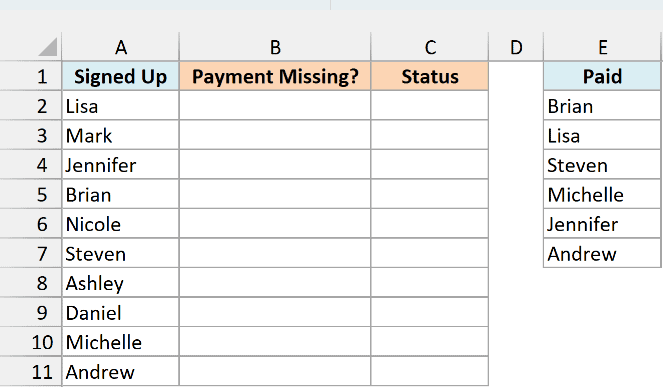
Below is a list of people who signed up for a pottery class, plus a list of those who have paid, and I want to flag who still hasn’t paid in column B.
Here is the formula:
=ISNA(XMATCH(A2:A11,E2:E7))
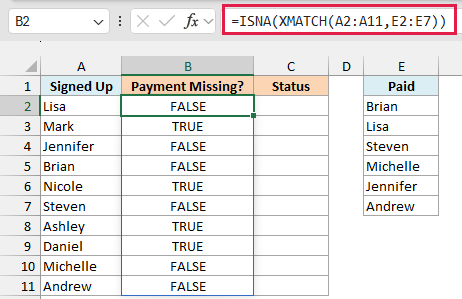
This returns TRUE for Mark, Nicole, Ashley, and Daniel, since their names aren’t in the Paid list.
Here is how this formula works:
XMATCH(A2:A11,E2:E7)looks for each name from column A in the Paid list. When it finds a name, it returns that name’s position in E2:E7.- When a name isn’t in the Paid list, XMATCH returns #N/A.
ISNA(...)turns each result into TRUE (the #N/A, so not paid) or FALSE (a position, so paid).
TRUE and FALSE work, but a label is easier to read. To show “Unpaid” or “Paid” in column C, wrap the same check in the IF function.
Here is the formula:
=IF(ISNA(XMATCH(A2:A11,E2:E7)),"Unpaid","Paid")
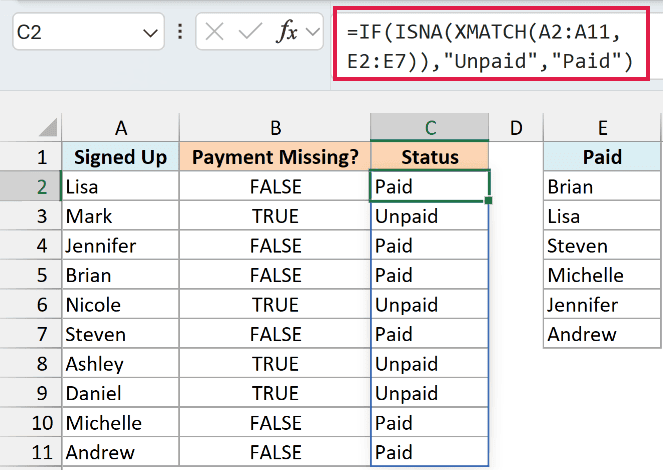
When ISNA returns TRUE, IF shows “Unpaid”, and when it returns FALSE, you get “Paid”.
This is where ISNA beats IFNA. IFNA swaps the #N/A for a value but keeps the match position for everyone else, while IF with ISNA lets you choose a label for both outcomes.
Both formulas need Excel 365 or Excel 2021 and later, because they use the XMATCH function and spill their results.
If you are using Excel 2019 or earlier, enter the below formula in cell B2 and then copy it down the range:
=ISNA(MATCH(A2,$E$2:$E$7,0))
And for the Paid or Unpaid labels, enter this formula in cell C2 and copy it down:
=IF(ISNA(MATCH(A2,$E$2:$E$7,0)),"Unpaid","Paid")
In both formulas, the 0 at the end of MATCH tells it to accept only an exact match.
Example 3: IF ISNA VLOOKUP (and a Better Way)
If you open older workbooks, you’ll often find ISNA wrapped around VLOOKUP to replace the #N/A with a message. Let me show you that formula first, and then the simpler way to do it now.
Below is a list of bakery orders with the ZIP code each one ships to, plus a table of ZIP codes and their delivery zones, and I want the zone for each order (or “Out of area”) in column C.
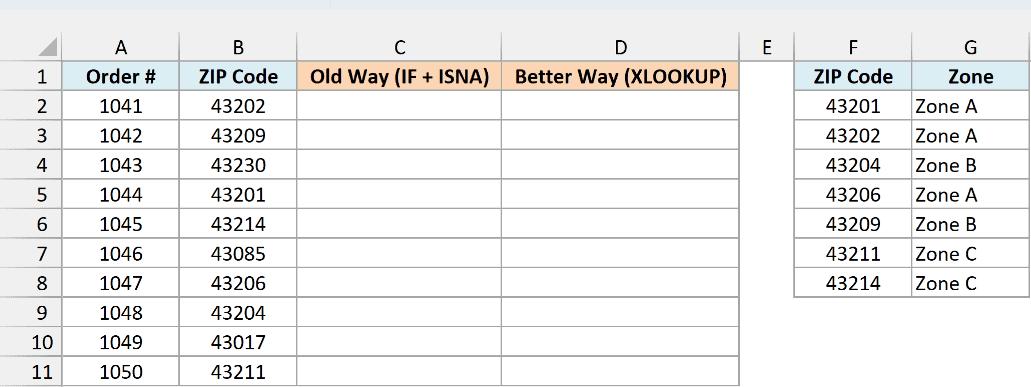
Here is the formula I entered in C2 and copied down to C11:
=IF(ISNA(VLOOKUP(B2,$F$2:$G$8,2,FALSE)),"Out of area",VLOOKUP(B2,$F$2:$G$8,2,FALSE))
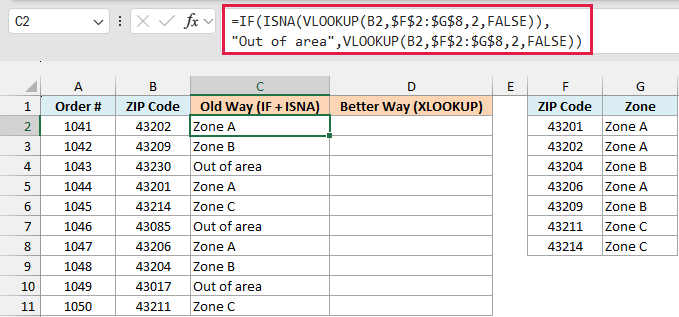
This gives Zone A for order 1041 and “Out of area” for 1043, 1046, and 1049, whose ZIP codes aren’t in the zone table.
Here is how this formula works:
VLOOKUP(B2,$F$2:$G$8,2,FALSE)looks for the ZIP code in the zone table and returns the zone. It returns #N/A when the ZIP code isn’t there.ISNA(...)checks whether that lookup gave #N/A.- When it did, the IF function shows “Out of area”. When it didn’t, IF runs the same VLOOKUP again to show the zone.
It works, but you have to write the whole lookup twice. Change the table range in one place and forget the other, and you get a wrong answer.
If you have Excel 365 or Excel 2021 and later, the XLOOKUP function has a built-in argument for the “not found” result.
Here is the formula I entered in D2:
=XLOOKUP(B2:B11,F2:F8,G2:G8,"Out of area")
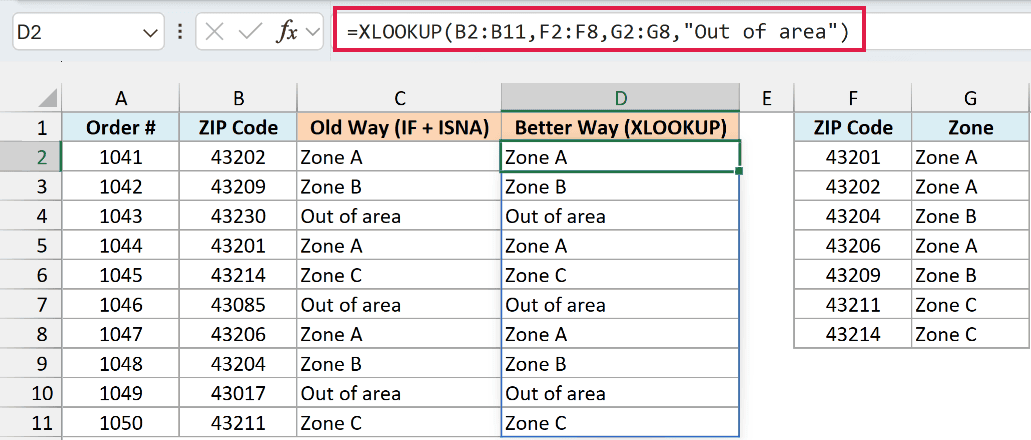
Column D gives exactly the same zones as column C. The fourth argument, “Out of area”, is what XLOOKUP returns when it can’t find a ZIP code, so there’s no ISNA and no second lookup.
If you are using Excel 2013, 2016, or 2019, enter the below formula in cell D2 and then copy it down the range. With this one, you only write the lookup once:
=IFNA(VLOOKUP(B2,$F$2:$G$8,2,FALSE),"Out of area")
Pro Tip: When all you want is a message instead of #N/A, use XLOOKUP’s fourth argument or the IFNA function. Save ISNA for jobs that need TRUE or FALSE, like the other examples in this article.
Example 4: Count Missing Matches in One Formula
Sometimes you don’t need a flag for every row. You just want to know how many are missing.
Below is a list of employees who must finish a safety training, plus the list of people who have completed it, and I want the number of employees who still need to complete it in cell E2.
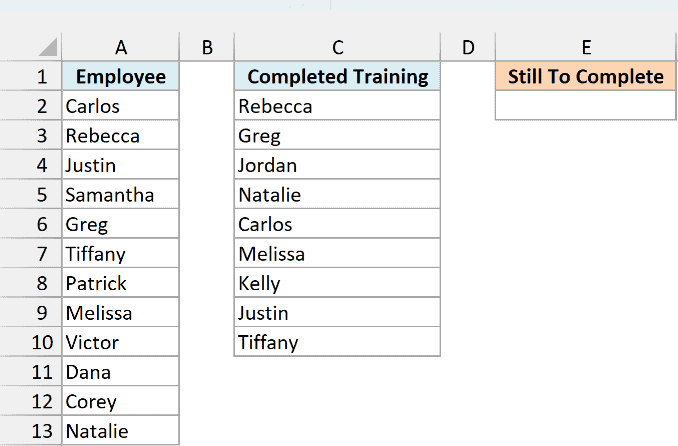
Here is the formula:
=SUM(--ISNA(XMATCH(A2:A13,C2:C10)))
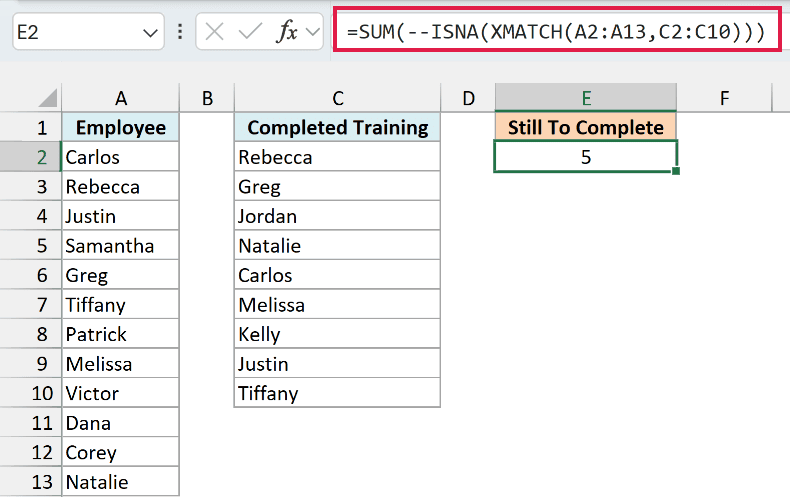
This returns 5. Samantha, Patrick, Victor, Dana, and Corey are on the required list but not on the completed list.
Here is how this formula works:
ISNA(XMATCH(A2:A13,C2:C10))gives one TRUE or FALSE for each employee, just like in Example 2. TRUE means the name isn’t on the completed list.- The double minus (
--) turns TRUE into 1 and FALSE into 0. - The SUM function adds up those 1s, which gives the number of missing names.
You might think 12 employees minus 9 completions would give you the answer. It doesn’t here, because Jordan and Kelly finished the training but aren’t on the required list, so subtracting would give 3 instead of 5.
If you are using Excel 2019 or earlier, enter the below formula in cell E2:
=SUMPRODUCT(--ISNA(MATCH(A2:A13,C2:C10,0)))
Example 5: List Only the Rows With #N/A Using FILTER
If you have Excel 365 or Excel 2021 and later, you can combine ISNA with the FILTER function to pull out matching rows instead of just flagging them.
Below is a list of job applicants with the role they applied for and their interview date, where #N/A means no interview is scheduled yet, and I want a list of the applicants still waiting in columns E and F.
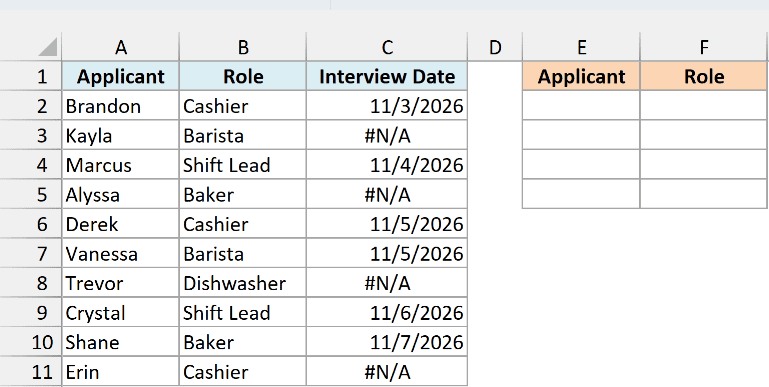
Here is the formula:
=FILTER(A2:B11,ISNA(C2:C11))
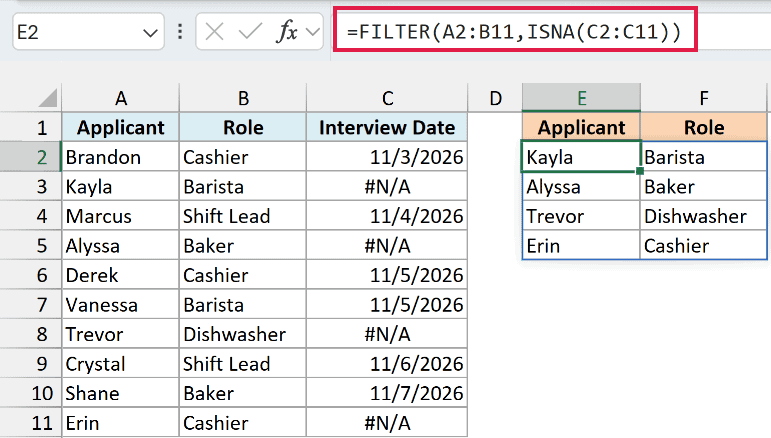
This returns Kayla, Alyssa, Trevor, and Erin with their roles. These are the four applicants whose interview date is #N/A.
ISNA checks each interview date and returns TRUE for the #N/A ones. FILTER then keeps only the rows of A2:B11 where that check is TRUE.
As soon as you schedule an interview and the #N/A in column C changes to a date, that applicant drops off the list.
If every applicant has a date, FILTER returns the #CALC! error, because there’s nothing left to show. FILTER’s third argument sets what to show instead, such as “All scheduled”.
Example 6: Highlight #N/A Rows With Conditional Formatting
ISNA also works inside conditional formatting, so you can make the #N/A rows stand out in a list.
Below is a youth basketball team’s jersey order with each player’s number and size, where #N/A means the player hasn’t sent in a size, and I want to highlight the whole row for those players.
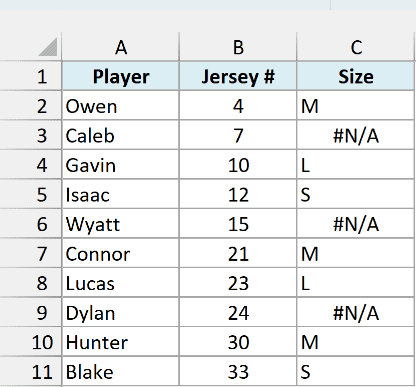
Here is the formula we’ll use in the conditional formatting rule:
=ISNA($C2)
Here are the steps:
- Select the cells A2:C11.
- Click the Home tab.
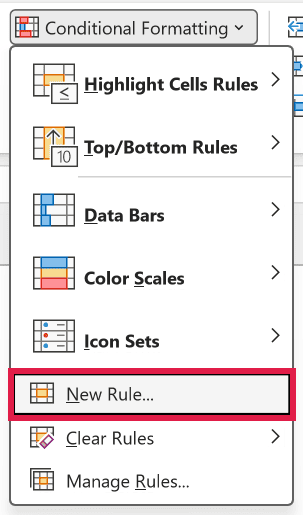
- In the Styles group, click on Conditional Formatting.
- Click on New Rule.
- In the New Formatting Rule dialog box, select “Use a formula to determine which cells to format”.
- In the “Format values where this formula is true” field, enter the formula =ISNA($C2).
- Click the Format button.
- In the Fill tab, select a light red color.
- Click OK to close the Format Cells dialog box.
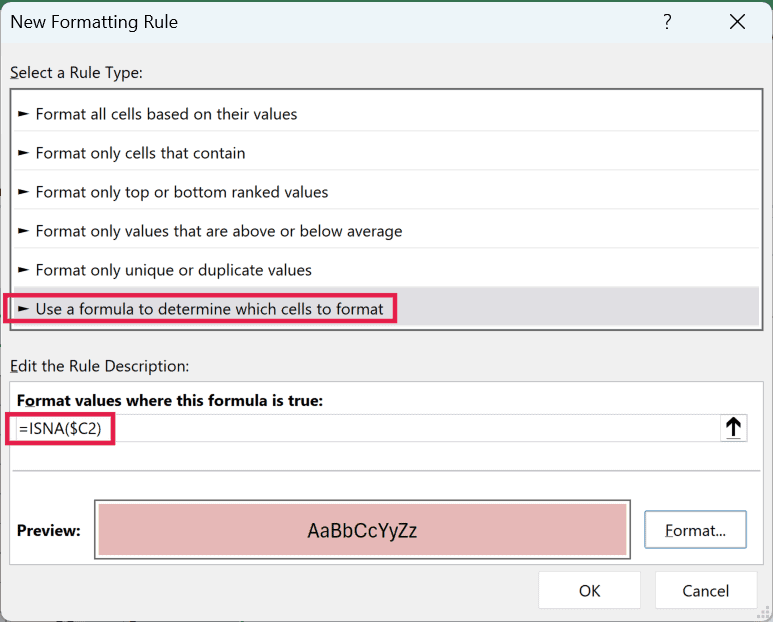
- Click OK to apply the rule.
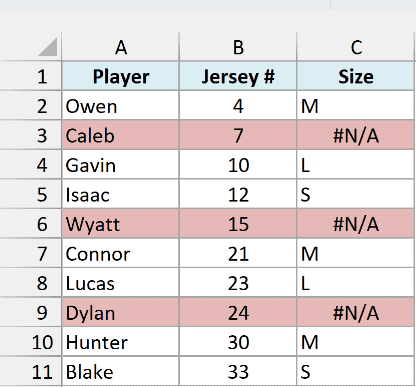
The rows for Caleb, Wyatt, and Dylan are now highlighted, since their size shows #N/A.
The dollar sign in $C2 locks the column, so every cell in the row checks the size in column C. The row number has no dollar sign, so each row checks its own size.
Excel’s built-in “Format only cells that contain” rule can highlight errors too, but it only colors the error cell itself, and it catches every type of error. The ISNA rule colors the whole row and reacts only to #N/A.
So these are some practical ways to use the ISNA function in Excel. You can use it to find #N/A errors, flag and count items missing from another list, filter rows, and highlight them.
I hope you found this Excel tutorial useful.
Other Excel Articles You May Also Like:
- IS Functions in Excel
- Use IFERROR with VLOOKUP to Get Rid of #N/A Errors
- How to Compare Two Columns in Excel (for matches & differences)
- IFERROR Function in Excel
- ISNUMBER Function in Excel
- ISBLANK Function in Excel
- VLOOKUP Not Working? (10 Common Fixes)
- 20 Advanced Excel Functions and Formulas (for Excel Pros)
