

The MAKEARRAY function in Excel builds a grid of any size you pick and fills every cell with a small calculation. That calculation knows which row and which column it’s in, so each cell can work out its own value.
It’s useful when you need a whole table from one formula, like a seat map, a price chart, or a summary grid where every cell needs its own result.
Below, I’ll start with two simple grids so you can see how the row and column numbers work, and then use MAKEARRAY on real data.
Follow along with the example file
MAKEARRAY Function Examples.xlsx
MAKEARRAY Function Syntax
Here is the syntax of the MAKEARRAY function:
=MAKEARRAY(rows,cols,lambda)
- rows – the number of rows you want in the result.
- cols – the number of columns you want in the result.
- lambda – a LAMBDA function that calculates the value for each cell. It must have exactly two parameters, the first for the row number and the second for the column number, followed by the calculation, like
LAMBDA(r,c,r*c).
MAKEARRAY runs the LAMBDA once for every cell in the grid. For the cell in the second row and third column, r is 2 and c is 3, so LAMBDA(r,c,r*c) gives 6 there.
You can name the two parameters anything you like (r and c, row and col, or a and b). The first one always gets the row number and the second one always gets the column number.
Both rows and cols have to be whole numbers of 1 or more. A 0, a negative number, a decimal like 2.5, or text that isn’t a number makes the formula return a #VALUE! error.
You also get a #VALUE! error if the LAMBDA has one or three parameters instead of two.
The MAKEARRAY function works in Excel for Microsoft 365, Excel 2024, and Excel for the web, on both Windows and Mac. It’s not available in Excel 2021 or earlier versions, where the formula shows a #NAME? error.
When to Use the MAKEARRAY Function
Use this function when you need to:
- Build a grid of a set size where each cell’s value depends on its row and column position
- Create a two-way chart, such as a price table, where every cell follows the same rule
- Go through an existing table cell by cell when each result needs part of its row, like a running total
- Turn a list into a summary grid when each cell needs a function that returns one value, such as TEXTJOIN
If every cell just counts up (1, 2, 3, and so on), you don’t need MAKEARRAY. The SEQUENCE function does that with less typing.
Let me show you a few practical examples of how to use the MAKEARRAY function.
Example 1: Create a Seat Map Grid with MAKEARRAY
Let’s start with a simple grid, so you can see what the row and column numbers do.
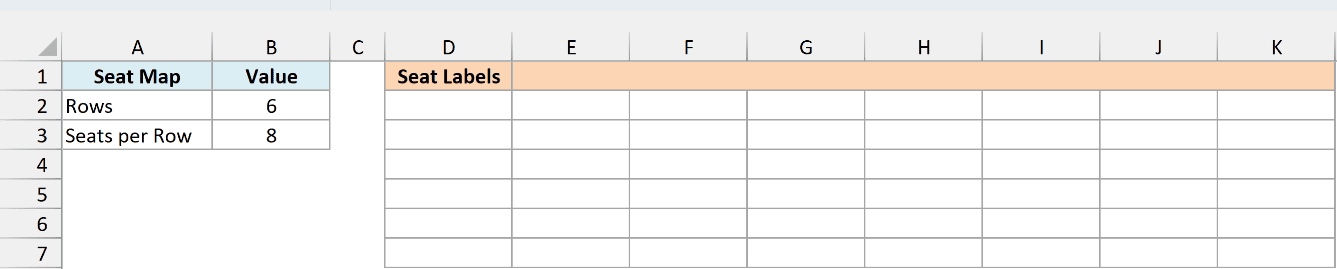
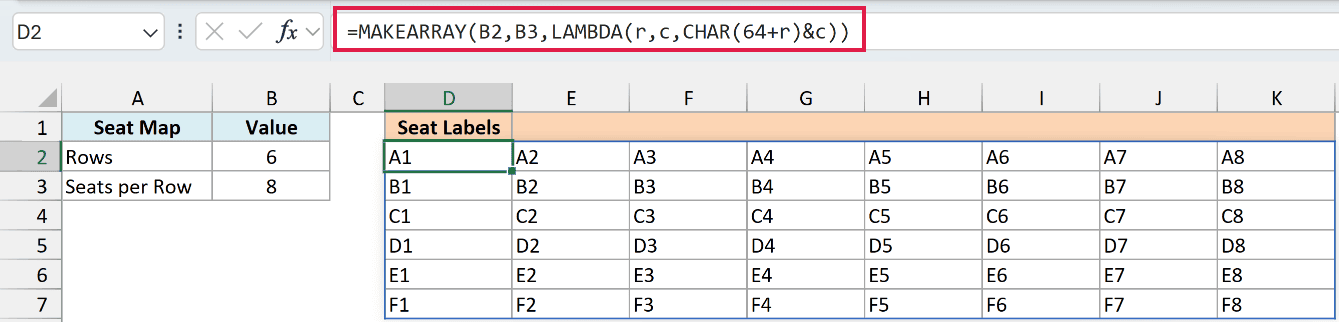
Below I have the size of a small movie theater, with 6 rows and 8 seats in each row, and I want a label for every seat (A1, A2, and so on) starting in cell D2.
Here is the formula:
=MAKEARRAY(B2,B3,LAMBDA(r,c,CHAR(64+r)&c))
How this formula works:
- B2 (6) and B3 (8) set the size of the grid, so MAKEARRAY creates 6 rows and 8 columns, which is 48 cells.
- For each of those cells, the LAMBDA gets the row number as r (1 to 6) and the column number as c (1 to 8).
CHAR(64+r)turns the row number into a letter. 65 is the character code for A, so row 1 becomes A, row 2 becomes B, and so on. This covers the letters A to Z, so it works for up to 26 rows.&cadds the column number after the letter, so the cell in row 2, column 5 shows B5.
Since the size comes from B2 and B3, you can change either number and the grid grows or shrinks on its own.
The result spills from D2 into the cells next to and below it. If any of those cells already has something in it, you get a #SPILL! error instead, so keep that area empty.
Pro Tip: For a simple grid like this, =CHAR(64+SEQUENCE(B2))&SEQUENCE(1,B3) gives the same result without LAMBDA. The MAKEARRAY version is easier to read because it names the row and column numbers.
Example 2: Build a Two-Way Price Chart with MAKEARRAY
Here’s another practical scenario, a price chart where each cell adds up a group’s tickets and applies a price cap.
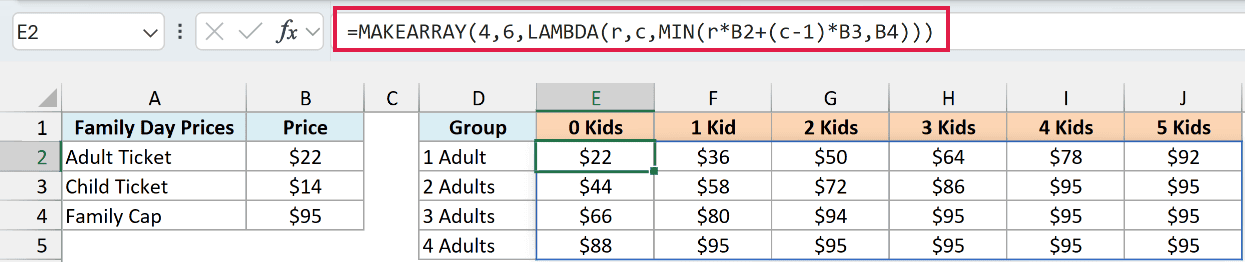
Below I have the ticket prices for a zoo’s Family Day, where no group pays more than $95, and I want a price chart for 1 to 4 adults and 0 to 5 kids starting in cell E2.

Here is the formula:
=MAKEARRAY(4,6,LAMBDA(r,c,MIN(r*B2+(c-1)*B3,B4)))
How this formula works:
- 4 and 6 make a grid with 4 rows (1 to 4 adults) and 6 columns (0 to 5 kids).
r*B2is the cost of the adults. The first row is 1 adult, so the row number is already the number of adults.(c-1)*B3is the cost of the kids. The first column is 0 kids, not 1, so I subtract 1 from the column number to get the right count.MIN(...,B4)compares that total with the $95 cap in B4 and returns whichever is smaller, so no cell goes above $95.
For example, 2 adults and 3 kids cost 2 x $22 + 3 x $14, which is $86. But 2 adults and 4 kids add up to $100, so that cell shows $95.
The grid size is typed into the formula here, so it stays at 4 by 6 even if you add more labels. In the next example, the size comes from the data itself, using ROWS and COLUMNS.
Pro Tip: You can build this chart without LAMBDA using =LET(t,SEQUENCE(4)*B2+SEQUENCE(1,6,0)*B3,IF(t>B4,B4,t)). It needs IF for the cap because MIN would return one number for the whole grid, while MAKEARRAY lets you keep a plain MIN on each cell.
Example 3: Running Total Across Columns for Each Row
Now let’s look at something more interesting, where MAKEARRAY works through an existing table.
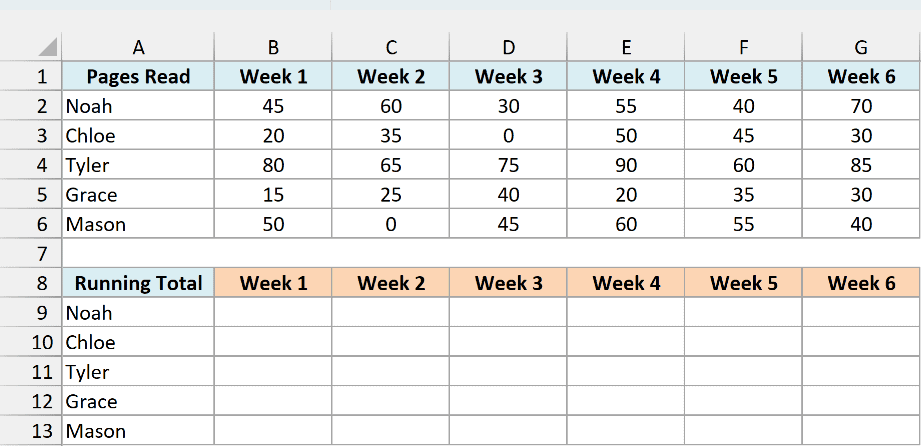
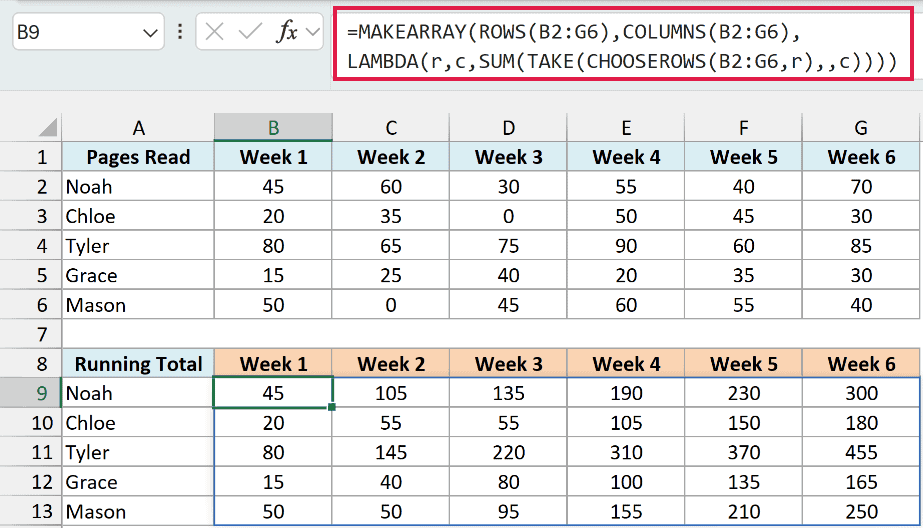
Below I have the number of pages five students read each week in a summer reading challenge, and I want a running total for each student in the table below it, starting in cell B9.
Here is the formula:
=MAKEARRAY(ROWS(B2:G6),COLUMNS(B2:G6),LAMBDA(r,c,SUM(TAKE(CHOOSEROWS(B2:G6,r),,c))))
How this formula works:
ROWS(B2:G6)returns 5 andCOLUMNS(B2:G6)returns 6, so the result grid is exactly the same size as the data.CHOOSEROWS(B2:G6,r)picks one student’s row of weekly pages. For r = 1, that’s Noah’s row.TAKE(...,,c)keeps only the first c weeks of that row. In the third column, c is 3, so it keeps weeks 1 to 3.SUMadds those weeks up, which gives the running total for that student up to that week.
So for Noah in Week 3, the formula adds 45, 60, and 30 to get 135. In Week 6, it adds all six weeks to get 300.
You might think of the SCAN function here, since it’s built for running totals. But on a grid, SCAN keeps adding from the end of one row into the start of the next, so only the first student’s totals would be right.
If you are using Excel 2021 or earlier, enter the below formula in cell B9 and then copy it across to G9 and down to row 13:
=SUM($B2:B2)
Pro Tip: If you have thousands of rows, =MMULT(B2:G6,--(SEQUENCE(6)<=SEQUENCE(1,6))) gives the same running totals and calculates faster. It’s harder to read, though, so for a normal-sized table MAKEARRAY is the easier choice.
Example 4: Summarize a List into a Grid with MAKEARRAY and TEXTJOIN
Let’s step it up with a use case where MAKEARRAY is the best tool for the job.
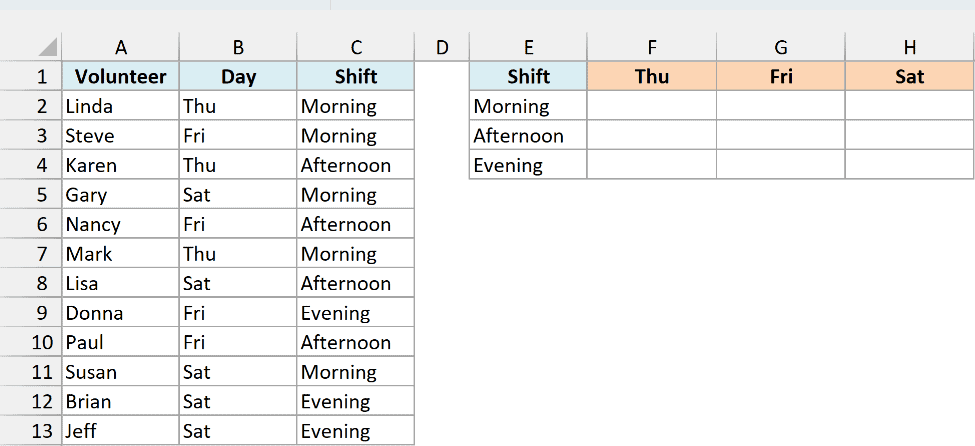
Below I have the sign-up sheet for a food bank’s Thursday to Saturday volunteer shifts, with the day and shift each person picked, and I want to show who is working each shift in the grid starting in cell F2.
Here is the formula:
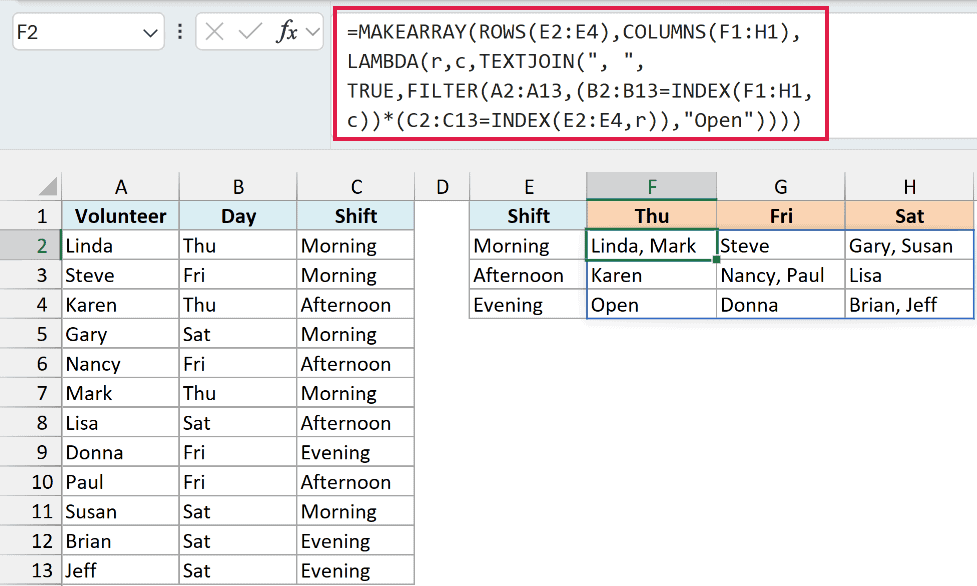
=MAKEARRAY(ROWS(E2:E4),COLUMNS(F1:H1),LAMBDA(r,c,TEXTJOIN(", ",TRUE,FILTER(A2:A13,(B2:B13=INDEX(F1:H1,c))*(C2:C13=INDEX(E2:E4,r)),"Open"))))
How this formula works:
ROWS(E2:E4)andCOLUMNS(F1:H1)make a 3 by 3 grid, one row per shift and one column per day.INDEX(F1:H1,c)gets the day for the current column (Thu, Fri, or Sat), andINDEX(E2:E4,r)gets the shift for the current row.- FILTER returns the names from A2:A13 where both the day and the shift match. If nobody signed up for that slot, it returns “Open” instead.
- TEXTJOIN joins those names into one cell with a comma and a space between them.
So for Friday Afternoon, FILTER finds Nancy and Paul, and TEXTJOIN turns them into “Nancy, Paul”. Thursday Evening has no sign-ups, so it shows “Open”.
Since the size comes from the shift and day labels, you can add another day or shift label and include it in the ranges, and the grid grows with it.
Important: The LAMBDA must return a single value for each cell, which is why TEXTJOIN is there. If you leave just FILTER, any slot with two names returns two values, and the whole formula gives a #CALC! error.
If you are using Excel 2021, which has FILTER and TEXTJOIN but not MAKEARRAY, enter the below formula in cell F2 and then copy it across to H2 and down to row 4:
=TEXTJOIN(", ",TRUE,FILTER($A$2:$A$13,($B$2:$B$13=F$1)*($C$2:$C$13=$E2),"Open"))
So these are four ways to use the MAKEARRAY function in Excel, from a simple seat map to a grid that summarizes a whole list.
The thing to remember is that MAKEARRAY works best when each cell needs its own calculation based on its row and column. For plain number grids, the SEQUENCE function is usually the simpler choice.
I hope you found this article helpful.
Other Excel Articles You May Also Like:
