

ISTEXT is Excel’s yes-or-no test for text. Point it at a cell and it returns TRUE if the cell holds text, and FALSE if it holds a number, a date, a blank, or an error.
It’s most useful in a column that’s supposed to hold numbers, where it picks out the typed notes and the numbers that Excel is treating as text.
I’ll go through five examples below: a simple TRUE or FALSE check, avoiding a #VALUE! error, highlighting numbers stored as text, allowing only text in a cell, and pulling out rows with FILTER.
Follow along with the example file
ISTEXT Function Examples.xlsx
ISTEXT Function Syntax
Here is the syntax of the ISTEXT function:
=ISTEXT(value)
- value – The value you want to check. This can be a cell reference, a formula, or a value you type in directly.
ISTEXT checks the value exactly as it is and never converts it first. So =ISTEXT("19") returns TRUE because the quotes make 19 text, while =ISTEXT(19) returns FALSE.
An empty cell returns FALSE. But a cell with a formula that returns empty text (“”) returns TRUE, even though it looks empty, because empty text is still text.
The ISTEXT function works in all Excel versions, including 365, 2024, 2021, 2019, 2016, Mac, and the web.
When to Use the ISTEXT Function
Use this function when you need to:
- Find text entries in a column that should hold numbers
- Skip text notes when doing a calculation
- Spot numbers that are stored as text
- Make sure only text can be typed into a cell
- Pull out the rows where a value is text
Let me show you a few practical examples of how to use ISTEXT in Excel.
Example 1: Check Which Cells Contain Text
Let’s start with the simplest use, checking which entries in a column are text.
Below is a daily step log where some days have a note instead of a step count, and I want a TRUE or FALSE in column C that shows which entries are text.
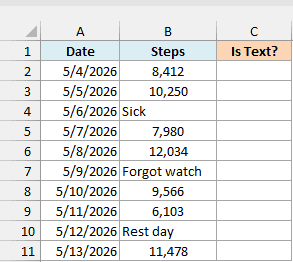
Here is the formula:
=ISTEXT(B2:B11)
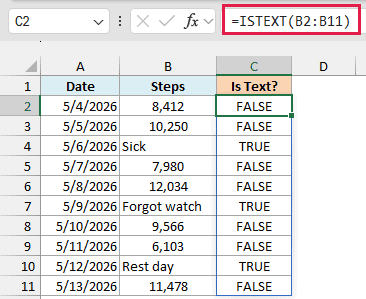
This formula checks every cell in B2:B11 and returns TRUE for text and FALSE for a number. Since I gave it the whole range, the one formula in C2 spills its results all the way down to C11.
So May 6, May 9, and May 12 come back TRUE, because those days have the notes Sick, Forgot watch, and Rest day instead of a step count.
If you are using Excel 2019 or earlier, enter the below formula in cell C2 and then copy it down the range:
=ISTEXT(B2)
Example 2: Use IF and ISTEXT to Avoid the #VALUE! Error
ISTEXT gets more useful inside the IF function, where you can decide what to do when a cell holds text.
Below is a work mileage log with the miles driven each day, and I want the reimbursement for each day in column C, using the rate per mile in cell F1.
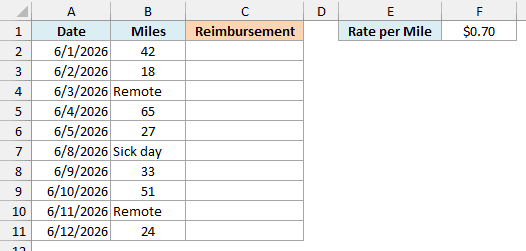
If you simply multiply the miles by the rate, the days marked Remote or Sick day show a #VALUE! error. That happens because Excel can’t multiply a word by a number.
Here is the formula that pays $0.00 for those days instead:
=IF(ISTEXT(B2:B11),0,B2:B11*F1)
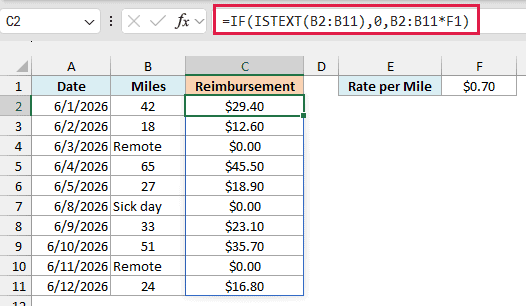
In the above formula, ISTEXT checks each Miles cell. When the cell holds text (TRUE), IF returns 0, and when it holds a number (FALSE), IF multiplies the miles by the $0.70 rate in F1.
So June 1, with 42 miles, gets $29.40, while the three days with a note get $0.00. If the rate changes, update F1 and every amount updates with it.
If you are using Excel 2019 or earlier, enter the below formula in cell C2 and then copy it down the range:
=IF(ISTEXT(B2),0,B2*$F$1)
The dollar signs in $F$1 keep the formula pointing at the rate cell as you copy it down.
Example 3: Highlight Numbers Stored as Text
Sometimes a number looks like a number but is actually text, which often happens when data is copied from a website or another system. ISTEXT, used in conditional formatting, makes these cells easy to spot.
Below is a grocery price list where a few prices came in as text, and I want to highlight those prices in column B.
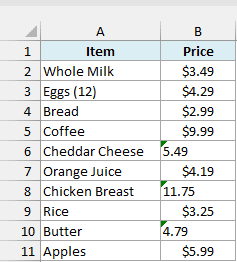
Here is the formula we’ll use in the conditional formatting rule:
=ISTEXT(B2)
The rule is written for B2, the first cell in the selection. Excel adjusts the reference for every other cell, so each cell checks its own value.
Here are the steps:
- Select the cells B2:B11.
- Click the Home tab.
- In the Styles group, click on Conditional Formatting.
- Click on New Rule.
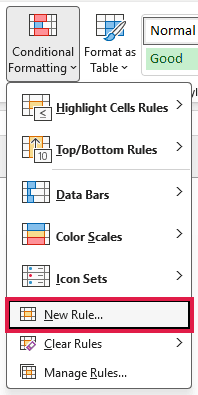
- In the New Formatting Rule dialog box, select “Use a formula to determine which cells to format”.
- In the “Format values where this formula is true” field, enter the formula =ISTEXT(B2).
- Click the Format button.
- In the Fill tab, select a light green color.
- Click OK to close the Format Cells dialog box.
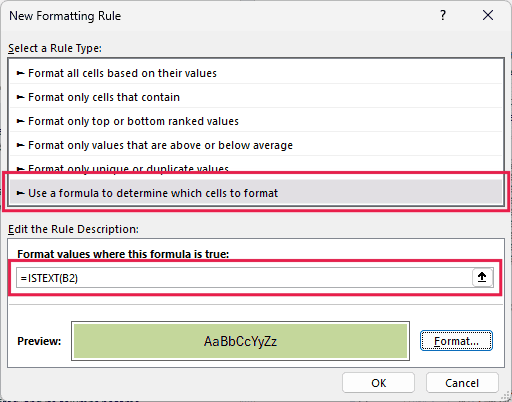
- Click OK to apply the rule.
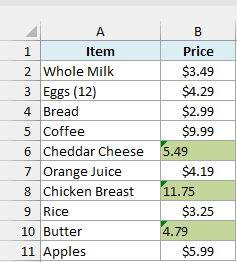
The prices for Cheddar Cheese, Chicken Breast, and Butter are now highlighted, since all three are stored as text. You can also see that they don’t pick up the $ format like the other prices.
Leaving these prices as text is a problem because functions like SUM skip text, so a total of this column would quietly leave out those three prices.
Pro Tip: To fix the highlighted prices, select them, click the small warning icon that appears next to the selection, and choose Convert to Number. Once they are real numbers, the highlight goes away on its own.
Example 4: Allow Only Text with Data Validation
You can also use ISTEXT in data validation to stop someone from typing a number where text should go.
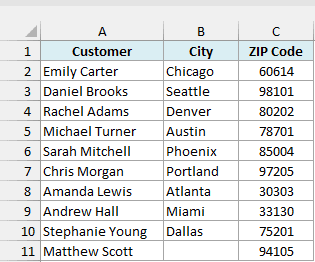
Below is a shipping list with each customer’s city and ZIP code, and I want to make sure only text can be entered in the City column (column B).
Here is the formula we’ll use in the data validation rule:
=ISTEXT(B2)
Here are the steps:
- Select the cells B2:B11.
- Click the Data tab.
- In the Data Tools group, click on Data Validation.
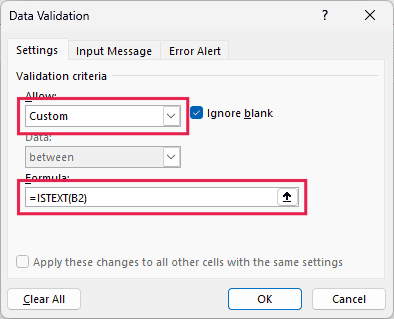
- In the Settings tab, select Custom from the Allow drop-down.
- In the Formula field, enter =ISTEXT(B2).
- Click OK.
Now, if you type a ZIP code like 94105 in cell B11, Excel shows an error message and doesn’t accept the entry.
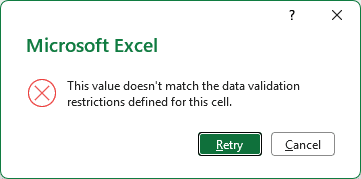
This works because 94105 is a number, so ISTEXT returns FALSE and the rule rejects it. A city name like San Francisco is text, so ISTEXT returns TRUE and Excel lets it in.
Note that data validation only checks what someone types into the cell. If a number is pasted into one of these cells, it gets through without the error message.
Example 5: Extract Rows with Text Using FILTER and ISTEXT
Let’s finish with something a bit more advanced, where ISTEXT works inside the FILTER function.
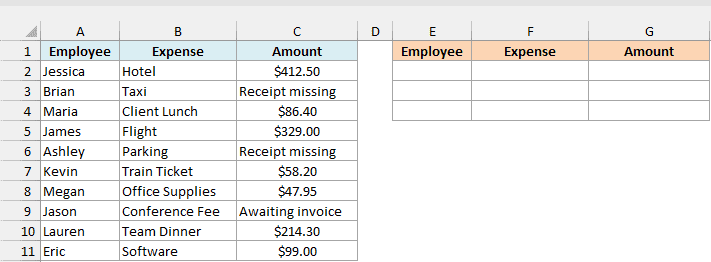
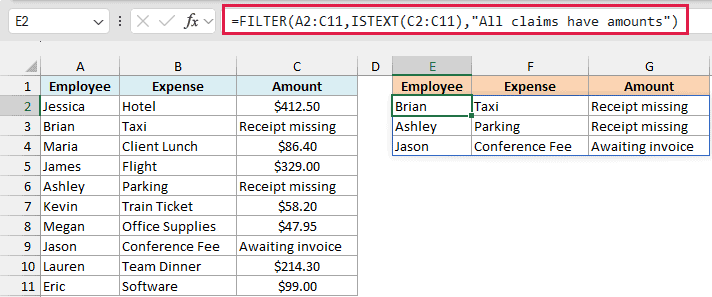
Below is a list of team expense claims where some amounts are notes instead of numbers, and I want to pull those claims into a separate list, starting in cell E2.
Here is the formula:
=FILTER(A2:C11,ISTEXT(C2:C11),"All claims have amounts")
How this formula works:
- ISTEXT(C2:C11) returns TRUE for each Amount cell that holds text, like Receipt missing, and FALSE for each number.
- FILTER returns only the rows from A2:C11 where that check is TRUE, so you get the full claim (employee, expense, and amount) for each one.
- “All claims have amounts” is the message you see when no Amount cell holds text, so you get a clear note instead of a #CALC! error.
So the claims from Brian, Ashley, and Jason show up in the list, since their amounts are notes that still need to be sorted out.
The list also stays up to date. When someone replaces a note with the actual amount, that claim drops out of the list on its own.
The FILTER function is available in Excel 365, 2024, and 2021. If you are using Excel 2019 or earlier, use the ISTEXT check from Example 1 in a helper column, and then filter that column to show only the TRUE rows.
So these are five practical ways to use the ISTEXT function in Excel, from a simple TRUE or FALSE check to highlighting numbers stored as text and pulling out rows with FILTER.
I hope you found this Excel tutorial useful.
Other Excel Articles You May Also Like:
