

The LOG function returns the logarithm of a number, and that’s less scary than it sounds. It tells you the power you need to raise a base to in order to get the number, so =LOG(1000) returns 3 (10 x 10 x 10 is 1,000).
It works with any base you like, such as 2. That makes it handy whenever something grows or shrinks by the same factor each step, like money earning interest or players getting knocked out of a tournament.
Below, I’ll walk you through how LOG works with base 10, base 2, and a base that comes from your own data, and then use it for a few practical jobs.
Follow along with the example file
LOG Function Examples.xlsx
LOG Function Syntax
Here is the syntax of the LOG function:
=LOG(number, [base])
- number – The positive number you want the logarithm of. It can be a value, a cell reference, a range, or a calculation.
- base – (Optional) The base of the logarithm. If you leave it out, LOG uses 10.
When you skip the base, =LOG(100) returns 2, since 10 squared is 100. When you give one, =LOG(8,2) returns 3, since 2 x 2 x 2 is 8.
The number has to be greater than 0. =LOG(0) and =LOG(-5) both return a #NUM! error, and so does a reference to an empty cell, because Excel reads a blank as 0.
The base also has to be a positive number other than 1. A base of 1 returns #DIV/0!, and a base of 0 or a negative base returns #NUM!.
The LOG function works in all Excel versions, including Microsoft 365, Excel 2024, 2021, 2019, 2016, Excel for Mac, and Excel for the web.
When to Use the LOG Function
Use this function when you need to:
- Compare values that range from very small to very large, like prices from $1 to $1,000,000
- Count how many times something doubles or halves, like rounds in a knockout tournament
- Work out how many years money takes to reach a goal at a fixed yearly return
- Turn a score into a level when each level needs a multiple of the previous one
- Group numbers into tiers like 100+, 1,000+, and 10,000+
Let me show you a few practical examples of how to use LOG in Excel.
Example 1: Log Base 10 in Excel (the Default Base)
Let’s start with a simple example.
Below is a list of things you might buy, from a pack of gum to a mansion, with the price of each, and I want to get the base-10 log of each price in column C.
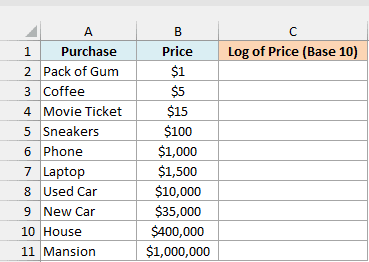
Here is the formula:
=LOG(B2:B11)
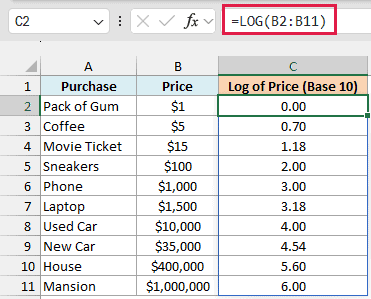
The result tells you what power of 10 gives each price, so the $1,000 phone gets 3, and the $1 pack of gum gets 0 (10 to the power of 0 is 1).
Prices that sit between two powers of 10 get a decimal. The $1,500 laptop gets 3.18, a little more than the phone’s 3.
So prices that go all the way from $1 to $1,000,000 turn into numbers from 0 to 6, which makes them much easier to compare side by side.
You can also read the whole-number part as one less than the number of digits in the price. That’s why every four-digit price lands between 3 and 4.
I entered the formula only in C2. Because it refers to the whole range B2:B11, it spills one result per item down the column, which needs Excel 365 or Excel 2021 and later.
If you are using Excel 2019 or earlier, enter the below formula in cell C2 and then copy it down the range:
=LOG(B2)
You can do the same for the other spilling formulas in this article: swap each range for its first cell (like B2 for B2:B11) and copy the formula down.
Excel also has a LOG10 function that only does base 10, so =LOG10(B2:B11) gives exactly the same results. And if you need the natural log (base e), the LN function is built for that.
Pro Tip: To turn a log result back into the original number (often called the antilog), raise the base to that result. For example, =10^C7 gives back the laptop’s 1,500.
Example 2: Log Base 2 in Excel (Tournament Rounds)
Now let’s use a base other than 10.
Below is a list of knockout tournaments with the number of players in each, and I want to find how many rounds each one needs in column C.
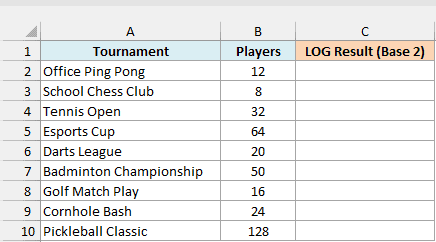
Here is the formula:
=LOG(B2:B10,2)
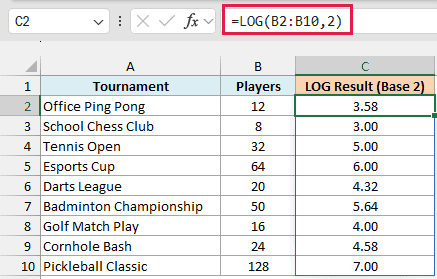
In a knockout, half the players go out every round. With base 2, LOG tells you how many times you can halve the player count before one winner is left, so the 32-player Tennis Open needs 5 rounds (32, 16, 8, 4, 2, 1).
When the player count isn’t a power of 2, you get a decimal. Office Ping Pong has 12 players and returns 3.58, which means 3 rounds aren’t enough and some players will get a bye in the first round.
Here is the formula that rounds the result up to whole rounds in column D:
=ROUNDUP(LOG(B2:B10,2),0)
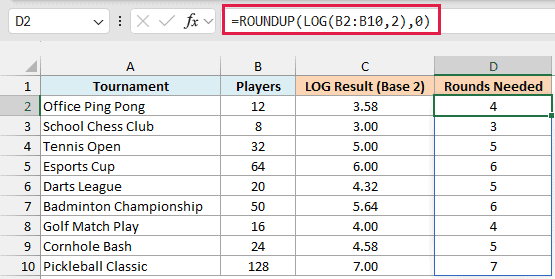
The ROUNDUP function with 0 decimal places pushes any decimal up to the next whole number. So Office Ping Pong needs 4 rounds, while an exact power of 2 like the 64-player Esports Cup stays at 6.
Example 3: Years to Reach a Savings Goal With LOG
Here’s a practical one where the base comes from the data itself.
Below is a list of savings goals with the amount saved so far, the goal amount, and the expected yearly return, and I want to find how many years each goal will take in column E.
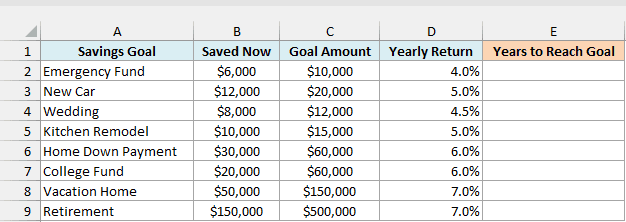
Here is the formula:
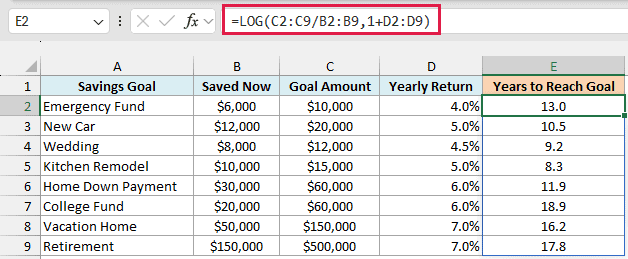
=LOG(C2:C9/B2:B9,1+D2:D9)
How this formula works:
- C2:C9/B2:B9 divides each goal amount by the amount saved, which tells you how many times the money needs to grow. The Emergency Fund needs to go from $6,000 to $10,000, so it has to grow about 1.67 times.
- 1+D2:D9 turns each yearly return into a growth factor. A 4% return becomes 1.04, because each year the money is multiplied by 1.04.
- LOG(…,1+D2:D9) uses that growth factor as the base, so it returns how many years of growth it takes to reach the goal. For the Emergency Fund, that’s 13.0 years.
This assumes the money grows at the same rate every year and you don’t add anything to it along the way.
Excel’s NPER function can give the same answer, but it expects the amount saved as a negative number, because finance functions treat money you put in as going out. The LOG version doesn’t need that.
Pro Tip: To find how long it takes to double your money, use 2 as the number, like =LOG(2,1+D2:D9). Money earning 6% a year doubles in about 11.9 years, the same as the Home Down Payment row (its goal is double the amount saved).
Example 4: Find a Player’s Level When the XP Doubles
Let’s step it up with a formula that turns a score into a level.
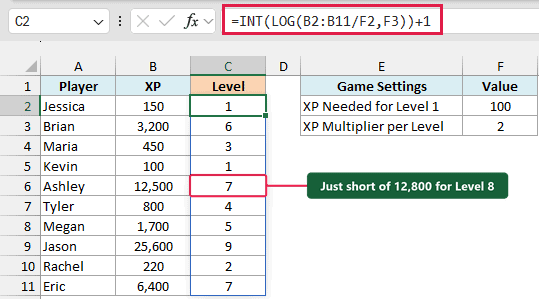
Below is a list of players in a game with the XP (experience points) each one has earned, and I want to get each player’s level in column C.
In this game, Level 1 needs 100 XP and each new level needs double the XP of the one before. Both settings sit in F2 and F3.
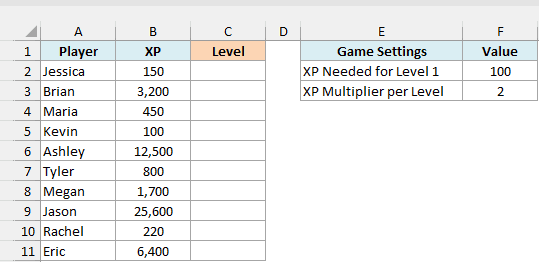
Here is the formula:
=INT(LOG(B2:B11/F2,F3))+1
How this formula works:
- B2:B11/F2 divides each player’s XP by the 100 XP needed for Level 1. Brian has 3,200 XP, which is 32 times that.
- LOG(…,F3) uses the multiplier 2 as the base, so it counts how many times the XP has doubled since Level 1. For Brian, 32 is 2 to the power of 5, so his XP has doubled 5 times.
- INT(…)+1 drops any decimal, since a level only counts once you fully reach it, and then adds 1 because players start at Level 1, not Level 0. So Brian is at Level 6.
Ashley shows why the INT function matters. Her 12,500 XP is just short of the 12,800 needed for Level 8, so her LOG result is about 6.97.
INT drops that to 6, and the +1 makes her Level 7.
Since the formula reads the settings from F2 and F3, you can change the starting XP or make each level need 3 times as much, and every level updates.
The formula assumes every player has at least the 100 XP for Level 1. A player with less would get Level 0 or lower, and a player with 0 XP would get a #NUM! error (the next example shows how to handle zeros).
If you are using Excel 2019 or earlier, enter the below formula in cell C2 and then copy it down the range:
=INT(LOG(B2/$F$2,$F$3))+1
The dollar signs keep the formula pointing at the two settings cells as you copy it down.
Example 5: Group Numbers Into Tiers (and Handle Zero)
Here’s one more practical use, where the data includes a zero.
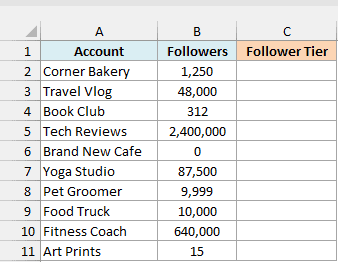
Below is a list of social media accounts with their follower counts, and I want to put each account into a follower tier like 1,000+ or 10,000+ in column C.
Here is the formula:
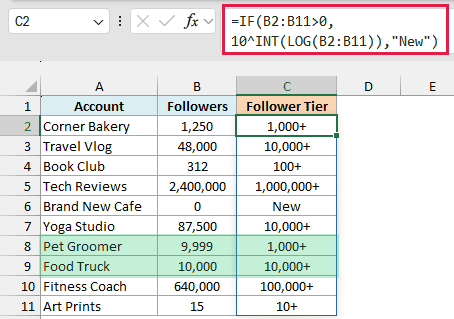
=IF(B2:B11>0,10^INT(LOG(B2:B11)),"New")
How this formula works:
- LOG(B2:B11) gives the base-10 log of each follower count. Corner Bakery’s 1,250 followers give about 3.1.
- INT(…) drops the decimal and keeps only the whole power of 10, which is 3 here.
- 10^… turns that power back into a number, so 10 to the power of 3 gives 1,000.
- IF(B2:B11>0,…,”New”) runs the tier calculation only for accounts that have followers, and shows New for the rest.
The boundary works the way you’d expect. Pet Groomer with 9,999 followers lands in 1,000+, and Food Truck with exactly 10,000 moves up to 10,000+.
Important: Without the IF check, Brand New Cafe would show a #NUM! error, because LOG only works with numbers greater than 0. Checking for zero is safer than wrapping the formula in IFERROR, which would also hide real problems like text in the Followers column.
The + after each tier comes from a custom number format (#,##0"+"), so the cells still hold real numbers that you can sort or filter.
So these are some practical ways to use the LOG function in Excel. Once you see it as “how many times do I multiply by the base,” a lot of growth and doubling questions turn into one short formula.
I hope you found this Excel tutorial useful.
Other Excel Articles You May Also Like:
