

The NPER function in Excel tells you how many payments it takes to pay off a loan or reach a savings goal, when the interest rate and the payment amount stay the same. NPER stands for “number of periods”.
So if you’ve ever wondered how long it will take to clear a credit card at $150 a month, or how many months of saving it takes to hit a target, NPER gives you that answer in one formula.
In this article, I’ll show you how it works with a single loan, a list of debts, savings goals, extra payments, and payments that are too small to ever pay anything off.
Follow along with the example file
NPER Function Examples.xlsx
NPER Function Syntax
Here is the syntax of the NPER function:
=NPER(rate, pmt, pv, [fv], [type])
- rate – the interest rate for each period. If you pay monthly, this is the annual rate divided by 12.
- pmt – the payment you make every period. It has to be the same amount each time.
- pv – the present value, which is the loan amount or the money you start with today.
- [fv] – optional. The balance you want left after the last payment. If you leave it out, Excel uses 0, which is what you want when you pay a loan off completely.
- [type] – optional. When the payments happen. Use 0 (or leave it out) for the end of each period, and 1 for the start of each period.
NPER needs to know which way the money moves. Money you pay out (loan payments, savings deposits) goes in as a negative number, and money you receive (the loan amount) goes in as a positive number.
If the payment and the loan amount have the same sign, NPER doesn’t give you an error. Instead, it returns a negative number of periods, which doesn’t mean anything, so a negative result is your cue to check the signs.
The answer comes back in the same unit as your rate. With a monthly rate you get the number of months, so divide the result by 12 if you want years.
The NPER function works in all Excel versions, including 365, 2024, 2021, 2019, 2016, and Mac.
When to Use the NPER Function
Use this function when you need to:
- Find out how many months it will take to pay off a credit card or a loan
- Work out how long it takes to reach a savings goal with regular deposits
- See how much sooner a debt is gone if you pay a little extra each month
- Check whether a payment is big enough to ever pay off a balance
Let me show you a few practical examples of how to use the NPER function.
Example 1: How Many Months to Pay Off a Credit Card
Let’s start with a simple example.
Below I have a credit card with a balance, its annual interest rate, and the amount I pay each month, and I want to find the number of months it will take to pay it off in cell B6.
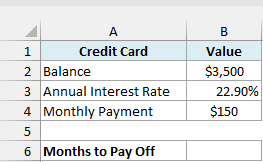
Here is the formula:
=NPER(B3/12,-B4,B2)
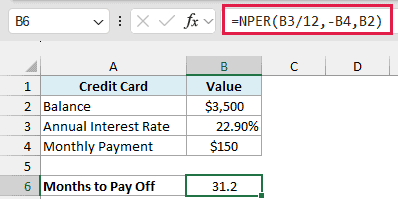
In the above formula, B3/12 turns the 22.90% annual rate into a monthly rate, because the payments are monthly. The $150 payment in B4 has a minus sign since it’s money going out, and the $3,500 balance in B2 stays positive.
The result is 31.2 months, which is a little over two and a half years. The .2 at the end means the last payment is a partial one, so you make 31 full payments of $150 and then one small final payment.
Important: If you forget to divide the rate by 12, Excel treats 22.90% as the interest for every month. Here that returns #NUM!, because about $801 of interest a month is more than the $150 payment, so the balance would never go down.
Example 2: NPER Formula for Several Debts at Once
Now let’s do the same thing for a whole list.
Below I have a list of debts with the balance, annual interest rate, and monthly payment for each one, and I want to get the months to pay off each debt in column E.
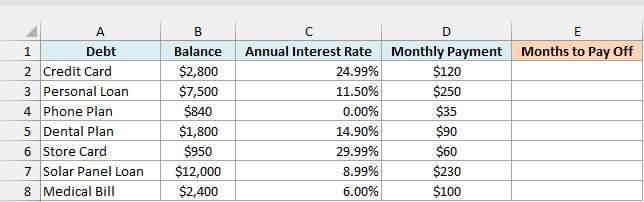
Here is the formula:
=NPER(C2:C8/12,-D2:D8,B2:B8)
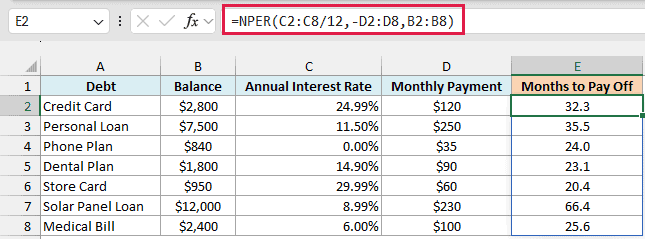
Since this formula gives NPER whole ranges instead of single cells, it calculates one result for every row. You enter it once in E2, and the results spill down to E8 on their own.
The monthly payments in column D are typed as positive numbers, which is how most people keep a list like this. The minus sign in -D2:D8 turns all of them negative inside the formula, so you don’t have to change your data.
The phone plan has a 0% interest rate, and NPER handles that just fine. It returns exactly 24, which is simply $840 divided by $35.
This spilling formula works in Excel 365 and Excel 2021 or later. If you are using Excel 2019 or earlier, enter the below formula in cell E2 and then copy it down the range:
=NPER(C2/12,-D2,B2)
Example 3: Round Up to a Whole Number of Payments
NPER usually gives you a decimal, but in real life you make a whole number of payments.
Below I have the financing details for a hot tub, and I want to get the number of monthly payments it takes, as a whole number, in cell B6.
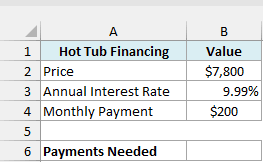
Here is the formula:
=ROUNDUP(NPER(B3/12,-B4,B2),0)
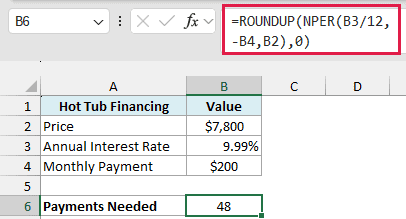
NPER on its own returns 47.35 here. Since you can’t make 0.35 of a payment, the ROUNDUP function pushes it up to 48, which is the number of payments you’ll actually make.
The first 47 payments are the full $200, and the 48th one is smaller (about $70), because only a little balance is left by then.
Use ROUNDUP here and not ROUND. ROUND would turn 47.35 into 47, and 47 payments of $200 leave part of the balance unpaid.
Example 4: How Long to Reach a Savings Goal
NPER isn’t only for loans. It works the same way when you’re putting money into savings.
Below I have an emergency fund with a starting balance, a monthly deposit, and an interest rate, and I want to find how many months it takes to reach the savings goal in cell B7.
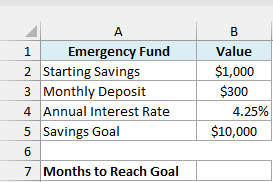
Here is the formula:
=NPER(B4/12,-B3,-B2,B5)
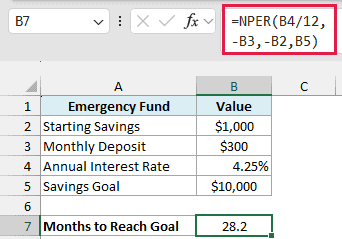
This is where the fv argument comes in. The $10,000 goal in B5 is the balance you want at the end, so it goes in as the fourth argument.
Both the starting $1,000 and the $300 deposits are negative, because that’s money you put into the account. The goal is positive, because that’s the money you get back out.
The result is 28.2 months, so you’d reach the goal in a little under two and a half years.
Important: If you enter the goal as a negative number as well, NPER returns -38.85 instead of an error. That’s the sign problem from the syntax section, so keep the goal positive.
Example 5: Deposits at the Start of the Month (type Argument)
So far, every example has assumed the payment happens at the end of the month. Let’s see what changes when it happens at the start.
Below I have a wedding fund with a monthly deposit, an interest rate, and a savings goal, and I want to compare the months to reach the goal for end-of-month and start-of-month deposits in column F.
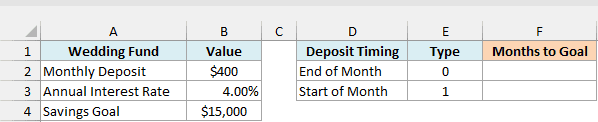
Here is the formula:
=NPER(B3/12,-B2,0,B4,E2:E3)
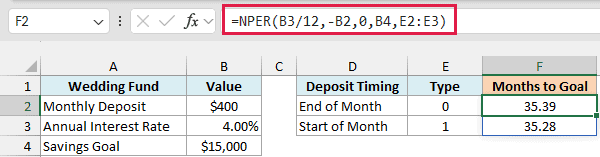
The last argument is type, and here it points to the 0 and 1 in E2:E3. So the formula spills two results, one for each deposit timing.
The pv argument is 0, because the fund starts empty. It still has to be there as a placeholder, since type comes after it and Excel reads the arguments in order.
Deposits at the start of the month reach the goal a little sooner (35.28 months instead of 35.39). That’s because each deposit sits in the account one month longer and earns one more month of interest.
If you are using Excel 2019 or earlier, enter the below formula in cell F2 and then copy it down to F3:
=NPER($B$3/12,-$B$2,0,$B$4,E2)
Example 6: How Many Months Extra Payments Save
This next one shows how much sooner a loan is paid off when you add a little extra to every payment.
Below I have a personal loan with its interest rate, the regular monthly payment, and an extra amount I could add each month, and I want to find how many months the extra payment saves in cell B7.
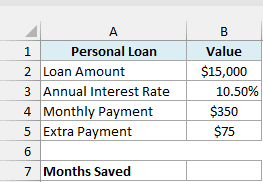
Here is the formula:
=NPER(B3/12,-B4,B2)-NPER(B3/12,-(B4+B5),B2)
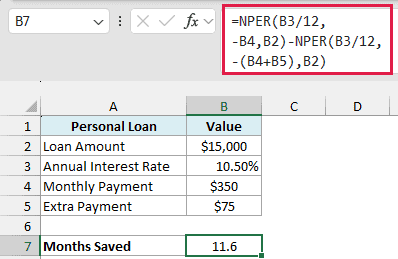
How this formula works:
- The first NPER uses the regular $350 payment and returns 53.95 months.
- The second NPER uses $350 plus the extra $75, so $425 a month, and returns 42.40 months.
- Subtracting the second result from the first gives about 11.6, so the extra $75 cuts almost a year off the loan.
Notice the brackets in -(B4+B5). They make Excel add the two payments first and then turn the total negative.
Example 7: How Long Until a Loan Balance Drops to a Target
You can also use NPER to find when a loan reaches a certain balance, not just when it’s paid off.
Below I have a home equity loan with its interest rate and monthly payment, and I want to find how many months it takes for the balance to drop to the target balance in cell B7.
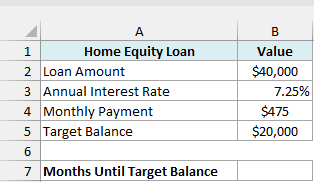
Here is the formula:
=NPER(B3/12,-B4,B2,-B5)
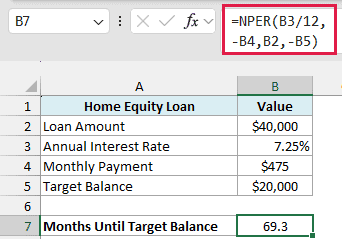
Here the fv argument is the $20,000 you’ll still owe at that point, not zero. It’s -B5 because that balance is money you still have to pay.
The result is 69.3 months. Paying off the whole loan takes about 118 months, so getting down to half the balance takes more than half the time.
That’s because the early payments are mostly interest. As the balance shrinks, more of each payment goes toward the loan itself, which you can see month by month in a loan amortization schedule.
Important: If you enter the target balance as a positive number, NPER returns 155.6 months with no error. That answer is wrong for this question, because a positive fv means you keep paying until you have $20,000 coming back to you.
Example 8: Spot Payments That Will Never Pay Off a Debt
Let’s finish with a problem you’ll run into with low minimum payments.
Below I have a list of credit cards with the balance, annual interest rate, and monthly payment for each, and I want to get the months to pay off each card in column E.
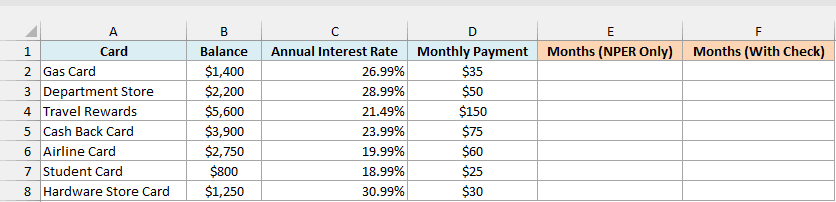
Here is the formula:
=NPER(C2:C8/12,-D2:D8,B2:B8)
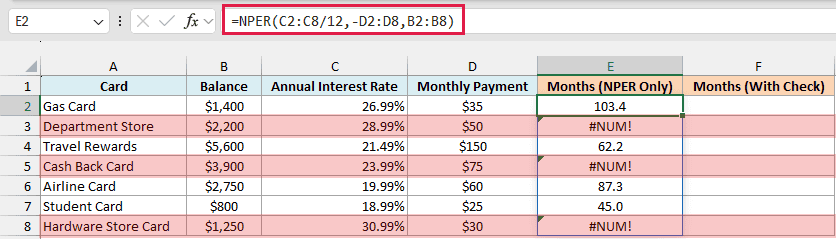
Three cards show #NUM! instead of a number. On the Department Store card, the first month’s interest is about $53.15 ($2,200 times 28.99%, divided by 12), but the payment is only $50.
So the balance grows every month, and there’s no number of months that pays it off. That’s why NPER returns a #NUM! error for these three cards.
To show a clear message instead of the error, you can check the payment against the monthly interest first. Here is the formula for column F:
=IF(D2:D8<=B2:B8*C2:C8/12,"Never pays off",NPER(C2:C8/12,-D2:D8,B2:B8))
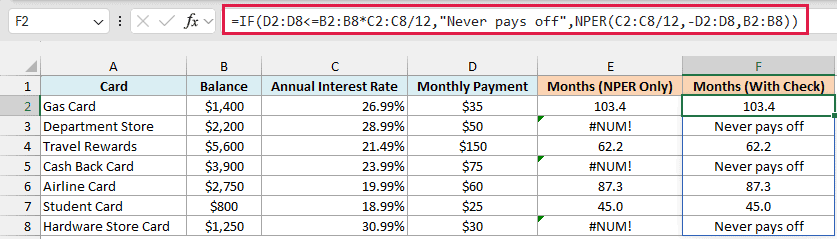
How this formula works:
- B2:B8*C2:C8/12 calculates the first month’s interest on each card.
- If the payment in column D is less than or equal to that interest, the IF function returns “Never pays off”.
- Otherwise, it runs the same NPER calculation as before and returns the months.
The check uses <= and not just <, because a payment that exactly equals the monthly interest also returns #NUM! in plain NPER. The balance never moves, so that payment gets flagged too.
If you are using Excel 2019 or earlier, enter the below formula in cell F2 and then copy it down the range:
=IF(D2<=B2*C2/12,"Never pays off",NPER(C2/12,-D2,B2))
Pro Tip: You could wrap NPER in IFERROR instead, but that hides every error, including a #VALUE! from a text entry like “N/A” in the payment column. The IF check only catches the payment problem, so other mistakes still show up.
So these are eight practical ways to use the NPER function in Excel. Once you get the signs and the rate per period right, it answers the “how long will this take?” question for loans, savings goals, and extra payments.
If you know the number of months and want the payment instead, the PMT function does the reverse. And to see how much a savings plan grows to over a set time, use the FV function.
I hope you found this Excel tutorial useful.
Other Excel Articles You May Also Like:
