

The STDEV function in Excel tells you how spread out a set of numbers is around their average. A small result means most values sit close to the average, and a large one means they’re scattered all over the place.
STDEV treats your numbers as a sample (a part of a bigger group), which is the most common situation.
STDEV is one of Excel’s older functions, and Excel 2010 added STDEV.S as its replacement.
STDEV.S does the exact same job, but STDEV still works in every version of Excel, and you’ll find it in plenty of older workbooks. In this article, I’ll show you how it works with eight practical examples, including how it compares with STDEV.S and STDEV.P.
Follow along with the example file
STDEV Function Examples.xlsx
STDEV Function Syntax
Here is the syntax of the STDEV function:
=STDEV(number1, [number2], ...)
- number1 – The first number, cell reference, or range in your sample. This one is required.
- number2, … – Up to 254 more numbers, references, or ranges. These are optional.
In most cases, you’ll give STDEV just one range, like =STDEV(B2:B11). You only need the extra arguments when your numbers sit in separate ranges, such as =STDEV(B2:B6,D2:D6).
STDEV needs at least two numbers to work with. If it finds only one number (or none), it returns the #DIV/0! error.
If any cell in the range has an error, like #N/A or #DIV/0!, STDEV returns that same error. So clean up error cells first, or the whole result breaks.
When you point STDEV at a range, it uses only the numbers and skips any text, TRUE/FALSE values, and empty cells. Example 5 shows how this works with text and blank cells.
Values you type straight into the formula work differently. There, TRUE counts as 1 and a number in quotes counts too, so =STDEV(2,4,TRUE) uses 2, 4, and 1, while text like “abc” gives a #VALUE! error.
The STDEV function works in all Excel versions, including 365, 2024, 2021, 2019, 2016, Mac, and the web.
When to Use the STDEV Function
Use this function when you need to:
- See how consistent a set of values is, like wait times, scores, or monthly bills
- Compare two people or groups that have the same average but behave very differently
- Understand or update older workbooks that already use STDEV
- Spot values that are unusually far from the average
- Calculate the standard deviation for one category, or for every row in a table
Let me show you a few practical examples of how to use the STDEV function in Excel.
Example 1: Calculate Standard Deviation with STDEV
Let’s start with a simple example.
Below I have the wait times for 10 coffee orders, with the average wait already in E2, and I want the standard deviation in cell E3.
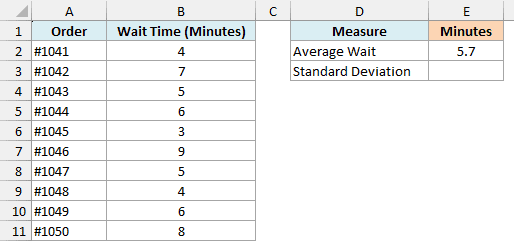
Here is the formula:
=STDEV(B2:B11)
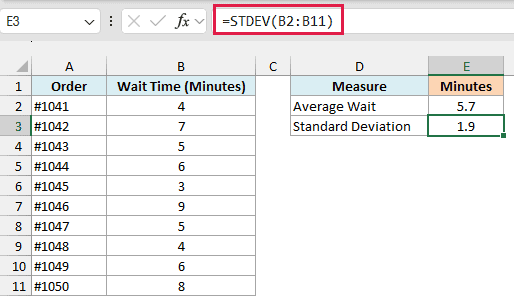
The result is 1.9, and it’s in minutes because the standard deviation always uses the same unit as your data.
Since the average wait is 5.7 minutes, most orders took somewhere between about 3.8 and 7.6 minutes, which is the average plus or minus one standard deviation.
You can see this in the data. Seven of the ten orders fall in that window, and only the 3, 8, and 9 minute orders sit outside it.
If you only need a quick number for a list you have handy, our standard deviation calculator gives you the result without writing a formula.
Example 2: Compare Consistency with STDEV
Here’s a scenario where you want to compare how consistent two people are.
Below I have bowling scores for Mike and Laura over 10 games, and I want each bowler’s standard deviation in cells F3 and G3.
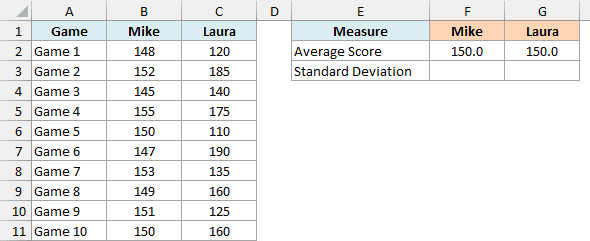
Both of them average exactly 150 (calculated with the AVERAGE function in row 2), so the averages can’t separate them.
Enter the below formula in cell F3, and then copy it to G3:
=STDEV(B2:B11)
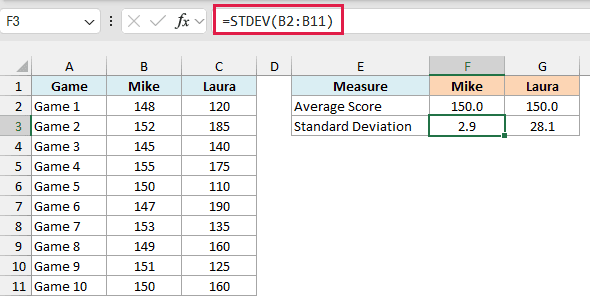
When you copy the formula to G3, the reference changes to C2:C11, so it calculates Laura’s standard deviation.
Mike’s standard deviation is 2.9, while Laura’s is 28.1. Mike scores close to 150 almost every game, but Laura’s scores swing from 110 to 190.
So Mike is the far more consistent bowler. Whenever you compare two sets of numbers with similar averages, the lower standard deviation belongs to the more predictable one.
When the averages are very different (say, the prices of $20 items vs $2,000 items), compare the coefficient of variation instead. It divides the standard deviation by the average, so both sets are on the same scale.
Example 3: STDEV vs STDEV.S (Same Result)
Now let’s look at how STDEV compares with its newer replacement.
Below I have a year of monthly electric bills, and I want to calculate the standard deviation with both STDEV and STDEV.S in column E.
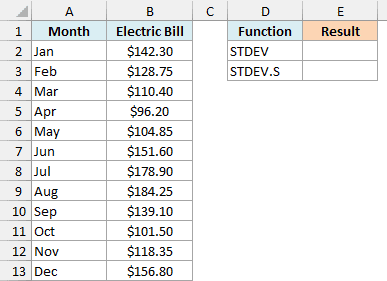
Here is the STDEV formula:
=STDEV(B2:B13)
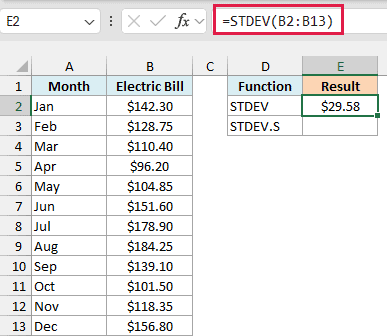
This gives $29.58, which tells you a typical month’s bill lands about $30 above or below the yearly average.
And here is the STDEV.S formula on the same bills:
=STDEV.S(B2:B13)
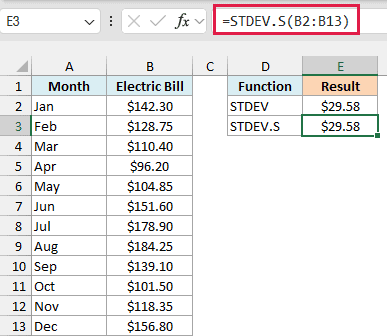
It returns the same $29.58. That’s because both functions calculate the sample standard deviation in exactly the same way, so you can swap one for the other without changing any results.
Microsoft lists STDEV as a compatibility function and says it may not be available in future versions of Excel. For new workbooks, use STDEV.S, and keep STDEV for files that need to open in Excel 2007 or earlier.
Example 4: STDEV vs STDEV.P (Sample vs Whole Group)
Now let’s compare STDEV with STDEV.P, which is meant for a different kind of data.
Below I have the heights of all 10 players on a basketball team, and I want to compare the STDEV result with STDEV.P in column E.
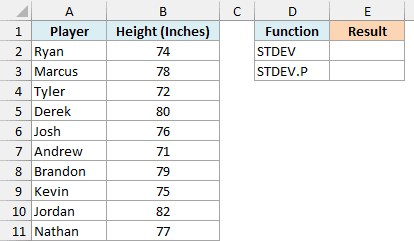
Here is the STDEV formula:
=STDEV(B2:B11)
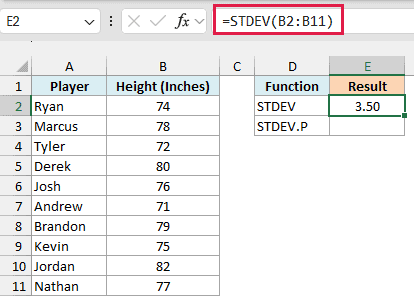
This gives 3.50 inches.
And here is the STDEV.P formula:
=STDEV.P(B2:B11)
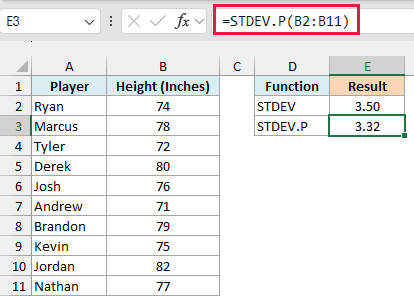
This gives 3.32 inches, which is a little smaller. The difference comes from how the two functions divide.
STDEV assumes your numbers are a sample, so it divides by one less than the count (9 here). STDEV.P assumes you have every value in the group, so it divides by the full count (10).
In this case, the list has every player on the team, so it’s the whole group, and STDEV.P is the right choice.
Use STDEV (or STDEV.S) when your numbers are only a part of a bigger group, like 10 orders out of all the orders a coffee shop serves.
Pro Tip: If you’re not sure whether your data is a sample or the whole group, it’s usually a sample. And with a long list, the two results are so close that the choice barely changes the answer.
Example 5: How STDEV Handles Text and Blank Cells
Let’s see what happens when a range has more than just numbers.
Below I have a workout log where one day was left empty and two days say “Rest Day”, and I want to compare STDEV with STDEVA in column E.
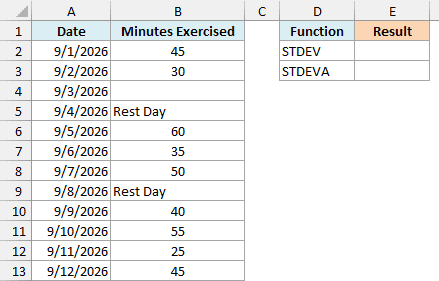
Here is the STDEV formula:
=STDEV(B2:B13)
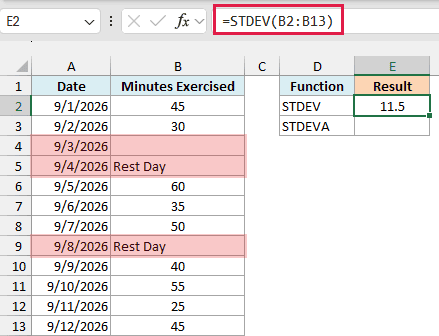
This gives 11.5. STDEV skips the empty cell in B4 and both “Rest Day” cells, so it only uses the 9 days that have a number.
This is usually what you want, since a note like “Rest Day” isn’t a measurement.
But if your rest days should count as 0 minutes, here is the STDEVA formula:
=STDEVA(B2:B13)
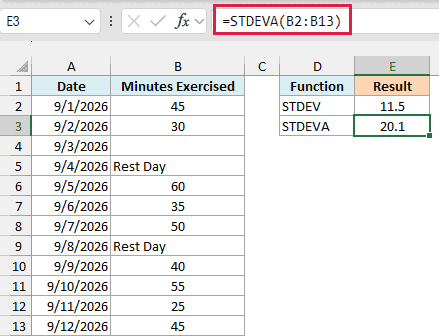
This gives 20.1, which is much higher. STDEVA treats each “Rest Day” as 0, so the two zeros pull the values much further apart.
STDEVA still skips the empty cell in B4, so it uses 11 values, not 12. If a blank day should also count as 0, type a 0 in that cell.
Important: Numbers stored as text (like a value pasted from another system that sits on the left of the cell) are also skipped by STDEV. Convert them to real numbers first, or your result will quietly leave them out.
Example 6: Standard Deviation with a Condition (STDEV + FILTER)
Now let’s look at a case where you only want some of the rows. Excel has no STDEVIF function, so you’ll wrap FILTER inside STDEV instead.
Below I have a fuel log for two cars, with the car name in F2, and I want the standard deviation of that car’s miles per gallon in cell F3.
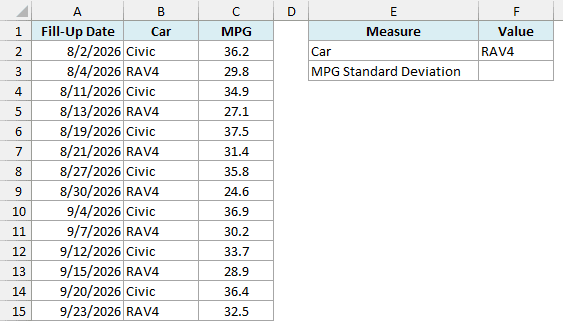
Here is the formula:
=STDEV(FILTER(C2:C15,B2:B15=F2))
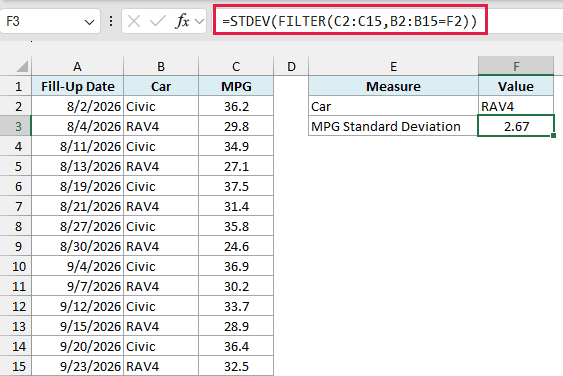
The FILTER function pulls out only the MPG values where the car in column B matches F2. STDEV then calculates the standard deviation of just those values, which is 2.67 for the RAV4.
Since the formula points to F2, you can change F2 to Civic, and the result updates to 1.27. So the Civic’s mileage is much steadier from one fill-up to the next.
Important: If F2 matches only one row, you get #DIV/0!, since STDEV needs at least two numbers. And if it matches nothing (say, a typo in the car name), FILTER returns the #CALC! error.
The FILTER function is available in Excel 2021, 2024, and Microsoft 365. If you are using Excel 2019 or earlier, enter the below formula in cell F3 and press Control + Shift + Enter (instead of just Enter):
=STDEV(IF(B2:B15=F2,C2:C15))
Example 7: Flag Values More Than One Standard Deviation from the Average
Now let’s use STDEV inside a bigger formula.
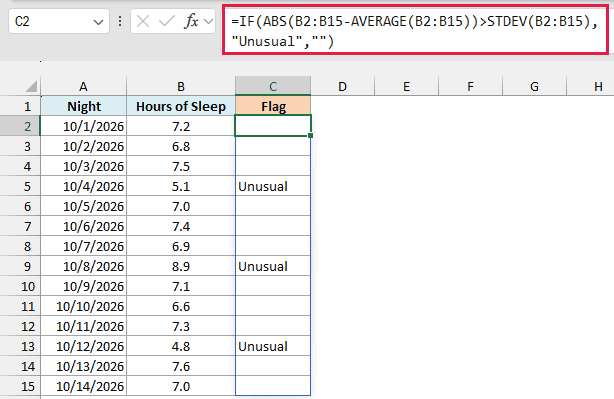
Below I have a sleep log with the hours of sleep for 14 nights, and I want to flag the unusual nights in column C.
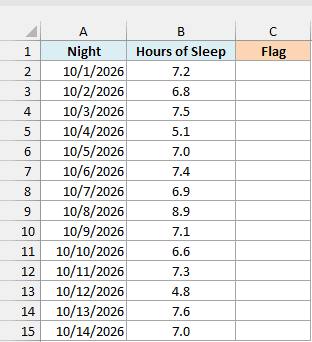
Here is the formula:
=IF(ABS(B2:B15-AVERAGE(B2:B15))>STDEV(B2:B15),"Unusual","")
How this formula works:
B2:B15-AVERAGE(B2:B15)subtracts the average (about 6.9 hours) from every night, which gives how far each night is from the average.- The ABS function removes the minus sign, so a short night and a long night are measured the same way.
STDEV(B2:B15)returns the standard deviation, which is about 1.0 hour here.- The IF function returns “Unusual” when a night is more than one standard deviation away from the average, and leaves the cell empty otherwise.
Since the formula works on the whole range at once, you enter it only in C2, and the results spill down to C15. It flags three nights: 5.1 hours on 10/4, 8.9 hours on 10/8, and 4.8 hours on 10/12.
One standard deviation is a fairly loose cutoff, so it’s good for spotting nights worth a second look. To catch only the extreme ones, compare against two standard deviations instead, using 2*STDEV(B2:B15).
Entering the formula once and having it spill needs dynamic arrays, which are available in Excel 2021, 2024, and Microsoft 365. If you are using Excel 2019 or earlier, enter the below formula in cell C2 and then copy it down the range:
=IF(ABS(B2-AVERAGE($B$2:$B$15))>STDEV($B$2:$B$15),"Unusual","")
Example 8: Standard Deviation for Each Row (STDEV + BYROW)
Let’s step it up with one more use case.
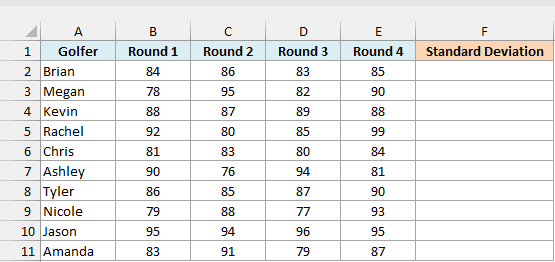
Below I have the scores of 10 golfers over four rounds, and I want each golfer’s standard deviation in column F.
Here is the formula:
=BYROW(B2:E11,LAMBDA(r,STDEV(r)))
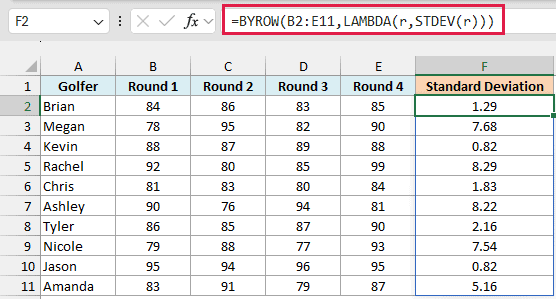
STDEV returns one number for whatever range you give it, so =STDEV(B2:E11) would give one result for all 40 scores. BYROW fixes that by passing each row of B2:E11 to the LAMBDA function one at a time.
For each row, LAMBDA calls it r and runs STDEV(r) on that golfer’s four scores. The results spill down from F2 to F11.
Kevin and Jason (0.82 each) shot almost the same score every round, while Rachel (8.29) and Ashley (8.22) had the biggest swings.
The benefit of BYROW is that it’s one formula for the whole table. If you insert a new golfer’s row inside the table, the results update without copying anything down.
The BYROW function is available only in Microsoft 365 and Excel 2024. If you are using an older version, enter the below formula in cell F2 and then copy it down the range:
=STDEV(B2:E2)
So these are eight practical ways to use the STDEV function in Excel. For new workbooks, STDEV.S gives you the same result, and STDEV.P is the one to use when your data covers the whole group.
I hope you found this article helpful.
Other Excel Articles You May Also Like:
