

The MIRR function in Excel calculates the modified internal rate of return for a series of cash flows that happen at regular intervals, such as once a year or once a month.
It works a lot like IRR, but with one big difference. You tell MIRR the interest rate you pay to borrow money and the rate you can realistically earn when you reinvest the cash, so the return it gives you is closer to real life.
In this tutorial, I’ll show you how the MIRR function works, how it compares with IRR, and how to handle things like a year with no cash flow, money going out in the middle of a project, monthly cash flows, and several projects at once.
Follow along with the example file
MIRR Function Examples.xlsx
MIRR Function Syntax
Here is the syntax of the MIRR function:
=MIRR(values, finance_rate, reinvest_rate)
- values – the cash flows, one for each period, in the order they happen. Money going out is a negative number and money coming in is a positive number, and you need at least one of each.
- finance_rate – the interest rate you pay on the money used to fund the cash flows, such as the rate on a loan.
- reinvest_rate – the rate you earn when you reinvest the money that comes in, such as the rate on a savings account.
MIRR treats the first value as happening right now, and every value after it as one period later. There is no dates argument, so every gap between two cash flows is assumed to be the same length.
The finance rate is used only on negative cash flows that come after the first cell, such as a repair in the middle of a project.
The reinvest rate is applied to every positive cash flow. MIRR grows each one at this rate until the end of the last period, so a higher reinvest rate gives you a higher MIRR.
The MIRR function works in Excel 365, 2024, 2021, 2019, 2016, and older versions, on both Windows and Mac.
When to Use the MIRR Function
Use this function when you need to:
- Find the rate of return on an investment or a small business when you know what you’ll earn on the money it brings in
- Get a more realistic return than IRR, which assumes every dollar of profit earns the IRR itself
- Compare several projects that cost different amounts or pay off at different times
- Measure a project that needs money again in the middle, such as a big repair or an upgrade
Let me show you a few practical examples of how to use the MIRR function.
Example 1: Calculate MIRR in Excel for a Simple Investment
Let’s start with a simple example.
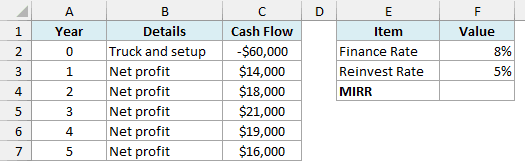
Below are the yearly cash flows for a food truck that cost $60,000 to buy and set up, along with the finance rate and reinvest rate, and I want to calculate the MIRR in cell F4.
Here is the formula:
=MIRR(C2:C7,F2,F3)
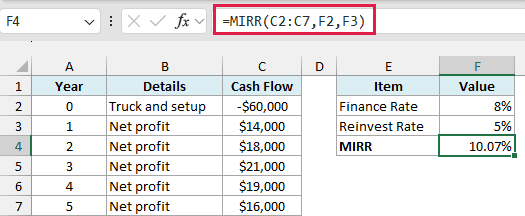
The result is 10.07%, which is the yearly return on this food truck over the five years. If it shows up as a decimal (like 0.1007), apply the Percentage format to the cell.
In the above formula, C2:C7 has the cash flows, with the $60,000 cost as a negative number because that money went out.
F2 has the 8% finance rate (what the truck loan costs), and F3 has the 5% reinvest rate (what the yearly profits can earn in a savings account).
MIRR takes each year’s profit and grows it at 5% until the end of Year 5. It then works out the yearly rate that turns the $60,000 you paid into that grown amount.
Since the $60,000 is the only negative number and it’s in the first cell, the 8% finance rate doesn’t affect this result. You could change F2 to 2% and you would still get 10.07%.
The loan rate still matters when you judge the result, though. A common check for a good MIRR is to compare it with what the money costs you.
In this case, the 10.07% MIRR is higher than the 8% loan rate, so the truck earns more than the loan costs.
Important: Make sure the money you put in is a negative number. If you enter the $60,000 cost as a positive number, every value is positive and MIRR returns a #DIV/0! error.
Example 2: MIRR vs IRR in Excel (Why the Results Differ)
Now let’s see how the MIRR result compares with what the IRR function gives you for the same cash flows.
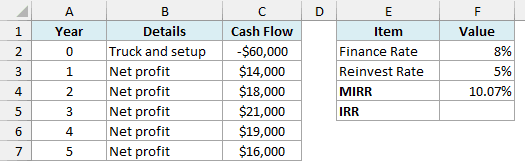
Below is the same food truck data, with the 10.07% MIRR from Example 1, and I want to calculate the IRR in cell F5.
Here is the formula:
=IRR(C2:C7)
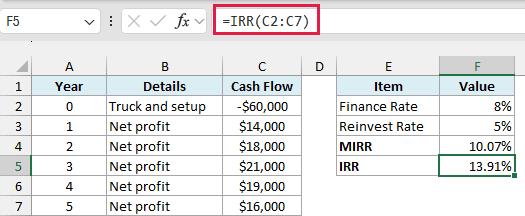
The IRR comes out to 13.91%, which is almost four points higher than the 10.07% MIRR.
The difference comes from what happens to the profits. IRR quietly assumes every year’s profit is reinvested at the IRR itself, so this food truck’s profits are treated as earning 13.91% a year.
That’s rarely true in real life. MIRR uses the 5% reinvest rate in F3 instead, which is what the money can actually earn, so its result is lower and more realistic.
You can see the link between the two if you change the reinvest rate in F3 to the IRR. When the reinvest rate is 13.91%, MIRR also returns 13.91%.
Example 3: Enter a Zero for a Year With No Cash Flow
This next one is a mistake that’s very easy to make and doesn’t show up as an error.
Below are the cash flows for a bakery with a break-even Year 1, entered twice (Year 1 is $0 in column C and left blank in column D). I want to calculate the MIRR for both versions in G4 and G5.
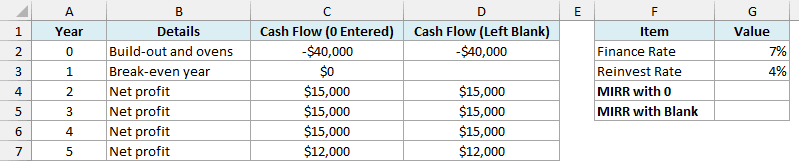
Here is the formula for the cash flows where Year 1 is entered as 0:
=MIRR(C2:C7,G2,G3)
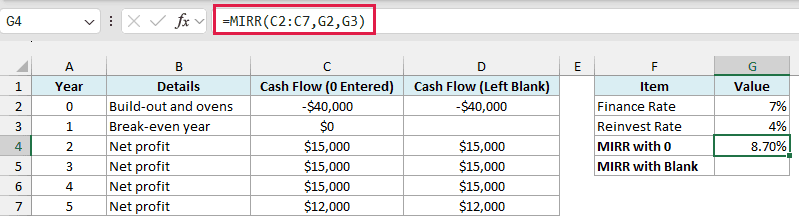
This gives 8.70%, which is the correct MIRR for this bakery.
The $0 in C3 tells MIRR that a whole year went by with no cash. So the first $15,000 profit is correctly treated as a Year 2 profit.
And here is the formula for the cash flows where Year 1 is left blank:
=MIRR(D2:D7,G2,G3)
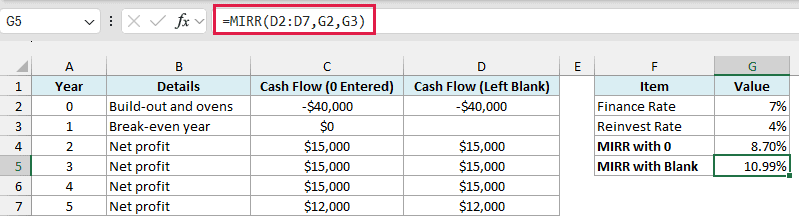
This gives 10.99%, which is wrong, even though the cash flows look the same.
MIRR skips empty cells completely, but it counts zeros. So with D3 blank, it sees only five cash flows, moves every profit one year earlier, and the bakery looks better than it is.
Important: Whenever a period has no cash flow, type 0 in that cell instead of leaving it blank. A blank cell doesn’t give an error, it just gives you a wrong MIRR.
Example 4: MIRR When Money Goes Out Mid-Project
So far, all the money went out at the start. Now let’s look at a project where you have to spend money again later.
Below are the cash flows for a delivery van, including an $8,000 engine replacement in Year 3, and I want to calculate the MIRR in cell F4.
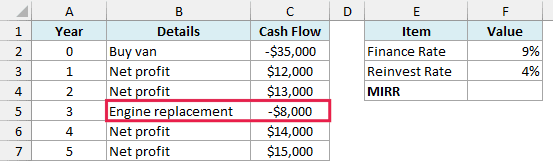
Here is the formula:
=MIRR(C2:C7,F2,F3)
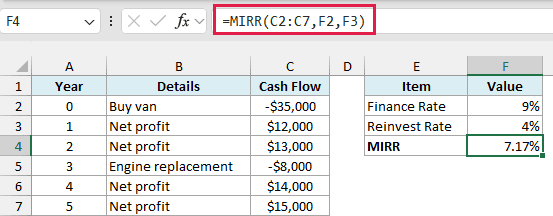
The result is 7.17%.
This is where the finance rate comes in. MIRR takes the -$8,000 in Year 3 and finds its present value using the 9% finance rate in F2, which makes it worth about $6,177 today.
It adds that to the $35,000 van cost, so the total money put in is about $41,177 in today’s terms. The yearly profits are grown at the 4% reinvest rate in F3, and MIRR finds the rate that connects the two.
This cash flow also changes from positive to negative and back again. When that happens, IRR can have more than one answer, while MIRR always gives you a single result.
Example 5: Compare MIRR for Several Projects in One Formula
Let’s step it up with a more advanced use case, where you compare projects side by side.
Below are the cash flows for three equipment upgrades a gym is considering (rowing machines, spin bikes, and a sauna), and I want to get the MIRR of each one in row 9.
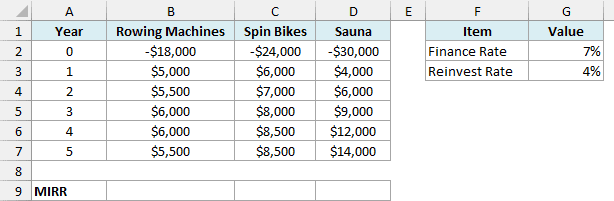
Here is the formula:
=BYCOL(B2:D7,LAMBDA(project,MIRR(project,G2,G3)))
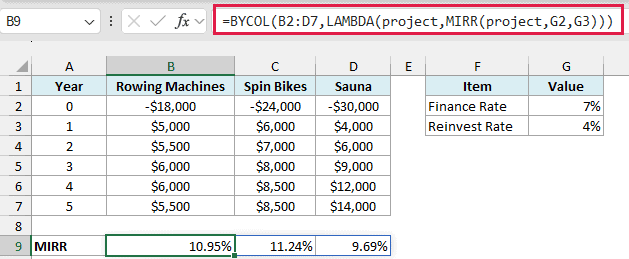
This one formula in B9 spills across to D9 and gives 10.95% for the rowing machines, 11.24% for the spin bikes, and 9.69% for the sauna.
How this formula works:
- BYCOL(B2:D7, …) takes the cash flows one column at a time, so each project gets its own calculation.
- LAMBDA(project, …) gives the current column a name, project, so it can be passed to MIRR.
- MIRR(project,G2,G3) calculates the MIRR of that column using the 7% finance rate in G2 and the 4% reinvest rate in G3.
Notice that the sauna has the biggest total profit, but the lowest MIRR. Most of its money comes in Years 4 and 5, so those profits have little time to grow, while the other two bring in steady money from Year 1.
The BYCOL function needs Excel 365, Excel 2024, or Excel for the web. If you are using an older version, enter the below formula in cell B9 and then copy it across to D9 (it gives the same three results):
=MIRR(B2:B7,$G$2,$G$3)
Example 6: MIRR for Monthly Cash Flows
Not every project runs on yearly numbers. Here’s a scenario with monthly cash flows.
Below are the monthly cash flows for an ice cream cart that cost $9,000 in March 2026, along with the annual finance and reinvest rates. I want to calculate the monthly MIRR in cell E4 and then the annual MIRR in cell E5.
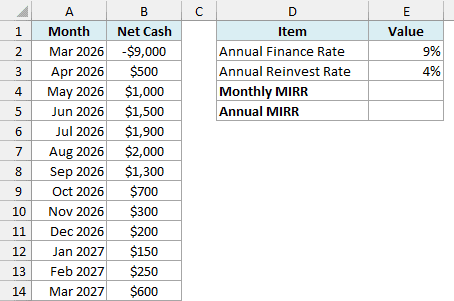
MIRR treats each cell as one period, so here each period is a month, and the yearly rates have to be turned into monthly rates inside the formula.
Here is the formula for the monthly MIRR:
=MIRR(B2:B14,(1+E2)^(1/12)-1,(1+E3)^(1/12)-1)
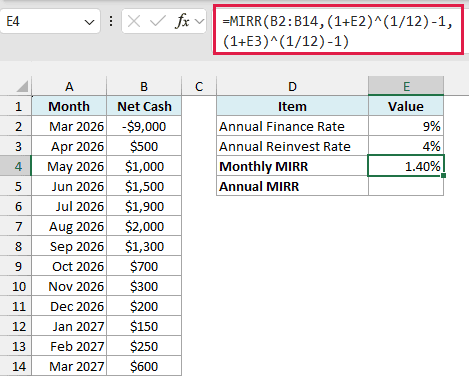
This gives 1.40%, which is the return per month.
If you used 9% and 4% directly, MIRR would treat them as monthly rates, as if the cart’s cash earned 4% every single month.
The part (1+E2)^(1/12)-1 turns the 9% annual finance rate into the monthly rate that grows to exactly 9% over 12 months. The same is done for the 4% reinvest rate in E3.
Here is the formula to turn that monthly MIRR into an annual one:
=(1+E4)^12-1
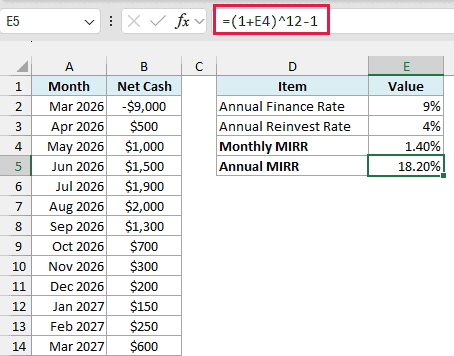
This gives 18.20%, which is the yearly return on the ice cream cart.
The formula compounds the 1.40% monthly return over 12 months. Multiplying 1.40% by 12 would give you a lower number, because it ignores the return earned on the return.
Example 7: Calculate MIRR Without the MIRR Function
If you’ve ever wondered how MIRR gets its answer, you can calculate it by hand in two steps.
Below is the same food truck data from Example 1, and I want to calculate the future value of the profits in cell F4 and then the MIRR from it in cell F5.
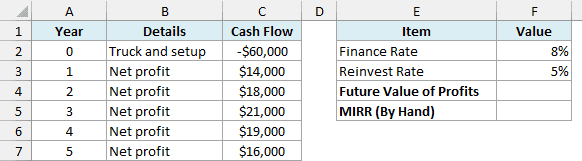
Here is the formula for the future value of the profits:
=SUMPRODUCT(C3:C7,(1+F3)^(A7-A3:A7))
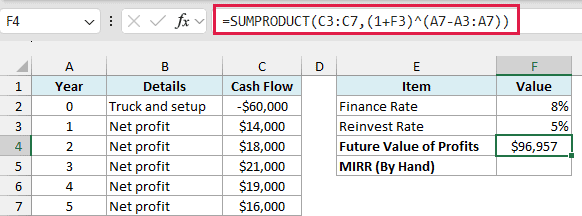
This gives $96,957, which is what all five profits would be worth at the end of Year 5 if each one is reinvested at 5%.
In this formula, A7-A3:A7 gives the number of years left for each profit (4 for the Year 1 profit, down to 0 for the Year 5 profit). Each profit is grown at 5% for those years, and the SUMPRODUCT function adds them all up.
Here is the formula that turns this into the MIRR:
=(F4/-C2)^(1/A7)-1
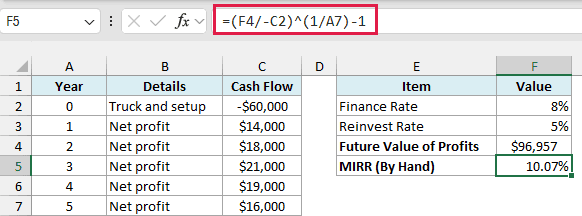
This gives 10.07%, the same result the MIRR function gave in Example 1.
The formula divides the $96,957 by the $60,000 cost, and the minus sign turns -$60,000 into a positive number.
It then finds the yearly rate that grows $60,000 into $96,957 over the 5 years in A7, which is the same math as a compound annual growth rate.
This shortcut works here because the only money going out is the Year 0 cost. With a mid-project cost like the engine in Example 4, you’d also have to bring it back to today at the finance rate, which MIRR does for you.
So these are some practical examples of using the MIRR function in Excel, from a simple investment to monthly cash flows and several projects at once.
I also showed you why MIRR is usually lower than IRR, why a year with no cash flow needs a 0, and how MIRR gets its answer. I hope you found this tutorial useful!
Other Excel Articles You May Also Like:
