

The ASINH function in Excel returns the inverse hyperbolic sine of a number. In other words, it gives you the value whose hyperbolic sine equals your number.
Since it’s the inverse of the SINH function (the hyperbolic sine), it’s what you use to get a number back from a SINH result.
And because it accepts any number, including zero and negatives, it’s also handy for shrinking very large values while keeping zeros and losses in the data.
In this tutorial, I’ll show you how to calculate it for a list of numbers, deal with blank cells, and use it in a few practical formulas.
Follow along with the example file
ASINH Function Examples.xlsx
ASINH Function Syntax
Here is the syntax of the ASINH function:
=ASINH(number)
- number is the value for which you want the inverse hyperbolic sine. It can be any real number, positive, negative, or zero.
You can type the number directly, refer to a cell that contains it, or give it a whole range. With a range, ASINH returns one result for each cell.
There’s one practical limit. Excel returns a #NUM! error for numbers beyond about 1.34E+154 (positive or negative), which is far bigger than anything you’ll see in normal data.
The ASINH function works in Excel 365, 2024, 2021, 2019, and 2016 on Windows, and in Excel 365, 2024, and 2021 on Mac. The range formulas in this tutorial need dynamic-array Excel, such as Excel 365, 2024, or 2021.
When to Use the ASINH Function
Use this function when you need to:
- Calculate the inverse hyperbolic sine for a list of numbers in a math or engineering sheet.
- Get the original number back from a SINH result.
- Put values that include zeros and losses on a log-like scale, where the LN function can’t be used.
- Work out a formula that contains an inverse hyperbolic sine, such as the Mercator map formula.
Let me show you a few practical examples of how to use the ASINH function.
Example 1: Calculate Inverse Hyperbolic Sine for a List of Numbers
Let’s start with a simple example.
Below I have a list of numbers in column A, and I want to get the inverse hyperbolic sine of each one in column B.
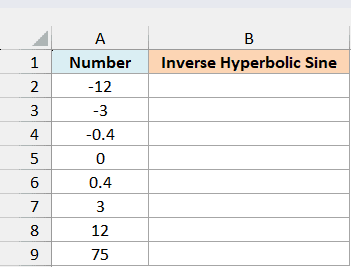
Here is the formula that I have entered in cell B2:
=ASINH(A2:A9)
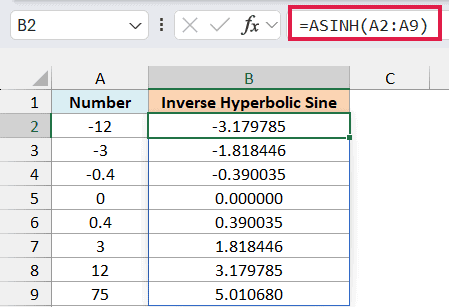
The above formula calculates one result for every number in A2:A9 and spills the results into B2:B9. You only enter it once, in cell B2.
Notice that -12 and 12 return -3.179785 and 3.179785. Flipping the sign of the number only flips the sign of the result, and 0 returns 0.
The results also grow slowly. The number 75 returns only about 5.010680, which is why ASINH is handy for squeezing a wide range of values into a smaller one (more on that in Example 4).
If any cell in B3:B9 already has something in it, the formula can’t spill and you get a #SPILL! error. Clear those cells and the results show up.
If you are using Excel 2019 or earlier, enter the below formula in cell B2 and then copy it down to B9:
=ASINH(A2)
Example 2: Reverse a SINH Calculation with ASINH
Now let’s see how ASINH and SINH work as a pair.
Below I have some numbers in column A, and I want to get their hyperbolic sine in column B and then use ASINH to get the original numbers back in column C.
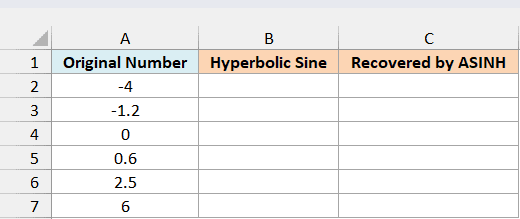
First, here is the formula that calculates the hyperbolic sine in cell B2:
=SINH(A2:A7)
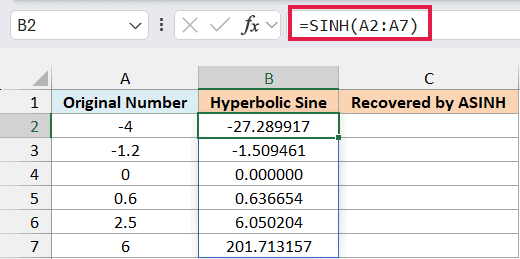
The SINH function returns the hyperbolic sine of each number. It grows fast, so 6 already gives 201.713157, and negative numbers give negative results.
Now, here is the formula that applies ASINH to those results in cell C2:
=ASINH(B2:B7)
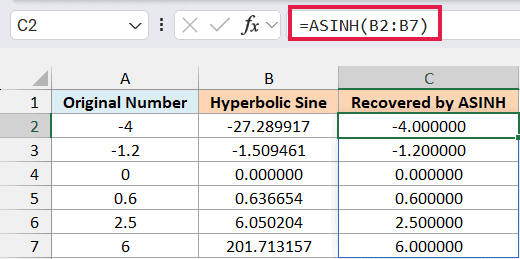
Column C gets back the numbers from column A, including the negative ones. This works because every SINH result comes from only one number, so ASINH can always tell which number it was.
That’s not the case with the ACOSH function. The formula =ACOSH(COSH(-1.5)) returns 1.5, not -1.5, because the COSH function gives the same result for -1.5 and 1.5.
The round trip works for everyday numbers. Above about 355, the SINH result gets bigger than what ASINH can handle (the 1.34E+154 limit), so ASINH returns #NUM!.
If you are using Excel 2019 or earlier, enter the below formula in cell B2 and then copy it down to B7:
=SINH(A2)
Then enter the below formula in cell C2 and copy it down to C7:
=ASINH(B2)
Example 3: How ASINH Handles Blank Cells, Text, and TRUE
Real data isn’t always clean numbers, so let’s see what ASINH does with other kinds of entries.
Below I have different kinds of entries in column B, and I want to see what ASINH returns for each one in column C.
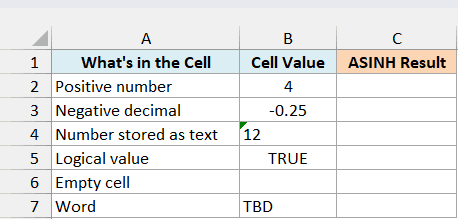
Here is the formula that I have entered in cell C2:
=ASINH(B2:B7)
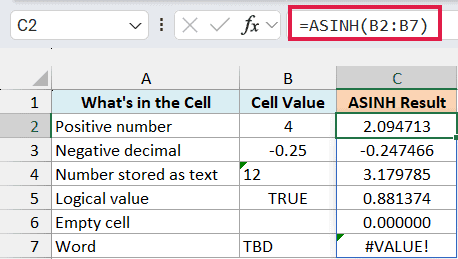
The two numbers work as you’d expect. The number 12 in cell B4 is stored as text, but ASINH converts it and returns 3.179785, the same result as the real number 12 in Example 1.
The logical value TRUE in cell B5 is treated as 1, so it returns 0.881374. The word TBD can’t be read as a number, so ASINH returns a #VALUE! error.
Now look at the empty cell B6. ASINH treats it as 0 and returns 0, without any error.
Important: An empty input cell returns 0, which is also the correct result for the number 0. So a missing value quietly looks like a real result, and it can throw off anything you calculate from these results.
If your data can have empty cells, here is the formula that leaves the result blank for them, in cell D2:
=IF(B2:B7="","",ASINH(B2:B7))
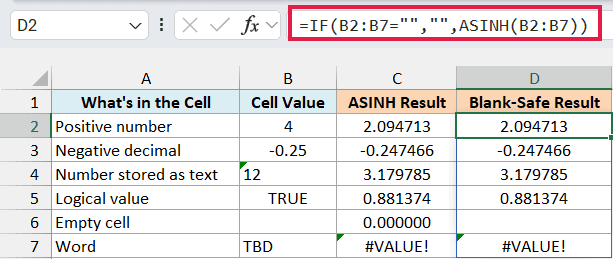
The IF function checks each cell in B2:B7. If it’s empty, it returns an empty string (“”), and if it isn’t, it returns the ASINH result.
Now D6 is blank instead of showing 0. The #VALUE! error for TBD stays on purpose, so you can spot the bad entry and fix it rather than hide it.
The blank result is empty text, not a number. The SUM function skips it, but a direct calculation such as =D6*2 returns #VALUE!.
If you are using Excel 2019 or earlier, enter the below formula in cell C2 and then copy it down to C7:
=ASINH(B2)
And for the blank-safe version, enter the below formula in cell D2 and copy it down to D7:
=IF(B2="","",ASINH(B2))
Example 4: Use ASINH to Transform Data with Zeros and Losses
Here’s a practical use of ASINH when you work with data that spans a huge range.
Below I have the net profit of ten branches of a store chain, including a break-even branch and a few losses, and I want to put these values on a log-like scale in column C.
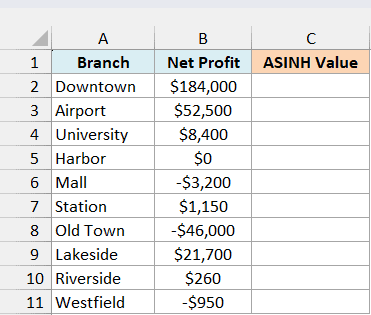
Here is the formula that I have entered in cell C2:
=ASINH(B2:B11)
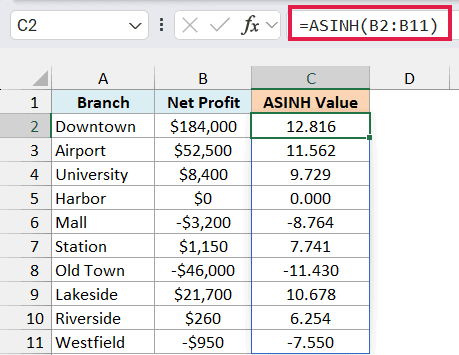
The profits go from a $46,000 loss to a $184,000 gain, so the small branches are hard to compare with the big ones.
A log scale fixes that by turning every tenfold jump into the same small step. But the LN function returns #NUM! for $0 and for every loss, so you can’t use it here.
ASINH works on all of them. The $0 branch returns 0, losses come back negative, and the results now range from only -11.430 to 12.816.
For large values, ASINH behaves almost exactly like the natural log of twice the number. Downtown’s 12.816 matches =LN(2*184000), which returns 12.815838.
So a tenfold jump adds the same step as on a log scale, about 2.3 (the natural log of 10). For example, =ASINH(184000)-ASINH(18400) returns 2.302585.
This is known as the inverse hyperbolic sine transformation, and economists use it as a stand-in for the log when data has zeros, as Bellemare and Wichman describe.
Close to zero, it doesn’t act like a log. Small numbers come back almost unchanged (0.25 returns 0.247466), so only the large values get the log-like squeeze.
Because of that, the unit you pick changes how the small branches sit next to the big ones. In thousands (184 instead of 184,000), Downtown’s result would drop by about 6.9, but Riverside’s $260 would drop by only about 6.0.
Important: Pick one unit for the whole analysis. Never compare ASINH results calculated from values in different units, such as dollars in one column and thousands of dollars in another.
If you are using Excel 2019 or earlier, enter the below formula in cell C2 and then copy it down to C11:
=ASINH(B2)
Example 5: Find Where Cities Sit on a Mercator Map
Let’s step it up with a formula that has ASINH built into it.
The Mercator projection is the familiar world map where Greenland looks huge. It stretches places more and more as you move away from the equator, and the Mercator formula for that stretch uses the inverse hyperbolic sine.
Below I have a list of cities with their latitudes, and I want to find how far above or below the equator each one sits in column C, on a Mercator world map whose width (100 cm) is in cell E2.
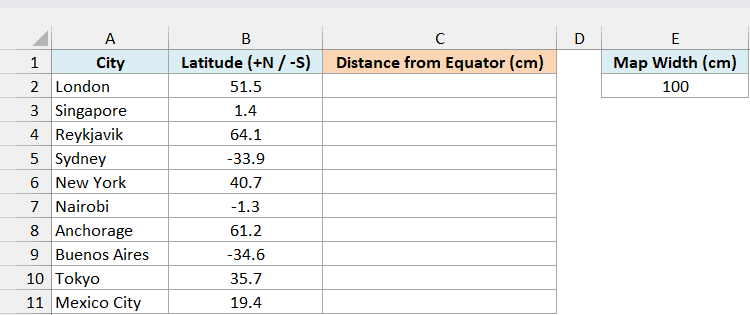
Here is the formula that I have entered in cell C2:
=E2/(2*PI())*ASINH(TAN(RADIANS(B2:B11)))
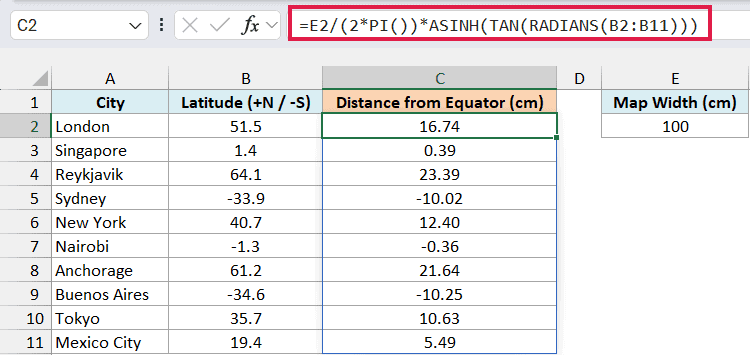
How this formula works:
RADIANS(B2:B11)uses the RADIANS function to convert each latitude from degrees to radians, because the TAN function works with radians.ASINH(TAN(...))gives each city’s distance from the equator on a globe with a radius of 1.E2/(2*PI())gives the globe’s radius on our map. The equator runs the full width of the map, and its length is2*PI()times the radius, so the radius is the width divided by2*PI().- Multiplying the two gives the distance in cm on the 100 cm map.
London, at a latitude of 51.5, sits 16.74 cm above the equator line. Sydney, Nairobi, and Buenos Aires have negative latitudes, so their results are negative, meaning they sit below the equator.
Reykjavik’s latitude is about 3.3 times Mexico City’s, but on the map it sits about 4.3 times as far from the equator (23.39 cm against 5.49 cm). That growing stretch comes from the ASINH(TAN(...)) part of the formula.
A Mercator map can’t show the poles, because the stretch keeps growing and becomes infinite there. The formula doesn’t warn you, though.
=TAN(RADIANS(90)) returns a huge number instead of an error, so a latitude of 90 gives about 605.18 cm on our 100 cm map, which is way off the map.
Web maps that use Mercator usually stop at about 85.05 degrees, where this formula returns 50 cm, the top edge of a square Mercator map. So keep your latitudes between -85.05 and 85.05.
If you are using Excel 2019 or earlier, enter the below formula in cell C2 and then copy it down to C11:
=$E$2/(2*PI())*ASINH(TAN(RADIANS(B2)))
So these are a few ways you can use the ASINH function in Excel. Just keep an eye on empty input cells, since ASINH quietly returns 0 for them.
I hope you found this tutorial useful.
Other Excel Articles You May Also Like:
