

The DMAX function finds the largest number in a column of your data, counting only the rows that meet your conditions. Think of the highest sale for one region, or the latest date a customer placed an order.
DMAX reads those conditions from a small range of cells on the sheet. So you can change a condition without editing the formula, and you can check for one value or another.
In this tutorial, I’ll show you how to use DMAX with one or more conditions, OR logic, dates, wildcards, and formula-based conditions. I’ll also cover one catch to watch for, since DMAX returns 0 instead of an error when nothing matches.
Follow along with the example file
DMAX Function Examples.xlsx
DMAX Function Syntax
Here is the syntax of the DMAX function:
=DMAX(database, field, criteria)
- database – The whole data range, including the header row. Each row is a record and each column is a field.
- field – The column you want the largest value from. You can give its header in double quotes (like “Price”) or its position in the database as a number (like 3 for the third column).
- criteria – The range that holds your conditions. Its top row has headers that match the headers in your data, and the conditions go in the cells right below them.
The layout of the criteria range decides how your conditions combine. Conditions on the same row must all be true (Example 3), while conditions on separate rows mean any one of them can be true (Example 4).
If you leave the cell under a criteria header empty, it matches every row. So an empty condition gives you the largest value in the whole column, the same as the MAX function would.
The database has to be a real range on the sheet. If you try to use a formula result as the database, such as the output of the FILTER function or the VSTACK function, Excel won’t let you enter the formula at all.
The DMAX function works in Excel for Microsoft 365, Excel 2024, 2021, 2019, and 2016, on both Windows and Mac.
When to Use the DMAX Function
Use this function when you need to:
- Find the highest value for rows that meet one or more conditions, with the conditions kept in cells you can change
- Find the highest value among rows that match any one of several values (OR logic)
- Get the most recent date for a person, product, or category
- Find the highest value based on a calculated condition, such as comparing two columns in the same row
Let me show you a few practical examples of how to use the DMAX function.
Example 1: Highest Donation for One Event
Let’s start with a simple example.
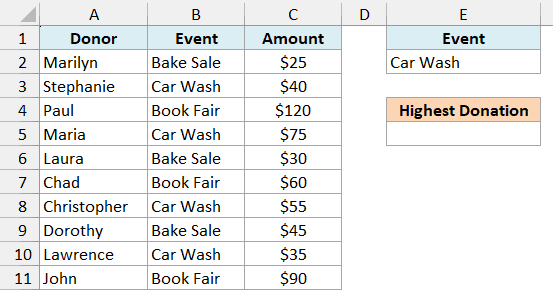
Below is a list of donations from a school fundraiser with the event each donor gave at, and I want the highest donation made at the Car Wash in cell E5.
Here is the formula:
=DMAX(A1:C11,"Amount",E1:E2)
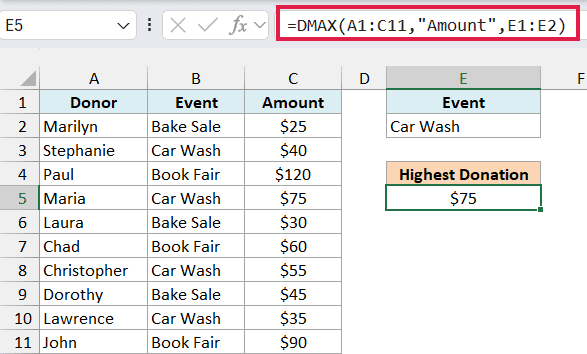
This gives us $75, the biggest of the four Car Wash donations.
In the above formula, A1:C11 is the full data with its headers, “Amount” is the column with the values, and E1:E2 is the criteria range. The header in E1 tells DMAX which column to check, and E2 holds the value to look for.
Since Car Wash sits in a cell and not inside the formula, you can type Book Fair in E2 and the result changes to $120 right away.
Important: The criteria header must match the data header exactly. If E1 said “Events” instead of “Event”, no row would match, and DMAX would return 0 without any error, which is easy to mistake for a real answer.
I placed the criteria range to the right of the data on purpose. Microsoft recommends not putting it below your data, because that’s where new rows usually get added.
Example 2: Use a Column Number as the Field
Here’s another practical scenario.
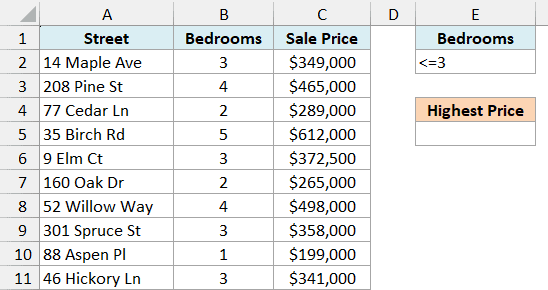
Below is a list of homes sold in a neighborhood with the number of bedrooms and the sale price, and I want the highest price paid for a home with 3 bedrooms or fewer in cell E5.
Here is the formula:
=DMAX(A1:C11,3,E1:E2)
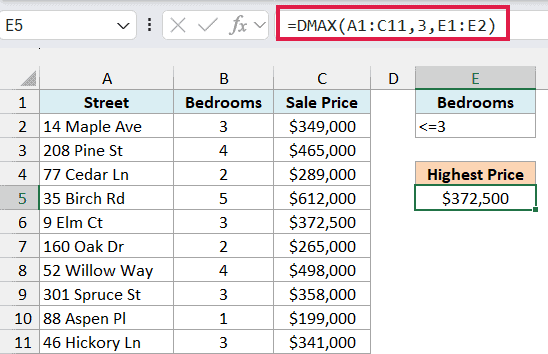
This returns $372,500, the price of the 3-bedroom home on Elm Ct.
The condition in E2 is <=3, typed straight into the cell. Any comparison operator works the same way, such as >4, <500000, or <>2.
This time, I used 3 as the field instead of “Sale Price”. Since Sale Price is the third column in A1:C11, DMAX takes the largest value from that column.
A column number is quicker to type, but it can break without warning. If someone inserts a column inside the data, 3 will point to a different column, while “Sale Price” keeps working.
Example 3: DMAX With Multiple Criteria (AND)
Now let’s look at rows that need to meet two conditions at the same time.
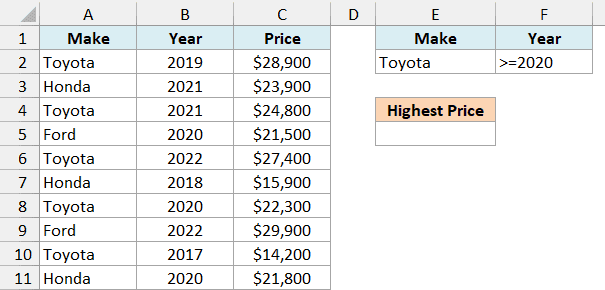
Below is a used car lot’s inventory with each car’s make, model year, and price, and I want the highest price of a Toyota from 2020 or newer in cell E5.
Here is the formula:
=DMAX(A1:C11,"Price",E1:F2)
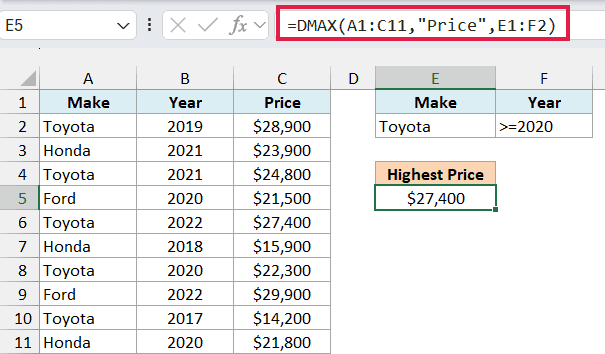
This gives us $27,400, the price of the 2022 Toyota.
The criteria range now has two headers, Make and Year, and both conditions sit on the same row. When conditions share a row, a car counts only if it meets all of them.
That’s why the 2019 Toyota at $28,900 is skipped. It’s a Toyota, but it fails the year condition, and the Ford at $29,900 fails the make condition.
You can add more conditions the same way. Put another header in G1 with its condition in G2, and extend the criteria reference to E1:G2.
Example 4: DMAX With OR Criteria
This next one shows how to find the highest value among rows that match either of two values.
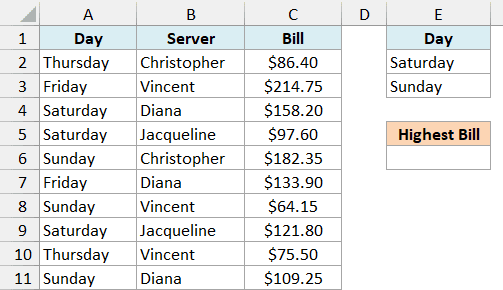
Below is a restaurant’s bill log with the day, the server, and the bill amount, and I want the highest weekend bill (Saturday or Sunday) in cell E6.
Here is the formula:
=DMAX(A1:C11,"Bill",E1:E3)
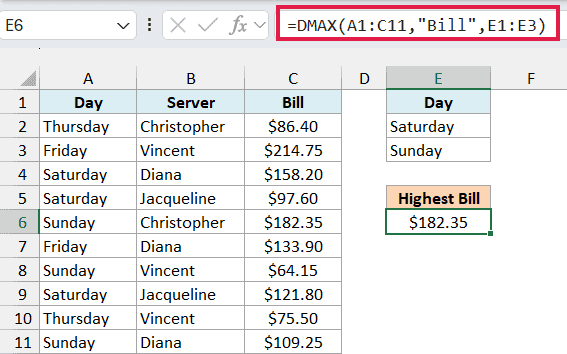
This returns $182.35, which is the highest bill from the six Saturday and Sunday bills.
The OR logic comes from the criteria range. Saturday and Sunday are on separate rows under the same Day header, and separate rows work as OR, so a bill counts if its day matches either one.
To include Friday too, type it in E4 and change the criteria reference to E1:E4. The list of days stays in cells, so you can see exactly what’s being checked.
You can get the same answer with the MAXIFS function by wrapping it in MAX and giving it both days, as in =MAX(MAXIFS(C2:C11,A2:A11,{"Saturday","Sunday"})). There, the days are typed inside the formula instead of in cells, and the MAXIFS function needs Excel 2019 or later.
Important: Make sure the criteria range has no empty rows. If you used E1:E4 here with E4 left blank, the empty row would match every bill, and you’d get $214.75, a Friday bill.
Example 5: Get the Latest Date With DMAX
Since Excel stores dates as numbers, the largest date is simply the most recent one. So DMAX can find the latest date for a condition.
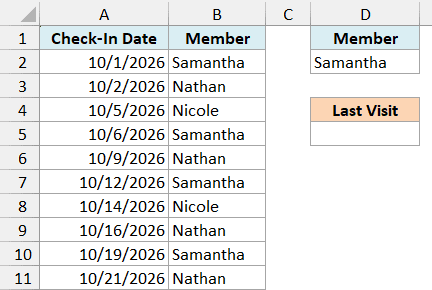
Below is a gym’s check-in log with the date and the member who checked in, and I want the date of Samantha’s last visit in cell D5.
Here is the formula:
=DMAX(A1:B11,"Check-In Date",D1:D2)
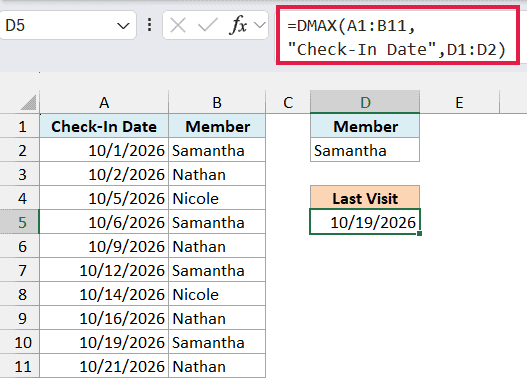
This gives us 10/19/2026, the most recent of Samantha’s four check-ins.
DMAX looks only at the rows where the Member is Samantha and returns the largest date from the Check-In Date column. Nathan’s visit on 10/21/2026 is later, but he’s not the member in D2, so it’s ignored.
DMAX returns the date as a number. If the result shows up as 46314 instead of a date, the cell just needs a date format, which you can pick from the Number Format drop-down on the Home tab.
Example 6: Find the Second Highest Value With DMAX
Let’s step it up and use one DMAX result inside the criteria of another to find the second largest value.
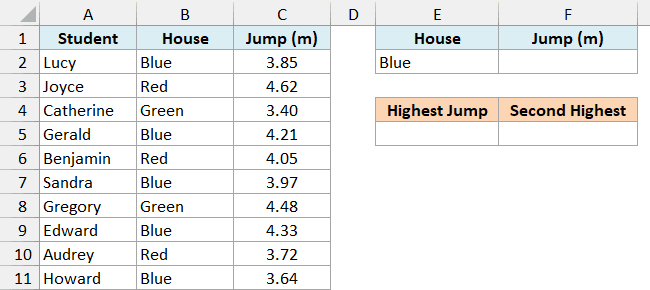
Below are the long jump results from a school sports day with each student’s house, and I want the highest jump for Blue house in E5 and the second highest in F5.
Here is the formula for the highest jump in E5:
=DMAX(A1:C11,"Jump (m)",E1:E2)
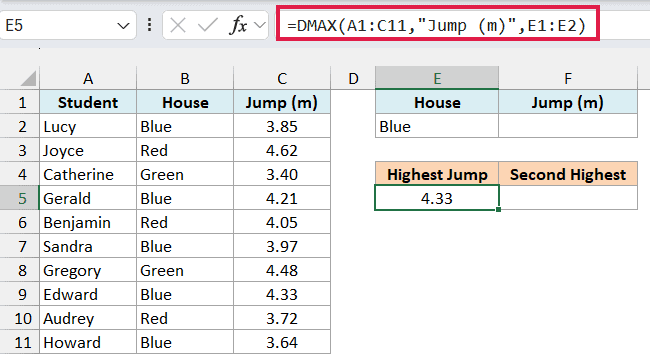
This returns 4.33, which is Edward’s jump and the best one in Blue house.
For the second highest, the criteria range gets a second header. F1 has Jump (m), and F2 has the formula ="<"&E5, which joins the less-than sign with the result in E5 and shows <4.33.
Here is the formula for the second highest jump in F5:
=DMAX(A1:C11,"Jump (m)",E1:F2)
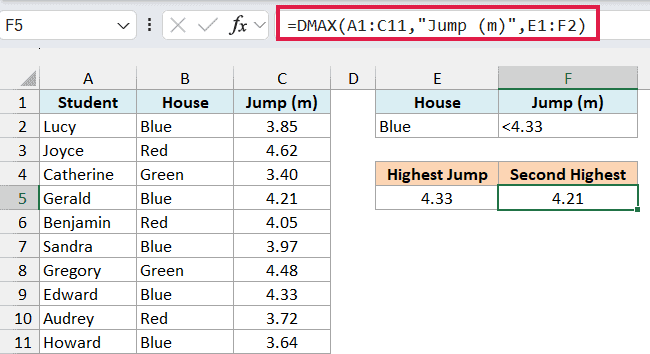
This gives us 4.21, Gerald’s jump.
Both conditions in E1:F2 are on the same row, so a jump counts only if it’s from Blue house and is less than 4.33. The largest jump left after removing the top one is the second highest.
Important: This method gives the second highest distinct value. If two Blue students had tied at 4.33, it would skip both and return the next lower jump, not 4.33 again.
If you want a tie to count as the second value, use the LARGE function with the FILTER function in Excel 365 or 2021, as in =LARGE(FILTER(C2:C11,B2:B11="Blue"),2).
Example 7: Why DMAX Returns 0 (and How to Fix It)
Now let’s look at what DMAX does when it finds nothing to compare.
Below is a log of overnight low temperatures for three cities, where the Bismarck station has no readings this week, and I want the highest low for Bismarck in cell E5.
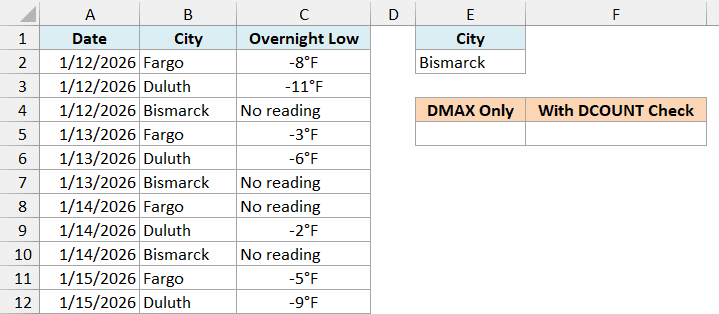
Here is the formula:
=DMAX(A1:C12,"Overnight Low",E1:E2)
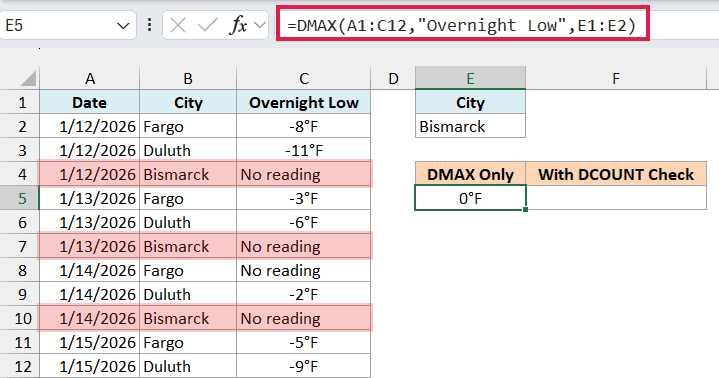
This returns 0°F, even though Bismarck has no temperature readings at all.
DMAX skips text, so the No reading cells are ignored. With no numbers left to compare, DMAX returns 0 instead of an error.
That 0°F looks like a real temperature, and it’s even warmer than every actual low in the list. You’d get the same 0 if no row matched at all, for example if E2 had a city that isn’t in the data.
To catch this, check first whether there are any numbers to compare. Here is the formula in F5:
=IF(DCOUNT(A1:C12,"Overnight Low",E1:E2)=0,"No readings",DMAX(A1:C12,"Overnight Low",E1:E2))
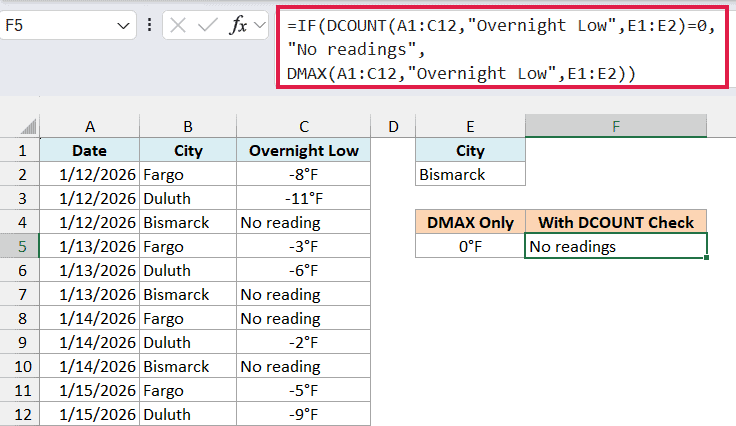
Since Bismarck has no numbers in the Overnight Low column, the formula shows No readings instead of 0°F.
The DCOUNT function uses the same database and criteria, and counts the numbers in the Overnight Low column for the matching rows. If that count is 0, the formula shows the text, and otherwise it returns the DMAX result.
If you change E2 to Fargo, both cells show -3°F. DMAX skips Fargo’s No reading on 1/14/2026 and returns the warmest of the other three lows.
The MAXIFS function also returns 0 when nothing matches, so a 0 from MAXIFS can mislead you in the same way.
Example 8: Use Wildcards in DMAX Criteria
Let’s look at finding the highest value based on part of a text value.
Below is a list of hiking trails with their length in miles, and I want the length of the longest trail that has the word Lake anywhere in its name, with the result in D5.
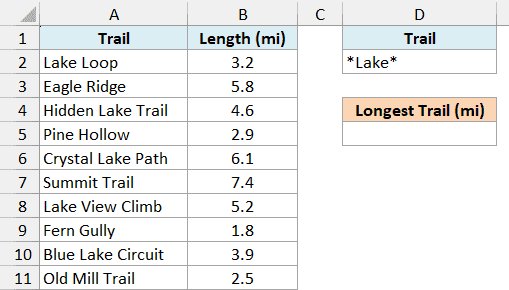
Here is the formula:
=DMAX(A1:B11,"Length (mi)",D1:D2)
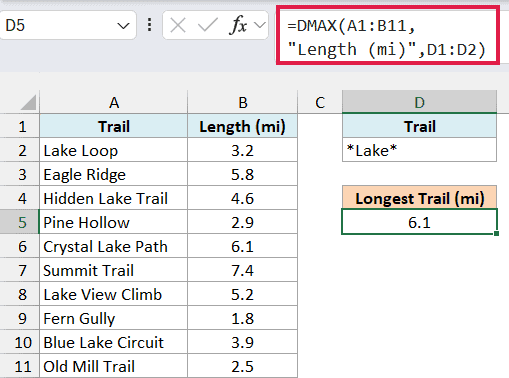
This gives us 6.1, the length of Crystal Lake Path.
The condition in D2 is *Lake*, where the asterisk (*) is a wildcard that stands for any number of characters. So *Lake* matches the word Lake anywhere in the trail name, and a question mark (?) would stand for exactly one character.
You need the asterisk at the front because a plain text condition in DMAX matches values that begin with that text. Typing just Lake would only pick up Lake Loop and Lake View Climb, and give you 5.2.
For the same reason, a plain text condition is never an exact match. To match only the cell that says exactly Lake Loop, enter ="=Lake Loop" in the criteria cell.
Text conditions also aren’t case-sensitive, so lake and LAKE pick up the same trails.
Example 9: Use a Formula as the Criteria
Let’s end with a condition that compares two columns in the same row, which the MAXIFS function can’t do on its own.
Below is a list of students with their scores on two tests, and I want the top Test 2 score among the students who improved on their Test 1 score, in cell E5.
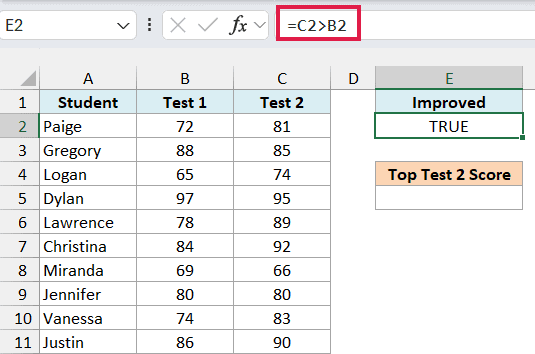
Here is the formula:
=DMAX(A1:C11,"Test 2",E1:E2)
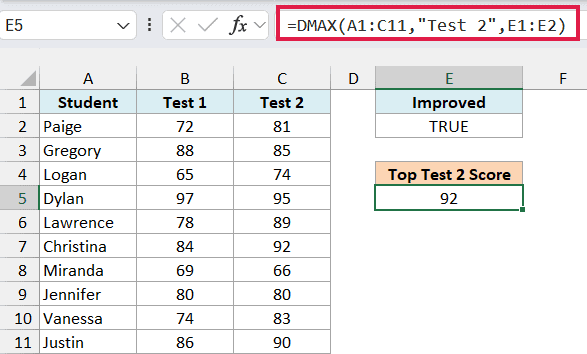
This returns 92, which is Christina’s Test 2 score.
The criteria range is E1:E2, and E2 holds the formula =C2>B2. It checks whether a student’s Test 2 score is higher than their Test 1 score.
E2 shows TRUE because it’s checking the first row, where Paige went from 72 to 81. For each later row, DMAX moves the B2 and C2 references down, so every student gets their own check.
Dylan has the highest Test 2 score (95), but he’s left out because his score dropped from 97. Jennifer is left out too, since 80 to 80 isn’t an improvement.
The header in E1 must not match any header in your data, which is why I used Improved. If E1 said Test 2, DMAX would treat it as a normal condition and return 0.
Important: Keep the references in the criteria formula relative. If you lock them as $C$2>$B$2, every row gets Paige’s TRUE, and you’d get 95, the top Test 2 score of all ten students.
In Excel 365 or 2021, =MAX(FILTER(C2:C11,C2:C11>B2:B11)) gives the same 92 without a criteria range.
So these are some practical ways to use the DMAX function in Excel. I covered single conditions, AND and OR conditions, the latest date, the second highest value, the 0 result when nothing matches, wildcards, and formula-based conditions.
If you need the smallest value instead, the DMIN function works the same way, with the same database, field, and criteria arguments.
I hope you found this Excel tutorial useful.
Other Excel Articles You May Also Like:
