

The DSTDEV function calculates the standard deviation of the numbers in one column of your data, but only for the rows that meet the conditions you set. In simple terms, it tells you how much those numbers spread out around their average.
DSTDEV treats the matching rows as a sample, a small part of a bigger group, which is usually what you have. If your rows cover the whole group, its sibling function DSTDEVP is the better fit.
Like the other database functions in Excel, DSTDEV reads its conditions from a few cells on the sheet, not from inside the formula.
In this tutorial, I’ll show you how to use it with one condition, multiple conditions, dates, several columns at once, and a formula as the condition, plus how to handle the #DIV/0! error.
Follow along with the example file
DSTDEV Function Examples.xlsx
DSTDEV Function Syntax
Here is the syntax of the DSTDEV function:
=DSTDEV(database, field, criteria)
- database – The whole data range, including the header row. Each row is a record and each column is a field.
- field – The column you want the standard deviation of. You can give its header in double quotes (like “Score”) or its position in the database as a number (like 3 for the third column).
- criteria – The range that holds your conditions. Its top row has headers that match the headers in your data, and the conditions go in the cells right below them.
How you lay out the criteria range decides how the conditions combine. Conditions on the same row must all be true (Example 3), while conditions on separate rows mean any one of them can be true (Example 4).
If the cell under a criteria header is empty, that header puts no limit on the rows. So if it’s your only condition, every row matches and you get the standard deviation of the whole column.
The DSTDEV function works in Excel for Microsoft 365, Excel 2024, 2021, 2019, and 2016, on both Windows and Mac.
When to Use the DSTDEV Function
Use this function when you need to:
- Find how much the values vary for one group in your data, such as one player, one product, or one store
- Get the standard deviation of rows that meet several conditions at once, or any one of several conditions
- Measure the spread of values for rows whose date or number falls between two limits, with the limits kept in cells you can change
- Check the consistency of a sample, where the rows you have stand in for a bigger group
Let me show you a few practical examples of how to use the DSTDEV function.
Example 1: Conditional Standard Deviation for One Bowler
Let’s start with a simple example.
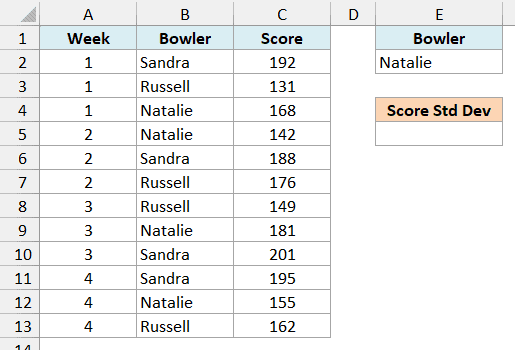
Below is a bowling league’s score sheet with each bowler’s score for four weeks, and I want to know how much Natalie’s scores vary, with the result in cell E5.
Here is the formula:
=DSTDEV(A1:C13,"Score",E1:E2)
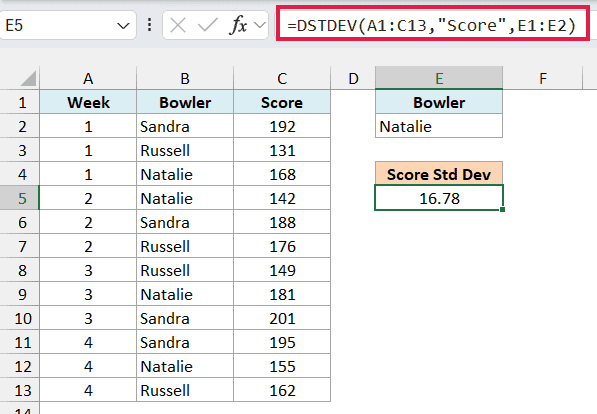
This gives us 16.78. The bigger this number, the more a bowler’s scores jump around from one game to the next.
In the above formula, A1:C13 is the full data with its headers, “Score” is the column to calculate on, and E1:E2 is the criteria range. The header in E1 tells DSTDEV which column to check, and E2 holds the bowler’s name.
Since the name sits in a cell, you can type Sandra in E2 and the result changes to 5.48. Her scores are much closer together, which means she’s the more consistent bowler.
These four games are only a sample of how each person bowls, and future games will add more. That’s why DSTDEV, which treats the rows as a sample, is the right pick here.
Under the hood, DSTDEV gives the same result as the STDEV function run on only Natalie’s four scores, because both treat the numbers as a sample.
Important: The criteria header must match the data header exactly. If E1 said Bowlers instead of Bowler, no row would match, and DSTDEV would return a #DIV/0! error.
I placed the criteria range to the right of the data on purpose. Microsoft recommends not putting it below your data, because that’s where new rows usually get added.
Example 2: Standard Deviation With a Number Condition (Field as a Column Number)
Here’s another practical scenario.
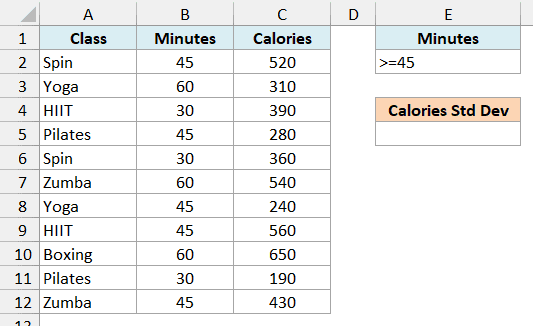
Below is a gym’s class log with the length of each class in minutes and the calories burned, and I want the standard deviation of calories for classes that are 45 minutes or longer, with the result in E5.
Here is the formula:
=DSTDEV(A1:C12,3,E1:E2)
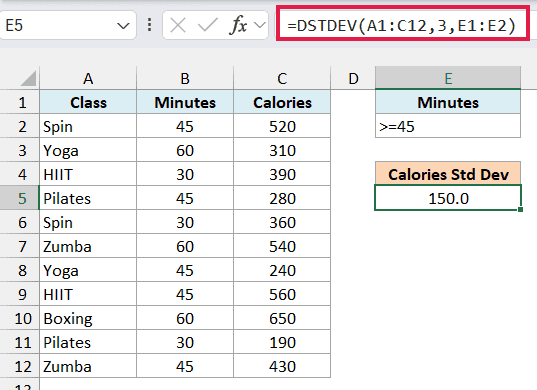
This returns 150.0, the standard deviation of calories burned in the eight classes that ran 45 minutes or more.
The condition in E2 is >=45, typed straight into the cell. Any comparison operator works the same way, such as >30, <60, or <>45.
This time, I used 3 as the field instead of “Calories”. Since Calories is the third column in A1:C12, DSTDEV uses that column.
A column number is quicker to type, but it can quietly point to the wrong column. If someone inserts a column inside the data, 3 now refers to a different field, while “Calories” keeps working.
Example 3: DSTDEV With Multiple Criteria (AND)
Now let’s look at rows that need to meet two conditions at the same time.
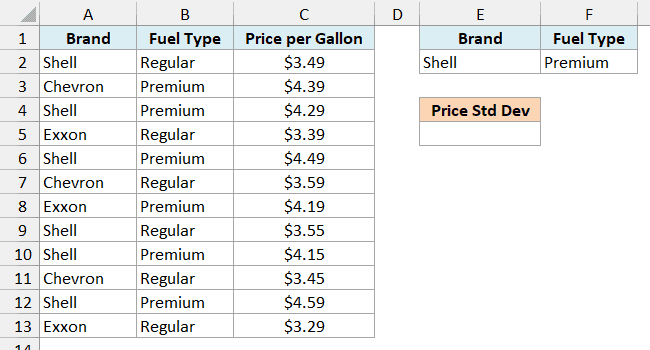
Below is a list of gas stations with each station’s brand, fuel type, and price per gallon, and I want to see how much the Premium price varies across Shell stations, with the result in E5.
Here is the formula:
=DSTDEV(A1:C13,"Price per Gallon",E1:F2)
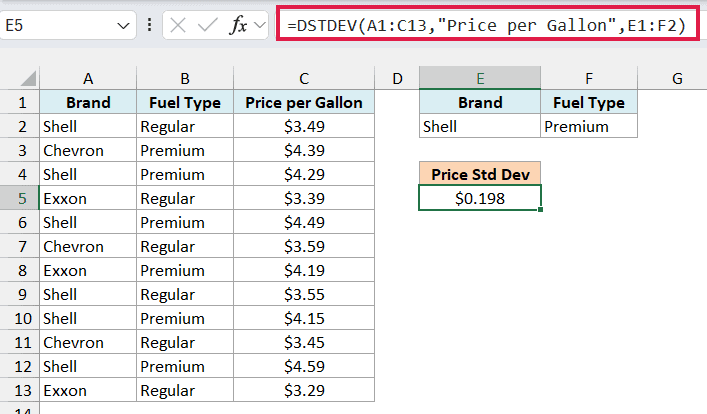
This gives us $0.198, which comes from the four Shell stations that sell Premium.
The criteria range now has two headers, Brand and Fuel Type, and both conditions sit on the same row. When conditions share a row, a station is counted only if it meets all of them.
One thing to know about text conditions is that they match values that begin with that text. So Shell in E2 would also pick up a brand called Shell Express, if your list had one.
To match only Shell exactly, enter =”=Shell” in E2 instead.
You can also use wildcards for partial matches, the same way as in the DSUM function. An asterisk (*) stands for any number of characters, so *ell matches Shell, while a question mark (?) stands for exactly one character, as in ?hell.
Example 4: Standard Deviation for Either Condition (OR)
This next one shows how to include rows that match one value or another.
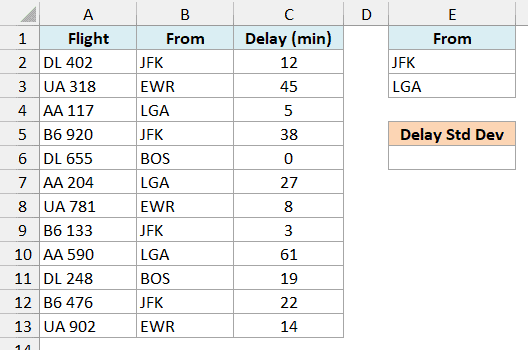
Below is a list of flights with the airport each one left from and its arrival delay in minutes, and I want the standard deviation of delays for flights from JFK or LGA, with the result in E6.
Here is the formula:
=DSTDEV(A1:C13,"Delay (min)",E1:E3)
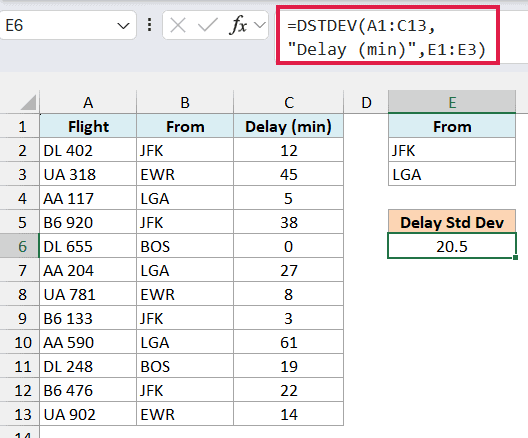
This returns 20.5, the standard deviation of delays for the seven flights that left from JFK or LGA.
The OR logic comes from the layout. JFK and LGA are on separate rows under the same From header, and separate rows work as OR, so a flight counts if it matches either airport.
Important: Make sure the criteria range has no empty rows. If you used E1:E4 here, the blank row would match every flight, and you’d get 18.6, the standard deviation of all twelve delays.
Example 5: Standard Deviation Between Two Dates
Let’s step it up with a date range you can change without touching the formula.
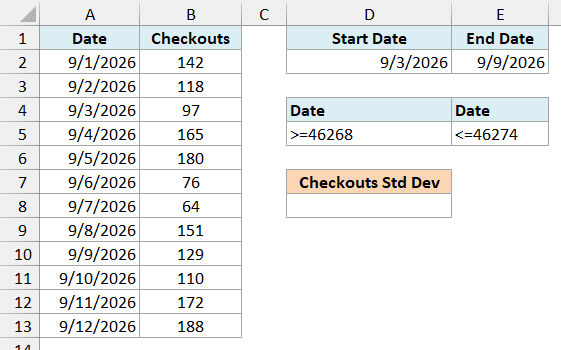
Below is a library’s log of daily book checkouts, and I want the standard deviation of checkouts between the start date in D2 and the end date in E2, with the result in D8.
Here is the formula:
=DSTDEV(A1:B13,"Checkouts",D4:E5)
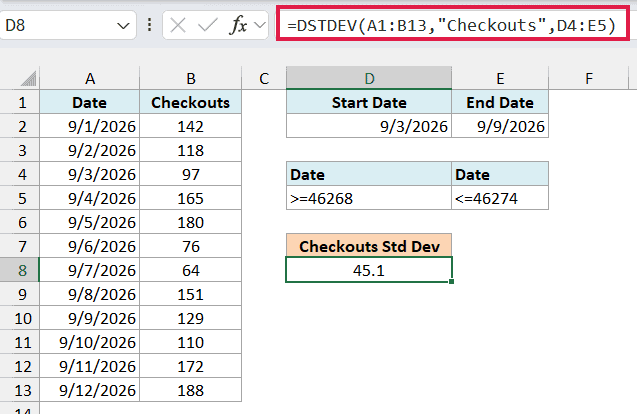
This gives us 45.1, the standard deviation of checkouts from September 3 to September 9, 2026.
The criteria range D4:E5 uses the Date header twice on the same row. Since conditions on one row must all be true, a day is counted only if it’s on or after the start date and on or before the end date.
The two conditions are formulas. D5 has =”>=”&D2 and E5 has =”<=”&E2, which join each comparison operator with the date in D2 or E2.
They show up as >=46268 and <=46274 because Excel stores dates as serial numbers, and 46268 is September 3, 2026. To look at a different week, just change the dates in D2 and E2.
Example 6: Fix the #DIV/0! Error When Fewer Than Two Records Match
Now let’s see what happens when there isn’t enough data to work with.
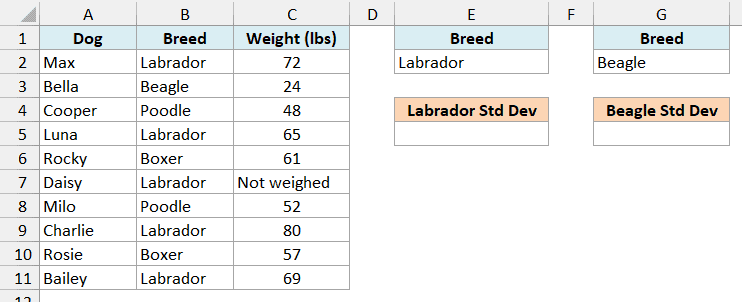
Below is a vet clinic’s list of dogs with each dog’s breed and weight, and I want the standard deviation of weights for Labradors in E5 and Beagles in G5.
Here is the formula for the Labradors:
=DSTDEV(A1:C11,"Weight (lbs)",E1:E2)
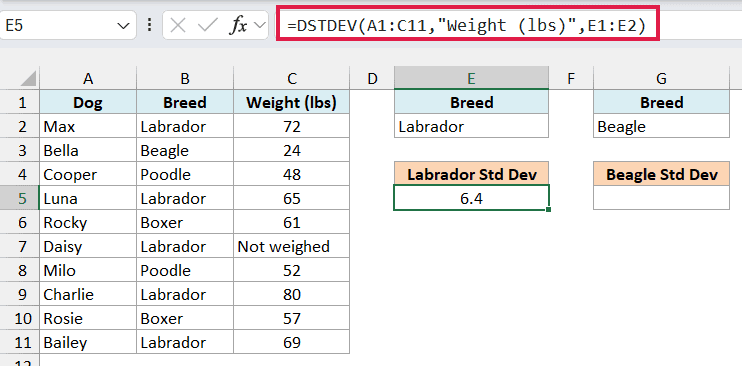
This returns 6.4. There are five Labradors, but Daisy’s weight says Not weighed, so DSTDEV works with the other four.
Text and blank cells in the field column are skipped, not treated as zero. That’s what you want here, because a missing weight isn’t a weight of 0.
And here is the same formula for the Beagles:
=DSTDEV(A1:C11,"Weight (lbs)",G1:G2)
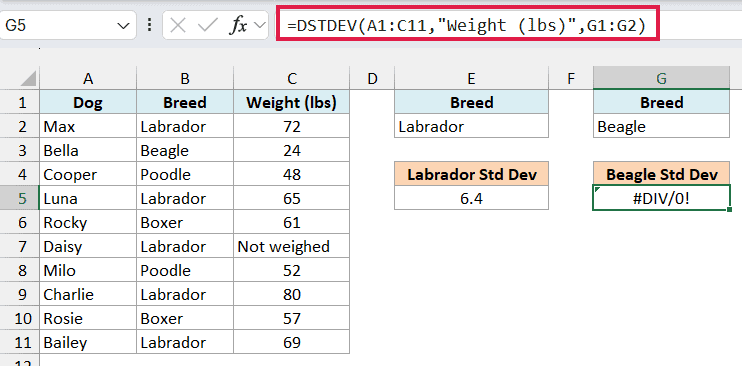
This returns a #DIV/0! error, because Bella is the only Beagle. A sample standard deviation needs at least two values, since it divides by the number of values minus one, and that’s zero here.
The DSTDEVP function would return 0 for the same Beagle, because it treats Bella as the whole group, the same way the STDEV.P function does. For a sample, though, one dog tells you nothing about how much Beagle weights vary, so the error makes sense.
To show a message instead, check the count first. Here is the formula in G8:
=IF(DCOUNT(A1:C11,"Weight (lbs)",G1:G2)<2,"Need 2+ dogs",DSTDEV(A1:C11,"Weight (lbs)",G1:G2))
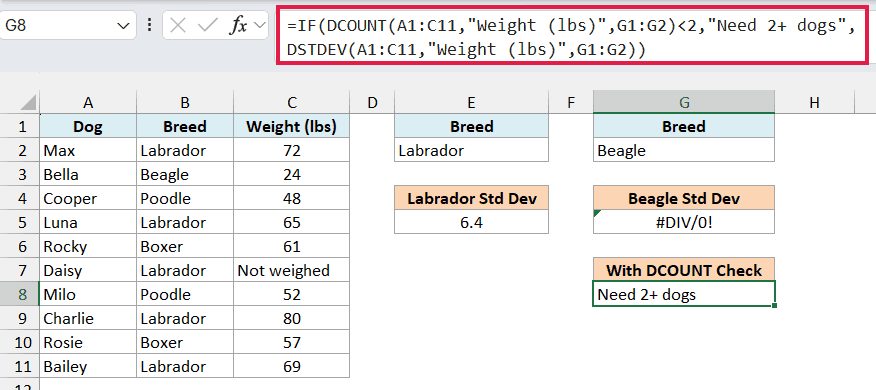
The DCOUNT function uses the same database, field, and criteria, and counts how many numbers DSTDEV would use. Since that count is 1, the formula shows Need 2+ dogs instead of the error.
You could wrap DSTDEV in the IFERROR function instead, but that hides every error, including the #VALUE! you’d get from a misspelled field name. The DCOUNT check only catches the case of too few values.
Example 7: Get the Standard Deviation of Two Columns at Once
DSTDEV usually returns one value, but in Microsoft 365 it can return results for several columns with one formula.
Below is a list of recipes with each recipe’s cuisine, prep time, and cook time in minutes, and I want the standard deviation of both the prep time and the cook time for Italian recipes in F5:G5.
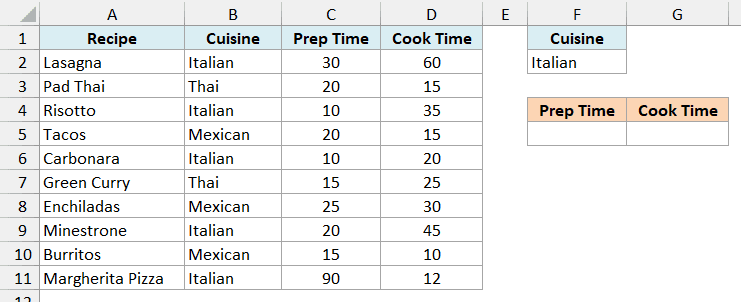
Here is the formula:
=DSTDEV(A1:D11,{"Prep Time","Cook Time"},F1:F2)
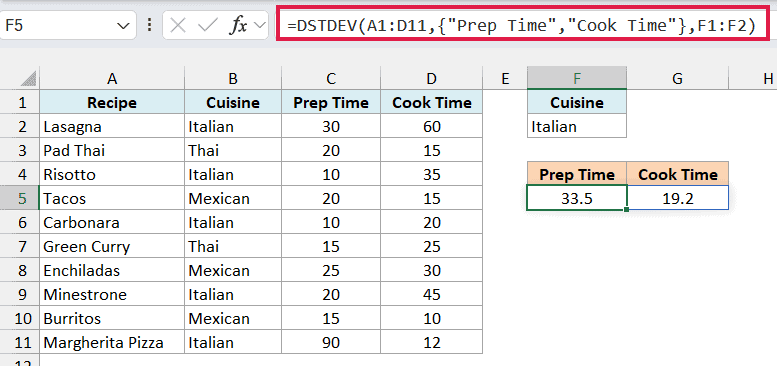
This returns 33.5 for prep time and 19.2 for cook time, across the five Italian recipes.
Instead of one header, the field argument gets a list of headers inside curly brackets. DSTDEV returns one result for each header, and the results spill into F5 and G5.
Prep time varies a lot more here, mostly because the pizza needs 90 minutes of prep while most of the other recipes need 10 to 30.
Important: Type the headers inside the curly brackets. If you point the field argument at a range of several header cells (like F4:G4), DSTDEV returns #VALUE! instead of spilling.
If the cell next to F5 isn’t empty, you’ll see a #SPILL! error until you clear it.
If your version of Excel doesn’t spill the result (Excel 2019 or earlier, for example), enter the below formula in cell F5 and then copy it to G5:
=DSTDEV($A$1:$D$11,F$4,$F$1:$F$2)
This version points the field argument at a single header cell in row 4 (F$4, which becomes G$4 in the copy), so each copy picks up its own column.
A single cell works fine as the field. It’s only a range of several cells that returns #VALUE!.
Example 8: Use a Formula as the Criteria in DSTDEV
Let’s end with a condition that compares two columns in the same row.
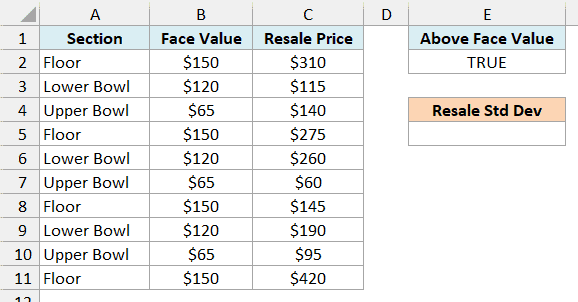
Below is a list of concert tickets with each ticket’s face value and the price it resold for, and I want the standard deviation of resale prices for tickets that sold above face value, with the result in E5.
Here is the formula:
=DSTDEV(A1:C11,"Resale Price",E1:E2)
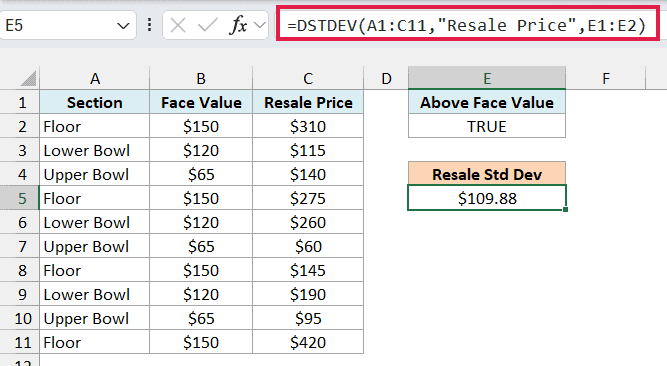
This returns $109.88, the standard deviation of the seven tickets that resold for more than face value.
How this formula works:
- E2 holds the formula =C2>B2, which checks whether the resale price is higher than the face value. It’s written for the first ticket, in row 2.
- DSTDEV runs that check again for every ticket, moving it down one row at a time. That’s why C2 and B2 have no dollar signs.
- E2 shows TRUE because it only displays the result for the first ticket ($310 against $150). That doesn’t affect the DSTDEV result.
- The header in E1 is Above Face Value, which doesn’t match any column in the data. A formula condition needs a header like that, because a header that matches a column (like Resale Price) makes DSTDEV return #DIV/0!.
Important: Keep C2 and B2 as relative references. If you lock them as $C$2>$B$2, every ticket gets the first ticket’s answer (TRUE), so all ten count and you get $112.69, the standard deviation of all ten resale prices.
So these are some practical ways to use the DSTDEV function in Excel. I covered single conditions, AND and OR conditions, dates, the #DIV/0! error, several columns at once, and a formula as the condition.
I hope you found this Excel tutorial useful.
Other Excel Articles You May Also Like:
