

The CSC function in Excel returns the cosecant of an angle. Cosecant is the reciprocal of sine, which means you divide 1 by the sine of the angle.
You can use it in trigonometry calculations, including finding the hypotenuse of a right triangle. The main thing to watch is the angle’s unit: CSC expects radians, so an angle in degrees needs to be converted first.
In this tutorial, I’ll show you how to calculate cosecants from both units, use the result in a triangle calculation, and handle angles where cosecant is undefined.
Follow along with the example file
CSC Function Examples.xlsx
CSC Function Syntax
Here is the syntax of the CSC function:
=CSC(number)
- number (required): The angle in radians. You can supply a number directly or refer to a cell containing the angle.
The angle must be greater than -134,217,728 and less than 134,217,728 radians. An input at either limit or beyond it returns a #NUM! error.
CSC is available in Excel 2013 and later. The examples below use formulas that spill multiple results in Excel 365, 2024, and 2021, with separate formulas for Excel 2013, 2016, and 2019.
When to Use the CSC Function
Use this function when you need to:
- Calculate the cosecant for a list of angles in a trigonometry worksheet.
- Work with a formula written in terms of cosecant, without manually dividing by sine.
- Find a right triangle’s hypotenuse when you know an acute angle and the length of the side opposite it.
Let’s start with angles that are already in radians, then move on to degrees.
Example 1: Calculate Cosecants From Radians
When your angles are already in radians, you can pass them straight to CSC.
Below is a list of radian angles, and I want to calculate their cosecants in column B.
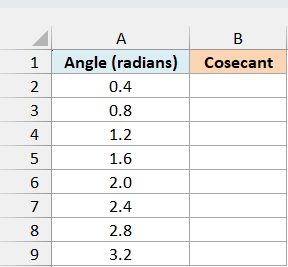
Enter the following formula in cell B2:
=CSC(A2:A9)
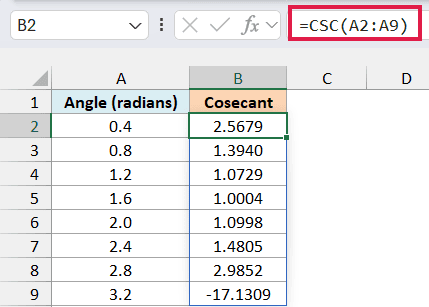
The formula calculates a cosecant for each angle in A2:A9 and spills the eight answers down column B. For the first angle, 0.4 radians, the result is approximately 2.5679.
This gives the same result as dividing 1 by the angle’s sine, which you can calculate with the SIN function. The cells show four decimal places, but Excel keeps the additional precision for later calculations.
If there is already something in the cells below B2, the formula may return #SPILL! because it can’t place all eight answers. Clear B3:B9 before entering the formula; the example workbook already has this space available.
The inputs also need to be numeric. Text such as “angle” returns #VALUE!, so keep labels in the header row and the radian values below it.
If you are using Excel 2013, 2016, or 2019, enter the following formula in B2 and copy it down to B9:
=CSC(A2)
Example 2: Convert Degree Angles Before Calculating
An angle of 20 degrees isn’t the same as an angle of 20 radians. If your source gives angles in degrees, the formula needs a conversion before CSC does its calculation.
Below is a list of degree angles, and I want to return their cosecants in column B.
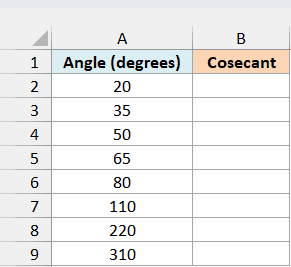
Enter the following formula in cell B2:
=CSC(RADIANS(A2:A9))
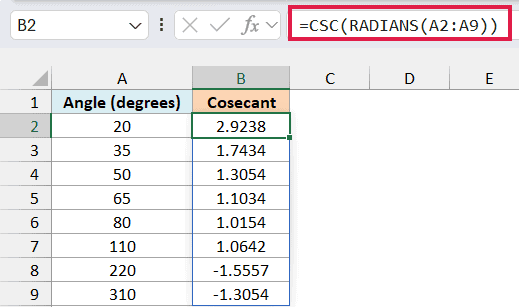
The RADIANS function converts each degree value to radians. CSC then calculates the cosecant of each converted angle, giving approximately 2.9238 for the first value, 20 degrees.
Notice that the results for 220 and 310 degrees are negative. The sine of each of these angles is negative, so its reciprocal is negative too.
Important: CSC doesn’t detect whether your values are degrees. Passing degree values directly to it can return numbers that look valid but represent the wrong angles, so keep the RADIANS conversion in place for degree inputs.
If you are using Excel 2013, 2016, or 2019, enter the following formula in B2 and copy it down to B9:
=CSC(RADIANS(A2))
Example 3: Find a Right Triangle’s Hypotenuse
You can also use CSC as part of a length calculation. In a right triangle, the cosecant of an acute angle equals the hypotenuse divided by the length of the side opposite that angle.
So, multiplying the opposite side’s length by the cosecant gives you the hypotenuse.
Below are six right triangles with an acute angle and its opposite side’s length, and I want to calculate each hypotenuse in column D.
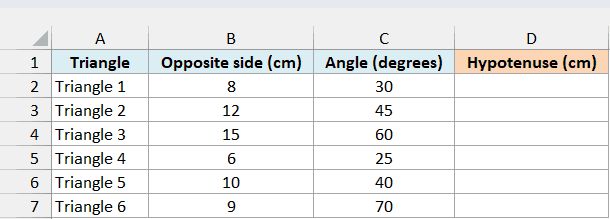
Enter the following formula in cell D2:
=B2:B7*CSC(RADIANS(C2:C7))
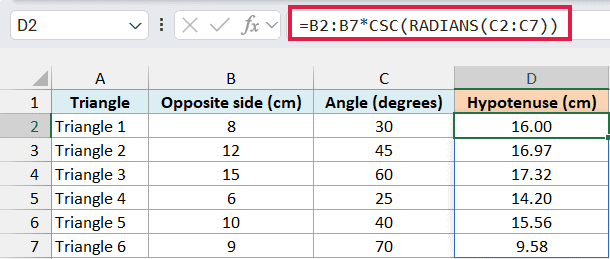
The formula converts each angle in column C to radians and calculates its cosecant. It then multiplies that result by the opposite side’s length from the same row in column B.
For Triangle 1, the opposite side is 8 cm and the angle is 30 degrees. The cosecant is 2, so the hypotenuse is 8 multiplied by 2, or 16 cm.
This calculation assumes a right triangle and an angle between 0 and 90 degrees, excluding both endpoints. Make sure the length you supply is for the side opposite that angle; using the adjacent side would give the wrong answer.
If you are using Excel 2013, 2016, or 2019, enter the following formula in D2 and copy it down to D7:
=B2*CSC(RADIANS(C2))
Example 4: Handle Exact Half and Full Turns
Cosecant is undefined whenever the sine of an angle is zero. That includes 0 degrees and every exact multiple of 180 degrees, such as a half turn of 180 or a full turn of 360.
In Excel, CSC returns #DIV/0! for zero. But at 180 degrees, a calculation using radians can return a huge number instead, because Excel’s approximation of pi makes the calculated sine very close to zero rather than exactly zero.
Below is a list of exact degree angles, and I want column B to show either their cosecant or the label “Undefined”.
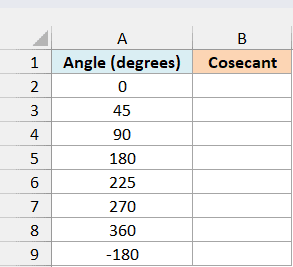
Enter the following formula in cell B2:
=IF(MOD(A2:A9,180)=0,"Undefined",CSC(RADIANS(A2:A9)))
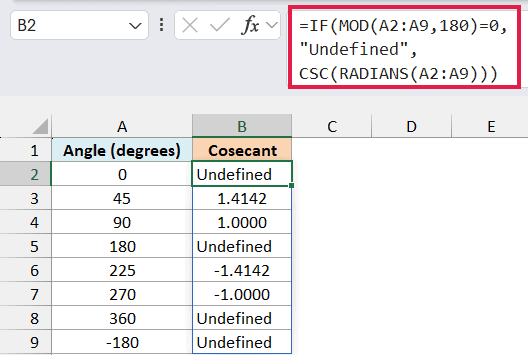
How this formula works:
- The MOD function finds the remainder after dividing each degree value by 180. A remainder of zero identifies an exact multiple of 180, including zero and negative multiples.
- The IF function returns “Undefined” for those angles.
- For the remaining angles, the formula converts degrees to radians and calculates the cosecant normally.
The results label 0, 180, 360, and -180 degrees as “Undefined”. That text comes from the IF formula, not from CSC itself; the other rows still return numbers.
An error-catching formula alone wouldn’t solve this problem. A huge numeric result isn’t an Excel error, so it would pass through unchanged.
Important: This check is for exact degree inputs. An angle close to 180 degrees can legitimately have a very large cosecant, so this formula doesn’t treat nearby measured values as undefined.
Keep the input range limited to your actual numeric angles. A blank cell can be treated as zero here and receive the “Undefined” label even though no angle was supplied.
If you are using Excel 2013, 2016, or 2019, enter the following formula in B2 and copy it down to B9:
=IF(MOD(A2,180)=0,"Undefined",CSC(RADIANS(A2)))
In this tutorial, I covered how to calculate cosecants from radians and degrees, find a right triangle’s hypotenuse, and label exact angles where cosecant is undefined.
I hope you found this Excel tutorial useful.
Other Excel Articles You May Also Like:
