

The BIN2OCT function in Excel converts a binary number (one made of only 0s and 1s) into an octal number, which uses the digits 0 to 7. For example, it turns the binary number 1100100 into 144.
Octal is handy because every three binary digits map to exactly one octal digit, so a long string of bits becomes a short code. The place you’re most likely to see this is file permissions on Linux and Mac, like 755 or 644.
In this tutorial, I’ll show you how to convert a whole list at once, add leading zeros, turn permission strings into octal codes, handle negative numbers, and get past BIN2OCT’s 10-digit limit.
Follow along with the example file
BIN2OCT Function Examples.xlsx
BIN2OCT Function Syntax
Here is the syntax of the BIN2OCT function:
=BIN2OCT(number, [places])
- number – the binary number you want to convert. It can have up to 10 characters, all 0s and 1s, and can be a number, text in double quotes, or a cell reference. A 10-character number that starts with 1 is read as a negative number (Example 4 shows how this works).
- places – (optional) the number of characters you want in the result. BIN2OCT adds leading zeros to reach this length.
When you leave out places, BIN2OCT uses as few characters as it needs. So =BIN2OCT(1001) returns 11, while =BIN2OCT(1001,3) returns 011.
If places is smaller than the result needs, you get a #NUM! error. For example, =BIN2OCT(11111,1) returns #NUM! because 11111 converts to 37, which needs two characters.
A places value of 0 or less also returns #NUM!, and text like “three” returns #VALUE!. A decimal value is cut down to a whole number, so 2.9 works like 2.
The BIN2OCT function works in Excel for Microsoft 365, Excel 2024, 2021, 2019, 2016, and Excel for Mac.
When to Use the BIN2OCT Function
Use this function when you need to:
- Convert binary numbers into shorter octal numbers that are easier to read.
- Get octal codes of a fixed length, with leading zeros.
- Turn Linux or Mac file permissions like rwxr-xr-x into octal codes like 755.
- Convert negative binary numbers stored in 10-bit form.
Let me show you a few practical examples of how to use the BIN2OCT function.
Example 1: Convert a List of Binary Numbers to Octal
Let’s start with a simple example.
Below is a list of binary numbers, and I want to convert each one to octal in column B.
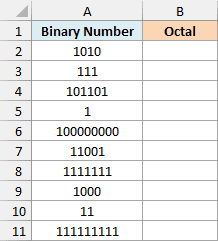
Here is the formula:
=BIN2OCT(+A2:A11)
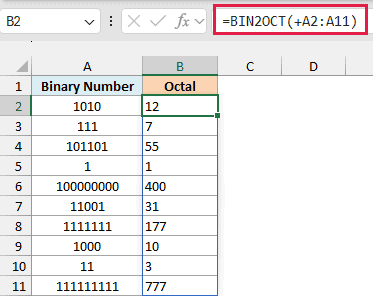
You enter this formula once in cell B2, and the results spill down to B11. BIN2OCT converts every binary number in A2:A11 to octal.
Important: Don’t skip the plus sign (+) before A2:A11. BIN2OCT can’t take a range reference directly, so =BIN2OCT(A2:A11) returns a single #VALUE! error instead of ten results.
The plus sign makes Excel read the values out of the range first and pass them to BIN2OCT as a list (an array), which it can work with. The same plus sign shows up in most examples below.
BIN2OCT isn’t the only function that behaves like this. Here’s a look at other Excel functions that won’t spill on a range, and how to fix them.
To see how the conversion works, split the binary number into groups of three digits, starting from the right. 101101 becomes 101 and 101, and each 101 is 5 in octal, so the result is 55.
When the leftmost group is short, it just stands for a smaller digit. 1111111 splits into 1, 111, and 111, which gives 1, 7, and 7, so the result is 177.
Also notice that the results sit on the left of the cells. That’s because BIN2OCT returns text, not a number, even when the result looks like one.
If you are using Excel 2019 or earlier, enter the below formula in cell B2 and then copy it down the range:
=BIN2OCT(A2)
This version doesn’t need the plus sign, because each formula points to just one cell. The same copy-down approach works for the other examples in this article.
Example 2: Add Leading Zeros to BIN2OCT Results
Now let’s use the places argument.
Below is another list of binary numbers, and I want each octal result in column B to be exactly three characters long.
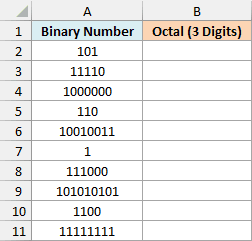
Here is the formula:
=BIN2OCT(+A2:A11,3)
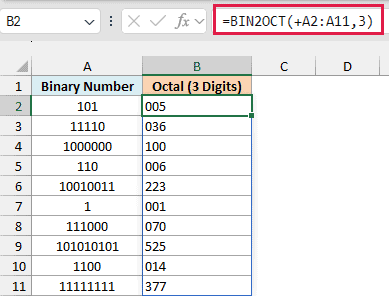
The 3 tells BIN2OCT to make every result three characters long, so it adds leading zeros where needed. For example, 101 converts to 5 and comes back as 005, while 1000000 converts to 100 and stays as it is.
Since BIN2OCT returns text, these leading zeros stay in the cell. A number like 005 would lose them, because Excel would show it as 5.
Three is a safe choice for positive numbers. The largest positive number BIN2OCT accepts is 111111111 (nine 1s), and that converts to 777, which is three characters.
Example 3: Convert File Permissions (rwx) to Octal Codes
Here’s a practical use of octal that you might run into.
On Linux and Mac, every file has permissions for three groups of people: the owner, the owner’s group, and everyone else. Each group gets three letters, r (read), w (write), and x (execute), with a dash where a permission is missing.
So rwxr-xr-x splits into rwx for the owner, r-x for the group, and r-x for everyone else. The owner can read, write, and run the file, while the group and everyone else can only read and run it.
Tools like chmod use an octal code for these permissions, and rwxr-xr-x is 755.
Below is a list of files with their permissions, and I want the octal code for each one in column C.
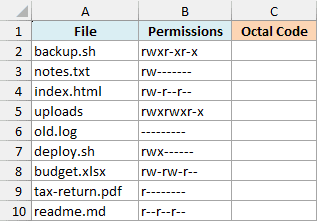
Here is the formula:
=BIN2OCT(SUBSTITUTE(SUBSTITUTE(SUBSTITUTE(SUBSTITUTE(B2:B10,"r",1),"w",1),"x",1),"-",0),3)
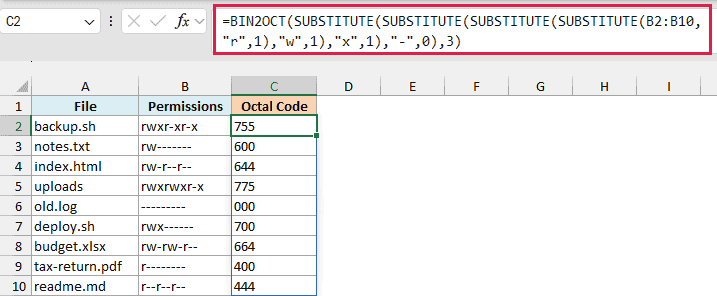
How this formula works:
- The three inner SUBSTITUTE functions replace r, w, and x with 1, and the outer one replaces each dash with 0. So rwxr-xr-x becomes 111101101.
- BIN2OCT then converts that binary number to octal, so 111101101 becomes 755.
- The 3 for places keeps every code at three digits. Without it, old.log’s ——— would return just 0 instead of 000.
Each octal digit matches one group of three letters. For example, rw- becomes 110, which is 6, and that’s where the 6 in 644 comes from.
You don’t need the plus sign here, because the SUBSTITUTE function already hands BIN2OCT a list of values rather than a range reference.
This formula expects only r, w, x, and dashes. If a string has a special letter like s or t in the execute spot (as in rwsr-xr-x), that letter is left in place and the formula returns #NUM!.
Example 4: Convert Negative Binary Numbers With BIN2OCT
Now let’s look at negative numbers, which work a bit differently.
BIN2OCT reads a 10-character binary number that starts with 1 as a negative number. This is called two’s complement notation.
In this form, the leading 1 counts as -512, and the other nine digits add to it as usual. So 1000000000 is -512, and 1111111111 is -512 + 511, which is -1.
Below is a list of binary numbers along with the decimal value each one stands for, and I want their octal versions in column C, three characters long.
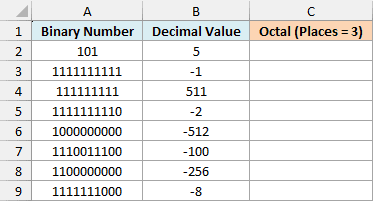
Here is the formula:
=BIN2OCT(+A2:A9,3)
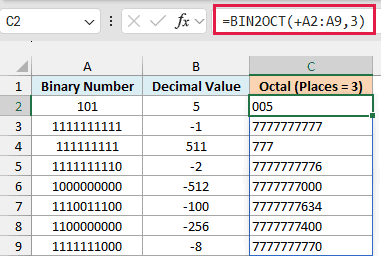
The positive numbers work the same way as in Example 2. 101 returns 005, and 111111111 returns 777.
The negative ones come back as 10-character octal numbers that start with a run of 7s, even though I asked for three characters. For example, 1111111111 (which is -1) returns 7777777777.
Those leading 7s are how octal shows a negative number (the same job the leading 1 does in binary), so trimming them would change the value. That’s why BIN2OCT ignores places for negative numbers and always returns 10 characters.
For example, 1110011100 (which column B shows as -100) returns 7777777634. If you convert that back with the OCT2DEC function, =OCT2DEC("7777777634") returns -100 again.
Important: A 10-digit binary number that starts with 1 always comes back as negative, even if you meant it as a positive number (like 1000000000 for 512). For those, use the BASE and DECIMAL method in Example 5.
Example 5: Convert Binary Numbers Longer Than 10 Bits
Let’s step it up with a case BIN2OCT can’t handle on its own.
Below is a list of binary numbers with 11 to 15 digits, and I want to try BIN2OCT in column B and then get the octal values with a method that works in column C.
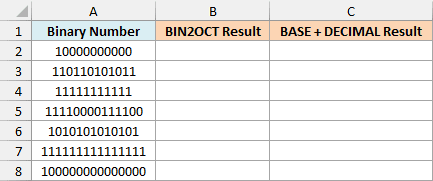
Here is the BIN2OCT formula:
=BIN2OCT(+A2:A8)
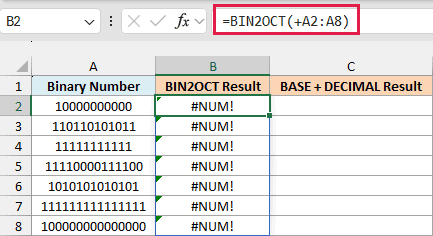
Every result is #NUM!, because BIN2OCT only accepts binary numbers of up to 10 digits.
Now here is the formula that works:
=BASE(DECIMAL(A2:A8,2),8)
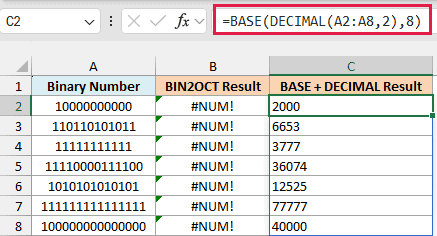
How this formula works:
- DECIMAL(A2:A8,2) converts each binary number to a regular decimal number. The 2 tells it the input is in base 2 (binary), so 110110101011 becomes 3499.
- The BASE function then converts that decimal number to base 8, which is octal. So 3499 becomes 6653.
The DECIMAL function accepts a range directly, so this formula doesn’t need the plus sign. If you want leading zeros, the BASE function has its own third argument for the length, for example =BASE(DECIMAL(A2:A8,2),8,6).
This method works for binary numbers up to 53 digits long.
Important: Excel keeps only 15 digits in a number and changes any digits after the 15th to zeros, so a longer binary number typed as a number gets changed. Enter anything longer than 15 digits as text (start it with an apostrophe).
The BASE and DECIMAL functions treat every binary number as positive. So 1111111111 returns 1777 with this method, while BIN2OCT reads it as -1 and returns 7777777777.
The BASE and DECIMAL functions are available in Excel 2013 and later versions.
Example 6: Why BIN2OCT Returns the #NUM! Error
Lastly, let’s look at what BIN2OCT does with inputs it can’t use.
Below are some inputs that commonly cause trouble, with a note on what’s in each cell, and I want to see what BIN2OCT returns for each one in column C.
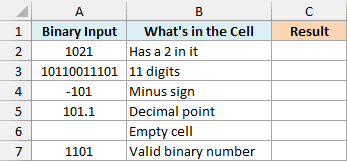
Here is the formula:
=BIN2OCT(+A2:A7)
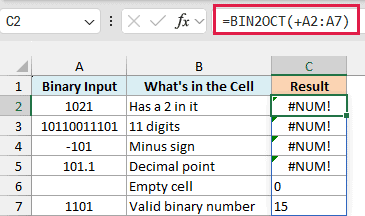
1021 returns the #NUM! error because a binary number can only contain 0s and 1s. 10110011101 returns #NUM! because it has 11 digits, one more than BIN2OCT allows.
-101 and 101.1 return #NUM! too, because BIN2OCT doesn’t accept a minus sign or a decimal point. Negative numbers have to be in the 10-digit form shown in Example 4.
Important: An empty cell doesn’t return an error. BIN2OCT treats it as 0 and returns 0, which looks like a valid result, so make sure every input cell has a value.
The last row, 1101, is a valid binary number and returns 15.
So these are a few examples of how to use the BIN2OCT function in Excel. Just keep the 10-digit limit in mind, and remember the plus sign when you convert a whole range at once.
If you need to go the other way, the OCT2BIN function converts octal back to binary. And for other number systems, Excel has the BIN2DEC and BIN2HEX functions.
Other Excel Articles You May Also Like:
