

The IMARGUMENT function in Excel gives you the angle of a complex number, measured in radians. For 3+4i, it returns about 0.9273 radians, which is the same as 53.13 degrees.
You’ll need it when you work with phase angles in AC circuits, convert complex numbers to polar form, or figure out the direction of a point.
And unlike most of Excel’s complex number functions, it returns a regular number, so you can use the result in more math right away.
In this article, I’ll show you how to use IMARGUMENT with five examples, including how to get the angle in degrees, keep it between 0 and 360, and handle the #DIV/0! error that blank cells cause.
Follow along with the example file
IMARGUMENT Function Examples.xlsx
IMARGUMENT Function Syntax
Here is the syntax of the IMARGUMENT function:
=IMARGUMENT(inumber)
- inumber – The complex number you want the angle of. It can be text like “3+4i” typed in double quotes, a reference to a cell that holds one, or the result of another function such as COMPLEX.
The complex number can use i or j for the imaginary part, but the letter has to be lowercase. A plain number such as 5 also works, because Excel reads it as a complex number with no imaginary part.
The result is always in radians, between -π and π. If you want degrees, you’ll need to convert it (Example 2 shows how).
The IMARGUMENT function works in Excel for Microsoft 365, Excel 2024, 2021, 2019, 2016, and Excel for Mac. The single formulas that fill a whole column need Excel 365 or Excel 2021 and later.
When to Use the IMARGUMENT Function
Use this function when you need to:
- Find the angle (also called the argument) of a complex number
- Get the phase angle of an impedance in AC circuit calculations
- Convert complex numbers to polar form, together with the IMABS function
- Work out the direction of a point from its position
Let me show you a few practical examples of how to use the IMARGUMENT function.
Example 1: Find the Angle of a Complex Number
Let’s start with a simple example.
Below is a list of complex numbers, and I want to find the angle of each one in radians in column B.
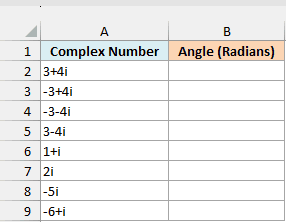
Here is the formula to enter in cell B2 and copy down:
=IMARGUMENT(A2)
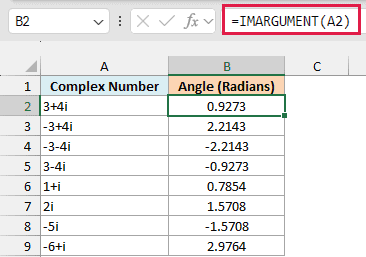
It helps to picture each complex number as a point on a graph. The real part is how far right of zero the point is (left if negative), and the imaginary part is how far up (down if negative).
IMARGUMENT measures the angle between the line going right from zero (called the positive real axis) and the line to that point, going counterclockwise. So 3+4i returns 0.9273, and 2i, which points straight up, returns 1.5708 (that’s π/2).
Points below that line get a negative angle. For example, 3-4i returns -0.9273, which is the same size of angle as 3+4i, just measured clockwise.
The result never goes past π (3.1416) in either direction. That’s why -6+i, which sits far to the left and just a little above zero, returns 2.9764, very close to π.
I’ve formatted the results to show four decimal places. Without that, Excel shows more digits (0.927295 for 3+4i), but the value is the same.
You might wonder why not just use the ATAN function on the imaginary part divided by the real part. The problem is that -3-4i gives the same ratio as 3+4i, so ATAN returns 0.9273 for both, while IMARGUMENT correctly returns -2.2143 for -3-4i.
I’ve kept this first example as a per-row formula so you can see how IMARGUMENT handles one number at a time. The next example converts a whole column with one formula.
Example 2: Get the Phase Angle in Degrees
Radians are great for further math, but most of us think about angles in degrees. Here’s how to get degrees for a whole list with one formula.
Below is a list of household appliances with the impedance of each one in ohms (written with j, the way electrical engineers do), and I want the phase angle of each appliance in degrees in column C.
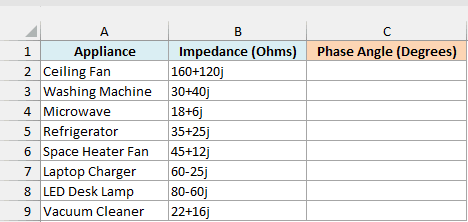
Here is the formula to enter in cell C2:
=DEGREES(IMARGUMENT(+B2:B9))
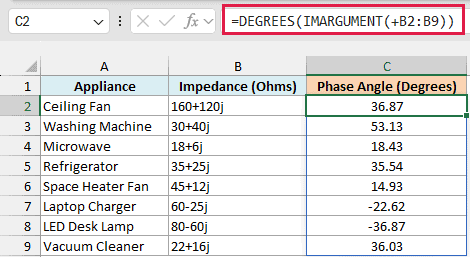
IMARGUMENT returns the angle of each impedance in radians, and the DEGREES function converts it to degrees. The results spill down to C9, so the washing machine (30+40j) has a phase angle of 53.13 degrees.
A positive angle means the appliance is inductive, which is typical for anything with a motor, like the ceiling fan. A negative angle, like the LED desk lamp’s -36.87, means it’s capacitive.
Notice the plus sign in front of B2:B9. Without it, IMARGUMENT returns a single #VALUE! error instead of eight angles.
Here’s that formula without the plus sign in cell E2:
=DEGREES(IMARGUMENT(B2:B9))
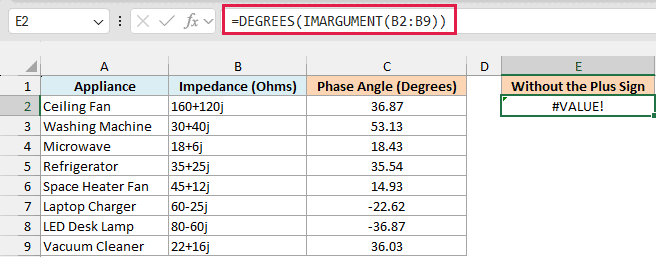
This happens because IMARGUMENT can’t take a multi-cell range reference like B2:B9. It only works with single values, or with a list of values held in memory (called an array).
Putting a plus sign in front of the range makes Excel hand IMARGUMENT its values as an array, so it returns one angle for each row.
Don’t use a double minus (–) instead of the plus sign. It tries to turn each complex number into a regular number, so every row returns #VALUE!.
If you are using Excel 2019 or earlier, enter the below formula in cell C2 and then copy it down the range:
=DEGREES(IMARGUMENT(B2))
Example 3: Get Angles Between 0 and 360 Degrees
IMARGUMENT gives a negative angle for anything below the real axis. When you’re working with directions, though, a full 0 to 360 scale is usually easier to read.
Below is a list of landmarks with the position of each one in meters from the town square, and I want the direction of each landmark as an angle from 0 to 360 degrees in column C.
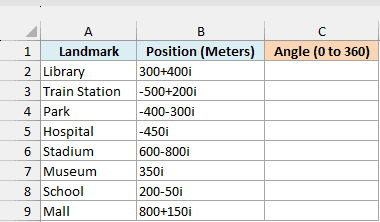
In each position, the real part is how far east of the square the landmark is, and the imaginary part is how far north. So the library at 300+400i is 300 meters east and 400 meters north.
Here is the formula to enter in cell C2:
=MOD(DEGREES(IMARGUMENT(+B2:B9)),360)
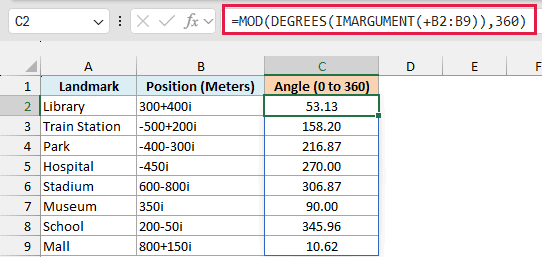
How this formula works:
IMARGUMENT(+B2:B9)returns the angle of each position in radians, between -π and π.DEGREES(...)converts those angles to degrees, so they fall between -180 and 180.MOD(...,360)adds 360 to every negative angle and leaves the positive ones as they are.
So the stadium at 600-800i, which IMARGUMENT puts at -53.13 degrees, shows 306.87. And the hospital, straight south at -450i, shows 270.
These angles start at east and go counterclockwise, the way angles work in math class. A compass bearing works differently, because it starts at north and goes clockwise.
To get the compass bearing of each landmark, enter this formula in cell D2:
=MOD(90-DEGREES(IMARGUMENT(+B2:B9)),360)
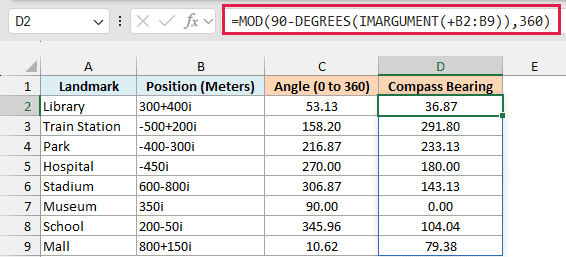
Subtracting the angle from 90 moves the starting point to north and flips the direction to clockwise. MOD then keeps the result between 0 and 360.
So the museum, straight north at 350i, has a bearing of 0, and the library has a bearing of 36.87 degrees.
If you are using Excel 2019 or earlier, enter the below formula in cell C2 and then copy it down the range:
=MOD(DEGREES(IMARGUMENT(B2)),360)
And for the compass bearing, enter the below formula in cell D2 and then copy it down the range:
=MOD(90-DEGREES(IMARGUMENT(B2)),360)
Example 4: Convert Complex Numbers to Polar Form
Now let’s use IMARGUMENT together with another complex number function.
Below is a list of forces from a physics worksheet, with each force written as a complex number in newtons, and I want each force in polar form in column C.
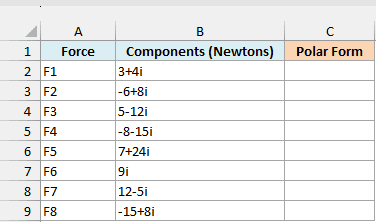
Polar form describes a complex number by its size (the magnitude) and its angle, instead of its real and imaginary parts. For example, 3+4i in polar form is 5∠53.13°.
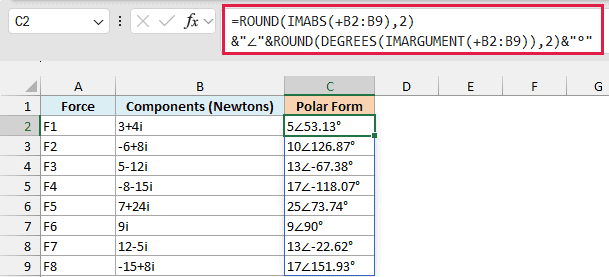
The IMABS function gives you the magnitude, and IMARGUMENT gives you the angle. Here is the formula to enter in cell C2:
=ROUND(IMABS(+B2:B9),2)&"∠"&ROUND(DEGREES(IMARGUMENT(+B2:B9)),2)&"°"
How this formula works:
ROUND(IMABS(+B2:B9),2)returns the magnitude of each force, rounded to two decimal places.ROUND(DEGREES(IMARGUMENT(+B2:B9)),2)returns the angle of each force in degrees, also rounded to two decimal places.- The & operator joins the two parts, with the ∠ (angle) symbol in between and the ° symbol at the end.
So force F2 (-6+8i, in row 3) becomes 10∠126.87° in cell C3, and force F6 (9i, in row 7) becomes 9∠90° in cell C7.
The result is text, which is great for showing the values but can’t be used in more calculations. If you need the magnitude and angle for further math, keep them as numbers in two separate cells.
If you can’t type the ∠ symbol, you can copy the formula from here. Or replace “∠” in the formula, including its quotation marks, with UNICHAR(8736), which returns the same symbol.
If you are using Excel 2019 or earlier, enter the below formula in cell C2 and then copy it down the range:
=ROUND(IMABS(B2),2)&"∠"&ROUND(DEGREES(IMARGUMENT(B2)),2)&"°"
Example 5: Fix the #DIV/0! Error in IMARGUMENT
Finally, let’s look at the inputs that make IMARGUMENT return an error, and how to handle blank cells.
Below are a few test cases with a different kind of input in each row, and I want to see what IMARGUMENT returns for each one in column C.
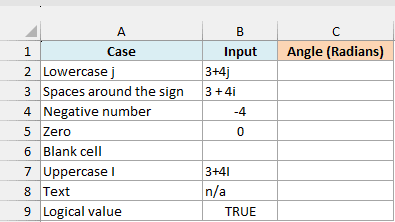
Here is the formula to enter in cell C2:
=IMARGUMENT(+B2:B9)
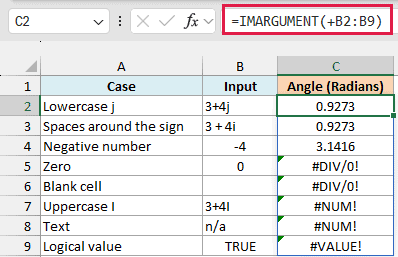
The first three cases work. IMARGUMENT is fine with a lowercase j and with spaces around the plus sign, and the negative number -4 returns π (3.1416), since it points straight left.
Zero returns the #DIV/0! error, because zero has no direction, so there’s no angle to give.
The blank cell also returns #DIV/0!, because IMARGUMENT treats an empty cell as zero. This is the one you’re most likely to run into, when a column of complex numbers has a few gaps.
The uppercase I and the n/a text return #NUM!, because IMARGUMENT doesn’t recognize them as complex numbers. And the logical value TRUE returns #VALUE!.
To skip the blank cells, check for them before IMARGUMENT runs. Here is the formula to enter in cell D2:
=IF(B2:B9="","",IMARGUMENT(+B2:B9))
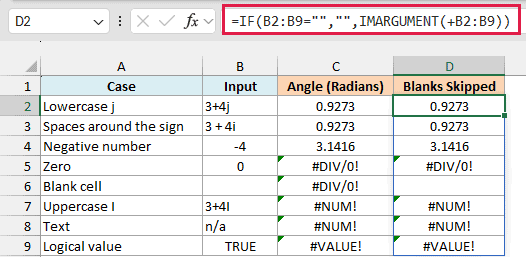
Now the blank cell’s row shows nothing, while zero still shows #DIV/0!. That’s a good thing, because a real zero has no angle, and you’d want to know it’s there.
Important: Wrapping IMARGUMENT in the IFERROR function would blank out every error, including the #NUM! from a mistyped complex number. A wrong input would then quietly disappear instead of showing up as an error you can fix.
If you are using Excel 2019 or earlier, enter the below formula in cell D2 and then copy it down the range:
=IF(B2="","",IMARGUMENT(B2))
So these are some practical ways to use the IMARGUMENT function in Excel to find the angle of a complex number.
Just remember that the result is in radians, so wrap it in DEGREES when you want degrees. And put a plus sign in front of a range when you want one formula for the whole column.
I hope you found this article helpful.
Other Excel Articles You May Also Like:
