

The IMDIV function in Excel divides one complex number by another and returns the result as a complex number, like 5+12i. You need it when your numbers have a real part and an imaginary part, which is common in math and electrical work.
You can’t use the regular slash (/) for this, because Excel reads “6+8i” as text, not a number. IMDIV returns text too, so cell formatting can’t shorten its long decimals.
It also won’t take a whole range the way most Excel functions do, but there’s a simple trick that lets you divide an entire column with one formula.
In this article, I’ll show you how to use IMDIV with five practical examples, including how to average complex numbers and how to handle the error you get when you divide by zero.
Follow along with the example file
IMDIV Function Examples.xlsx
IMDIV Function Syntax
Here is the syntax of the IMDIV function:
=IMDIV(inumber1, inumber2)
- inumber1 – The complex number you want to divide (the dividend).
- inumber2 – The complex number you want to divide by (the divisor).
Both arguments take a complex number written as text, such as “6+8i” or “6+8j”, or a cell that holds one. When you type a complex number straight into the formula, wrap it in double quotes, so =IMDIV("6+8i","1-i") returns -1+7i.
You can also use a plain number as either argument. IMDIV treats it as a complex number with no imaginary part, so =IMDIV("6+8i",2) divides both parts by 2 and returns 3+4i.
The i or j has to be lowercase. If you type “6+8I”, IMDIV doesn’t recognize it as a complex number and returns the #NUM! error.
The IMDIV function works in Excel for Microsoft 365, Excel 2024, 2021, 2019, 2016, Excel for Mac, and Excel for the web.
When to Use the IMDIV Function
Use this function when you need to:
- Divide one complex number by another in a math or engineering worksheet
- Scale a list of complex numbers down by a fixed number, such as converting units
- Find the average of a group of complex numbers, together with the IMSUM function
- Calculate impedance or current in AC circuits written in j notation
Let me show you a few practical examples of how to use the IMDIV function.
Example 1: Divide Two Complex Numbers in Excel
Let’s start with a simple example.
Below is a set of practice problems with a dividend and a divisor in each row, and I want to get the quotient in column D.
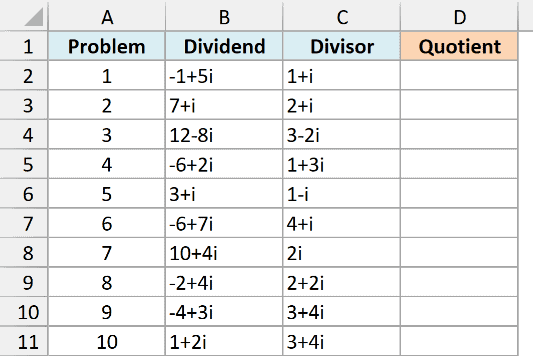
Here is the formula to enter in cell D2 and copy down:
=IMDIV(B2,C2)
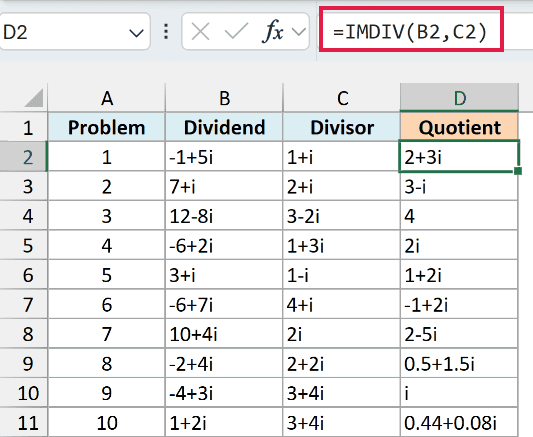
IMDIV divides the number in B2 by the number in C2, so -1+5i divided by 1+i gives 2+3i.
The order of the arguments matters, just like in regular division. The first one is the number being divided and the second is what you divide it by, so swapping B2 and C2 would give you a different answer.
You’ll also notice that Excel keeps the results short. A part that equals 0 is left out, so problem 3 shows just 4 and problem 4 shows 2i.
And a 1 in front of the i is dropped, which is why problem 9 shows just i instead of 1i.
When the division doesn’t come out even, you get decimals instead, like 0.44+0.08i in problem 10.
Pro Tip: To double-check a division, multiply the result back by the divisor with the IMPRODUCT function. For example, =IMPRODUCT(D2,C2) returns -1+5i, which is the dividend in B2.
I’ve kept this example as a per-row formula so you can follow one division at a time. The next example divides a whole column with a single formula.
Example 2: Divide a Column of Complex Numbers by a Number
Now let’s divide a whole column at once. This is where IMDIV behaves differently from most Excel functions.
Below is a garden plan with the position of each plant in feet, and I want to convert those positions to yards in column C.
Each position is measured from the front-left corner of the garden. The real part is the distance across in feet, and the imaginary part is the distance back from the front edge.
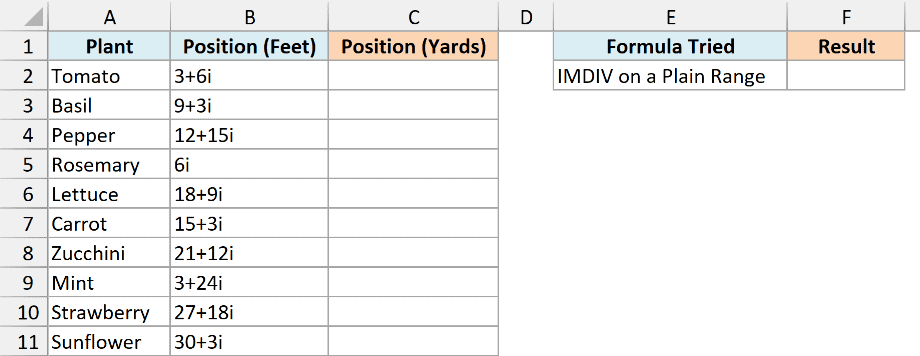
Since there are 3 feet in a yard, you need to divide every position by 3. The obvious formula would be to give IMDIV the whole range, and I’ve entered that in cell F2:
=IMDIV(B2:B11,3)
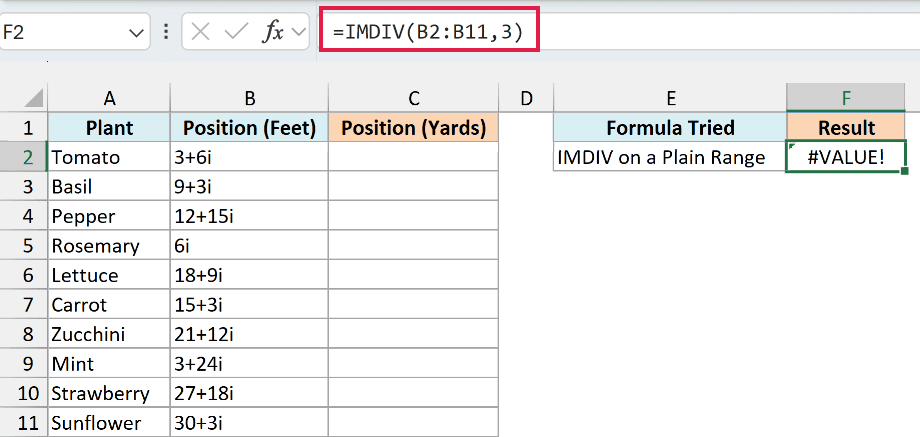
It returns a #VALUE! error, because IMDIV doesn’t accept a multi-cell range like B2:B11. It only works with single values, or with a set of values held in memory (called an array).
Putting a plus sign (+) in front of the range fixes this, because Excel then passes the values to IMDIV as an array. Here is the formula to enter in cell C2:
=IMDIV(+B2:B11,3)
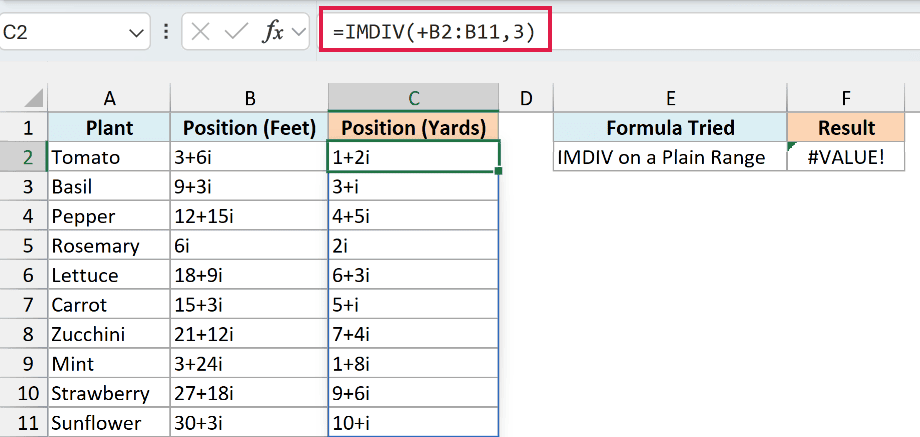
This divides every position by 3 and spills the results down to C11. So the tomato at 3+6i feet sits at 1+2i yards, and the rosemary at 6i feet sits at 2i yards.
Important: Use just the plus sign here. A double minus (–) or +0 also creates an array, but they try to turn the text into numbers first, so every position returns #VALUE!.
The same plus-sign trick works for other functions that won’t spill when you give them a range.
If you are using Excel 2019 or earlier, enter the below formula in cell C2 and then copy it down the range:
=IMDIV(B2,3)
Example 3: Find the Average of Complex Numbers
Excel has no IMAVERAGE function. So when you want the average of several complex numbers, you add them up with the IMSUM function and divide the total with IMDIV.
Below is a list of friends with the location of each home on a city grid, and I want the average location in cell E2 so they can pick a meeting spot near the middle.
Each location is in blocks from downtown. The real part is blocks east (negative means west), and the imaginary part is blocks north (negative means south).
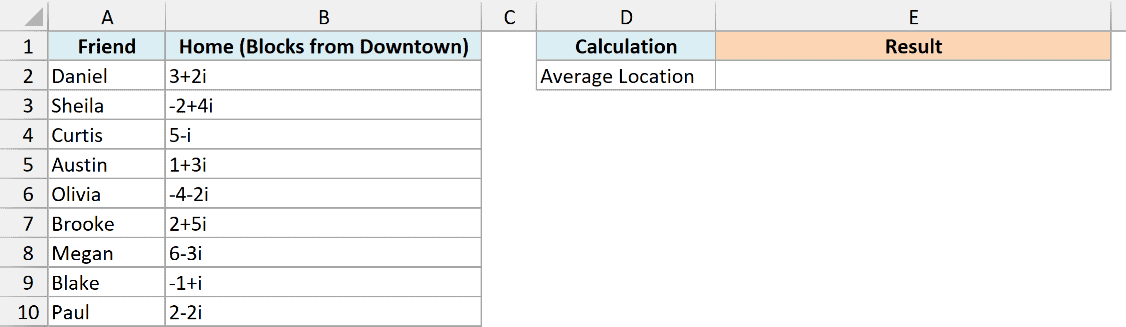
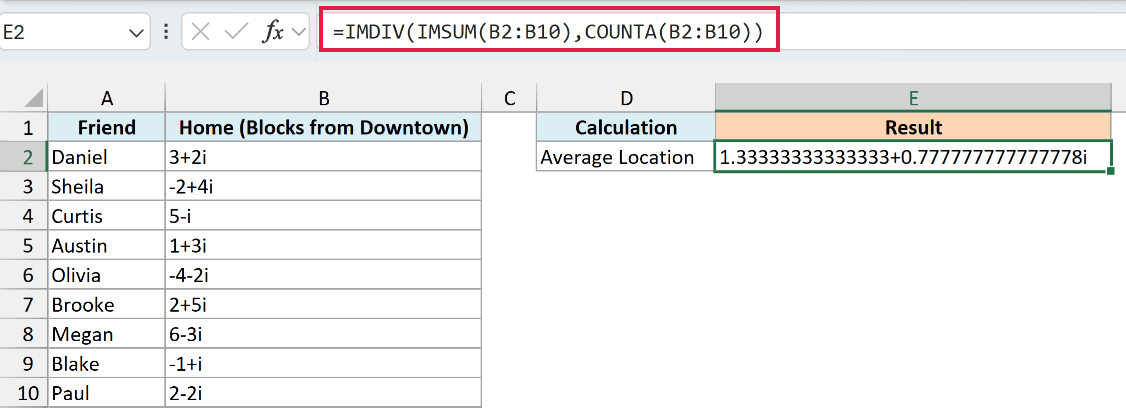
Here is the formula to enter in cell E2:
=IMDIV(IMSUM(B2:B10),COUNTA(B2:B10))
How this formula works:
- IMSUM(B2:B10) adds all nine home locations into one complex number, 12+7i. Unlike IMDIV, the IMSUM function accepts a range directly, so no plus sign is needed.
- COUNTA(B2:B10) uses the COUNTA function to count the filled cells, which gives you 9 friends.
- IMDIV divides the total by 9, which gives you the average location.
The result is 1.33333333333333+0.777777777777778i, so the meeting spot is about 1.3 blocks east and 0.8 blocks north of downtown. That’s correct, but it’s a lot of decimals.
You can’t shorten it with cell formatting, because IMDIV returns text and number formats don’t apply to text. The ROUND function doesn’t work either, since it returns a #VALUE! error on a complex number.
Instead, round the real and imaginary parts separately and join them back together. Here is the formula to enter in cell E3:
=COMPLEX(ROUND(IMREAL(E2),2),ROUND(IMAGINARY(E2),2))
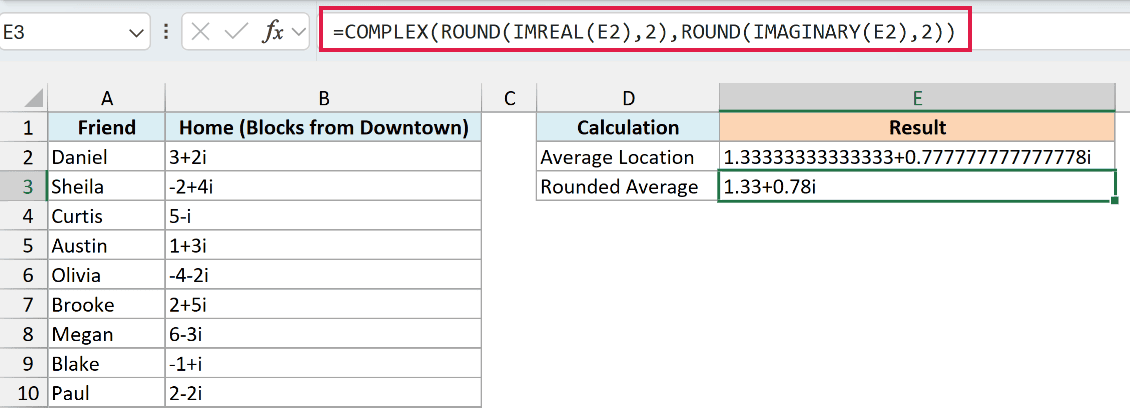
How this formula works:
- IMREAL(E2) and IMAGINARY(E2) pull out the real part and the imaginary part of the average as regular numbers.
- ROUND(…,2) rounds each part to two decimal places.
- COMPLEX(…) joins the two rounded parts back into one complex number, 1.33+0.78i.
If your numbers use j instead of i, add “j” as the third argument of the COMPLEX function so the rounded result keeps the same letter.
Example 4: Fix the #NUM! Error When Dividing by Zero
If you work with AC circuits, you’ve probably seen complex numbers written with j instead of i. IMDIV handles both, and this example also shows the error you get when the divisor is zero.
Below is a test log of household appliances with the voltage and current measured for each one, and I want to calculate the impedance in column D.
Impedance is the AC version of resistance, and you get it by dividing the voltage by the current.
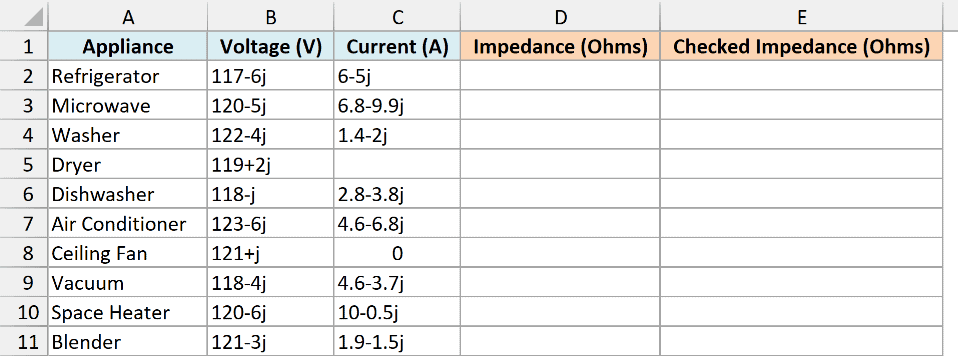
Here is the formula to enter in cell D2:
=IMDIV(+B2:B11,+C2:C11)
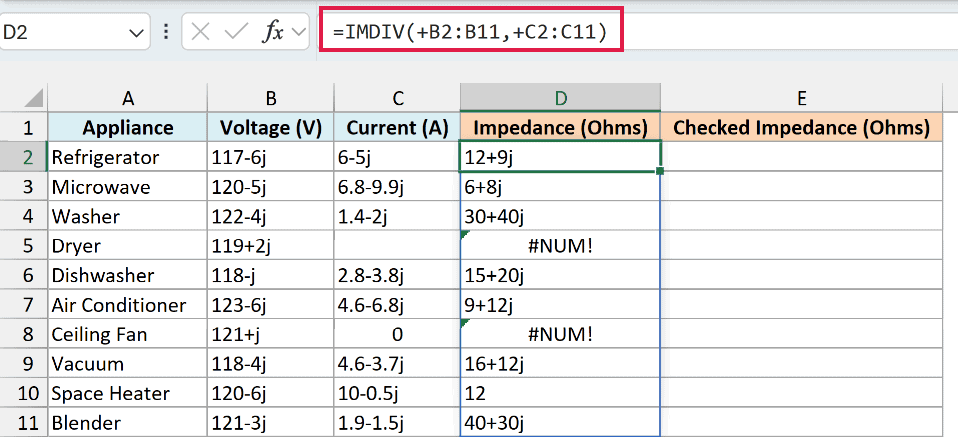
This divides each voltage by its current and spills the impedance down to D11, keeping the j in the results. For the refrigerator, 117-6j divided by 6-5j gives 12+9j ohms.
Important: Don’t mix i and j in the same formula. If the voltage uses j and the current uses i, IMDIV returns the #NUM! error, so pick one letter and use it for every complex number.
Now look at the dryer and the ceiling fan, which show #NUM!. The dryer’s current wasn’t recorded, so its cell is blank, and the fan was switched off, so its current is 0.
IMDIV treats a blank cell as 0, and you can’t divide by 0. Regular division would show #DIV/0! here, but IMDIV returns #NUM! instead.
To show a clear message instead of the error, check the current before dividing. Here is the formula to enter in cell E2:
=IF(C2:C11=0,"No reading",IMDIV(+B2:B11,+C2:C11))
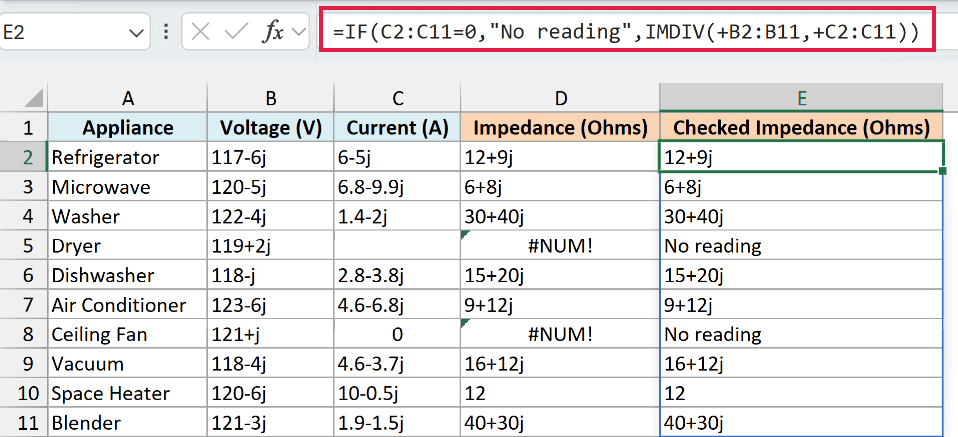
The IF function checks each current first. If it’s 0 or blank, you get “No reading”, and every other row gets the impedance from IMDIV.
The comparison C2:C11=0 works fine on a plain range, so only the two ranges inside IMDIV need the plus sign.
You could also wrap IMDIV in the IFERROR function, but that hides every error, including a typo in one of the voltages. Checking for 0 catches only the divide-by-zero case.
If you are using Excel 2019 or earlier, enter the below formula in cell D2 and then copy it down the range:
=IMDIV(B2,C2)
And for the checked version, enter the below formula in cell E2 and then copy it down the range:
=IF(C2=0,"No reading",IMDIV(B2,C2))
Example 5: Why IMDIV Isn’t for Regular Division
Since IMDIV has “DIV” in its name, it’s easy to assume it’s Excel’s division function. It isn’t, and using it for everyday division like percentages gives you results you can’t format or add up.
Below is a list of students with the amount each one raised for a school fundraiser and their goal, and I want to show the percentage of the goal reached in column D.
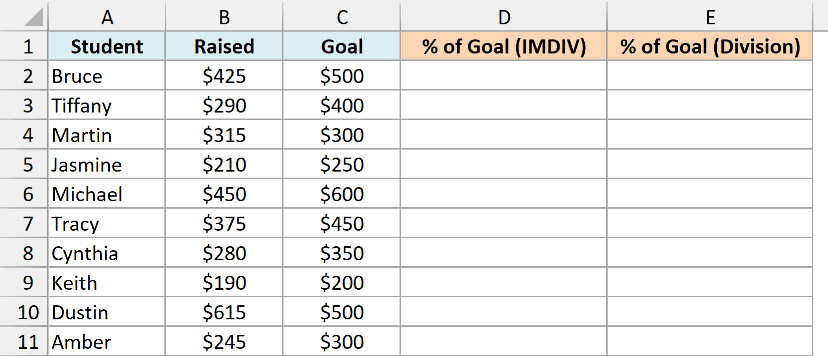
Here is the IMDIV formula to enter in cell D2:
=IMDIV(+B2:B11,+C2:C11)
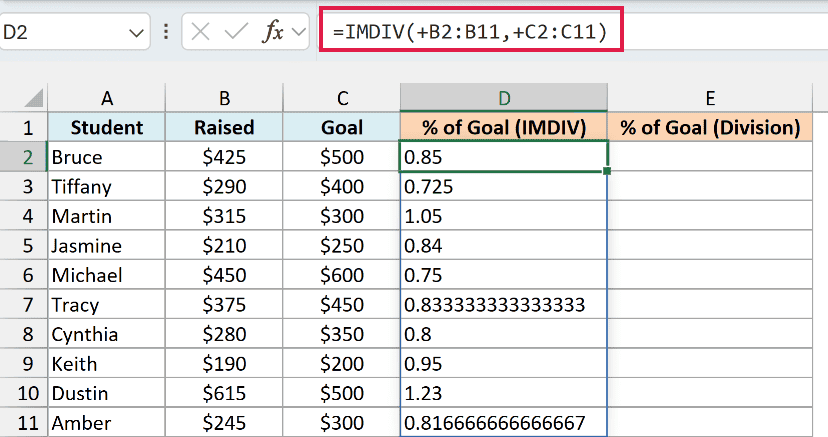
The values are right, but they aren’t percentages. Column D is formatted as a percentage, yet Bruce shows 0.85 instead of 85%, and Tracy shows 0.833333333333333.
That’s because IMDIV always returns text, even when there’s no imaginary part. Text sits on the left of the cell and ignores number formats, and if you try to total it, the SUM function skips it and returns 0.
For regular numbers, use the division operator (/) instead. Here is the formula to enter in cell E2:
=B2:B11/C2:C11
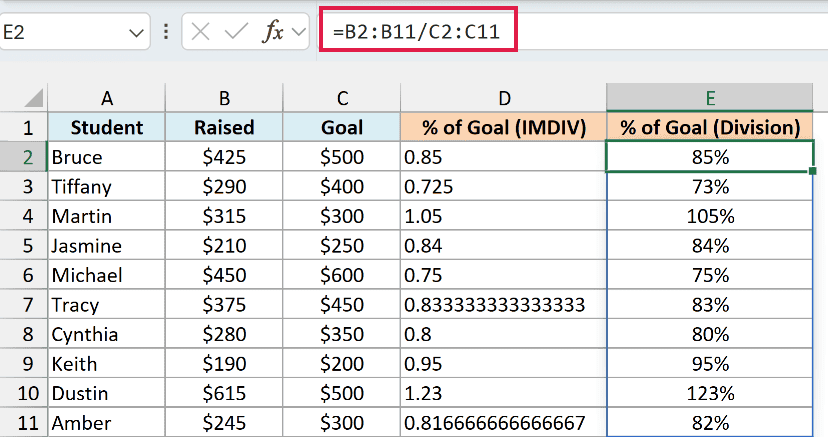
This spills actual numbers down to E11, so the percentage format works and Bruce shows 85%.
If you are using Excel 2019 or earlier, enter the below formula in cell E2 and then copy it down the range:
=B2/C2
So these are some practical ways to use the IMDIV function in Excel to divide complex numbers.
When you need to divide a whole column, put a plus sign in front of the range, and when the decimals get long, round the two parts separately. I hope you found this article helpful.
Other Excel Articles You May Also Like:
