

The IMLOG2 function in Excel returns the base-2 logarithm of a complex number, so =IMLOG2("3+4i") gives you 2.32192809488736+1.33780421245098i. It’s mostly used in math and engineering work, where numbers have a real part and an imaginary part.
There are two things that trip people up with this function. The result is always text (even when you give it a regular number), and it won’t accept a range of cells directly, so a whole column needs a small trick.
In this article, I’ll show you how to use IMLOG2 with six practical examples, including how to handle a whole column with one formula, split the result into numbers, and round off the long decimals.
Follow along with the example file
IMLOG2 Function Examples.xlsx
IMLOG2 Function Syntax
Here is the syntax of the IMLOG2 function:
=IMLOG2(inumber)
- inumber – The complex number you want the base-2 logarithm of.
The argument takes a complex number written as text, like “3+4i” or “3+4j”, or a cell that holds one. When you type it straight into the formula, put it in double quotes, as in =IMLOG2("3+4i").
In 3+4i, the 3 is the real part and the 4 (the number with the i) is the imaginary part. Engineers often write j instead of i, and IMLOG2 accepts either one.
You can also give it a plain number. IMLOG2 treats it as a complex number with no imaginary part, so =IMLOG2(8) returns 3, but as text.
Zero has no logarithm, so =IMLOG2(0) returns the #NUM! error. An empty cell counts as 0, so it gives the same error.
The i or j has to be lowercase. A value like “4I” isn’t recognized as a complex number, so IMLOG2 returns #NUM! for it too.
The IMLOG2 function works in Excel for Microsoft 365, Excel 2024, 2021, 2019, 2016, and Excel for Mac.
When to Use the IMLOG2 Function
Use this function when you need to:
- Find the base-2 logarithm of complex numbers in a math or engineering worksheet
- Work with complex values written in j notation, such as circuit impedances
- Get the base-2 log of a negative number, which the regular LOG function can’t do
- Build complex-number formulas together with the COMPLEX, IMREAL, and IMAGINARY functions (to build a complex number or pull out its parts)
Let me show you a few practical examples of how to use the IMLOG2 function.
Example 1: Find the Base-2 Log of a Complex Number
Let’s start with a simple example.
Below is a practice set of complex numbers, and I want to get the base-2 log of each one in column C.
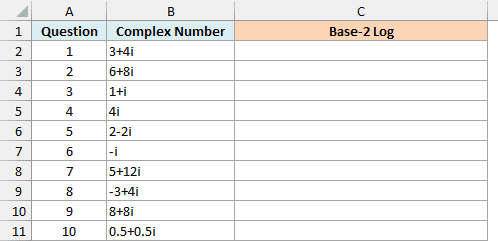
Here is the formula to enter in cell C2 and copy down:
=IMLOG2(B2)
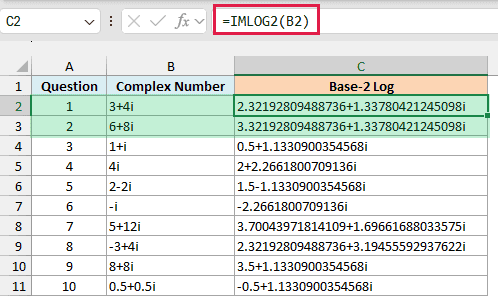
IMLOG2 reads the complex number in B2 and returns its base-2 log, which is also a complex number. For 3+4i, that’s 2.32192809488736+1.33780421245098i.
The real part of the result is the base-2 log of the number’s size (its distance from zero). If you picture 3+4i as a point 3 across and 4 up, its distance from zero is 5 (the square root of 3² + 4²).
The base-2 log of 5 is 2.3219, which is the real part you see. The imaginary part comes from the number’s direction (its angle from zero), divided by the natural log of 2.
You can see what base 2 means by comparing questions 1 and 2. Since 6+8i is exactly double 3+4i, its real part is exactly 1 more (3.3219).
The imaginary part stays the same for both, because doubling a number makes it bigger without changing its direction.
When a part of the result is 0, Excel leaves it out. That’s why question 6 (-i) returns just -2.2661800709136i, because -i has a size of 1 and the base-2 log of 1 is 0.
I’ve kept this first example as a per-row formula so you can see how IMLOG2 works on one number at a time. The next example handles the whole column with one formula.
Example 2: IMLOG2 for a Whole Column in One Formula
In Excel 365 (and Excel 2021 or later), you can get the base-2 log of a whole column with a single formula, but IMLOG2 needs one small trick to do it.
Below is a list of circuit components with their impedance written in j notation, and I want the base-2 log of each impedance in column C.
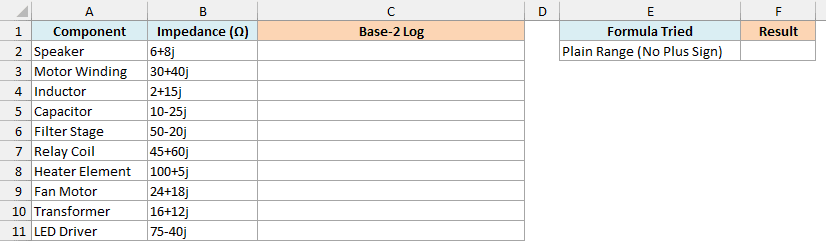
The obvious formula would be to give IMLOG2 the whole range. I’ve put that attempt in cell F2, and it returns a #VALUE! error:
=IMLOG2(B2:B11)
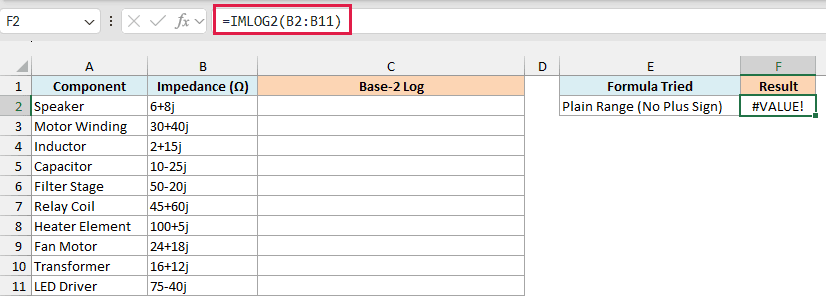
This happens because IMLOG2 can’t take a multi-cell range reference like B2:B11. It only works with a single value, or with a list of values held in memory (called an array).
Putting a plus sign (+) in front of the range fixes this, because Excel then hands IMLOG2 the values as an array. Here is the formula that works:
=IMLOG2(+B2:B11)
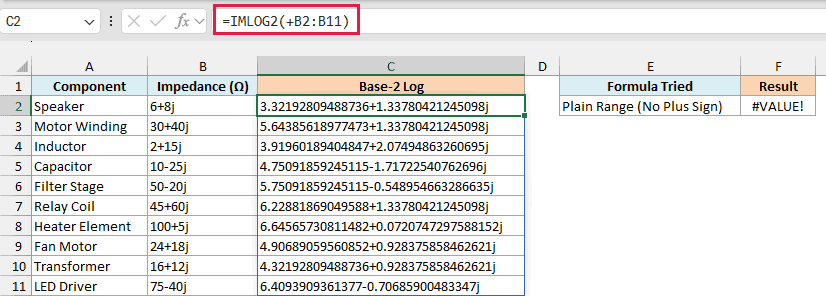
Enter this in cell C2, and it spills the results down to C11. Since the impedances use j, the results use j too, so the speaker’s 6+8j gives 3.32192809488736+1.33780421245098j.
Important: Use just the plus sign here. Adding +0 or a double minus (–) to the range also creates an array, but it tries to turn the text into numbers first, so every complex number returns #VALUE!.
The same plus-sign trick works for other functions that won’t spill when you give them a range.
If you are using Excel 2019 or earlier, enter the below formula in cell C2 and then copy it down the range:
=IMLOG2(B2)
Example 3: Log Base 2 of Regular Numbers (Use LOG Instead)
IMLOG2 also works on regular numbers, but this example shows why it isn’t the best tool for them.
Below is a list of color modes with the number of colors each one can show, and I want the number of bits each mode needs in columns C and D.
The number of bits is the base-2 log of the number of colors. For example, 256 colors need 8 bits, because 2 multiplied by itself 8 times is 256.
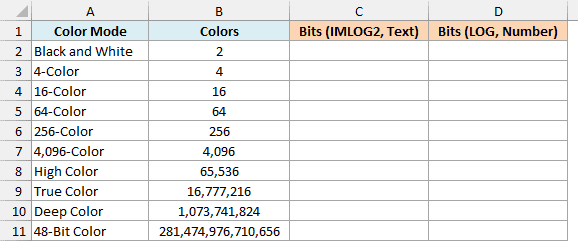
Here is the IMLOG2 formula to enter in cell C2:
=IMLOG2(+B2:B11)
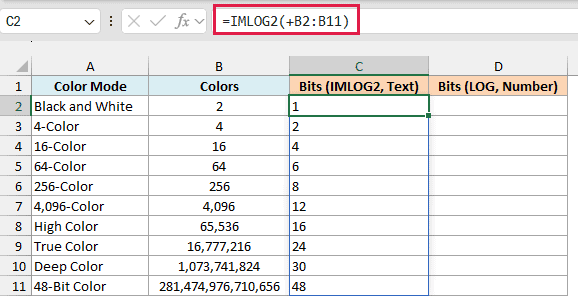
The values are right, but they’re all text, which is why they sit on the left side of the cells. If you try to total them, the SUM function skips text, so a SUM of column C returns 0.
Excel doesn’t have a LOG2 function, but the LOG function takes the base as its second argument. Here is the formula to enter in cell D2:
=LOG(B2:B11,2)
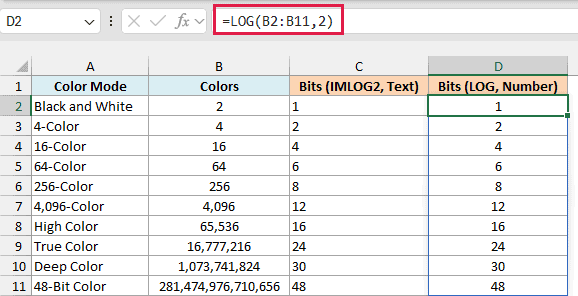
This spills real numbers down to D11, so you can format them and use them in other calculations. LOG takes the range directly, so it doesn’t need the plus sign.
The one place IMLOG2 does something LOG can’t is a negative number. =LOG(-8,2) returns #NUM!, while =IMLOG2(-8) returns the complex result 3+4.53236014182719i.
If you are using Excel 2019 or earlier, enter the below formula in cell D2 and then copy it down the range:
=LOG(B2,2)
Example 4: When the Real and Imaginary Parts Are in Separate Columns
Sometimes your data doesn’t have the complex number in one cell. The real part sits in one column and the imaginary part in another, which is common when the data comes from another program.
Below is a list of points with their real and imaginary parts in separate columns, and I want the base-2 log of each point in column D.
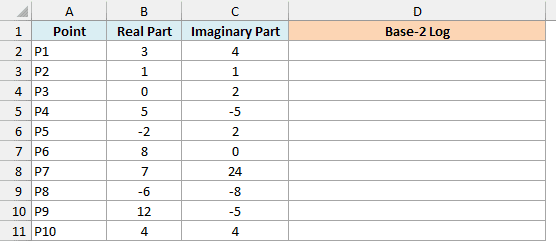
Here is the formula to enter in cell D2:
=IMLOG2(COMPLEX(+B2:B11,+C2:C11))
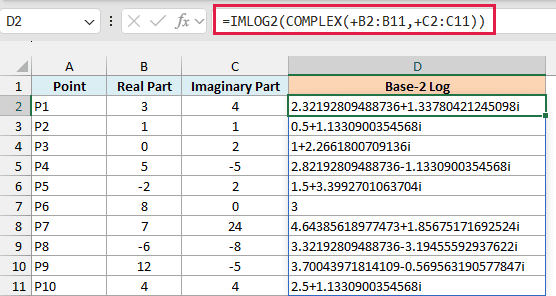
The COMPLEX function joins each real part and imaginary part into one complex number, so 3 and 4 become 3+4i. IMLOG2 then returns the base-2 log of each one, and the results spill down to D11.
COMPLEX doesn’t accept range references either, which is why both ranges have a plus sign. IMLOG2 doesn’t need one here, because COMPLEX already hands it an array.
Point P6 has an imaginary part of 0, so COMPLEX turns it into just 8, and IMLOG2 returns 3.
If you are using Excel 2019 or earlier, enter the below formula in cell D2 and then copy it down the range:
=IMLOG2(COMPLEX(B2,C2))
Example 5: Split the IMLOG2 Result into Real and Imaginary Parts
Since IMLOG2 returns text, you can’t round it, chart it, or use it in regular math. To do any of that, you need the real and imaginary parts as numbers.
Below is a list of complex numbers, and I want the real and imaginary parts of each base-2 log as numbers in columns B and C.
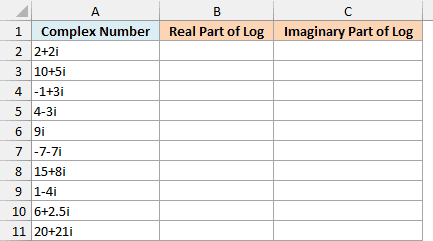
Here is the formula to enter in cell B2 for the real part:
=IMREAL(IMLOG2(+A2:A11))
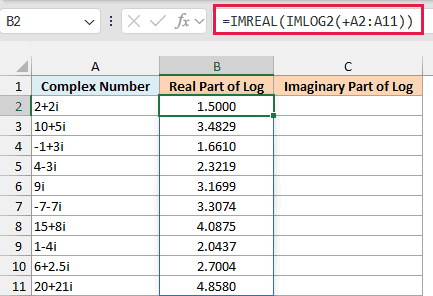
IMLOG2 calculates the base-2 log of each number, and the IMREAL function pulls out the real part as a regular number. So for 2+2i, you get 1.5.
And here is the formula to enter in cell C2 for the imaginary part:
=IMAGINARY(IMLOG2(+A2:A11))
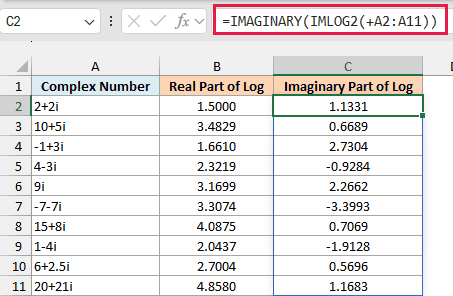
The IMAGINARY function does the same for the imaginary part, so 2+2i gives 1.1331. I’ve formatted both columns to show four decimal places, which works now because these are real numbers.
If you are using Excel 2019 or earlier, enter the below formula in cell B2 and then copy it down the range:
=IMREAL(IMLOG2(A2))
And for the imaginary part, enter the below formula in cell C2 and then copy it down the range:
=IMAGINARY(IMLOG2(A2))
Example 6: Round the IMLOG2 Result to Fewer Decimals
IMLOG2 results usually come with up to 15 digits in each part, which is a lot to read. Let me show you how to round them while keeping the result as a complex number.
Below is a list of complex numbers, and I want their base-2 logs in column B and a version rounded to three decimals in column C.
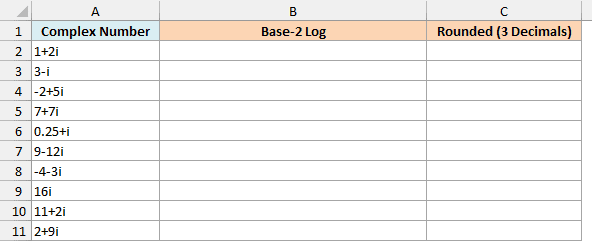
First, here is the formula to enter in cell B2:
=IMLOG2(+A2:A11)
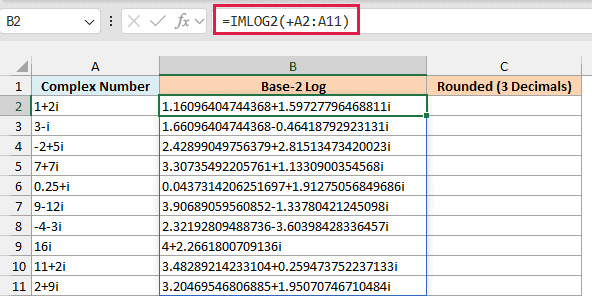
This gives the full results, like 1.16096404744368+1.59727796468811i for 1+2i.
You can’t fix this with the ROUND function directly, because the result is text and ROUND returns a #VALUE! error. Instead, round the real and imaginary parts separately and join them back.
Here is the formula to enter in cell C2:
=LET(r,IMLOG2(+A2:A11),COMPLEX(ROUND(IMREAL(r),3),ROUND(IMAGINARY(r),3)))
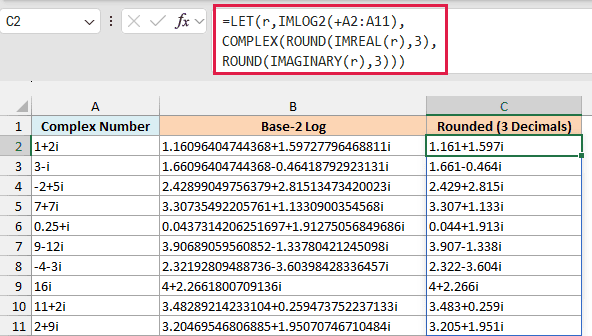
How this formula works:
- IMLOG2(+A2:A11) calculates the base-2 logs, and the LET function stores them as r, so IMLOG2 runs only once.
- IMREAL(r) and IMAGINARY(r) pull out the real and imaginary parts as regular numbers.
- ROUND(…,3) rounds each part to three decimal places.
- COMPLEX(…) joins the two rounded parts back into a complex number.
Now 1+2i shows 1.161+1.597i, and every other result is cut down to three decimals too.
COMPLEX uses i unless you tell it otherwise. If your numbers use j, add “j” as the third argument, as in COMPLEX(ROUND(IMREAL(r),3),ROUND(IMAGINARY(r),3),"j").
The LET function needs Excel 2021 or later. If you are using Excel 2019 or earlier, enter the below formula in cell C2 and then copy it down the range:
=COMPLEX(ROUND(IMREAL(IMLOG2(A2)),3),ROUND(IMAGINARY(IMLOG2(A2)),3))
So these are some practical ways to use the IMLOG2 function in Excel to get the base-2 logarithm of complex numbers.
Just remember to put a plus sign in front of your ranges when you want one formula for a whole column, and use LOG for regular numbers. I hope you found this article helpful.
Other Excel Articles You May Also Like:
