

The T.TEST function runs a Student’s t-test on two sets of numbers and returns the p-value. It tells you whether the difference between two averages is likely real, or small enough that it could just be random variation.
You’d use it to compare scores before and after a training, two groups of customers, or a sample against a target. The catch is that T.TEST gives you only that one probability, so you need to pick the right test type and read the result correctly.
In this tutorial, I’ll show you how to do both, with six practical examples of a t-test in Excel.
Follow along with the example file
T.TEST Function Examples.xlsx
T.TEST Function Syntax
Here is the syntax of the T.TEST function:
=T.TEST(array1, array2, tails, type)
- array1 – The first set of numbers.
- array2 – The second set of numbers.
- tails – Use 1 for a one-tailed test or 2 for a two-tailed test.
- type – The kind of t-test to run: 1 for paired, 2 for two samples with equal variance, or 3 for two samples with unequal variance.
All four arguments are required. There is no default test type, so you always have to tell Excel which test you want.
The tails argument decides what counts as a difference. With 2, T.TEST looks for a difference in either direction, while 1 looks in one direction only and gives exactly half the two-tailed p-value.
The type argument depends on how your data was collected. Use 1 (paired) when each value in array1 has a partner in array2, like the same person measured twice, and 2 or 3 when the groups are different people or items.
Type 2 assumes both groups have a similar spread of values, while type 3 doesn’t make that assumption. So when you’re not sure, type 3 is the safer choice for two separate groups.
If tails or type has decimals, Excel drops the decimal part, so 2.9 is treated as 2. A tails value other than 1 or 2, or a type value other than 1, 2, or 3, returns #NUM!, and text such as “two” returns #VALUE!.
The T.TEST function works in Excel 2010 and later versions, including Microsoft 365, Excel 2024, 2021, 2019, 2016, and Excel for Mac.
When to Use the T.TEST Function
Use this function when you need to:
- Check whether a change, like a training course or a new process, made a real difference for the same people
- Compare the averages of two separate groups, such as two classes or two suppliers
- Test whether one option beat another in the direction you expected
- Check whether the average of a sample is different from a target value
Let me show you a few practical examples of how to use the T.TEST function.
Example 1: Paired T-Test in Excel (Before and After)
Let’s start with the most common use, a before and after comparison.
Below are the typing speeds of 10 employees before and after a typing course, and I want to check whether the course made a real difference, with the p-value in cell B14.
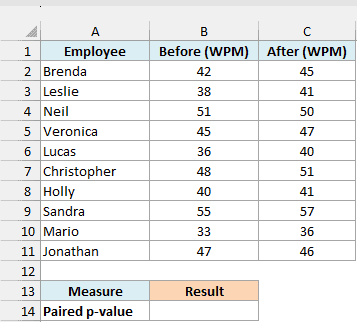
Here is the formula:
=T.TEST(B2:B11,C2:C11,2,1)
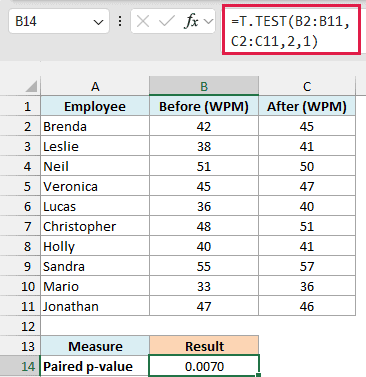
This returns 0.0070.
In the above formula, B2:B11 has the speeds before the course and C2:C11 has the speeds after it.
The tails argument is 2 because I want to catch a change in either direction, and the type is 1 because each row is the same employee measured twice.
The result is the p-value. It’s the chance of seeing a difference this big if the course actually had no effect at all.
A common cutoff is 0.05. Since 0.0070 is well below it, the improvement is unlikely to be a fluke, and that matches the data, where 8 of the 10 employees typed faster after the course.
The paired test works so well here because it looks at each person’s own change. If you treated the same numbers as two separate groups (type 3), the p-value would jump to about 0.53, because the gaps in skill between employees hide the improvement.
Important: A paired test needs both ranges to be the same size, with each pair in the same row. If one range has more values than the other, T.TEST returns the #N/A error.
If one value in a pair is blank or text, T.TEST drops that whole pair and tests the rest. So make sure every row is complete, or you’ll get a result based on fewer people than you think.
Example 2: Two-Sample T-Test for Independent Groups
Now let’s compare two groups made up of different people.
Below are exam scores from a morning class of 10 students and an evening class of 8 students, and I want to check whether the two classes scored differently, with the p-value in cell B14.
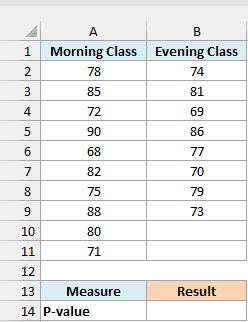
Here is the formula:
=T.TEST(A2:A11,B2:B9,2,3)
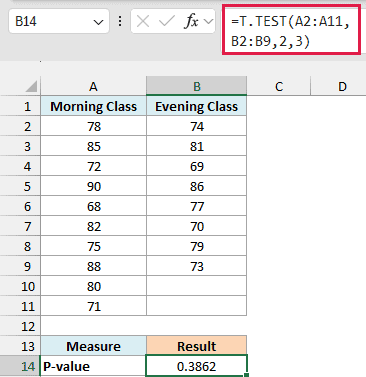
This returns 0.3862.
The two classes have different students, so there are no pairs to match up. That’s why the type is 3, which runs a two-sample test without assuming both classes have the same spread of scores.
Notice that the ranges are different sizes. That’s fine for type 2 and type 3, since each group is treated on its own.
A p-value of 0.3862 is far above 0.05, so the gap between the classes could easily come from normal variation in scores.
That doesn’t prove the two classes are equal. It just means this data doesn’t show a real difference.
On this data, type 2 gives 0.3998, which is very close to the type 3 result. The two drift further apart when the groups have very different spreads, which is the case type 3 is built for.
Example 3: One-Tailed vs Two-Tailed T-Test
This example shows what the tails argument changes.
Below are order values from 10 customers who used an old checkout design and 10 who used a new one, and I want both the two-tailed and the one-tailed p-values in column B.
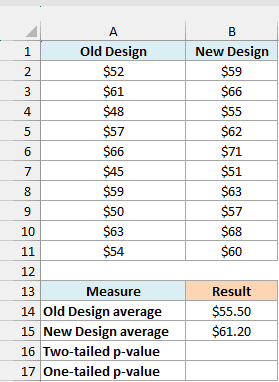
The averages in B14 and B15 show that orders with the new design are higher, $61.20 compared to $55.50.
Here is the formula for the two-tailed test:
=T.TEST(A2:A11,B2:B11,2,3)
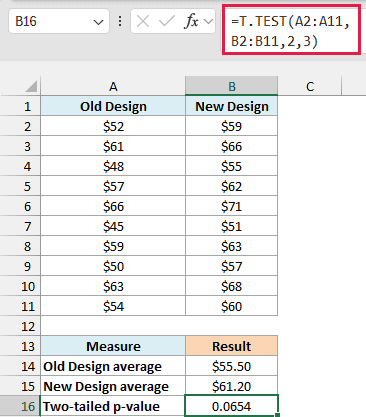
This returns 0.0654.
A two-tailed test asks whether the two designs differ at all, in either direction. At 0.0654, the result is just above 0.05, so it doesn’t clear the usual bar.
And here is the formula for the one-tailed test:
=T.TEST(A2:A11,B2:B11,1,3)
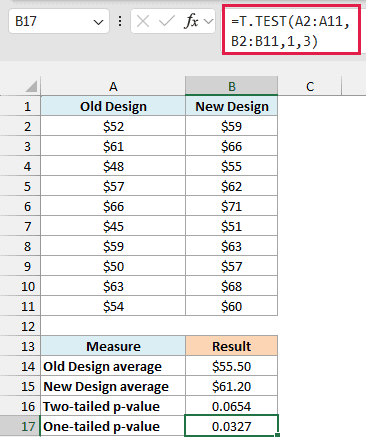
This returns 0.0327, exactly half of the two-tailed result.
A one-tailed test asks a single, directional question, like whether the new design increases order value. If you set up that question before collecting the data, 0.0327 is below 0.05 and the increase counts as significant.
Important: T.TEST returns the same one-tailed p-value even if you swap the two ranges, so it can’t tell you which group is higher. Always check the averages to confirm the difference goes the way you predicted.
Also, pick one-tailed or two-tailed before you look at the results. Switching to a one-tailed test just because the two-tailed result came in above 0.05 makes the test look stronger than it really is.
Example 4: Show Significant or Not with IF
A p-value is useful, but sometimes you just want a clear answer in the cell.
Below are delivery times in days for 10 shipments from Carrier A and 10 from Carrier B, with a significance level of 0.05 in cell B14, and I want a plain-text verdict in cell B17.
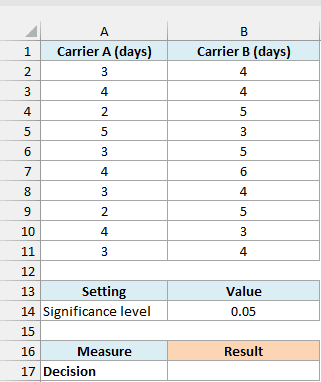
Here is the formula:
=IF(T.TEST(A2:A11,B2:B11,2,3)<B14,"Significant difference","No significant difference")
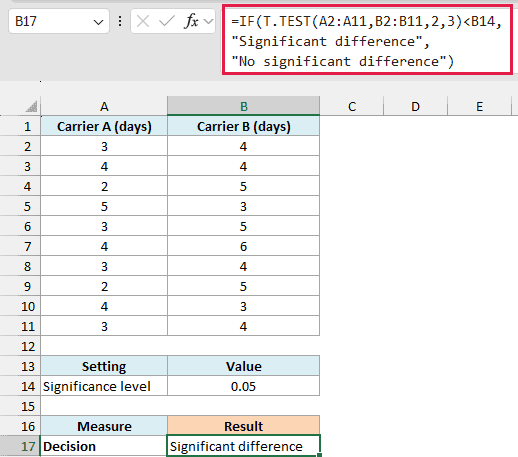
This returns “Significant difference”.
The T.TEST part compares the two carriers with a two-tailed, unequal variance test and returns a p-value of about 0.03. The IF function then checks whether that p-value is less than the significance level in B14, and returns the matching text.
I’ve kept the significance level in its own cell instead of typing 0.05 into the formula. If you want a stricter test, you can change B14 to 0.01 and the verdict updates on its own.
With 0.01 here, it would switch to “No significant difference”, because 0.03 is not below 0.01.
Example 5: T-Test on Groups in One Table (with FILTER)
In real data, both groups are often in one table, with a column saying which group each row belongs to.
Below is a list of 16 orders with the sales channel in column B and the order amount in column C, and I want to check whether online and in-store order amounts differ, with the p-value in cell B20.
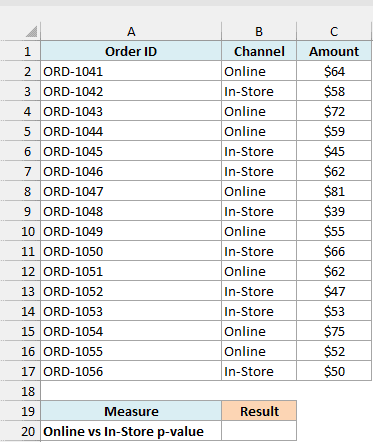
Here is the formula:
=T.TEST(FILTER(C2:C17,B2:B17="Online"),FILTER(C2:C17,B2:B17="In-Store"),2,3)
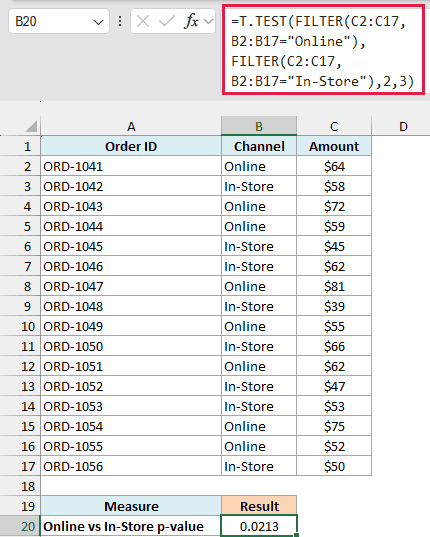
This returns 0.0213.
How this formula works:
- FILTER(C2:C17,B2:B17=”Online”) pulls out the amounts of the 8 online orders.
- FILTER(C2:C17,B2:B17=”In-Store”) pulls out the amounts of the 8 in-store orders.
- T.TEST compares those two lists with a two-tailed, unequal variance test (type 3), since online and in-store orders come from different customers.
Since 0.0213 is below 0.05, the difference between online and in-store order amounts looks real. And because FILTER builds each group on the fly, you don’t need to sort the table or copy the groups into separate columns.
The FILTER function works in Microsoft 365 and Excel 2021 or later. If a channel name has no matching rows (for example, a typo), FILTER returns the #CALC! error and T.TEST returns it too.
If you are using Excel 2019 or earlier, enter the below formula in cell B20 and press Control + Shift + Enter instead of just Enter:
=T.TEST(IF(B2:B17="Online",C2:C17),IF(B2:B17="In-Store",C2:C17),2,3)
Example 6: One-Sample T-Test Against a Target Value
Sometimes you don’t have a second group at all, just a sample and a number to compare it with.
Below are the wait times for 10 orders at a cafe that aims for a 5-minute wait, with that target in cell B14, and I want to check whether the actual wait times differ from the target, with the p-value in cell B17.
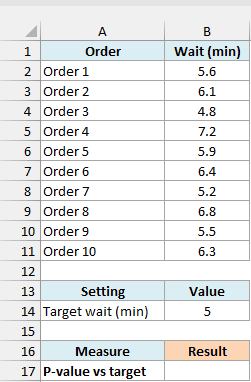
Here is the formula:
=T.TEST(B2:B11,B2:B11*0+B14,2,1)
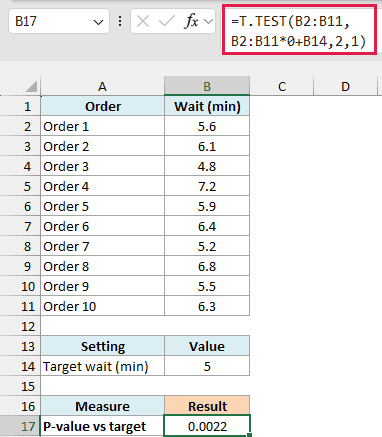
This returns 0.0022.
How this formula works:
- B2:B11*0+B14 turns every wait time into 0 and then adds the target, which gives a list of ten 5s, one for each order.
- T.TEST runs a paired test (type 1) between each wait time and its matching 5. Testing each value against the same target is exactly what a one-sample t-test does.
At 0.0022, the cafe’s wait times are clearly different from the 5-minute target, and 9 of the 10 orders took longer than that.
You need that list of 5s because T.TEST always wants two arrays. If you point it straight at the target cell, as in =T.TEST(B2:B11,B14,2,1), the sizes don’t match and you get the #N/A error.
If you are using Excel 2019 or earlier, or you’d rather see the math spelled out, enter the below formula in cell B17 instead:
=T.DIST.2T(ABS(AVERAGE(B2:B11)-B14)/(STDEV.S(B2:B11)/SQRT(COUNT(B2:B11))),COUNT(B2:B11)-1)
The first part of this formula calculates the t statistic, which is how far the average wait is from the target, measured in units of its standard error. It uses the average, standard deviation, and count of the wait times.
The T.DIST.2T function then turns that t statistic into the same two-tailed p-value that T.TEST returns.
So these are six ways to use the T.TEST function in Excel, from a simple before and after check to comparing a sample with a target.
Just remember to pick the right type for how your data was collected, and to check the averages whenever you use a one-tailed test.
If you’re working in Excel 2007 or earlier, the older TTEST function takes the same four arguments and works the same way.
I hope you found this tutorial useful.
Other Excel Articles You May Also Like:
