

The ABS function in Excel gives you the absolute value of a number, which is the number without its plus or minus sign. So -25 becomes 25, and 25 stays 25.
It comes in handy whenever the size of a number matters more than its direction, like how far off a guess was, or how many units moved in and out of stock.
One quick note before we start, since the names are similar. Absolute value has nothing to do with absolute cell references (the $A$1 kind you use to lock a cell in a formula).
Below, I’ll cover seven examples, starting with simply removing the minus sign and moving on to tolerance checks, finding the closest match, and sorting by size.
Follow along with the example file
ABS Function Examples.xlsx
ABS Function Syntax
Here is the syntax of the ABS function:
=ABS(number)
- number – The number you want the absolute value of. It can be a typed number, a cell reference, a calculation such as B2-C2, or a whole range.
ABS has just this one argument, and it’s required. If it points to an empty cell, ABS treats the blank as zero and returns 0.
A number stored as text still works, so =ABS("-5") returns 5. But real text, like “N/A” or a name, gives you a #VALUE! error.
The ABS function works in all Excel versions, including 365, 2024, 2021, 2019, 2016, Mac, and the web.
When to Use the ABS Function
Use it when you need to:
- Show negative numbers as positive, like expenses exported from a bank with a minus sign.
- Find how far apart two numbers are, no matter which one is bigger.
- Check whether a value is close enough to a target.
- Add up or compare values by their size, ignoring whether they’re positive or negative.
- Find the value in a list that’s closest to a number you have in mind.
Let me show you seven practical examples of how this works.
Example 1: Convert Negative Numbers to Positive
Let’s start with the most common use of ABS.
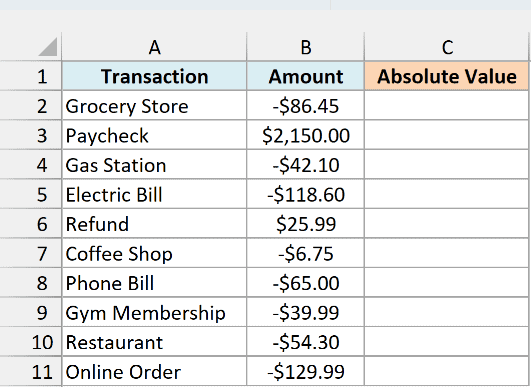
Below is a list of bank transactions where money going out has a minus sign, and I want every amount as a positive number in column C.
Here is the formula:
=ABS(B2:B11)
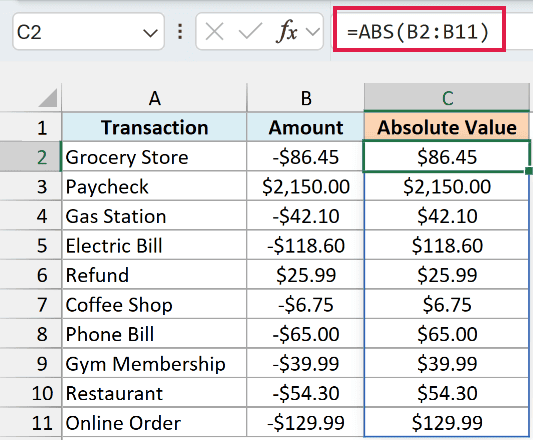
In the above formula, ABS removes the minus sign from every negative amount, so -$86.45 for the Grocery Store becomes $86.45. The Paycheck and the Refund were already positive, so they come back as they are.
You enter this formula once in cell C2, and in Excel 365 and 2021 or later it spills the results down to C11. If any of those cells already has something in it, you’ll get a #SPILL! error until you clear it.
If you are using Excel 2019 or earlier, enter the below formula in cell C2 and then copy it down the range:
=ABS(B2)
If you want to change the original numbers in place instead of getting them in a new column, there are a few more ways to change negative numbers to positive without a formula.
Example 2: Find the Absolute Difference Between Two Numbers
Here’s another everyday situation, where you only care about how big a gap is.
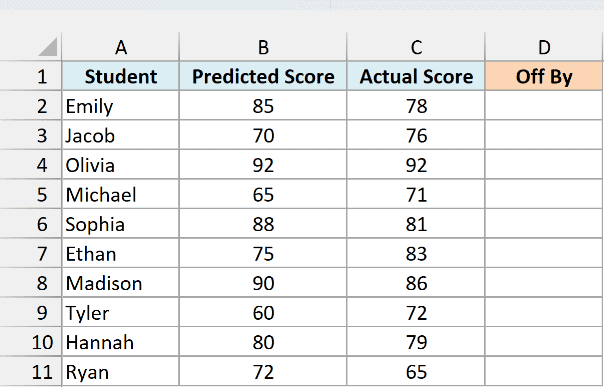
Below I have the exam score each student predicted and the score they actually got, and I want to know how far off each prediction was in column D.
Here is the formula:
=ABS(B2:B11-C2:C11)
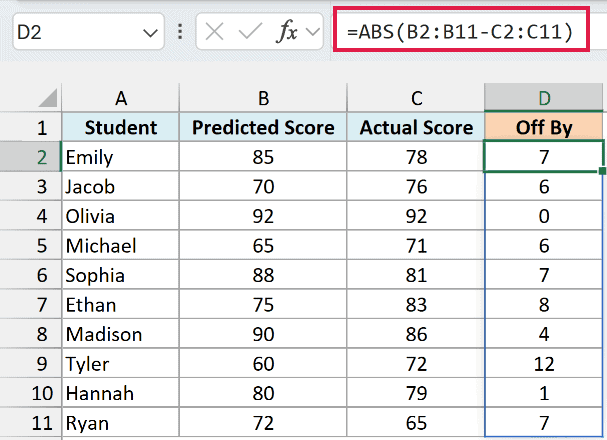
Here, the formula first subtracts each actual score from the predicted score. That gives a positive number when a student guessed too high and a negative number when they guessed too low.
ABS then turns every difference into a positive number. Emily guessed 7 points too high and Jacob guessed 6 points too low, and ABS shows them simply as 7 and 6.
This also means you don’t have to worry about which column to subtract from which. =ABS(C2:C11-B2:B11) gives you exactly the same results.
If you are using Excel 2019 or earlier, enter the below formula in cell D2 and then copy it down the range:
=ABS(B2-C2)
Example 3: Check If a Value Is Within a Tolerance
Now let’s use ABS inside an IF formula to check whether something is close enough to a target.
Below I have the weights of ten bread loaves from a bakery, and I want to check in column C whether each loaf is within 10 grams of the 500 gram target in F1 (the tolerance is in F2).
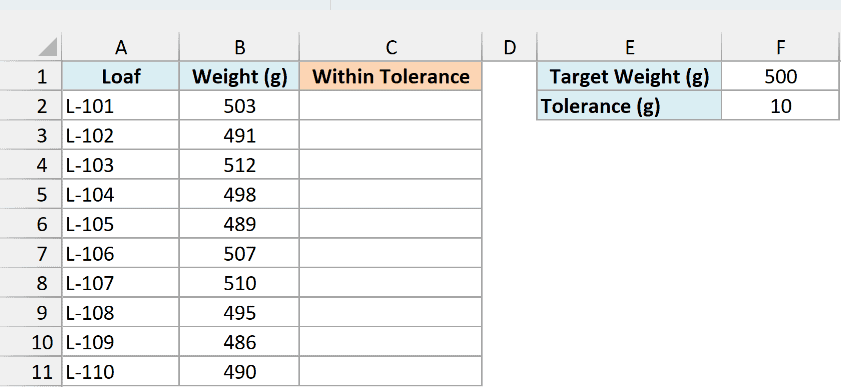
Here is the formula:
=IF(ABS(B2:B11-F1)<=F2,"Yes","No")
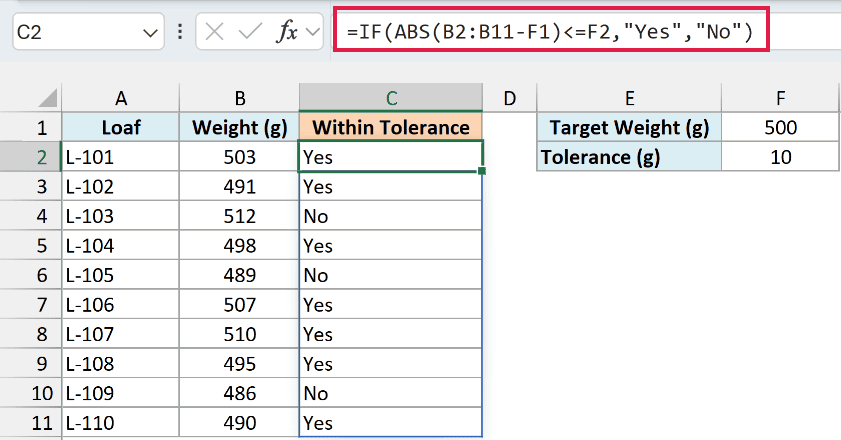
How this formula works:
- B2:B11-F1 subtracts the 500 gram target from each loaf’s weight. A heavy loaf gives a positive number, and a light one gives a negative number.
- ABS(…) turns each difference into how far the loaf is from the target, in either direction.
- <=F2 checks whether that distance is 10 grams or less.
- IF returns “Yes” when it is and “No” when it isn’t.
So L-103 at 512 grams is 12 grams over and gets a “No”, and L-105 at 489 grams is 11 grams under and gets a “No” too.
Without ABS, you’d need two separate checks, one for too heavy and one for too light, joined with the AND function. ABS covers both directions in one go.
Notice that L-107 (510 grams) and L-110 (490 grams) are exactly 10 grams away, and both get a “Yes”. That’s because the <= sign counts the limit itself as within tolerance, so if a loaf exactly at the limit should fail, use < instead.
If you are using Excel 2019 or earlier, enter the below formula in cell C2 and then copy it down the range:
=IF(ABS(B2-$F$1)<=$F$2,"Yes","No")
The dollar signs keep the formula pointing at F1 and F2 as you copy it down.
Example 4: Sum Absolute Values in Excel
This next one adds up numbers by their size, ignoring the sign.
Below are the stock changes for a clothing shop, where a positive number means units came in and a negative number means units went out, and I want the total number of units moved in E1.
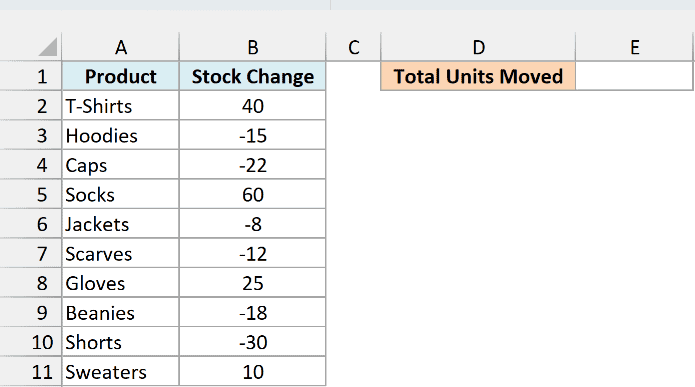
Here is the formula:
=SUM(ABS(B2:B11))
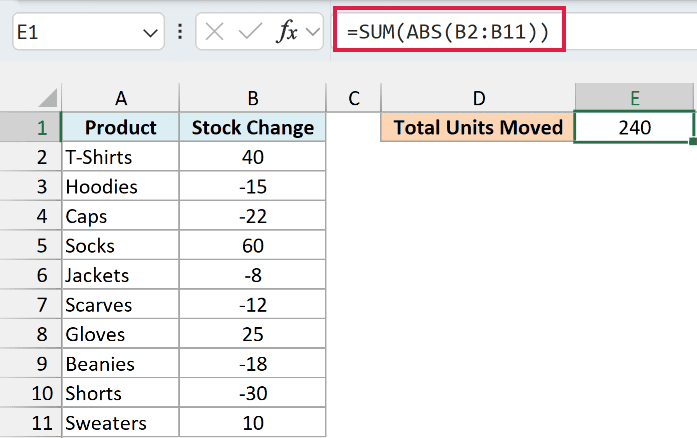
ABS first turns all ten stock changes into positive numbers, and then the SUM function adds them up. That gives 240 units moved in total.
A plain =SUM(B2:B11) would give you 30, because the units that went out cancel out most of the units that came in. That’s the net change in stock, which is a different question.
If you are using Excel 2019 or earlier, a normal SUM(ABS()) formula doesn’t work on the whole range and gives you an error or a wrong total, so use the below formula in cell E1 instead:
=SUMPRODUCT(ABS(B2:B11))
The SUMPRODUCT function handles the whole range on its own, so it returns the same 240 in every version of Excel.
Example 5: Find the Closest Value to a Target
Now let’s look at something more interesting, finding the item in a list that’s closest to a number.
Below is a list of hotels with their price per night, and I want to find the hotel whose price is closest to my budget of $150 in E1. The answer goes in E2.
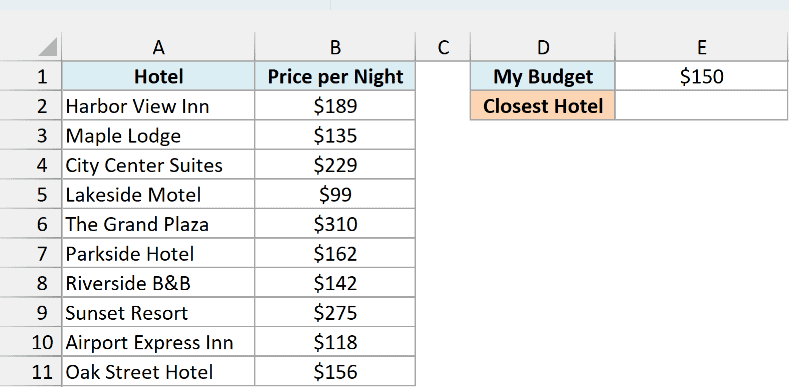
Here is the formula:
=XLOOKUP(0,ABS(B2:B11-E1),A2:A11,,1)
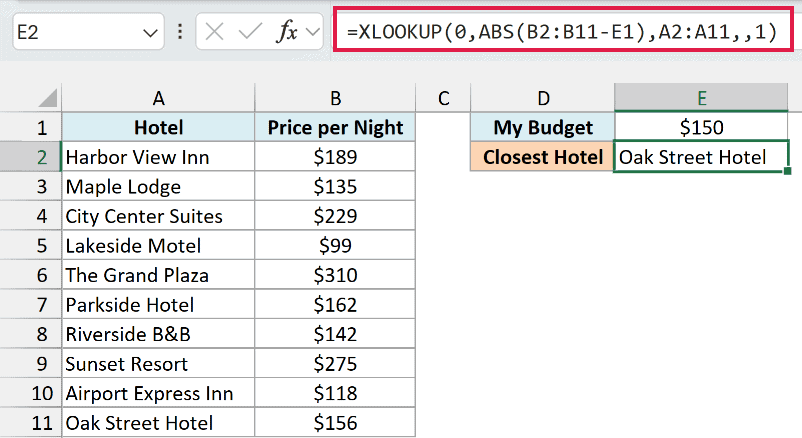
How this formula works:
- B2:B11-E1 subtracts the budget from every hotel’s price.
- ABS(…) turns those differences into how far each price is from $150, whether it’s above or below.
- XLOOKUP(0,…,A2:A11,,1) looks for a difference of 0. The 1 at the end tells it that if there’s no exact 0, it should take the next value above 0, which is the smallest difference in the list.
The result is Oak Street Hotel, at $156 a night, just $6 away from the budget. Riverside B&B at $142 is under budget, but it’s $8 away, so it loses.
If two hotels are the same distance from your budget, the formula returns the one that comes first in the list.
If you are using Excel 2019 or earlier (which doesn’t have the XLOOKUP function), enter the below formula in cell E2 and press Ctrl+Shift+Enter instead of Enter:
=INDEX(A2:A11,MATCH(MIN(ABS(B2:B11-E1)),ABS(B2:B11-E1),0))
Here, MIN finds the smallest difference, MATCH finds its position, and INDEX returns the hotel name from that position.
Example 6: Find the Largest Change (Up or Down)
This one is about spotting the biggest move in a list, whether it went up or down.
Below are the daily price changes for a stock over two weeks, and I want the biggest move in either direction in E1 and the date it happened in E2.
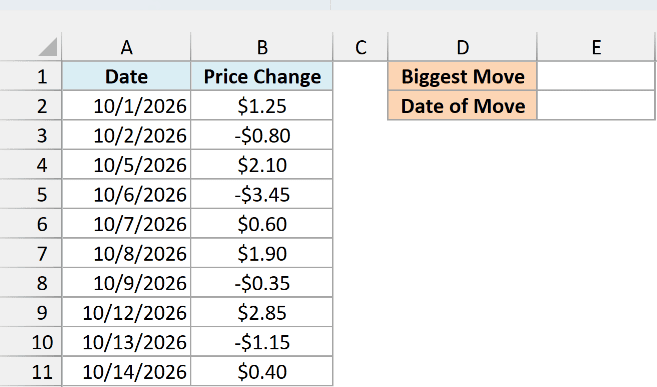
Here is the formula for the biggest move:
=MAX(ABS(B2:B11))
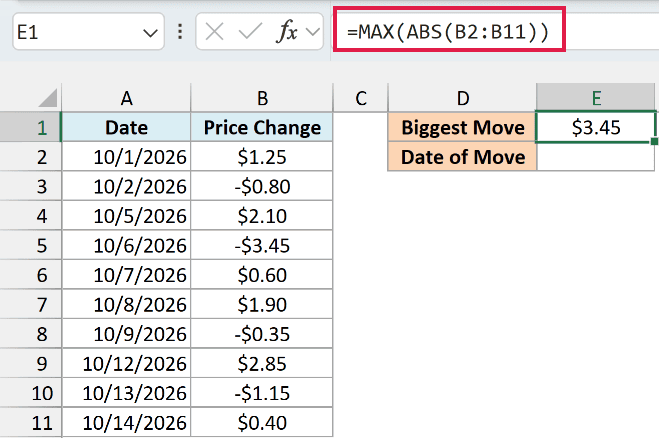
ABS turns every price change into its size, and the MAX function picks the largest one, which is $3.45.
That move was a drop. If you used a plain MAX on this list, you’d get $2.85, the biggest rise, and miss the larger move down.
Now, to find the date of that move, here is the formula:
=XLOOKUP(E1,ABS(B2:B11),A2:A11)
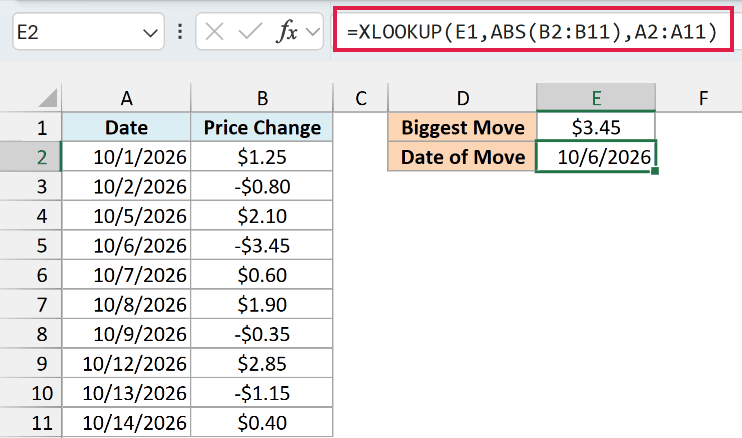
This formula looks for the $3.45 from E1 in the list of absolute changes, and returns the date from that same row, which is 10/6/2026.
If you are using Excel 2019 or earlier, enter the below formula in cell E1 and press Ctrl+Shift+Enter instead of Enter:
=MAX(ABS(B2:B11))
And since XLOOKUP isn’t available in those versions, enter the below formula in cell E2, also with Ctrl+Shift+Enter:
=INDEX(A2:A11,MATCH(E1,ABS(B2:B11),0))
Example 7: Sort by Absolute Value
Let’s finish with a way to sort a list by size, no matter the sign.
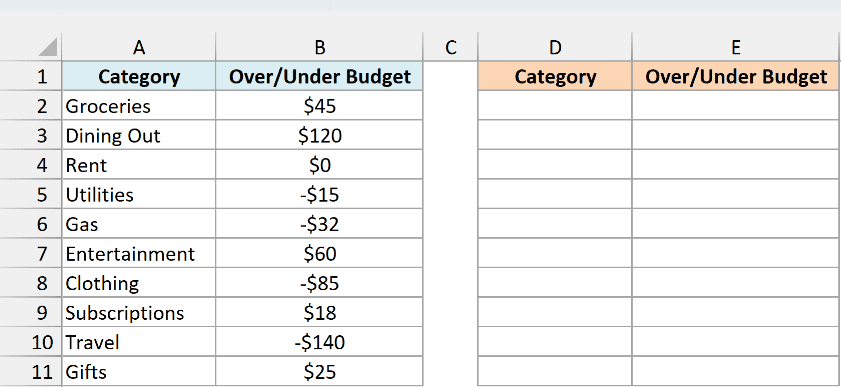
Below is a household budget where each category shows how much I went over (positive) or under (negative) the plan, and I want the categories sorted from the furthest off budget to the closest in columns D and E.
Here is the formula:
=SORTBY(A2:B11,ABS(B2:B11),-1)
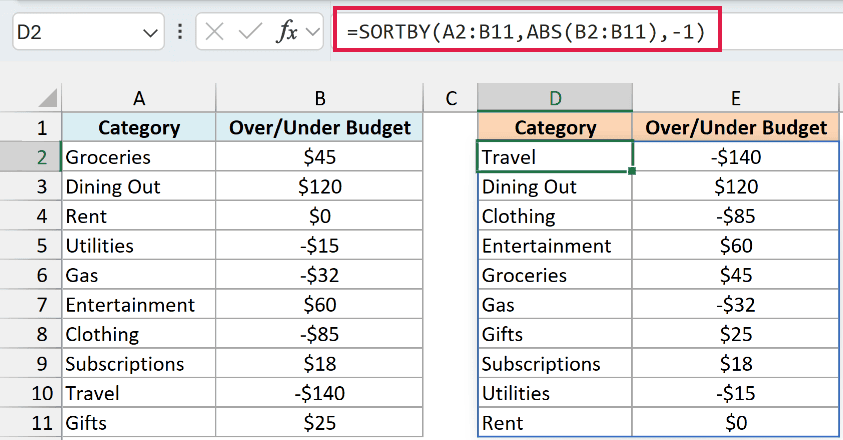
How this formula works:
- A2:B11 is the data I want to sort, both the categories and the amounts.
- ABS(B2:B11) gives SORTBY the size of each amount to sort by, without changing the amounts it shows.
- -1 sorts from largest to smallest.
Travel comes out on top with -$140, even though it was under budget, because it’s the furthest from the plan. Rent, which was right on budget at $0, ends up last.
A normal largest-to-smallest sort on column B would put Dining Out first and Travel last, which splits the two biggest misses to opposite ends of the list.
SORTBY is only in Excel 365 and 2021 or later. If you are on Excel 2019 or earlier, enter the below helper formula in cell C2, copy it down, and sort the data by column C from largest to smallest:
=ABS(B2)
So these are seven ways you can use the ABS function in Excel, from removing a minus sign to finding the closest match and sorting a list by size.
I hope you found this article helpful.
Other Excel Articles You May Also Like:
