

The RATE function in Excel tells you the interest rate per period of a loan or an investment, when you know the number of payments, the payment amount, and the amount borrowed or invested.
It’s the function to use when a lender quotes you a monthly payment but not the rate, or when you want to know what return your savings plan needs.
In this article, I’ll show you how to use RATE with seven examples, from a simple personal loan to fixing the #NUM! error it sometimes returns.
Follow along with the example file
RATE Function Examples.xlsx
RATE Function Syntax
Here is the syntax of the RATE function:
=RATE(nper, pmt, pv, [fv], [type], [guess])
- nper – the total number of payments, such as 24 for a loan paid monthly over two years.
- pmt – the payment made each period. It has to be the same amount every period. You can leave it empty when there are no regular payments, as long as you give the fv argument.
- pv – the present value, which is the amount you borrow or invest at the start.
- [fv] – (optional) the amount you want to have, or still owe, after the last payment. If you leave it out, Excel uses 0, which fits a loan you pay off completely.
- [type] – (optional) when the payments happen. Use 0 (or leave it out) for the end of each period, and 1 for the start.
- [guess] – (optional) your estimate of what the rate will be. If you leave it out, Excel starts at 10%.
RATE returns the rate for one period, in the same unit as your payments. So with monthly payments, you get a monthly rate, not an annual one.
RATE also cares about signs. Money you receive goes in as a positive number and money you pay goes in as a negative number, so a loan amount and its payments always have opposite signs.
The RATE function works in all Excel versions, including 365, 2024, 2021, 2019, 2016, Mac, and the web.
When to Use the RATE Function
Use this function when you need to:
- Find the interest rate on a loan when you only know the payment amount
- Compare loan offers that have different payments and lengths
- Work out the return you need to reach a savings goal
- Calculate how fast an investment has grown each year
- Check the real interest rate hidden in a monthly payment plan
Let me show you a few practical examples of how to use it.
Example 1: Find the Interest Rate on a Personal Loan
Let’s start with a simple loan where you know everything except the rate.
Below I have a personal loan of $6,000 that I’m paying back at $275 a month for 24 months, and I want to find the monthly interest rate in cell B6.
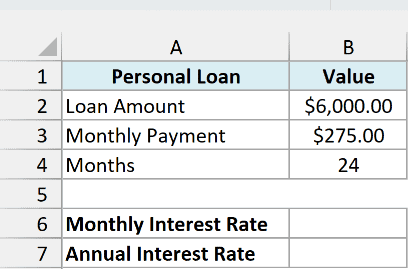
Here is the formula:
=RATE(B4,-B3,B2)
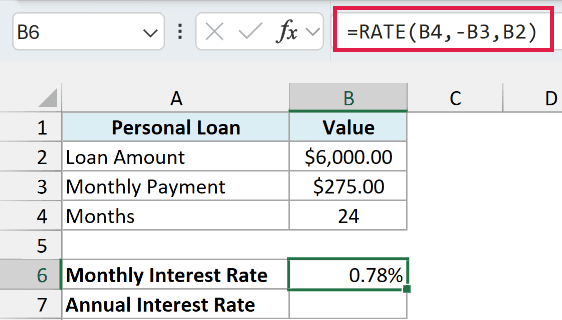
This returns 0.78%, which is the interest rate for one month.
In the above formula, B4 is the number of monthly payments, -B3 is the monthly payment, and B2 is the loan amount. The payment has a minus in front of it because it’s money you pay, while the $6,000 is money you receive.
Important: If the loan amount and the payment have the same sign, RATE can’t find a rate and returns a #NUM! error. Using B3 instead of -B3 in this formula does exactly that.
Most people want the annual rate, though, since that’s how lenders quote it. To get it, multiply the monthly rate by 12:
=RATE(B4,-B3,B2)*12
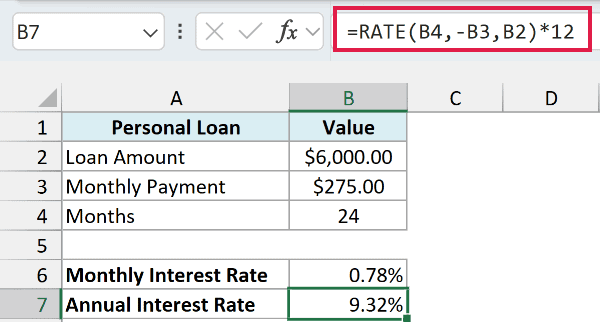
This returns 9.32%, the annual interest rate on the loan.
If you multiply the 0.78% in B6 by 12 yourself, you get 9.36% instead. That’s only rounding, because B6 shows the monthly rate to two decimals while RATE uses the full value, which is about 0.777%.
Multiplying by 12 works here because the payments are monthly. With quarterly payments you would multiply by 4, and with yearly payments you would use the result as it is.
Example 2: Compare Car Loan Quotes With One RATE Formula
Now let’s use RATE to pick the cheapest loan from a list of offers.
Below I have car loan quotes from eight lenders for the same $24,000 loan (the amount is in F2), each with its own monthly payment and length, and I want the annual interest rate for each quote in column D.
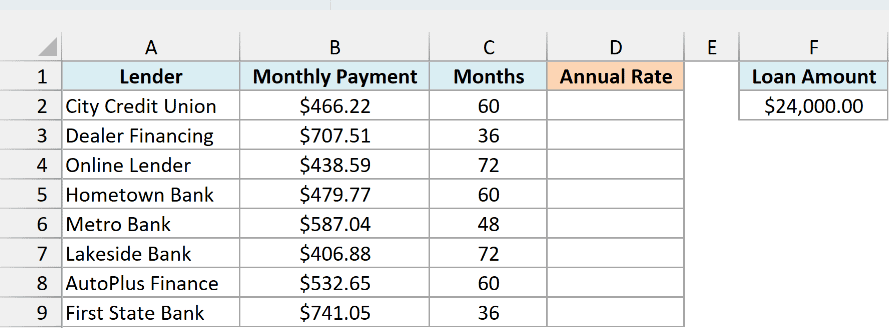
Here is the formula:
=RATE(C2:C9,-B2:B9,F2)*12
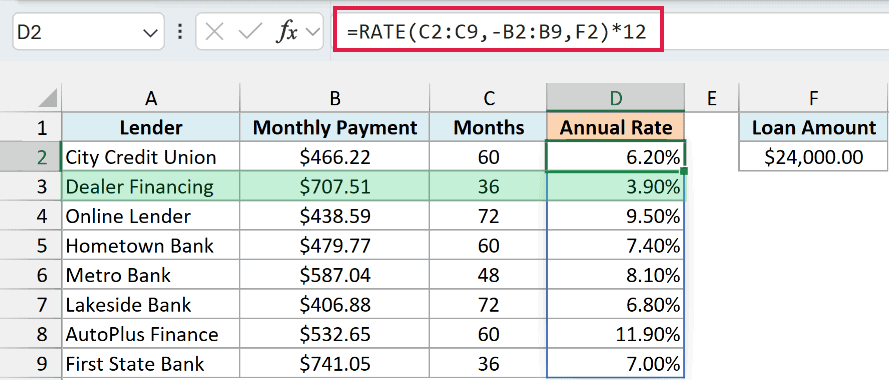
This one formula returns the annual rate for all eight quotes. Dealer Financing has the lowest rate at 3.90%, and AutoPlus Finance has the highest at 11.90%.
Because C2:C9 and B2:B9 are ranges, RATE works out one rate per row and spills the results down column D. If any cell in D3:D9 already has something in it, the formula shows a #SPILL! error until you clear those cells.
Comparing the rates is much more useful than comparing the payments here. The Lakeside Bank quote has the lowest monthly payment, $406.88, but only because it stretches the loan over 72 months.
And its rate of 6.80% isn’t the lowest, since Dealer Financing and City Credit Union both charge less.
If you are using Excel 2019 or earlier, enter the below formula in cell D2 and then copy it down to D9:
=RATE(C2,-B2,$F$2)*12
The dollar signs keep the loan amount locked to F2 as you copy the formula down, while C2 and B2 move to the next row each time.
Example 3: Find the Return Needed to Reach a Savings Goal
RATE also works for savings, where you’re the one putting money in.
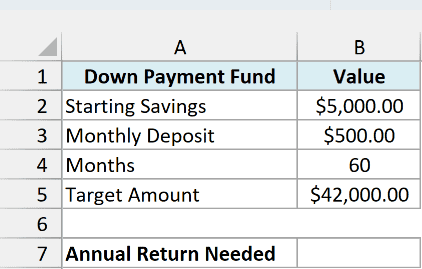
Below I have a down payment fund with $5,000 already saved and $500 added every month, and in cell B7 I want the annual return needed to reach $42,000 in 60 months.
Here is the formula:
=RATE(B4,-B3,-B2,B5)*12
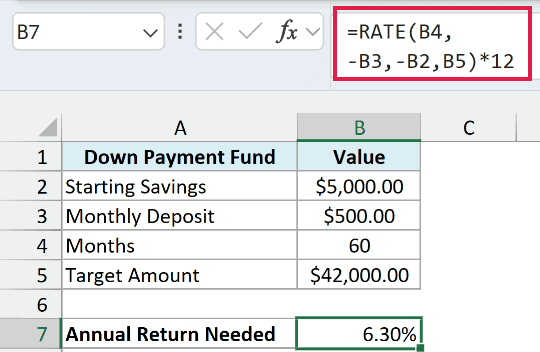
This returns 6.30%. So if your savings earn 6.30% a year, the fund reaches $42,000 in five years.
The starting savings and the monthly deposits are both money you put in, so both go in as negative numbers. The $42,000 goes into the fv argument as a positive number, because that’s what you get back at the end.
Example 4: Calculate the Annual Growth Rate of Investments
Here’s a case with no regular payments at all, just a starting value and an ending value.
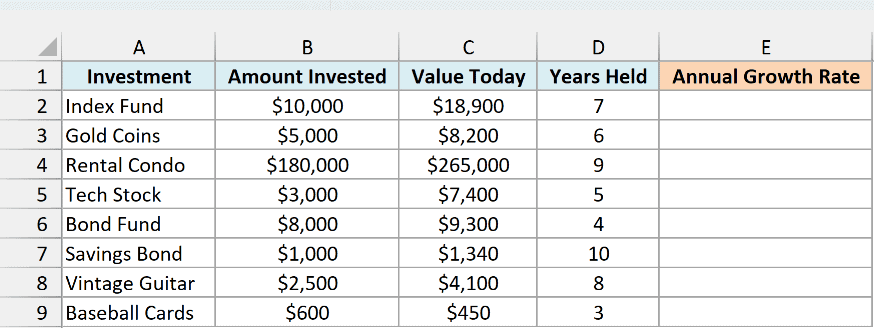
Below I have a list of investments with the amount invested, the value today, and the number of years held, and I want the annual growth rate of each one in column E.
Here is the formula:
=RATE(D2:D9,,-B2:B9,C2:C9)
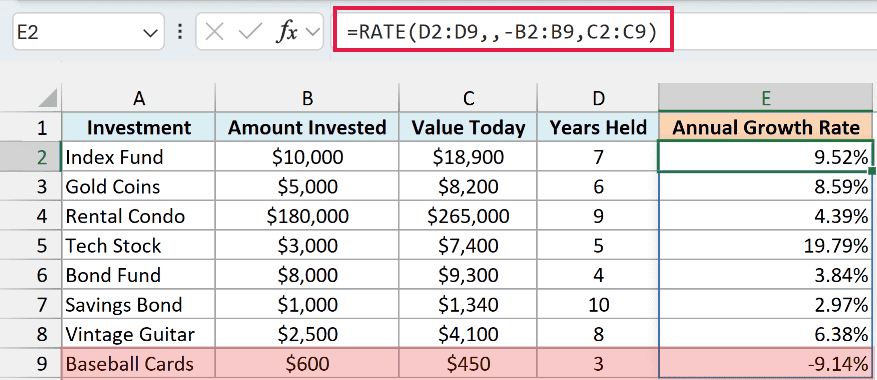
This returns the yearly growth rate for all eight investments. For example, the index fund grew from $10,000 to $18,900 in 7 years, which works out to 9.52% a year.
There are no regular payments, so the pmt argument is left empty with two commas in a row. The amount invested is negative because it’s money you paid, and the value today is positive because it’s what you’d get back.
Since each period here is one year, the result is already an annual rate, so there’s no need to multiply it by anything. This yearly growth rate is the same thing as the compound annual growth rate (CAGR).
When there are no regular payments, the RRI function gives the same result with simpler arguments. RATE is still worth knowing here, because the same formula works when you also add money along the way, as you saw in Example 3.
RATE also handles investments that lost value. The baseball cards dropped from $600 to $450 in 3 years, so RATE returns a negative growth rate of -9.14%.
If you are using Excel 2019 or earlier, enter the below formula in cell E2 and then copy it down to E9:
=RATE(D2,,-B2,C2)
Example 5: Find the Real Interest Rate of a Monthly Payment Plan
This next one is a payment plan that works like a loan, even though nobody calls it one.
Below I have a car insurance policy that costs $1,380 if paid in full, or $122 a month for 12 months, and I want to find the annual interest rate the monthly plan charges in cell B6. The first monthly payment is due today.
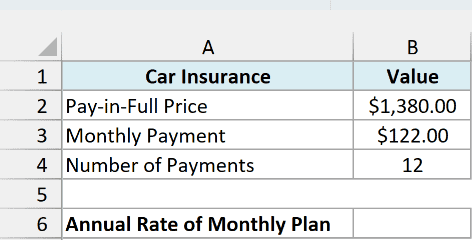
Here is the formula:
=RATE(B4,-B3,B2,0,1)*12
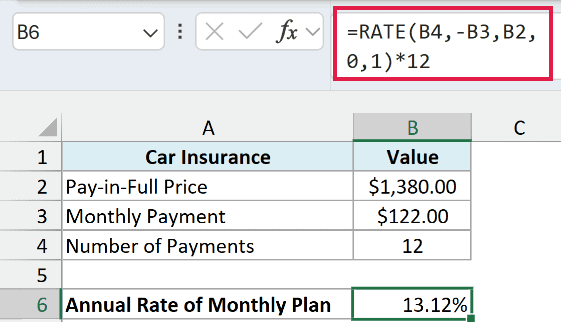
This returns 13.12%. So paying monthly costs about as much as borrowing the $1,380 at 13.12% a year, even though the plan never mentions interest.
The 1 at the end is the type argument, and it tells RATE that each payment happens at the start of the month. The 0 before it is the fv argument, since nothing is owed after the last payment.
Important: If you leave type out, RATE assumes each payment is made at the end of the month and returns 11.05%, which understates what the plan really costs. Set type to 1 whenever the first payment is due right away.
Example 6: Interest Rate on a Loan With a Balloon Payment
Let’s step it up with a loan that has a big final payment.
Below I have a $40,000 boat loan with a $590 monthly payment for 60 months, plus a $15,000 balloon payment at the end, and I want to find the annual interest rate in cell B7.
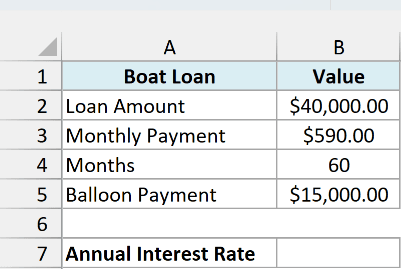
Here is the formula:
=RATE(B4,-B3,B2,-B5)*12
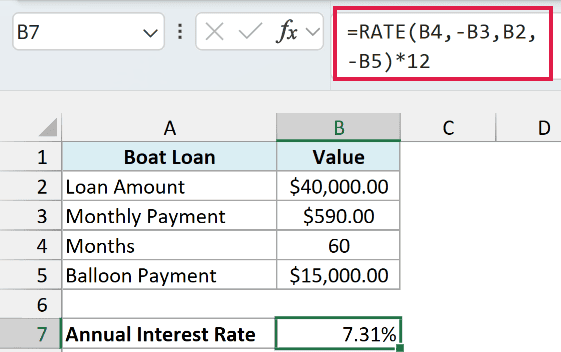
This returns 7.31%, the annual interest rate you’re paying on the boat loan.
The balloon payment goes into the fv argument, because it’s the amount you still owe after the last monthly payment. It’s money you pay, so it’s negative, just like the monthly payment.
If you enter the balloon as a positive number, RATE treats it as money you get back at the end. No interest rate can make that work, so you get a #NUM! error.
Example 7: Fix the RATE #NUM! Error With a Guess
Sometimes RATE returns #NUM! even when every sign is right, and this last example shows why it happens and how to fix it.
Below I have a short-term installment loan of $1,000 that’s paid back at $175 every two weeks for 26 payments, and I want to find the annual interest rate in cell B6.
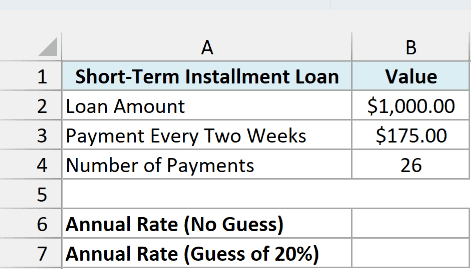
Here is the formula:
=RATE(B4,-B3,B2)*26
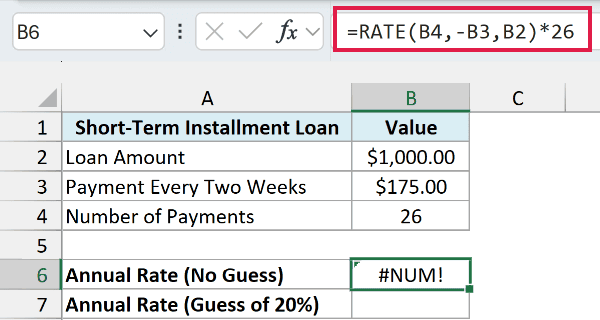
This returns a #NUM! error.
RATE finds the rate by trial and error. It starts with a guess of 10% per period, adjusts it up to 20 times, and gives up with #NUM! if it hasn’t reached an answer by then.
That works for most loans, because their rate per period is small. This loan charges about 17% every two weeks, and starting from 10%, RATE doesn’t get there within those 20 tries.
The fix is to give RATE a better starting point with the guess argument:
=RATE(B4,-B3,B2,0,0,20%)*26
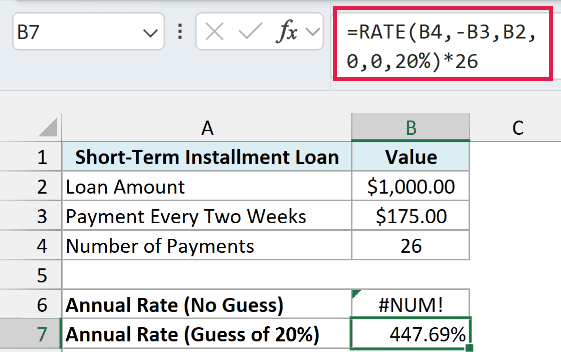
This returns 447.69%, the annual interest rate of the loan. It shows just how expensive short-term loans like this can be.
The two zeros fill the fv and type arguments, so that 20% lands in the guess position. The result is multiplied by 26 because there are 26 two-week periods in a year.
Pro Tip: You don’t need to know the exact rate to use a guess. If you get #NUM! and the signs are right, try a guess close to the rate per period you expect, and try a different guess if the error stays.
So these are seven ways you can use the RATE function in Excel to find the interest rate of a loan, a savings plan, or an investment.
RATE works only when every payment is the same amount. For cash flows that change from period to period, use the IRR function instead.
And if you know the rate and want the monthly payment, the PMT function does the reverse of what you saw in Example 1.
I hope you found this article helpful.
Other Excel Articles You May Also Like:
