

The REGEXEXTRACT function pulls out the part of a text string that matches a pattern you describe. You tell it what the text looks like, such as “four digits” or “a word that comes after Size:”, and it returns the matching piece.
This is really useful when the text you want doesn’t sit in a fixed position or after a consistent separator. That’s exactly where LEFT, MID, and TEXTAFTER start needing long, fragile formulas.
In this article, I’ll show you how to use REGEXEXTRACT with eight examples, from pulling a code out of a sentence to returning every match, splitting text into parts, and adding up all the amounts in a note.
Follow along with the example file
REGEXEXTRACT Function Examples.xlsx
REGEXEXTRACT Function Syntax
Here is the syntax of the REGEXEXTRACT function:
=REGEXEXTRACT(text, pattern, [return_mode], [case_sensitivity])
- text – the text you want to extract from. This can be a cell reference, a text string in double quotes, or a range of cells.
- pattern – the regular expression that describes the text you want, in double quotes. For example,
"\d{4}"means four digits in a row. - [return_mode] – (optional) what to return. Use 0 (or leave it out) for the first match, 1 for all matches, and 2 for the capture groups of the first match (the parts of the pattern you wrap in parentheses).
- [case_sensitivity] – (optional) use 0 (or leave it out) for a case-sensitive match, and 1 to ignore case.
When you give the text argument a range, like A2:A11, you get one result for every cell, and the results spill down the column.
The return_mode argument decides how many results you get. With 1, every match in the text comes back, spilled across the cells to the right.
With 2, you get the capture groups of the first match, again spread across the row.
Since case_sensitivity defaults to a case-sensitive match, a pattern looking for “inv” will not find “INV” unless you set this argument to 1.
The REGEXEXTRACT function works only in Excel for Microsoft 365, on Windows and Mac. It isn’t available in Excel 2024, 2021, 2019, or older versions.
When to Use the REGEXEXTRACT Function
Use this function when you need to:
- Pull a code, ID, or reference number out of a sentence
- Get the first number from text and use it in calculations
- Return every match in a cell, such as all the times in a schedule
- Split text into parts when the parts have no single separator
- Get the value that comes after a label, wherever that label sits in the text
Let me show you a few practical examples of how to use the REGEXEXTRACT function.
Example 1: Extract Order Numbers From Text With REGEXEXTRACT
Let’s start with a simple example.
Below is a list of customer messages where each message mentions an order number somewhere in the text, and I want to pull out just the order number in column B.
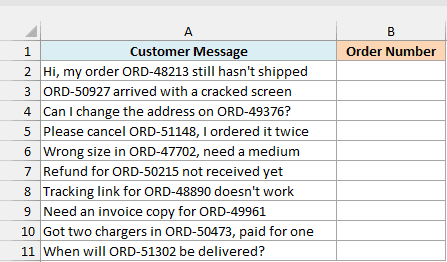
Here is the formula:
=REGEXEXTRACT(A2:A11,"ORD-\d{5}")
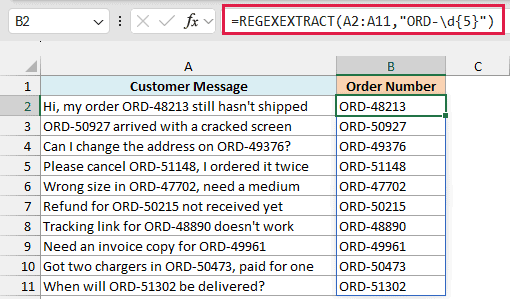
The pattern ORD-\d{5} has two parts. ORD- matches those exact characters, and \d{5} means exactly five digits, because \d stands for any digit and {5} says how many.
Since I gave the formula the whole range A2:A11, it returns one order number for every message, and the results spill down from B2. It doesn’t matter whether the order number is at the start, in the middle, or at the end of the message.
Example 2: Extract the First Number From Text
Here’s another practical scenario.
Below is a running log where each entry mentions the distance in kilometers, and I want to get that distance as a number in column B.
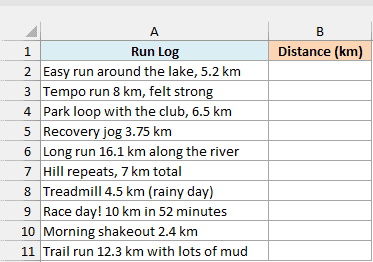
Here is the formula:
=VALUE(REGEXEXTRACT(A2:A11,"\d+(\.\d+)?"))
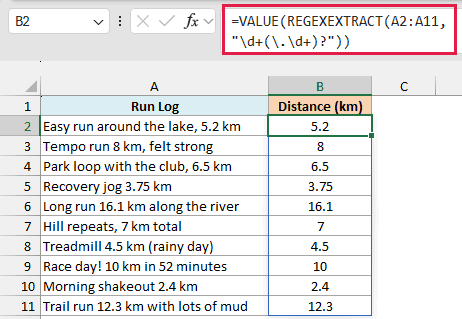
In the pattern, \d+ means one or more digits. The part in parentheses, (\.\d+), is a decimal point followed by more digits, and the ? after it makes that part optional, so the pattern matches both 8 and 5.2.
Since the default return_mode returns only the first match, the entry “Race day! 10 km in 52 minutes” gives you 10 and ignores the 52.
REGEXEXTRACT always returns text, even when the match looks like a number. That’s why the formula wraps it in the VALUE function, which converts each result into a real number.
Important: Without VALUE, the distances stay as text, and a SUM of column B returns 0 instead of the total, with no error to warn you. Wrap REGEXEXTRACT in VALUE whenever you plan to do math with the result.
Example 3: Case-Insensitive Match With REGEXEXTRACT
Now let’s look at what happens when the text isn’t typed consistently.
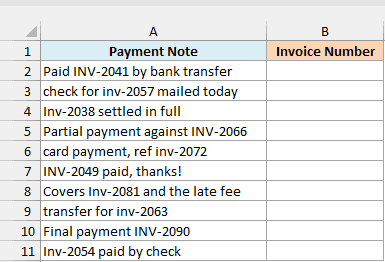
Below is a list of payment notes where the invoice number is written as INV, Inv, or inv, and I want to extract the invoice number from each note in column B.
Here is the formula:
=REGEXEXTRACT(A2:A11,"inv-\d{4}",,1)
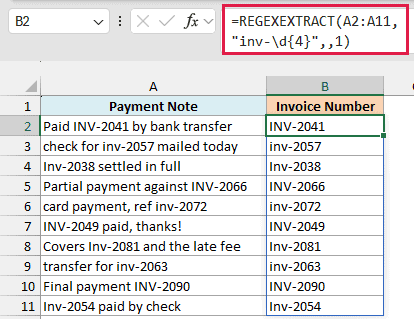
The 1 in the last argument tells REGEXEXTRACT to ignore case, so inv- matches INV-, Inv-, and inv-. The two commas in a row skip the return_mode argument, which keeps its default of returning the first match.
Without that 1, the pattern would only find the lowercase “inv-” notes and return #N/A for the rest.
Another way to do the same thing is to start the pattern with (?i), which turns off case matching from inside the pattern.
Notice that the result keeps the case from the original text. If you want all the invoice numbers in capitals, wrap the formula in the UPPER function.
Example 4: Return a Custom Value When There’s No Match
Let’s see what happens when some of the text doesn’t contain what you’re looking for.
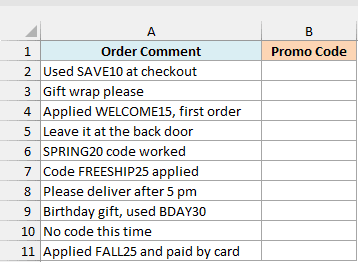
Below is a list of order comments where some customers used a promo code and some didn’t, and I want to extract the promo code in column B, or show “No code” when there isn’t one.
Here is the formula:
=IFNA(REGEXEXTRACT(A2:A11,"[A-Z]+\d{2}"),"No code")
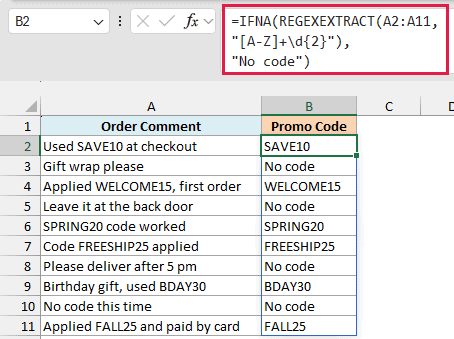
The pattern [A-Z]+\d{2} means one or more capital letters followed by two digits, which matches codes like SAVE10 and FREESHIP25. Ordinary words like “Applied” or “Please” don’t match, because no digits follow them.
When REGEXEXTRACT can’t find a match, it returns the #N/A error. The IFNA function catches that #N/A and shows “No code” instead.
I’m using IFNA rather than IFERROR here on purpose. IFNA only hides the “no match” result, so if you ever make a typo in the pattern, you’ll still see the #VALUE! error instead of a misleading “No code”.
Example 5: Return All Matches With REGEXEXTRACT
Now let’s look at something more interesting.
Below is a weekly gym timetable where each day lists its classes with their start times, and I want to extract all the class times for each day in columns C to F.
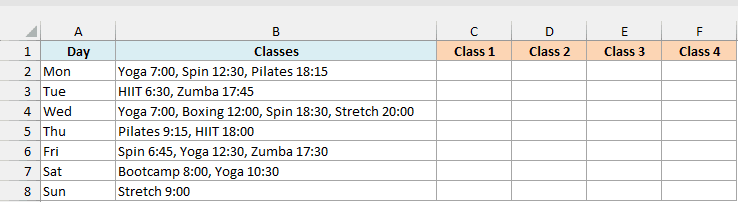
Enter the below formula in cell C2 and then copy it down to C8:
=REGEXEXTRACT(B2,"\d{1,2}:\d{2}",1)
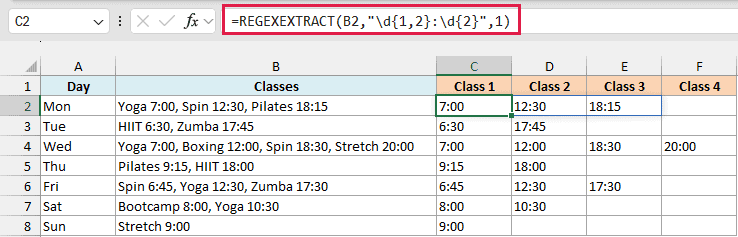
The pattern \d{1,2}:\d{2} means one or two digits, a colon, and then exactly two digits, which matches times like 7:00 and 18:15. The 1 in the third argument (return_mode) tells REGEXEXTRACT to return every match instead of just the first one.
All the matches spill to the right, so Monday’s three times land in C2, D2, and E2, while Sunday has only one.
Just like the numbers in Example 2, these times come back as text, so Excel can’t use them in time calculations as they are. If you need to, wrap the formula in the TIMEVALUE function to turn them into real times.
Important: If you use a range like B2:B8 with return_mode 1, REGEXEXTRACT doesn’t show an error, but it quietly returns only the first match for each row. So use a single cell and copy the formula down (the same applies to return_mode 2).
Example 6: Split Text Into Parts Using Capture Groups
Here’s a case where regular text formulas would struggle.
Below is a list of shipping addresses written as City, State ZIP, and I want to split each one into the city, state, and ZIP code in columns B to D.
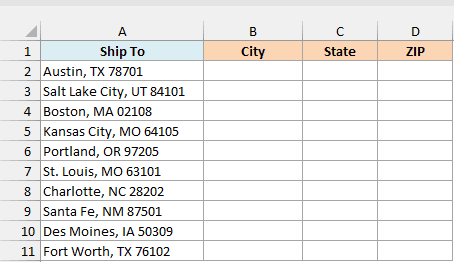
Enter the below formula in cell B2 and then copy it down to B11:
=REGEXEXTRACT(A2,"(.+), ([A-Z]{2}) (\d{5})",2)
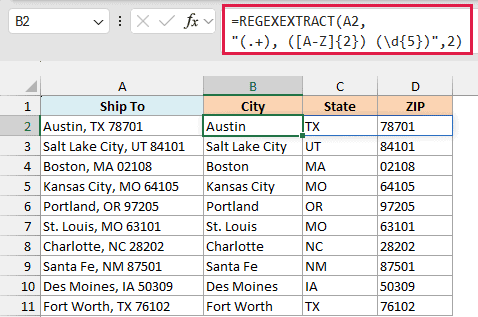
How this formula works:
- (.+) captures everything before the comma, which is the city. This works even for multi-word cities like Salt Lake City.
- ([A-Z]{2}) captures the two capital letters after the comma and space, which is the state.
- (\d{5}) captures the five digits at the end, which is the ZIP code. Since REGEXEXTRACT returns text, a ZIP like 02108 keeps its leading zero.
- 2 in the return_mode argument tells REGEXEXTRACT to return each of these captured parts in its own cell, spilled across the row.
Splitting on a space with the TEXTSPLIT function wouldn’t work here, because “Salt Lake City” would break into three separate cells. The regex pattern describes what each part looks like, so the city can have any number of words.
Example 7: Extract the Value After a Label Using Lookbehind
Let’s step it up with a more advanced pattern.
Below is a list of shirt options where the labels (Color, Size, and Fit) appear in different orders and some rows have only two of them, and I want to extract just the size in column B.
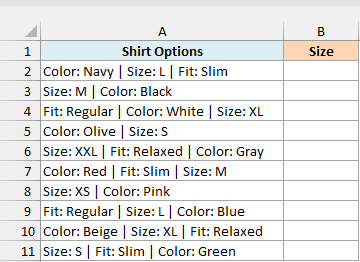
Here is the formula:
=REGEXEXTRACT(A2:A11,"(?<=Size: )\w+")
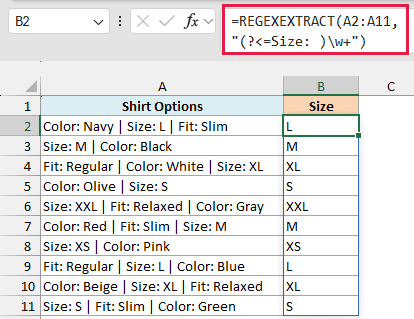
The (?<=Size: ) part is called a lookbehind. It tells REGEXEXTRACT to find a spot that comes right after “Size: “, without including “Size: ” in the result.
Then \w+ matches the word characters that follow, which is the size itself (L, XL, XXL, and so on). So whether the size comes first, in the middle, or last in the text, you get just the size.
This is much easier than using TEXTAFTER and TEXTBEFORE, which need extra handling for the rows where Size is the last item and has no separator after it.
Example 8: Add Up All the Numbers in a Cell
Let’s finish with an example that combines REGEXEXTRACT with another function.
Below is a list of expense notes where each note has one or more dollar amounts, and I want to get the total of all the amounts in each note in column B.
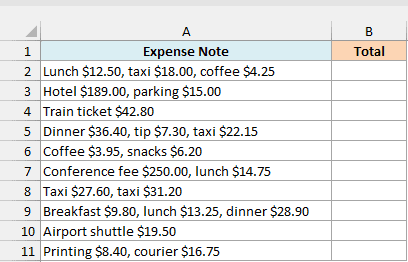
Enter the below formula in cell B2 and then copy it down to B11:
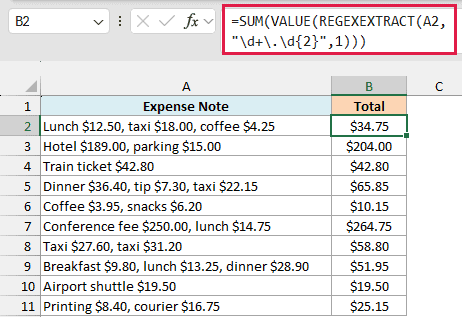
=SUM(VALUE(REGEXEXTRACT(A2,"\d+\.\d{2}",1)))
How this formula works:
- REGEXEXTRACT(A2,”\d+\.\d{2}”,1) returns every amount in the note, such as 12.50, 18.00, and 4.25. The pattern means digits, a decimal point, and exactly two more digits.
- VALUE converts these text results into numbers.
- SUM adds them up, so the first note gives $34.75.
Here, I’m using a single cell and copying the formula down, for the same reason as in Example 5.
So these are eight practical ways to use the REGEXEXTRACT function in Excel. If you’re new to regular expressions, start with a simple pattern like the one in Example 1, and add return modes and lookbehind once that feels comfortable.
I hope you found this article helpful.
Other Excel Articles You May Also Like:
