

The DEGREES function in Excel converts an angle from radians to degrees.
It comes up a lot because Excel functions like ATAN, ACOS, and ATAN2 all return their answers in radians. Most of us think in degrees, so DEGREES turns those results into angles you can read at a glance.
In this tutorial, I’ll show you how to convert a list of radians, find a roof’s angle from its pitch, get a compass direction, and even average wind directions the right way.
Follow along with the example file
DEGREES Function Examples.xlsx
DEGREES Function Syntax
Here is the syntax of the DEGREES function:
=DEGREES(angle)
- angle is the angle in radians that you want to convert. It can be a number, a cell reference, a calculation (like another function’s result), or a range.
DEGREES can only be as exact as the number you give it. So if you type 3.14 as a rough stand-in for π, =DEGREES(3.14) returns 179.9087 instead of 180.
To avoid that, use the PI function in place of a typed value, as in =DEGREES(PI()), which returns exactly 180.
An empty cell is read as 0, so DEGREES returns 0 for it. If the cell has text like “n/a”, you get a #VALUE! error instead.
The DEGREES function works in all Excel versions, including Microsoft 365, 2024, 2021, 2019, 2016, and Excel for Mac.
When to Use the DEGREES Function
Use this function when you need to:
- Convert angles you got in radians (from a calculator, an app, or a lab sensor) into degrees.
- Show the result of ATAN, ASIN, ACOS, or ATAN2 in degrees instead of radians.
- Work out a slope or roof angle from its rise and run.
- Get a compass direction from how far a point is to the east and north.
Let me show you a few practical examples of how to use the DEGREES function.
Example 1: Convert Radians to Degrees in Excel
Let’s start with a simple example.
Below is a pendulum experiment from a physics class, where a motion sensor recorded the swing angle of each trial in radians, and I want those angles in degrees in column C.
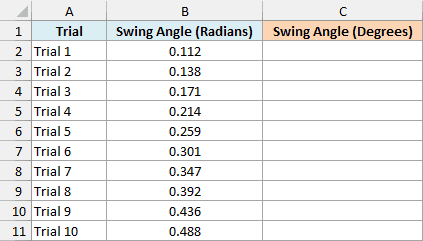
Here is the formula to enter in cell C2:
=DEGREES(B2:B11)
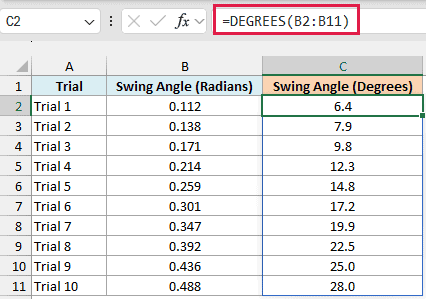
The formula converts every radian value in B2:B11 to degrees. Trial 1 swung 0.112 radians, which is 6.4 degrees, and Trial 10 swung 0.488 radians, which is 28.0 degrees.
Behind the scenes, DEGREES multiplies the radians by 180/π. So =B2:B11*180/PI() gives you the same results, but the DEGREES version is easier to read and you don’t have to remember the math.
You only enter the formula in cell C2. Since B2:B11 is a range, the results spill down to C11 on their own.
If any cell in C3:C11 already has something in it, you’ll get a #SPILL! error instead of results. Clear those cells, and the results show up.
Spilling formulas need Excel for Microsoft 365 or Excel 2021 and later. If you are using Excel 2019 or earlier, enter the below formula in cell C2 and then copy it down to C11:
=DEGREES(B2)
The same idea works for the other spilling formulas in this article. Use the first row’s cells instead of the whole range, and copy the formula down (and across, for the two-column table in Example 2).
Example 2: Convert a Whole Table of Radians at Once
DEGREES doesn’t have to work on one column at a time. You can give it a range with several columns, and it converts all of them in one go.
Below is a log from a fitness app that tracks squats, with the knee and hip angle at the bottom of each rep in radians, and I want both angles in degrees in columns D and E.
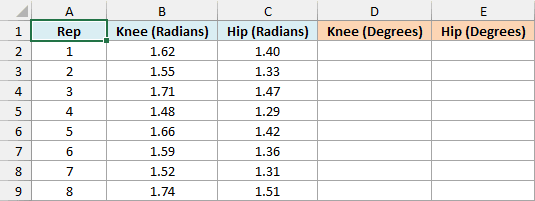
Here is the formula to enter in cell D2:
=DEGREES(B2:C9)
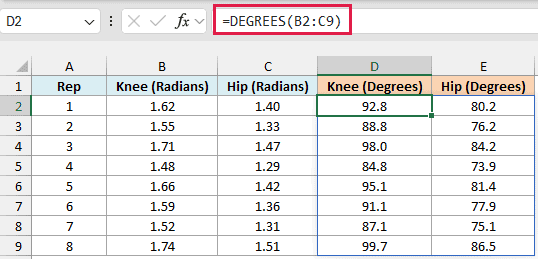
Since B2:C9 is two columns wide, the results spill into two columns too. The knee angles land in column D and the hip angles in column E, each on the same row as its rep.
So in rep 1, the knee was at 92.8 degrees and the hip at 80.2 degrees.
Example 3: Find a Roof’s Angle From Its Pitch
Now let’s pair DEGREES with a trig function that returns radians.
Roof pitch tells you how many inches a roof rises for every 12 inches it runs. A 6/12 roof, for example, goes up 6 inches for every 12 inches across.
Below is a list of customers with the pitch of each roof, and I want the roof angle in degrees in column C.
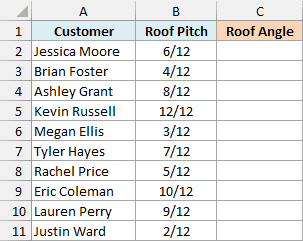
Note that the pitch cells hold only the rise (like 6). The “/12” you see is added by a custom number format, so you can still use the cell in a formula.
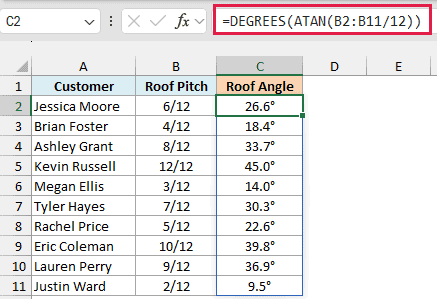
Here is the formula to enter in cell C2:
=DEGREES(ATAN(B2:B11/12))
How this formula works:
B2:B11/12divides each rise by the 12-inch run. This gives the slope of the roof (the tangent of its angle).- ATAN turns each slope into an angle, but in radians.
- DEGREES converts those radians to degrees.
So Jessica Moore’s 6/12 roof is at 26.6 degrees, and Kevin Russell’s 12/12 roof is at exactly 45.0 degrees, since it rises as much as it runs.
The same pattern works for any slope you can write as rise over run, like a driveway or a treadmill incline. If the slope is already a percentage, use that percentage in place of the rise divided by 12.
Pro Tip: To show a degree sign after the result and still keep it a number, use the custom number format 0.0"°". You can find more ways to type the symbol in this guide on the degree symbol in Excel.
Example 4: Get a Compass Direction With DEGREES and ATAN2
Let’s step it up with a more interesting use case.
Below is a scavenger hunt in a park, with how many meters east and north each clue is from the starting point (negative numbers mean west or south), and I want the compass direction to each clue in column D.
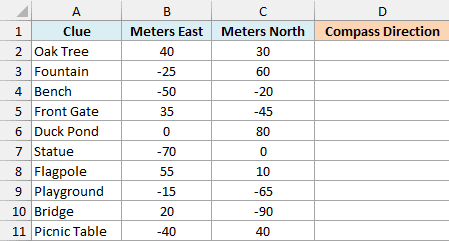
Here is the formula to enter in cell D2:
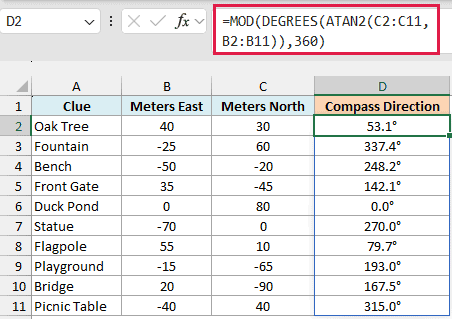
=MOD(DEGREES(ATAN2(C2:C11,B2:B11)),360)
How this formula works:
- ATAN2 looks at both distances and returns the angle of the point in radians. Unlike ATAN, it knows which quarter of the map the point is in, and it doesn’t break when a distance is 0.
- ATAN2 normally takes the x value first and measures the angle from the x-axis. A compass measures from north instead, so the north distance (column C) goes first and the east distance (column B) goes second.
- DEGREES converts that angle to degrees. At this stage, points to the west come out negative (the Statue would be -90).
- The MOD function with 360 turns those negative angles into the 0 to 360 range a compass uses. So -90 becomes 270.
So the Oak Tree is at 53.1 degrees (to the northeast), the Duck Pond is straight north at 0.0, and the Statue is due west at 270.0.
Important: If you swap the two arguments, you won’t get an error, just the wrong directions (the Duck Pond would show 90 instead of 0). And if a clue sat exactly at the start, with 0 east and 0 north, ATAN2 would return #DIV/0!.
Example 5: Average Wind Directions the Right Way
This last one shows why getting angles in and out of radians matters.
Below is a set of hourly wind directions from a weather station, and I want the average direction for the day in cell B14.
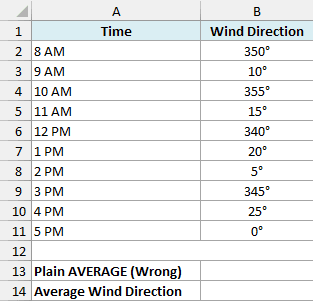
Every reading is within 25 degrees of north, so the average should be close to north too. Let’s first see what AVERAGE gives.
Here is the plain AVERAGE formula in cell B13:
=AVERAGE(B2:B11)
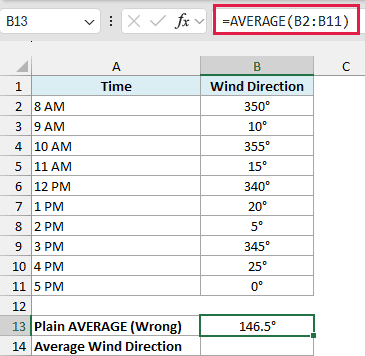
That gives 146.5 degrees, which points southeast. It’s wrong because directions wrap around at 360, so 350 and 10 are only 20 degrees apart, but the AVERAGE function treats them as 340 apart.
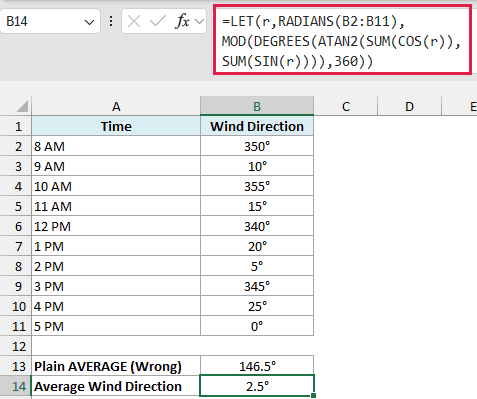
The fix is to average the directions as arrows instead of plain numbers. Here is the formula to enter in cell B14:
=LET(r,RADIANS(B2:B11),MOD(DEGREES(ATAN2(SUM(COS(r)),SUM(SIN(r)))),360))
How this formula works:
- The LET function converts all the directions to radians once and stores them as r, since the COS function and SIN need radians.
SUM(COS(r))adds up how far north all the arrows point, andSUM(SIN(r))adds up how far east they point.- ATAN2 turns those two totals into the direction of the combined arrow. DEGREES converts it back to degrees, and MOD keeps it between 0 and 360.
This returns 2.5 degrees, which is just east of north. That matches what the readings tell you.
LET needs Excel for Microsoft 365 or Excel 2021 and later. If you are using Excel 2019 or earlier, enter the below formula in cell B14:
=MOD(DEGREES(ATAN2(SUMPRODUCT(COS(RADIANS(B2:B11))),SUMPRODUCT(SIN(RADIANS(B2:B11))))),360)
SUMPRODUCT handles the range on its own in older versions. With SUM in its place, Excel 2019 would use only one cell of the range and return the wrong direction.
So these are a few ways you can use the DEGREES function in Excel. Whenever a trig function hands you radians, wrap it in DEGREES and you’ll get an angle that makes sense.
I hope you found this tutorial useful.
Other Excel Articles You May Also Like:
