

The WEBSERVICE function gets data from a web address and puts it in a cell. You give it a URL, and it returns whatever that address sends back, as text.
It works best with web services (often called APIs) that answer with a small piece of data, like today’s exchange rate, the current temperature in a city, or the town that a ZIP code belongs to.
Since the formula reads the data straight from the web, you don’t have to copy and paste it into your sheet.
There are two catches. It only works in Excel for Windows, and what you get back is raw text, so you’ll often need another function to pull out the part you want.
In this tutorial, I’ll show you how to use WEBSERVICE to get live data, build the URL from your own cells, and pull values out of JSON and XML responses.
Follow along with the example file
WEBSERVICE Function Examples.xlsx
WEBSERVICE Function Syntax
Here is the syntax of the WEBSERVICE function:
=WEBSERVICE(url)
- url – The web address you want to get data from. It can be text in double quotes, a cell that holds the address, or a URL you build with a formula.
The URL has to start with http:// or https://. Other types of addresses, like ftp:// or file://, return a #VALUE! error.
WEBSERVICE can only send the URL itself, so any details the web service needs (a city name, a ZIP code, a currency) have to be part of that URL.
The full address can be up to 2,048 characters long, which is plenty for most web services. You’d only go over it if you add a lot of text to the URL, and then you get a #VALUE! error.
The WEBSERVICE function works only in Excel for Windows, in Microsoft 365, Excel 2024, 2021, 2019, 2016, and 2013. It doesn’t work in Excel for Mac or Excel for the web.
When to Use the WEBSERVICE Function
Use this function when you need to:
- Get live data into Excel, like exchange rates or weather
- Look up details for a list of items, such as the city for each ZIP code
- Read data from a web service (API) that returns JSON, XML, or plain text
- Build the web address from values in your cells, like a city name or a year
Let me show you a few practical examples of how to use WEBSERVICE in Excel.
Example 1: Get Data From a URL in Excel
Let’s start with a simple example.
Below I have a URL in cell A2 that returns the current temperature in Chicago, and I want to get that temperature in cell C2.

This URL uses wttr.in, a free weather service, where “format=%t” asks for only the temperature and “u” asks for Fahrenheit.
Here is the formula:
=WEBSERVICE(A2)
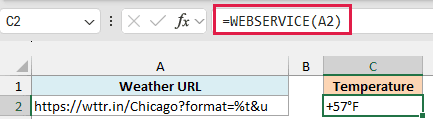
The formula visits the address in A2 and returns exactly what the site sends back, which is the temperature as text, like +57°F.
The plus sign and the °F come from the weather service, not from Excel. And your number will be different from mine, because it’s the temperature at the moment the formula runs.
Also note that the result is text, not a number, so you can’t add or average it without converting it first.
WEBSERVICE is meant for web services like this one, which send back a small piece of data. A regular web page has far more than 32,767 characters (the most a cell can hold), so pointing WEBSERVICE at one usually gives you a #VALUE! error.
Important: WEBSERVICE doesn’t get fresh data when you press F9 or reopen the file. It keeps its last result until you edit the formula or its URL cell, or press Control + Alt + F9 to recalculate everything.
Example 2: Get Data for a List of Values With One Formula
Now let’s do the same thing for a whole list, where WEBSERVICE gets a lot more useful.
Below is a list of cities I’m considering for a trip, and I want to get the current temperature of each one in column B.
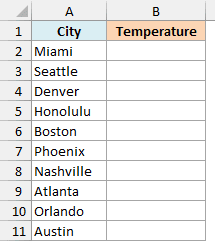
Here is the formula:
=WEBSERVICE("https://wttr.in/"&A2:A11&"?format=%t&u")
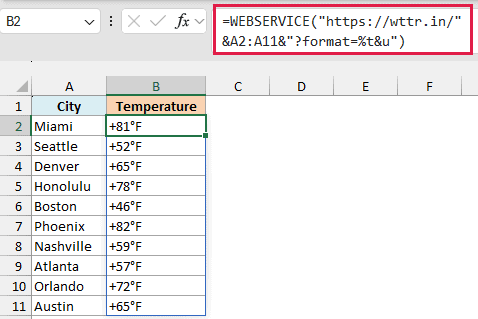
Instead of typing ten URLs, the formula builds them. The & operator joins the start of the address, each city name from A2:A11, and the end of the address, so the first URL becomes “https://wttr.in/Miami?format=%t&u”.
Since A2:A11 is a range, WEBSERVICE fetches each of these URLs and spills one temperature per city. Each city is a separate request to the website, so a long list can take a few seconds to fill in.
The results spill down from B2, so keep the cells below it empty, or you’ll get a #SPILL! error.
This spilling needs Excel 2021 or newer, including Microsoft 365. If you are using Excel 2019 or earlier, enter the below formula in cell B2 and then copy it down the range:
=WEBSERVICE("https://wttr.in/"&A2&"?format=%t&u")
Example 3: Get City and State From ZIP Codes (JSON Data)
Most web services don’t send back a single value. They send back JSON, which is text with labels and values, and you pull out the value you need.
Below is a customer list with ZIP codes, and I want to get the city in column C and the state in column D.
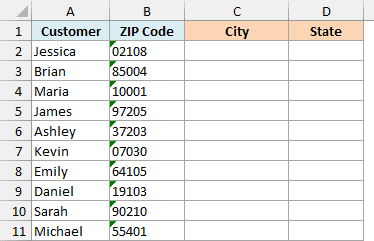
Important: ZIP codes must be stored as text, or Excel drops the leading zero from codes like 02108, the URL asks for 2108, and you get #VALUE!. Format the column as Text before you type the codes.
That’s also why you see small green triangles next to the ZIP codes. Excel flags numbers stored as text, and here that’s exactly what we want.
I’m using Zippopotam.us, a free service that returns the details of a US ZIP code. For example, for 02108, WEBSERVICE returns this JSON (shortened here):
{"country": "United States", "post code": "02108", "places": [{"place name": "Boston", "state": "Massachusetts", "state abbreviation": "MA"}]}
Here is the formula for the city:
=TEXTBEFORE(TEXTAFTER(WEBSERVICE("https://api.zippopotam.us/us/"&B2:B11),"""place name"": """),"""")
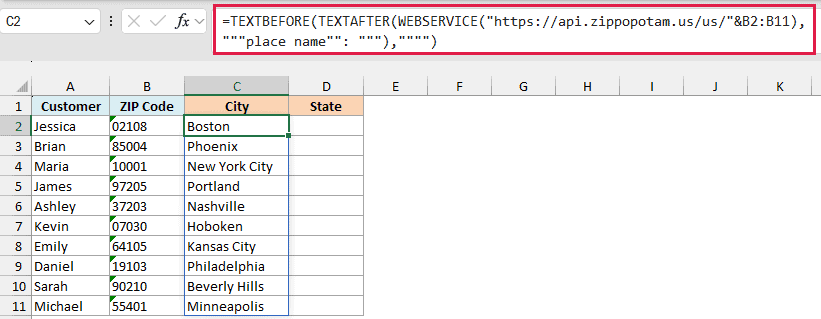
How this formula works:
- WEBSERVICE(“https://api.zippopotam.us/us/”&B2:B11) adds each ZIP code to the end of the URL and gets the JSON for it.
- TEXTAFTER(…,”””place name””: “””) keeps everything after the label “place name”: ” (the doubled quotes are how you put a quote mark inside Excel text).
- TEXTBEFORE(…,””””) then keeps everything before the next quote mark, which is just the city name.
Here is the formula for the state:
=TEXTBEFORE(TEXTAFTER(WEBSERVICE("https://api.zippopotam.us/us/"&B2:B11),"""state abbreviation"": """),"""")
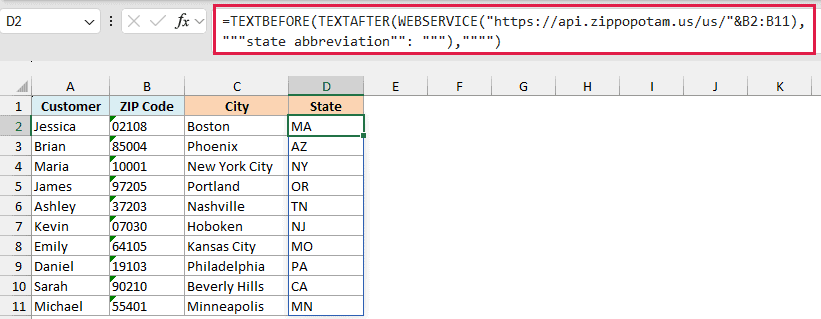
This is the same formula with a different label. Swap in any label from the JSON, like “state” for the full state name, and you’ll get that value instead.
Each of these formulas calls the web service on its own, so the sheet makes 20 requests for 10 ZIP codes. That’s fine for a short list like this one, but a list of hundreds will take noticeably longer to fill in.
The TEXTBEFORE and TEXTAFTER functions are available in Microsoft 365 and Excel 2024.
If you type a ZIP code that doesn’t exist, the service sends back an error page, and the formula returns #VALUE! for that row. To show a message like “Not found” instead, wrap the formula in the IFERROR function.
Example 4: Use WEBSERVICE With FILTERXML to Get an Exchange Rate
When a web service sends back XML instead of JSON, the FILTERXML function can pull values out of it for you.
Below is a list of expenses from a trip to Paris in euros, and I want to convert them to US dollars in column C, using today’s exchange rate in E2.
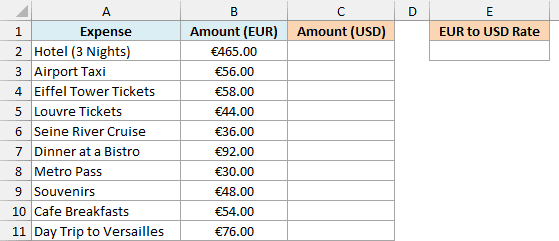
The European Central Bank publishes its daily exchange rates as XML, where each currency sits in a tag like this:
<Cube currency='USD' rate='1.1253'/>
Here is the formula that gets the euro to US dollar rate in E2:
=FILTERXML(WEBSERVICE("https://www.ecb.europa.eu/stats/eurofxref/eurofxref-daily.xml"),"//*[@currency='USD']/@rate")
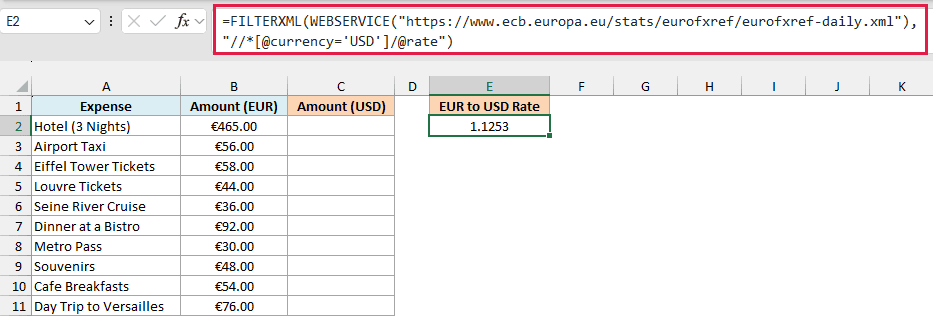
WEBSERVICE gets the XML with all of today’s rates. Then FILTERXML finds the tag whose currency is USD and returns its rate attribute, which is how many dollars one euro buys.
FILTERXML returns the rate as a real number, so you can use it in a calculation right away.
The bank updates these rates once every working day. To get the latest one, press Control + Alt + F9.
Here is the formula that converts the amounts:
=B2:B11*E2
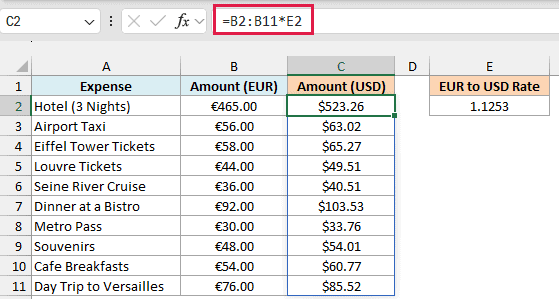
This multiplies each euro amount by the rate in E2 and spills the dollar amounts down column C. Keeping the rate in its own cell means the file gets it from the web only once, and you can see which rate was used.
Like WEBSERVICE, the FILTERXML function works only in Excel for Windows.
Example 5: Use ENCODEURL to Build a Safe URL (Find Book Authors)
So far, the values we added to the URL were simple words and numbers. Text with spaces or symbols like & needs one more step.
Below is my book club’s reading list, and I want to get the author of each book in column B.

I’m using Open Library’s search (Open Library is a free online book catalog) and asking for only the author of the top result. For “Pride & Prejudice”, it sends back this JSON (shortened here):
{"numFound":1024,"start":0,"docs":[{"author_name":["Jane Austen"]}]}
A book can have more than one author, so the names come inside square brackets. That’s why the label to look for ends with [“.
Here is the formula:
=TEXTBEFORE(TEXTAFTER(WEBSERVICE("https://openlibrary.org/search.json?title="&ENCODEURL(A2:A11)&"&fields=author_name&limit=1"),"author_name"":["""),"""")
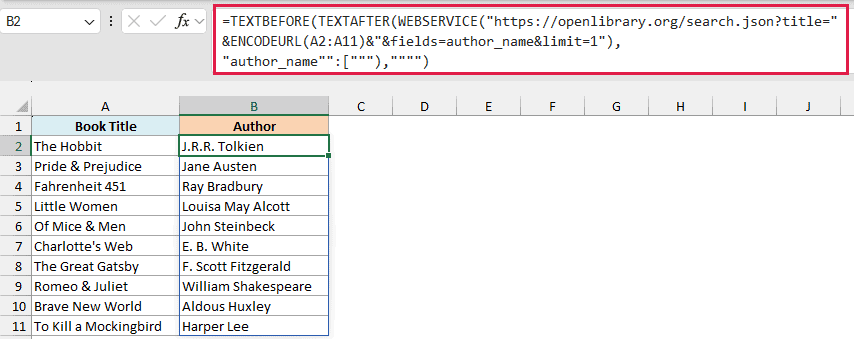
How this formula works:
- ENCODEURL(A2:A11) converts each title into a form that’s safe to use in a URL. “Pride & Prejudice” becomes “Pride%20%26%20Prejudice”, where %20 is a space and %26 is the & sign.
- WEBSERVICE then runs the Open Library search for each title.
- TEXTAFTER keeps everything after author_name”:[” and TEXTBEFORE stops at the next quote mark, which leaves the author’s name.
The encoding matters because the & sign has a job in a URL. It separates one piece of information from the next, so without ENCODEURL, the website would only see “Pride ” as the title and treat the rest as something else.
That’s a different search, and it can quietly return the wrong book. So it’s a good habit to use ENCODEURL whenever you put text from a cell into a URL.
Example 6: List the US Federal Holidays for Any Year
Let’s end with a formula that turns a longer JSON response into a neat table.
Below I have a year in cell A2, and I want to list all the US federal holidays for that year, with the date in column C and the name in column D.
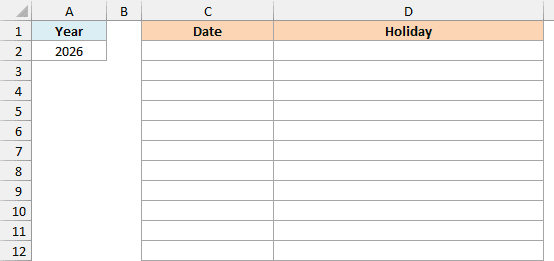
Here is the formula:
=LET(json,WEBSERVICE("https://date.nager.at/api/v3/PublicHolidays/"&A2&"/US"),rows,TEXTSPLIT(json,,"},{"),federal,FILTER(rows,ISNUMBER(SEARCH("""global"":true",rows))),HSTACK(--TEXTBEFORE(TEXTAFTER(federal,"""date"":"""),""""),TEXTBEFORE(TEXTAFTER(federal,"""localName"":"""),"""")))
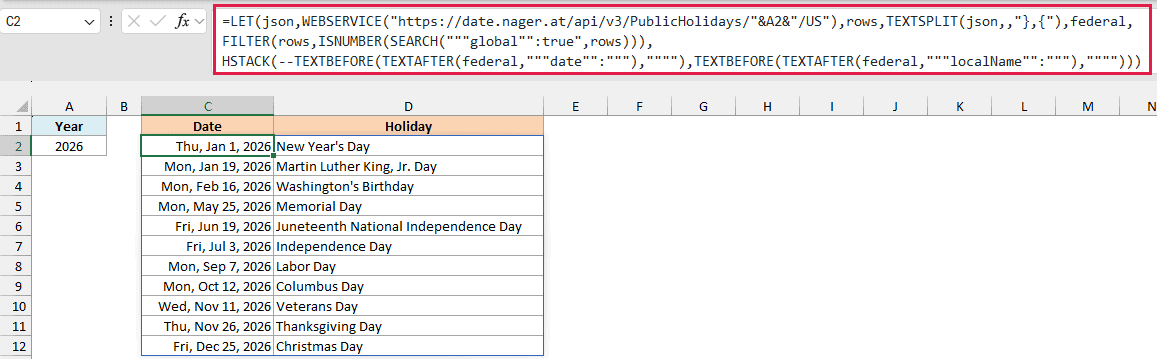
This uses Nager.Date, a free holiday service, and returns all 11 federal holidays for 2026, from New Year’s Day to Christmas Day. Change the year in A2, and the list updates for that year.
When a holiday falls on a weekend, the service gives you the day it’s observed. That’s why Independence Day shows as Friday, July 3, since July 4, 2026 is a Saturday.
How this formula works:
- WEBSERVICE gets the JSON list of US holidays for the year in A2, and the LET function stores it under the name json so the formula can use it again.
- Then the TEXTSPLIT function splits that text at every “},{“, which is where one holiday ends and the next begins. This gives one row per holiday.
- After that, the FILTER function keeps only the rows that contain “global”:true. These are the holidays observed across the whole country, so state-only days like Lincoln’s Birthday are left out.
- The two TEXTBEFORE and TEXTAFTER pairs pull out the date and the holiday name, and HSTACK puts them side by side.
The — in front of the date part turns the text “2026-01-01” into a real Excel date, so you can format it any way you like. I used the ddd, mmm d, yyyy format, which also shows the day of the week.
Since these are real dates, you can also point the holidays argument of the NETWORKDAYS function at this spilled range to count working days.
This formula needs Microsoft 365 or Excel 2024, because the TEXTSPLIT and HSTACK functions aren’t available in earlier versions.
Splitting the text at “},{” works here because this JSON is a simple, flat list. For large or nested JSON, getting the data with Power Query (Data > From Web) is the better choice.
So these are six practical ways to use the WEBSERVICE function in Excel. Start with a simple URL, build it from your cells when you have a list, and use TEXTAFTER, TEXTBEFORE, or FILTERXML to get the exact value you need.
I hope you found this tutorial useful.
Other Excel Articles You May Also Like:
