

Excel’s GAMMA.DIST function works out probabilities from the gamma distribution, which fits values that never go below zero but now and then run much higher than usual. Think delivery times, flight delays, or weekly bills.
You tell it the shape and scale of the distribution, and it returns either the chance of getting a value or less, or the density of the curve at that value.
In this article, I’ll show you how GAMMA.DIST works with six examples, from a simple “will it arrive in time” probability to estimating the shape and scale from your own data.
Follow along with the example file
GAMMA.DIST Function Examples.xlsx
GAMMA.DIST Function Syntax
Here is the syntax of the GAMMA.DIST function:
=GAMMA.DIST(x, alpha, beta, cumulative)
All four arguments are required, so Excel won’t accept the formula if you leave out cumulative.
- x – The value you want the probability for, such as a time, an amount, or a weight. It must be 0 or more.
- alpha – The shape of the distribution. It has to be greater than 0.
- beta – The scale of the distribution. It also has to be greater than 0.
- cumulative – TRUE gives the probability of getting x or less. FALSE gives the probability density at x.
For cumulative, you can also use 1 for TRUE and 0 for FALSE.
Alpha multiplied by beta gives you the average. So a shape of 6 and a scale of 5 describe something that averages 30 (minutes, dollars, or whatever x is measured in).
If x is negative, or alpha or beta is 0 or negative, you get the #NUM! error. Text that isn’t a number gives the #VALUE! error.
The GAMMA.DIST function works in Excel 2010 and later versions, including Excel for Microsoft 365 (Windows and Mac), 2024, 2021, 2019, and 2016. In Excel 2007 or earlier, use the older GAMMADIST function, which takes the same four arguments and returns the same results.
When to Use the GAMMA.DIST Function
Use this function when you need to:
- Find the chance that a time or an amount stays at or under a limit
- Find the chance that it goes over a limit
- Find the chance that it lands between two values
- Get the density of the curve, for example to plot it
- Work out how long it takes to reach a target count when you know the average rate
- Model your own data with a gamma distribution and answer questions about it
Let me show you a few practical examples of how to use the GAMMA.DIST function.
Example 1: Probability of Getting a Value or Less
Let’s start with a simple example.
Below I have a pizza place whose delivery times follow a gamma distribution with a shape of 6 and a scale of 5, and I want the chance that a pizza arrives within each time limit in column B.
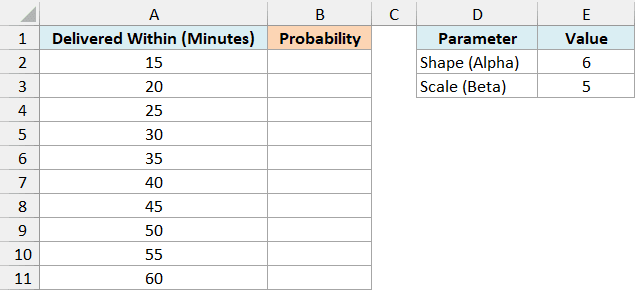
Here is the formula:
=GAMMA.DIST(A2:A11,E2,E3,TRUE)
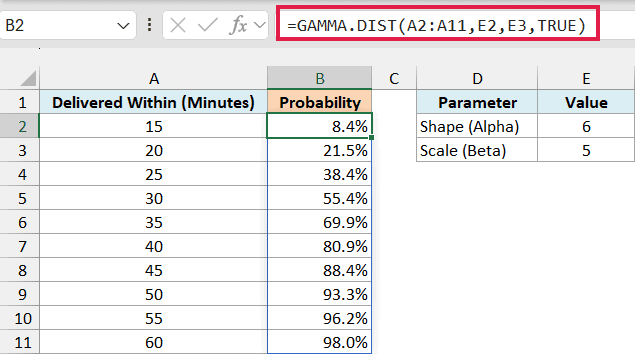
You only enter the formula in cell B2, and the results spill down into B2:B11. E2 is the shape (6) and E3 is the scale (5).
TRUE tells GAMMA.DIST to return the cumulative probability, which is the chance of the delivery taking that many minutes or less. So there’s an 8.4% chance the pizza shows up within 15 minutes, and a 98.0% chance it shows up within an hour.
The average delivery time here is 30 minutes (6 x 5), but the chance of 30 minutes or less is 55.4%, not 50%. That’s because the gamma curve has a long tail on the right, where a few deliveries take much longer than usual.
If you are using Excel 2019 or earlier, enter the below formula in cell B2 and then copy it down the range:
=GAMMA.DIST(A2,$E$2,$E$3,TRUE)
The dollar signs keep E2 and E3 fixed as you copy. The same approach works for the other spilling formulas in this article.
If you want to go the other way and find the time for a given probability, like the time by which 90% of pizzas arrive, use the GAMMA.INV function.
Example 2: Probability of Going Over a Value
Now let’s flip the question around.
Below I have flight delays that follow a gamma distribution with a shape of 2 and a scale of 20, and I want the chance that a delay runs longer than each number of minutes in column B.
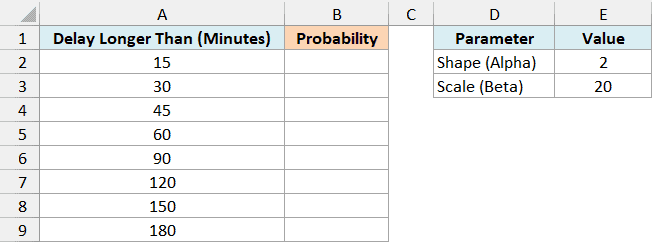
Here is the formula:
=1-GAMMA.DIST(A2:A9,E2,E3,TRUE)
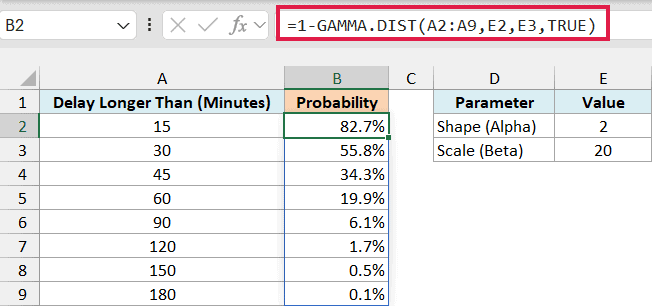
GAMMA.DIST with TRUE gives the chance of the delay being that long or shorter. Everything else is the chance of it being longer, so subtracting from 1 gives you the probability you want.
So there’s an 82.7% chance a delay runs past 15 minutes, a 19.9% chance it runs past an hour, and only a 0.1% chance it runs past 3 hours.
Excel doesn’t have a separate function for the longer-than side of the gamma distribution, so this 1 minus approach is how you get it.
Example 3: Probability Between Two Values
Here’s another practical scenario.
Below I have weekly grocery bills that follow a gamma distribution with a shape of 8 and a scale of 25, and I want the chance that a bill lands in each dollar range in column C.
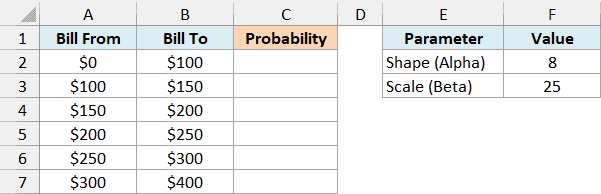
Here is the formula:
=GAMMA.DIST(B2:B7,F2,F3,TRUE)-GAMMA.DIST(A2:A7,F2,F3,TRUE)
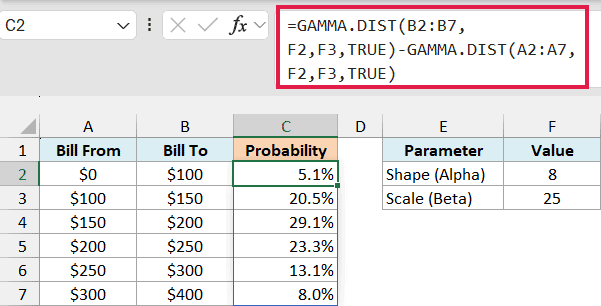
The first GAMMA.DIST gives the chance of a bill up to the “Bill To” amount, and the second gives the chance of a bill up to the “Bill From” amount. Subtracting one from the other leaves the chance of a bill between the two.
The most likely range is $150 to $200 at 29.1%, even though the average bill is $200 (8 x 25). Like in Example 1, the long right tail pulls the average up, so most bills land a bit below it.
All six ranges add up to 99.0%. The missing 1% is the chance of a bill above $400, which isn’t in the table.
The ranges can share their end points ($100 is the end of one and the start of the next). For a smooth distribution like this, the chance of a bill being exactly $100.00 is zero, so nothing gets counted twice.
Example 4: Get the Gamma Distribution Density with FALSE
So far, every formula has used TRUE. Let’s see what FALSE gives you.
Below I have apple weights in kilograms that follow a gamma distribution with a shape of 25 and a scale of 0.008, and I want the density at each weight in column B.
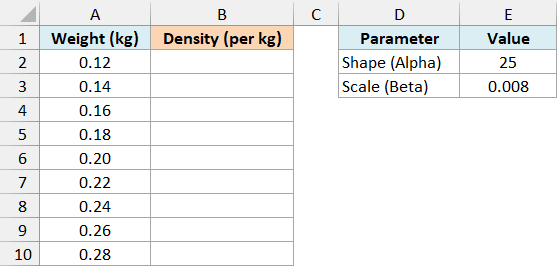
Here is the formula:
=GAMMA.DIST(A2:A10,E2,E3,FALSE)
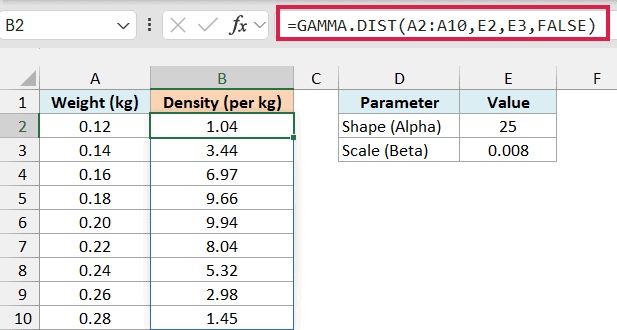
FALSE returns the probability density, which is the height of the gamma curve at each weight. The values climb to 9.94 at 0.20 kg and then drop again, which tells you the most common apple weight is around 0.19 to 0.20 kg.
Notice that every result is above 1, and most are well above it. A probability can never be more than 1 (or 100%), so this tells you the density is not a probability.
Important: Don’t read a FALSE result as the chance of getting that exact value. For the chance of a range, like an apple weighing 0.18 to 0.20 kg, use TRUE and subtract, as in Example 3 (that gives about 20%).
The density depends on the unit too. These are per kilogram, and if you measured the same apples in grams, every density would be 1,000 times smaller, while the probabilities from TRUE wouldn’t change at all.
Density values are mainly useful for plotting the shape of the distribution. Put the weights and the densities in a line or scatter chart, and you get the familiar gamma curve.
Example 5: Convert an Average Rate Into the Scale (Beta)
This next one is about a mix-up that’s easy to make: giving GAMMA.DIST a rate when it wants a scale.
Below I have a YouTube channel that gets 3 new subscribers an hour on average and a goal of 20 new subscribers, and I want the chance of reaching that goal within each number of hours in column B.
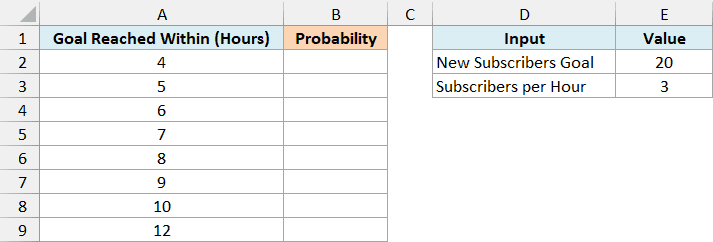
Here is the formula:
=GAMMA.DIST(A2:A9,E2,1/E3,TRUE)
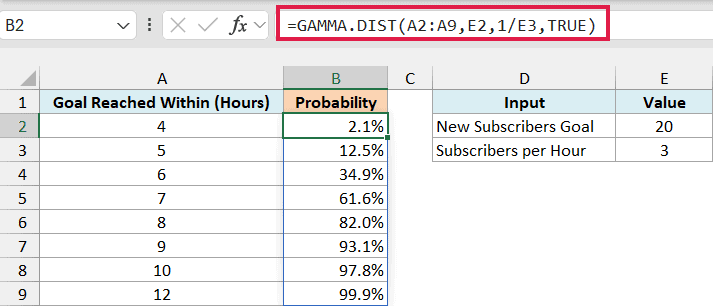
When things happen at random at a steady average rate, the time it takes to get a certain number of them follows a gamma distribution. Alpha is the number you’re waiting for (20 subscribers), and beta is the average time between two of them.
The channel gets 3 subscribers an hour, so the average time between two subscribers is 1/3 of an hour (20 minutes). That’s why the formula uses 1/E3 as beta.
There’s only a 2.1% chance of hitting 20 subscribers within 4 hours, but by 8 hours it’s 82.0%. The average wait is about 6.7 hours (20 x 1/3).
Important: Beta is a scale (time per event), not a rate (events per time). If you put the rate 3 in as beta, Excel reads it as 3 hours per subscriber, and the chance of hitting the goal within 8 hours is almost zero.
If your goal is just 1 (alpha of 1), the gamma distribution becomes the exponential distribution. In that case, GAMMA.DIST gives the same result as the EXPON.DIST function, which takes the rate directly instead of the scale.
Example 6: Fit a Gamma Distribution to Your Own Data
In all the examples so far, the shape and scale were given. Let’s end with how to estimate them from real data.
Below I have the lengths of 12 podcast episodes in minutes, and I want to estimate the shape and scale from them and then find the chance of an episode running longer than 60 minutes in D7.
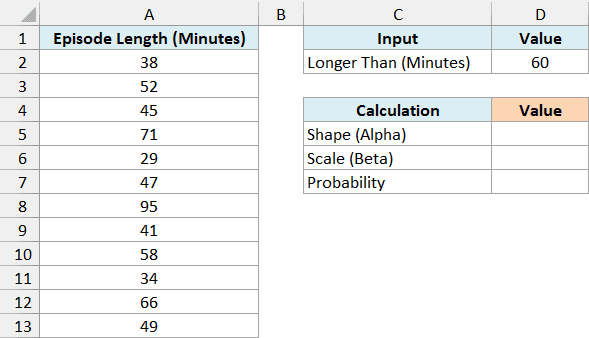
Here is the formula for the shape (alpha):
=AVERAGE(A2:A13)^2/VAR.S(A2:A13)
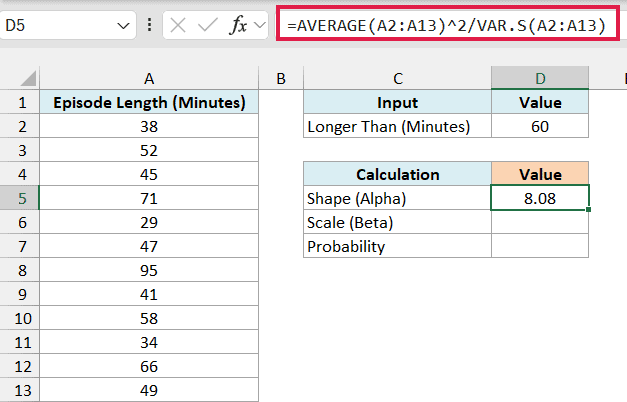
This returns 8.08. It squares the average of the episode lengths and divides it by their variance, which measures how spread out they are.
This works because a gamma distribution’s average is alpha x beta and its variance is alpha x beta x beta. Solving those two for alpha and beta gives this formula and the next one.
I used VAR.S here because the 12 episodes are a sample of all the episodes.
Here is the formula for the scale (beta):
=VAR.S(A2:A13)/AVERAGE(A2:A13)
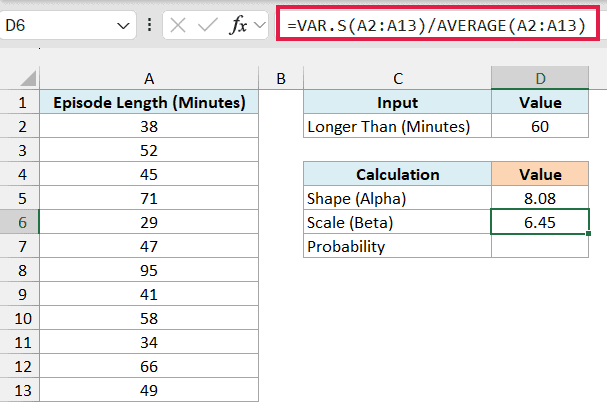
This returns 6.45. If you multiply the two (8.08 x 6.45), you get back the average episode length of about 52 minutes, which is a quick way to check them.
Here is the formula that gives the chance of an episode running longer than 60 minutes:
=1-GAMMA.DIST(D2,D5,D6,TRUE)
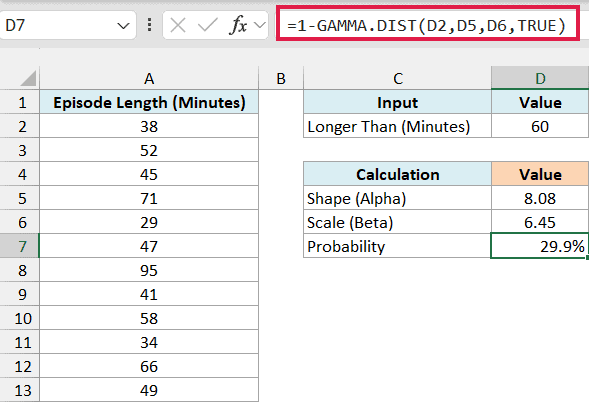
This returns 29.9%. It’s the same “longer than” approach from Example 2, with D2 as the 60-minute limit and the estimated shape and scale in D5 and D6.
Three of the 12 episodes (71, 95, and 66 minutes) are longer than 60 minutes, which is 25%. The model’s 29.9% is close, and unlike a simple count, it can answer the question for any limit, like 75 or 90 minutes.
This way of estimating (matching the average and the variance) is simple and works well for a quick model, but it’s not the most precise fitting method there is.
So these are six examples of how you can use the GAMMA.DIST function in Excel to answer probability questions about times, amounts, and weights.
I hope you found this article helpful.
Other Excel Articles You May Also Like:
