

The COTH function in Excel returns the hyperbolic cotangent of a number. It’s one of Excel’s hyperbolic math functions, so you’ll mostly use it inside math, physics, or engineering formulas that need coth.
There’s one input it can’t handle, and that’s zero. The hyperbolic cotangent of 0 is undefined, so COTH returns a #DIV/0! error for it.
In this tutorial, I’ll show you how COTH works with positive and negative numbers, what happens with very small and very large inputs, how it relates to the TANH function, and how to skip zeros.
Follow along with the example file
COTH Function Examples.xlsx
COTH Function Syntax
Here is the syntax of the COTH function:
=COTH(number)
- number is the required value whose hyperbolic cotangent you want. It can be a number, a cell reference, or a range in Excel versions that support dynamic arrays.
The number can be any positive or negative value except 0.
The COTH function is available in Excel 2013 and later, including Microsoft 365, Excel 2024, Excel 2021, and Excel for Mac.
When to Use the COTH Function
Use this function when you need to:
- Calculate the hyperbolic cotangent of numbers as part of a math, physics, or engineering calculation.
- Get the reciprocal of a hyperbolic tangent in one function, instead of dividing 1 by TANH.
Let me show you a few examples of how COTH works.
Example 1: Get the Hyperbolic Cotangent of a List of Numbers
Let’s start with a simple example.
Below is a list of positive and negative numbers, and I want to get the hyperbolic cotangent of each one in column B.
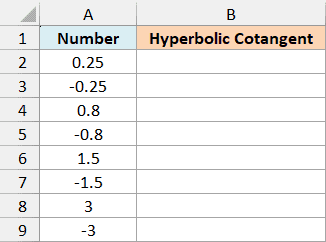
In Microsoft 365, Excel 2024, or Excel 2021, enter this formula in cell B2 and press Enter:
=COTH(A2:A9)
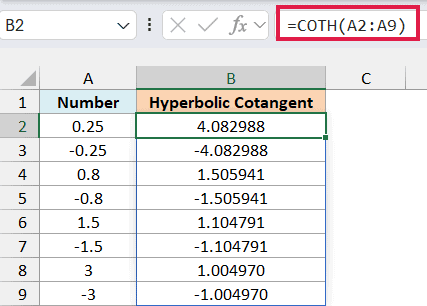
Make sure the cells below B2 are empty before you enter the formula. If something is in the way, Excel shows a #SPILL! error until you clear those cells.
The above formula calculates the hyperbolic cotangent of every number in A2:A9, and the results spill into B2:B9. You only enter it once.
Now look at the pairs. 0.25 gives 4.082988 and -0.25 gives -4.082988, so a negative number returns the same value with a minus sign.
Also notice that none of the results fall between -1 and 1. The hyperbolic tangent always stays between -1 and 1, so its reciprocal, the hyperbolic cotangent, always lands outside that range.
So positive numbers return something above 1, and negative numbers return something below -1 (with one small exception for very large numbers, which you’ll see in Example 2).
If you ever see a COTH result between -1 and 1, check the formula, because something else is changing the value.
If you’re using Excel 2013, 2016, or 2019, enter the below formula in cell B2 and then copy it down to B9:
=COTH(A2)
This works on one number at a time. The same approach works in the later examples: point the formula at the first input cell and copy it down.
Example 2: COTH With Small and Large Numbers
Here’s where COTH gets a bit more interesting.
Below is a list of numbers that goes from very small to fairly large, and I want to see how their hyperbolic cotangents change in column B.
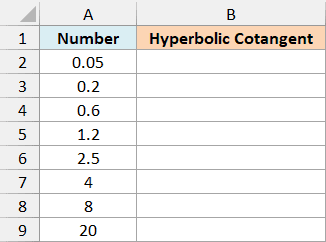
Enter the following formula in cell B2:
=COTH(A2:A9)
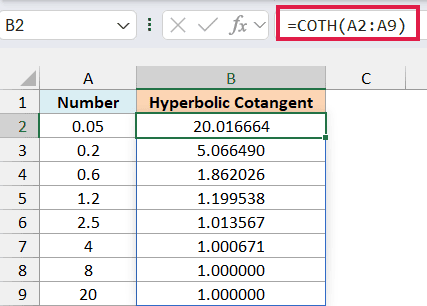
As the number gets closer to 0, the result gets bigger. For 0.05, COTH returns 20.016664, which is close to 1 divided by 0.05.
As the number gets bigger, the result drops toward 1. The number 4 gives 1.000671, and both 8 and 20 show 1.000000.
Those last two results aren’t the same, though. The result for 8 is about 1.0000002, which only looks like 1 at six decimal places, while the result for 20 is exactly 1.
You can check this yourself. If you add more decimal places to column B, the result for 8 shows its extra digits, while the result for 20 stays at exactly 1.
Mathematically, the result for 20 is also a little above 1. But that tiny difference is smaller than the precision Excel stores (about 15 digits), so Excel rounds it to exactly 1.
This exactly-1 result matters if you ever try to reverse it with the ACOTH function. ACOTH can’t accept exactly 1, so it returns a #NUM! error for the result of 20 instead of giving you 20 back.
Example 3: COTH vs 1/TANH
Now let’s see how COTH relates to the TANH function, which returns the hyperbolic tangent of a number.
The hyperbolic cotangent is the reciprocal of the hyperbolic tangent. So COTH should give you the same answer as 1 divided by TANH.
Below is a list of numbers, and I want to get their hyperbolic cotangents in column B and then check them against 1/TANH.
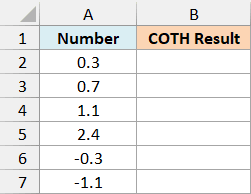
First, enter this formula in cell B2:
=COTH(A2:A7)
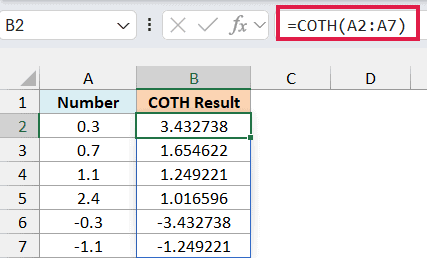
This gives the hyperbolic cotangent of each number. For example, 0.3 returns 3.432738.
Now, to compare, enter this formula in cell C2:
=1/TANH(A2:A7)
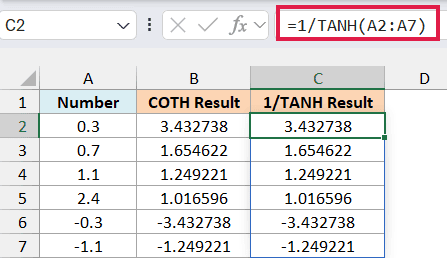
This divides 1 by the hyperbolic tangent of each number, and every value matches column B.
So COTH is a shorter, easier-to-read way of writing 1/TANH. When you have COTH, use it.
The TANH function is available in all Excel versions, but COTH only arrived in Excel 2013. So if you’re using Excel 2010 or earlier, enter the below formula in cell B2 and then copy it down to B7:
=1/TANH(A2)
It gives you the same hyperbolic cotangent as COTH.
Example 4: Why COTH Returns #DIV/0! or #VALUE!
When COTH returns an error, the type of error tells you what’s wrong with the input.
Below is a set of test inputs, including zero, an empty cell, and text, and I want to see what COTH returns for each one in column C.
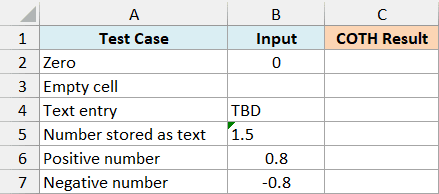
Enter the following formula in cell C2:
=COTH(B2:B7)
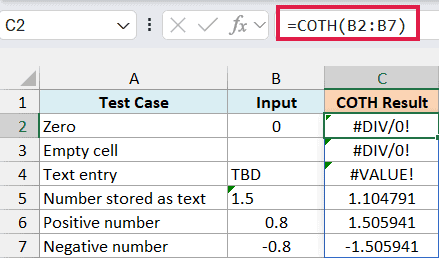
Zero returns #DIV/0!. COTH is 1 divided by the hyperbolic tangent, and the hyperbolic tangent of 0 is 0.
The empty cell also returns #DIV/0!, because Excel treats an empty cell as 0 here. So if your range runs past the last row of data, those extra rows show this error too.
The text TBD returns #VALUE! because it isn’t a number. Replace it with the actual value once you have it.
The number stored as text works, though. Excel converts the text 1.5 to a number, so it returns 1.104791, the same as a regular 1.5.
The last two rows, 0.8 and -0.8, return 1.505941 and -1.505941. They show the formula itself is fine, even though some rows return errors.
Example 5: Skip Zeros and Blank Cells With COTH
In real data, a zero or an empty cell can easily end up in your range. Here’s how to leave those rows blank instead of showing a #DIV/0! error.
Below is a list of numbers that includes two zeros and an empty cell, and I want the hyperbolic cotangent in column B with those rows left blank.
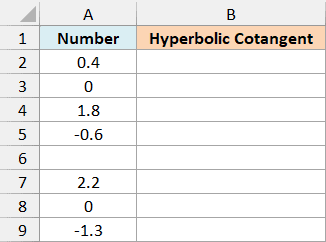
Enter the following formula in cell B2:
=IF(A2:A9=0,"",COTH(A2:A9))
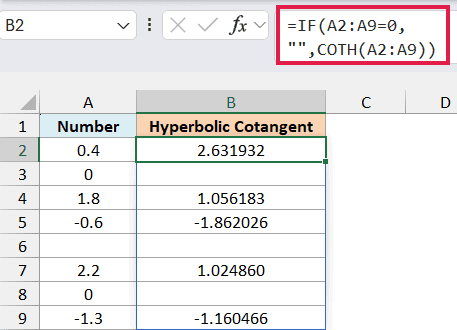
How this formula works:
A2:A9=0checks each number and returns TRUE for the zeros. An empty cell counts as 0, so it returns TRUE too.- For every TRUE row, the IF function returns
""(an empty text string), so the cell looks blank. - For every other row, it returns the COTH result.
If you’re using Excel 2013, 2016, or 2019, enter the below formula in cell B2 and then copy it down to B9:
=IF(A2=0,"",COTH(A2))
Pro Tip: You could wrap COTH in IFERROR instead, but that hides every error, including the #VALUE! you get from text. The IF version only skips zeros and blanks, so a bad entry still shows up and you can fix it.
So these are a few ways to use the COTH function in Excel. Just remember that the input can’t be 0, and the result is always above 1 or below -1 (or exactly 1 or -1 when Excel rounds a very large input).
I hope you found this tutorial useful.
Other Excel Articles You May Also Like:
