

The IMSQRT function in Excel gives you the square root of a complex number, like 3+4i. It also takes plain negative numbers, so it’s the one to use when the SQRT function gives you a #NUM! error.
One heads-up before you start. IMSQRT won’t take a plain range of cells, so =IMSQRT(A2:A11) returns a single #VALUE! error instead of a column of results.
In this article, I’ll show you how to use IMSQRT with six examples, including the fix for that range problem and how to solve quadratic equations that have no real roots.
Follow along with the example file
IMSQRT Function Examples.xlsx
IMSQRT Function Syntax
Here is the syntax of the IMSQRT function:
=IMSQRT(inumber)
- inumber – The complex number you want the square root of. It can be text like “3+4i” or “3+4j”, a cell that holds one, or a plain number.
A complex number has a real part and an imaginary part, so 3+4i has a real part of 3 and an imaginary part of 4. The i stands for the square root of -1, and IMSQRT also accepts j in its place.
When you type a complex number straight into the formula, put it in double quotes. So =IMSQRT("3+4i") returns 2+i.
A plain number works too. =IMSQRT(16) returns 4, but as text, because IMSQRT always gives its answer as text.
If inumber points to an empty cell, IMSQRT treats it as zero and returns 0, not an error. So a missing value can slip through without you noticing.
The IMSQRT function works in Excel for Microsoft 365, Excel 2024, 2021, 2019, 2016, and Excel for Mac.
When to Use the IMSQRT Function
Use this function when you need to:
- Get the square root of complex numbers in a math or engineering worksheet
- Take the square root of a negative number, where SQRT returns the #NUM! error
- Find the complex roots of a quadratic equation
- Get the square root when the real and imaginary parts are in separate columns
Let me show you a few practical examples of how to use the IMSQRT function.
Example 1: Get the Square Root of a Column of Complex Numbers
Let’s start with a simple example.
Below is a list of complex numbers, and I want to get the square root of each one in column B.
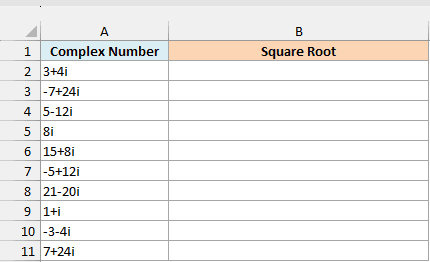
Here is the formula:
=IMSQRT(+A2:A11)
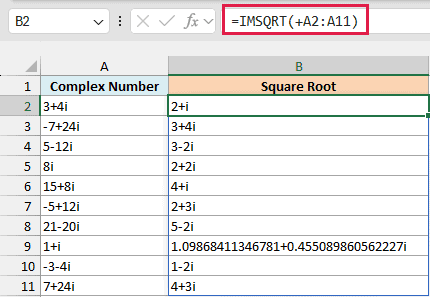
Enter this in cell B2, and it spills the results down to B11. So 3+4i gives 2+i, and 5-12i gives 3-2i.
The plus sign in front of the range is what makes this work. Without it, =IMSQRT(A2:A11) returns a single #VALUE! error, because IMSQRT can’t take a multi-cell range reference.
The plus sign turns the range into a list of values (an array), and IMSQRT is happy to work through an array one value at a time. The same trick works for other functions that won’t spill when you give them a range.
Now, every complex number actually has two square roots. Both 2+i and -2-i give 3+4i when you multiply them by themselves, and you can check the second one with =IMPRODUCT("-2-i","-2-i").
IMSQRT always returns the root whose real part is positive (or zero). That’s why -3-4i gives 1-2i and not -1+2i.
The other root is always the same number with both signs flipped, so for 3+4i it’s -2-i.
Not every result is this tidy. 1+i gives 1.09868411346781+0.455089860562227i, and Example 4 shows how to round results like this.
Spilling formulas like this one need Excel 365 or Excel 2021 and later. If you are using Excel 2019 or earlier, enter the below formula in cell B2 and then copy it down the range:
=IMSQRT(A2)
Example 2: IMSQRT vs SQRT for Negative Numbers
Here’s where IMSQRT does something the SQRT function can’t.
Below is a list of positive and negative numbers, and I want to get the square root of each one, first with SQRT in column B and then with IMSQRT in column C.
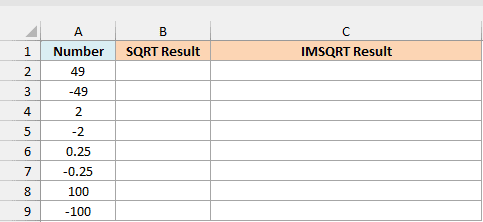
Here is the SQRT formula:
=SQRT(A2:A9)
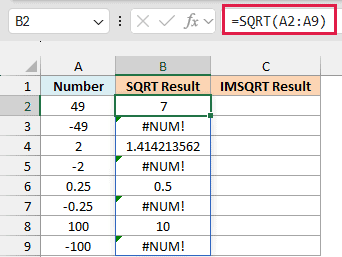
SQRT returns the #NUM! error for every negative number. No regular number multiplied by itself gives a negative result, so SQRT has nothing to return.
Here is the IMSQRT formula:
=IMSQRT(+A2:A9)
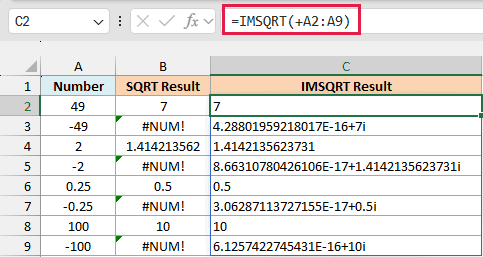
Now every number gets a result. The positive numbers get the same answer as SQRT, so 49 gives 7 and 0.25 gives 0.5.
You’ll notice IMSQRT’s 7 sits on the left of the cell, while SQRT’s 7 sits on the right. That’s because IMSQRT returns text, even when the answer is a regular number.
The negative numbers get an imaginary answer (remember, i is the square root of -1). So the square root of -49 is 7i, because 7i times 7i is -49.
But look at what IMSQRT actually returns for -49: 4.28801959218017E-16+7i. The 7i part is right, and the 4.28801959218017E-16 in front of it is a tiny rounding leftover.
That leftover is 0.000000000000000429, which is zero for all practical purposes. It shows up because IMSQRT works the root out using angles, and the angle for a negative number involves pi, which Excel can’t store exactly.
So every negative number in column C gets a leftover like this. Example 4 shows how to round it away.
Example 3: Get the Square Root from Separate Real and Imaginary Parts
Sometimes you won’t have the complex number written out as one value. Instead, the real part and the imaginary part sit in two separate columns.
Below is a list of real and imaginary parts, and I want the square root of the complex number each row makes in column C.
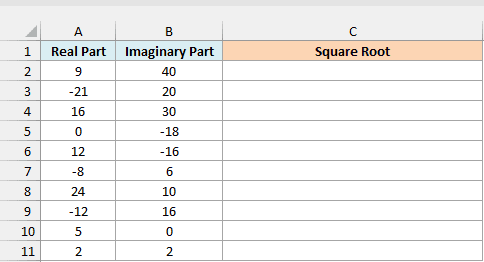
Here is the formula:
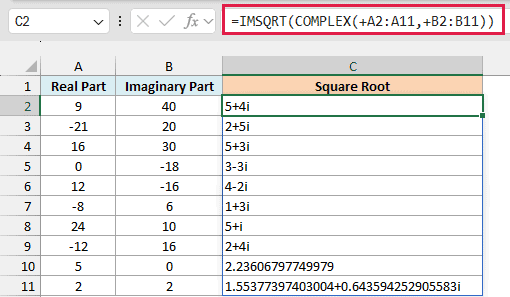
=IMSQRT(COMPLEX(+A2:A11,+B2:B11))
How this formula works:
COMPLEX(+A2:A11,+B2:B11)joins each real and imaginary part into one complex number, so 9 and 40 become 9+40i.- The COMPLEX function needs the plus signs for the same reason IMSQRT does in Example 1. Without them, the formula returns a single #VALUE! error.
- IMSQRT then takes the square root of each complex number, so 9+40i gives 5+4i.
A zero imaginary part is fine. The row with 5 and 0 becomes the plain number 5, and its square root is 2.23606797749979.
If you write complex numbers with j instead of i, add “j” as a third argument to COMPLEX. IMSQRT then keeps the j in its answer.
Example 4: Round the IMSQRT Result to 4 Decimals
You’d think the ROUND function could tidy up long results and the leftovers from Example 2. But =ROUND(IMSQRT(A2),4) returns #VALUE!, because ROUND can’t read a complex number written as text.
Below is a list of numbers, and I want the square root of each one in column B, and a version rounded to 4 decimals in column C.
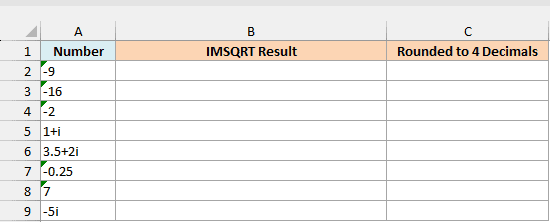
Here is the formula for the square root:
=IMSQRT(+A2:A9)
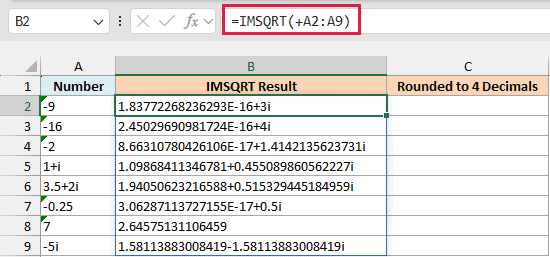
Every negative number has a leftover in front, like 1.83772268236293E-16 for -9. And 1+i and 3.5+2i come back with 15 digits in each part.
Here is the formula that rounds each part to 4 decimals:
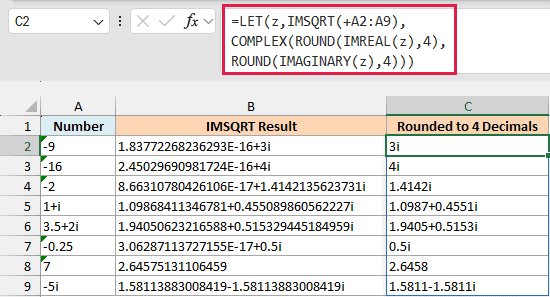
=LET(z,IMSQRT(+A2:A9),COMPLEX(ROUND(IMREAL(z),4),ROUND(IMAGINARY(z),4)))
How this formula works:
IMSQRT(+A2:A9)gets the square root of each number, and the LET function stores the results as z so they’re only calculated once.IMREAL(z)andIMAGINARY(z)pull out the real part and the imaginary part as regular numbers, and ROUND rounds each one to 4 decimals.- COMPLEX joins the rounded parts back into one complex number.
The leftovers round to 0, and COMPLEX leaves out a real part of 0. So -9 now shows a clean 3i, and -2 shows 1.4142i.
If you are using Excel 2019 or earlier, enter the below formula in cell C2 and then copy it down the range:
=COMPLEX(ROUND(IMREAL(IMSQRT(A2)),4),ROUND(IMAGINARY(IMSQRT(A2)),4))
Example 5: Solve Quadratic Equations with IMSQRT
A common place where you’ll need the square root of a negative number is solving a quadratic equation.
The quadratic formula has b² – 4ac under the square root. When that part is negative, the equation has no real roots, but IMSQRT still lets Excel give you both complex roots.
Below is a list of quadratic equations with their a, b, and c values, and I want both roots of each equation in columns E and F.
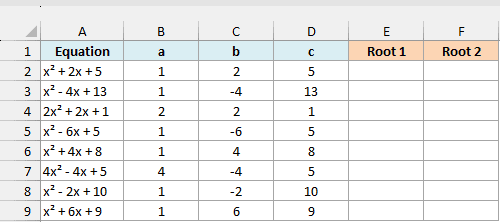
Here is the formula:
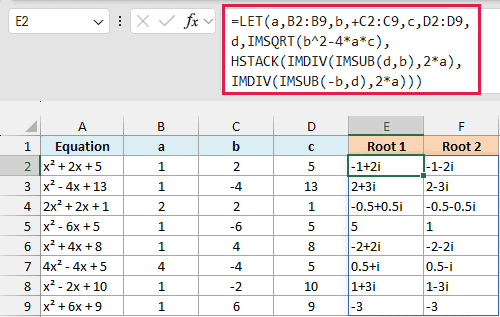
=LET(a,B2:B9,b,+C2:C9,c,D2:D9,d,IMSQRT(b^2-4*a*c),HSTACK(IMDIV(IMSUB(d,b),2*a),IMDIV(IMSUB(-b,d),2*a)))
How this formula works:
- LET names the three columns a, b, and c, so the formula reads like the quadratic formula, (-b ± √(b² – 4ac)) / 2a. Only b gets a plus sign, because a and c are only used in arithmetic like 2*a, and arithmetic already turns a range into a list of values.
IMSQRT(b^2-4*a*c)takes the square root of b² – 4ac for each equation, and LET stores it as d. For x² + 2x + 5, that’s the square root of -16, which is 4i.IMDIV(IMSUB(d,b),2*a)works out (-b + d) / 2a for Root 1, andIMDIV(IMSUB(-b,d),2*a)works out (-b – d) / 2a for Root 2.- The HSTACK function puts the two roots side by side, so the formula spills into E2:F9.
So x² + 2x + 5 has the roots -1+2i and -1-2i. Two of the equations have real roots, and IMSQRT handles them too, so x² – 6x + 5 gives 5 and 1.
Important: Keep the plus sign in b,+C2:C9. b goes straight into IMSUB, which can’t take a range reference (just like IMSQRT), so without it every Root 1 cell returns #VALUE!.
You might expect Root 1 to use the IMSUM function to add -b and d. But IMSUM adds up the whole list into one total instead of going row by row, so the formula subtracts b from d with IMSUB instead.
If an equation has no x term (b is 0, as in x² + 9), the rounding leftover from Example 2 shows up in the roots. The rounding formula from Example 4 cleans it up.
The HSTACK function needs Excel 365 or Excel 2024. If you are using Excel 2021 or earlier, enter the below formula in cell E2 and then copy it down the range:
=IMDIV(IMSUB(IMSQRT(C2^2-4*B2*D2),C2),2*B2)
Then enter the below formula in cell F2 and copy it down the range:
=IMDIV(IMSUB(-C2,IMSQRT(C2^2-4*B2*D2)),2*B2)
Example 6: Fix the #NUM! Error from a Capital I or J
This one is easy to miss, because the numbers look perfectly normal.
Below is a list of complex numbers where some were typed with a capital I or J, and I want the square root of each one in column B.
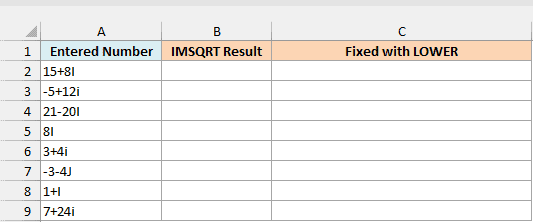
Here is the formula:
=IMSQRT(+A2:A9)
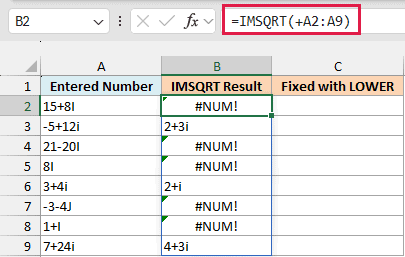
Every number typed with a capital letter returns the #NUM! error. IMSQRT only recognizes a lowercase i or j, so to it, “15+8I” isn’t a complex number at all.
The fix is to convert the text to lowercase before IMSQRT reads it. Here is the formula that does this, in column C:
=IMSQRT(LOWER(A2:A9))
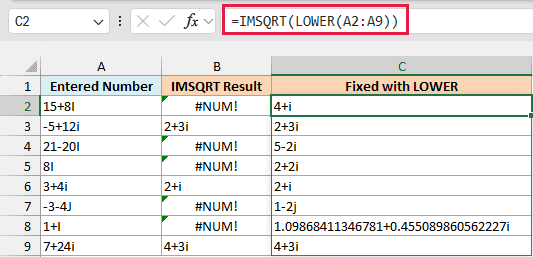
The LOWER function turns every capital I and J into a lowercase one, so all eight numbers now return a result. LOWER already hands IMSQRT a list of values, so this formula doesn’t need the plus sign.
If you still see #NUM! after this, check for a letter written before the number (like 3+i4) or text that isn’t a number at all. Spaces are fine, so “3 + 4i” works.
So that’s how you can use the IMSQRT function in Excel. You can get the same results with the IMPOWER function and a power of 0.5, but IMSQRT is shorter and easier to read.
I hope you found this article helpful.
Other Excel Articles You May Also Like:
