

One of my teammates has the responsibility of creating a leave tracker template in Excel for the entire team. This tracker template is then used to track vacations/holidays and planned leaves of the team members.
Till now, she used a simple Gantt chart in Excel but wanted something better with more functionalities.
So, I created this Excel Leave Tracker Template to make leaves management easy and track monthly and annual leaves by her team members.
You can also use this as a vacation tracker template or student attendance tracker if you want.
Excel Leave Tracker Template
This Excel Leave Tracker template can be used to record and monitor employee leaves for a year (of a financial year where you can choose the starting month of the year).
You can track 10 different leave codes for an employee – vacation leaves, sick leaves, maternity/paternity leaves, casual leave tracking, leave in lieu of overtime, and half days, etc.
It also provides a monthly and yearly total of different types of leaves that can be helpful in project planning and leave management.
It uses a bit of conditional formatting, a few DATE functions, array formulas, and a simple VBA code.
Download the Excel Leave Tracker Template (tracking for 20 employees/people)

Looking for the Google Sheets version of this Leave Tracker Template? Click here!
How this Excel Leave Tracker Template Works?
- Use the triangle icons next to the month name to move to the next/previous month (the template updates itself to show the dates for the selected month). There is a short VBA code that runs in the background whenever you change the month. It shows you the selected month only and hides all the other months.
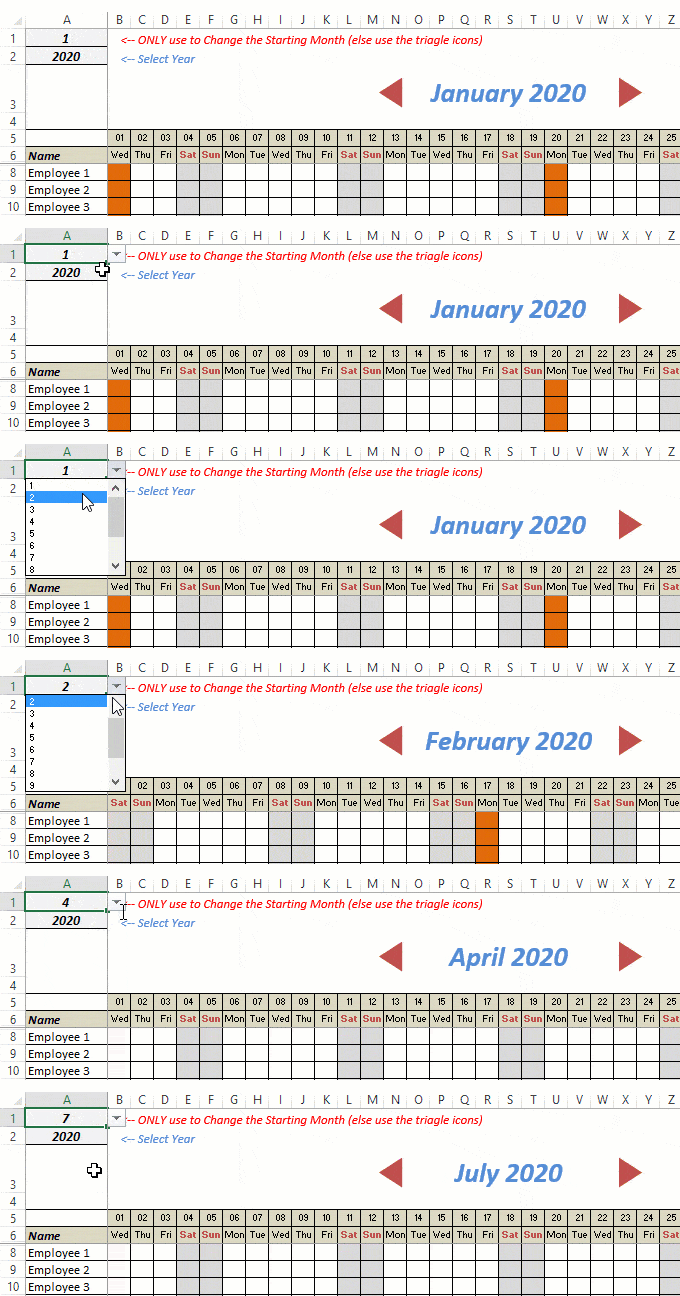
- This Excel template can be used to track leaves for over a year. You can select a start month and can track leaves for a year. For example, if you follow the April-March cycle, select April 2023 as the starting month.
- Note: The value in cell A1 is to change the time period of the leave tracker ONLY. DO NOT use Cell A1 to move to the next month while recording leaves. Use the triangle icons next to the month names to go to the next/previous month and mark leaves.

- You can specify the working days and non-working days (Weekends). At the right of the leave tracker, there is functionality to specify the working days by selecting Yes from the drop-down. If you select No, that day is marked as a non-working day in the leave tracker.
- As soon as you specify the non-working days, those weekdays get highlighted in gray color in the leave tracker.

- You can update the holiday list in the worksheet named “Holiday List”. It will automatically be reflected in the tracker by highlighting those days in Orange color.
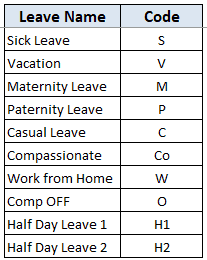
- To enter the leave record for employees, use the relevant codes based on the leave type (you can customize these leave codes). For example, in the case of sick leave, use S, in the case of Vacation, use V, as so on.
- There are two codes reserved for half-day leaves. you can enter H1 or H2 for a half-day leave.

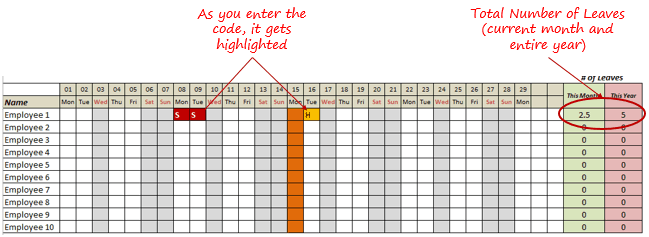
- As soon as you enter the leave code for any employee, it gets highlighted in red (in the case of half-day, it gets highlighted in yellow). If that day is a weekend or holiday, the color would not change.
- Column NJ (highlighted in green in the pic below) has the number of leaves of that employee in that month. It counts the leaves on working days only (those on weekends and/or holidays are not counted). Half-day leaves are counted as 0.5.
- UPDATED: Column NK (highlighted in light red in the pic below) has the number of annual leaves taken by an employee. It counts the leaves on working days only (those on weekends and/or holidays are not counted). Half-day leaves are counted as 0.5.
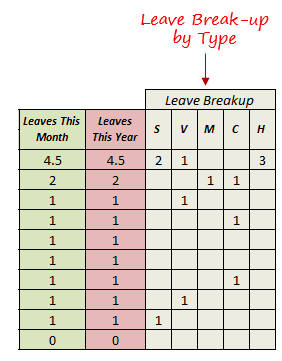
- Columns NL to NU gives the leave break-up by leave code (for the entire year). This could be helpful to keep a track of the type of leave that has been availed. Note that while Half Leaves are counted as .5 leaves in the total count, in the leave break-up, it is counted as whole numbers. For example, 2 half leaves would lead to 1 leave count, but you’ll see two half leaves in the leave breakup.
I have created this leave/attendance tracker template for 20 employees. If you want to add more, just copy-paste the formatting and formulas for additional rows.
Also, since there is a VBA code involved, make sure you always save it with .xls or .xlsm extension.
Download the Leave Tracker Template
Note: To update this template for any year, simply change the year value in cell A2. For example, to make it for 2017, just change the value in A2 to 2017. Also, you need to update the holiday list for the specified year.
The download file is completely unlocked so you can customize it to your needs.
Here is another version of the template that can track leaves for 50 employees.
Want to learn how to create awesome templates and dashboards? Check out the Excel Dashboard Course
FAQs on using this Leave Tracker Template
Since I created this vacation/leave tracker, I have been inundated with emails and comments. What you see now is a refined version that has been possible due to all the feedback that I have got.
Based on the questions I get repeatedly, I have created this FAQ section so that you can get an answer faster (instead of waiting for me to respond).
Here are the most common questions I get about the Leave tracker template:

Q: I tried downloading the file but it downloaded as a zip. How do I use it?
A: I have fixed this issue, and now you should be able to download the Excel file directly.

Q: When I change the month, the existing leaves are reflected in the changed month as well.
A: This happens when you use cell A1 to change the month. You need to use the arrow icons to change months. Cell A1 is to be used only to set the starting month of the calendar. For example, if you want the calendar to start from April, make cell A1 value 4. Now to move to March, use the triangle icons.

Q: I need to track multiple years of leaves. Do I need to create a new worksheet for each year (financial year)?
A: Yes! This leave tracker can only track leaves for a 12 month period. You need to create a copy for each year.

Q: Can I use my own leave codes?
A: Yes! You can change the leave code in cells NX8:NX17. You also need to specify the same code in cells NL5:NU5. For example, if you change the Work from Home leave code to X, you also need to change it in NR5.
I hope you find this leave/vacation tracker helpful.
Are there any other areas where you think an Excel template could be helpful? I am hungry for ideas and you are my gold mine. Do share your thoughts in the comments section 🙂
Related Excel Project Management Tutorials and Templates:

Hi Sumit,
Thanks a ton for sharing the excel sheet. It has helped me in sorting out the employee leave details to a great extent.
Just one request: Can you please share the formula to include weekends (Saturday and Sunday) under “# of Leaves” column. In my company, we don’t have a weekend system in place and rather have weekly offs for employees.
Looking forward to a favorable response from your end.
Regards
Hello.. I have updated the template and now you can select the what days are working and what are not. Kindly download the template from the link in the tutorial.
Hi Sumit
Is there a way to lock the worksheet but keep the scroll bar functionality? When I protect the sheet the scroll bar no longer works! I have Unlocked the scroll bar, as well as, the Cell A3. After I protect the sheet and try to use the scroll bar the debug note comes up.
Hi, love this, is there a way to track the sick days annually? The way our company works employees get 3 per fiscal year. Also, this may be a stretch, is there a way once the employee reaches their three days that their row can be filled in a certain color? Thank you!
Is there a way to lock the worksheet? When I lock the Worksheet the Scroll Bar stops working!
Great Leave Tracker… Quick question — how can I add 2016 in the same calendar?
Hello Brian.. I have updated the tracker for 2016. You can download it from the tutorial above
Hi Sumit. How can I capture if an employee takes half day leave?
I have updated the Template. now you can record half day leaves as well
Your Excel file is gorgeous. Only one thing is missing, could you give me a hint on how to sum all the leave DAY of the year ? we have 20 days each years, would be nice to undestand how many days are left month by month in a column near the day for each month
Hello Riccardo.. I have updated the template and now you can get the total number of leaves as well. Kindly download the template again using the link in the tutorial.
hi sumit,
the leave tracker is great, however i would like to gray out fri and sat as the weekends as these are the weekends in UAE.
how can you help me with this ?
Hello Amrita.. I have updated the Template. Now you can select weekends from the list. You can download the updated template from the tutorial above
Within my office, many of the employees have different start and end dates for their contracts (which roll-over 6 months at a time). Using this template, is there a way to calculate the number of days of annual leave they have taken only within their current contracted 6 months.
For example: For Person 1 – I would need to know how many days they had taken between January 28th and June 28th. But for someone else this might be March 28th – September 28th.
I understand I could calculate this by editing the formula =COUNTA($B8:$NI8), but I would have to allocate these for each employee. Is there a way to change the formula so that I could input Start & End dates for each persons contract somewhere else, and the COUNT formula would then use the information in these cells to count within the appropriate range of dates?
From here I have no problem calculating remaining days. It’s just calculating individual contracts that is causing issues.
Sorry! Also is it possible to add an option for a ‘half day’ of annual leave, rather than a full one.
Hello Luke.. I have updated the template and now you can add half day leaves
Hi, do you know how to clear contents whenever you change the year? For instance January 2015 -December 2015 cell values will be remove when you plan your schedule for January 2016 -December 2016
Hello Desmond.. The easiest way would be to download this again and change the year. You can also do this manually by going to each month and deleting all the records,
Your Excel worksheet is great, but I need help on also including the weekends as part of the # of leaves total. How can I add the weekend as part of the total # of leaves?
Hello Rod.. I have updated the template so you can select what days are working days and which ones are not. Kindly download using the link in the tutorial above.
This is amazing – do you have a 2016 version too?
Thanks for commenting Sandy. If you change the value in cell A2 to 2016, it will become the leave tracker for 2016. You will need to update the holidays for 2016 though.
You legend – thank you!
how about if I need to add half day and sick leave and don’t want that to be counted in the last tab , what should I do to solve that issue . there is one more cant add any other column or row coz it shift everything , any help .
2016 Version Release soon?
Hey Alan.. Just Enter 2016 in cell A2 and you will have it. You would have to add the holidays for 2016 though.
I just discovered the leave tracker and it is great. planning ot use it for 2016. i need to do a bit of edit though. Appreciate your help. I need the value in NK8 to be updated every month. that is reduce the leaves taken
I am not in the winner list 🙁
Hi,
How to move the scroll bar to next cell.. has employee are more than count 10
Thanks for commenting Rakesh.. To get the scroll bar down, right click on it and then drag it down. To add more employees, simply add employees and copy the formatting and formula. I did it for you here (can have up to 40 employees) – https://www.dropbox.com/s/qsfyo70kyf1ugvh/Excel-Leave-Tracker-40Rows-TrumpExcel.xlsm?dl=0
Hi Sumit! i would like to use this template for 100 employees where all days are working days… I also want to insert more columns where I can put the employees position, hire date, etc. Hope you could help me. Thank you so much.
How can we have half day leave recorded in the templet?
I have updated the Template. Now you can enter Half Day leave by typing the code H. It will be counted as 0.5
hi sumit! where is the formula for 1 day leave? i would like to remove 0.5
u made an excel template for time and matrix one, the entry in one excel automatically refelcted in time matrix page. i do have special requirements regarding that sort or type can make it
hi sumit
i watched ur videos found interesting
the stuff like this im being waiting let me check out
all tutorials are really short and effective
This is amazing – I am trying to edit it so that I can use it for 2016 – 2017 – I already have the holiday for both years applicable to the company. Any pointers to do this?
Thanks a lot Sumit for this wonderful tool. !! Need your help with one customisation though. My team has members from different countries and their holiday calendars vary accordingly. Can I insert additional holiday sheets and with different colour codes? Your guidance will be much appreciated.
I love this tracker and would like to use it however, although I can get by in excel I’m by no means an expert. I need this to run from April to March but although I can change the months easily enough, the days don’t correspond though. Does anyone know how to adjust this?
Hi Nicole, there is a similar tool available here which allows you to vary the dates of the vacation year: http://excel-macros.co.uk/free-excel-tool-for-recording-and-tracking-employee-vacations/
Thanks Phil, think I’ll be using that one now. 🙂
Eres un Maestro. Agradezco tu tiempo y el que compartas tus trabajos.
Por favor,¿cómo pudiera generar desde Septiembre de 2015 a Agosto de 2016?
Lo intente de varias maneras pero me sale error, Gracias!!!
can i change the weekend? cuz i still work on saturday
I have updated the Template. Now you can select weekends from the list. You can download the updated template from the tutorial above
how do you edit the weekends days? here in the middle east, we usually have fridays & saturdays as weekends.. thanks.
Hello Marvin. I have updated the Template. Now you can select weekends from the list. You can download the updated template from the tutorial above
Its a fabulous software. Friends #Leave Monitor is also providing the same kind of software. Experience it really you will like it also. Click here: https://www.leavemonitor.com/
Could you please change the weekend days to be Sunday?
Hello Anjali.. I have updated the leave tracker template. Now you can select the weekends
This was really helpful!! Thankyou!:)
Thanks for dropping by and commenting.. Glad you liked the template 🙂
Hi, great share. Is there a way where I could have an additional code to sum the total number of lets say “Sick Leave” for Employee 1 and etc?
in addition, how do we adjust the weekdays? Since we have working days from Monday till Saturday. So the only day off is on a Sunday
Hello Asha.. I have updated the template. Now you can select what days are working and which ones are not
Nice one, Sumit.
Thanks for this.
I have one request, how can I add # of Leaves for a complete year
Hello Dilshad.. I have updated the tracker and now you can have the total number of leaves for the complete year. Kindly download the template again from the link in the tutorial
Hi Sumit, this is a really great tool! It’s a thousand times better than my super basic Excel. Thank you so much for sharing it. However I would like to add more columns “Role” and “Team” next to “[Employee] Name” but can’t work out how to do that. Please help.. 🙁
Great product. I would like to add more employees say 20 total and move the slider for the months down. How can i do this?
Amazing. I have asked my team implement with immediate effect. Summary for whole year (employee wise & Type of leave in the columns) would be great
Thanks for commenting Pradeep. I am glad you find this template useful. I will soon update it with a summary
Hi did you get any chance to update it with the summary, i am so relief looking at this template and what to implement it in my company
Ur work is awesome. Additionally, I would like to do more with your template…
Thanks for commenting.. Glad you like the work here 🙂
How will i get balance of Annual Leave casual leave and sick leave separately
Hi, Would it be possible to edit this so standard year is 01/04 to 31/03?
A free Excel vacation tracker tool available on http://www.excel-macros.co.uk allows you to do this.
this is the Bestest excel i have used till date. its so helpful. thank you!!!
Thanks for commenting Theresa.. To get the scroll bar down, right click on it and then drag it down. To add more employees, simply add employees and copy the formatting and formula. I did it for you here (up to 40 employees) – https://www.dropbox.com/s/qsfyo70kyf1ugvh/Excel-Leave-Tracker-40Rows-TrumpExcel.xlsm?dl=0
@sumitbansal23:disqus I need to do some edits on the same. please help? how should i contact you?
thank you for the leave template. 1 question, is there a way to change the weekends?
Thanks for commenting..You can change the weekend by tweaking the Weekday formula in this template. More about weekday formula here – http://trumpexcel.com/learn-excel/excel-formulas/WEEKDAY/
Thank you, I tried to figure out how but honestly I’m total noob in excel formulas. Your template is really really awesome! but can you please upload a version where the weekend is Friday and Saturday? it would be very much appreciated.
Hello Mohammad.. I have updated the template and now you can select the weekends.
Hi, Would there be a version which would allow me to upload to google sheets as I need something like this on the cloud
but there is no validation, suppose if five people apply on a same day then how we tackle. There should be validation where more than 3 or 4 people can not mark their leaves. a message box will prompt to select another day..
Amazing piece of work! I want to extend the no of workers but I I fail how to remove the horizontal scroll bar in row 18, please some idea!
Right click on the HSB and drag down in this way you can add more Rows in between. Hope Sumit don’t mind, very good stuff well done Sumit 🙂
Thanks Binaya.. glad you liked it 🙂
Hi,how can move month scroll down?
Hi Sumit, Thanks very much for sharing your knowledge. One comment here, i tried to put a non-valid vacation Letter (like R for example). and it counted it as a day off in # of leaves column.
Hi Ammar.. Thanks for commenting.. I left it that way as I was not sure if people would want to add their own codes (or randomly key in anything just to mark a leave). But you have a valid point, and we can improve it by highlighting any cell that has something in it. Thanks for bringing this to my notice 🙂
The leave tracker came in time that i require. And its a great program. Thank you. Are you able to add in the balance after deducting the nos. of leaves taken. I am more concern to track the balance of vacation leaves.
Thanks for commenting April.. To get the total number of leaves, use the formula in cell NK8 (and drag for all employees) =COUNTA($B8:$NI8)
To get the leave balance, subtract this leave count from the total number of leaves. Hope this helps
Sumit, this is an amazing spreadsheet. Similar to April, I need to track the balance of vacation leaves throughout the course of the calendar year. I cannot find a formula in cell NK8 that you reference above. I just downloaded the leave tracker this morning, so maybe it was an earlier version that contained a formula in NK8?
Further, in order to track total vacation days taken for the entire year, how would I adjust the # of leaves formula?
Hi Sumit,Its wonderful & excellent tool. After searching many templates on website I found this useful. A question how can i amend count formula in cell NK8 to exclude holidays & weekends.(I know it can be manually done but not entering any value in this column, just curious to know it there is any formula)
This is really helpful. However, when I added that formula, it treated “h” as full days, giving me a total count of 4 instead of 3.5. Any recommendations? Thanks in advance.
Congrats to all winners !
Leave tracker is awesome and very useful !! – Yogirajoo
Thanks for commenting Yogirajoo.. Glad you liked the leave tracker 🙂
Thanks Sumit, nice.
Thanks for commenting Raja.. Glad you liked it 🙂
I changed the condition for highlighting the days for the leave code – I first defined the list of codes as ‘LeaveCodes’ and then changed the condition to – =IF(ISERROR(VLOOKUP(B8,LeaveCodes,1,FALSE)),FALSE,TRUE), this makes it easier to extend the table of leave codes as you only then need to ensure the name matches the longer list. It could also be used to apply ‘Data Validation’ to all the dates. It is also something that can be used to track other type of calendar events – a lot of work must have gone into this, well done.
Thanks for commenting Andrew.. Great idea to create a named range for leave codes. It would make customizing it much easier 🙂
Hi, Andrew. Killing myself here trying to follow your comment so I can
also extend the leave codes. Any chance you could email me a sample
file? I’d really appreciate it.
Sorry. I am at chelsea1424@rogers.com
Hi Andrew, I’m trying to follow your comment as I would like to extend the leave codes but I seem to be lost. Can you please email me the worksheet that you have? My email is nisch24@gmail.com Thanks!
am trying to add the additional leave type for 0.5 value , can you help me please
I’m trying to do the same, did you get a response for this?
Congrats to all winners!
Super Stuff! Love the leave tracker.. This is so much better than what I use.. Thank You!
Thanks for commenting Mark.. Glad you liked it 🙂
Yayy!!! I won $25 Amazon Gift Card 🙂 Thank you Sumit….Look forward to learning more new interesting stuff on TrumpExcel
Congratulations Mehar 🙂 Thanks for making this blog awesome!
Could you please change the weekend days to be Friday and Saturday ?
Thanks for commenting.. It can be done by tweaking the weekday() formula, where the second argument is 2. You can change it to 1 and it will work.
i try t but the dates became amended for 1 day !!
Hello Gehad..I have updates the template. Now you can select the weekends
Sumit,
Thank you so much for a great template.
A few questions:
1.How can we keep track of total vacation time allowed for each employee and then track the remaining vacation?
2. Can you explain the formula a bit? I am trying to edit to accommodate for quarter day and half day vacations but it gives me error.
Thank you,
S
The leave tracker is one of the awesome-st thing i have seen! congratulations to the winners!
Thanks Rose.. Glad you liked it 🙂
Hi Submit, Will you be releasing a 2016 version soon?
Hello Rodolfo.. I have updated the template for 2016. You can download it now
Thanks for this template, I have a question. How would list the counts for vacation days and sick days separate instead of having just the total of all days?
Hi Sumit, i need to change the standard year to Jan-December year. Can you guide on how to do it?
I am also experiencing this issue – is there a fix?
Did you receive a recommendation for correction?
Same problem here. Everything drags over into the other months. If I mark April 3rd as a V for Vacation day then the 3rd of every month becomes a vacation day for that employee. If I delete one, they all delete.
Hello Megan.. I believe you are using the value in cell A1 to change the month. Cell A1 need to be set only once, and then use the scroll bar to change the month.
Hello Fam..To change the month, use the scroll bar and not the value in cell A1.
Thank you so much for the reply! I was unclear with my question. I actually have two. 1). I have added additional “leave codes”. Some of these additional “leave codes” I would like to have counted as 0.5, however, they are all being counted as 1.0. How do I change that?
2). How can I view multiple months at a time? I need to see 6 months in advance all at once for schedule comparison. I can unhide the columns, however, I then lose the dates at the top.
This is masterful! Thank you for the creation, as once I have it completely tweaked, it will make tracking so easy!!!
You will need to add or amend the formula to do so
is it also possible to link the A1 value to scrollbar? for easy access
A1 is not to be used to change the months. For that you need to use scroll bar. A1 is to be used to specify the calendar year. SO if you want the year from April-march, then you would have 4 in cell A1.
Hi Sumit I enjoy your Leave Tracker.. but I have a question. Is it possible to include a summary Sheet where in you can see all the Employee and the Date they tag as Leave in that summary for whole year?
The scroll bar is not user friendly as it changes at random. Also is there an easier way to view a single person’s vacation details?
Hello Ashesh.. To change the month, use the scroll bar and not the value in cell A1.
hello. after adjusting the holiday list, the tracker color has not changed
I am also facing this problem. Did u get a solution to this?
same here, is there any solution for this case?
Is there a possibility to add the holidays too during vacation?
Thanks so much for this wonderful template! 🙂
Thanks for commenting Prabhath.. Glad you found this useful 🙂
Hello Sumit, Thanks for your template it is great , can you please help
me how to add additional column for ID and position in template 2017 I
could not use the template you added additional column in version
2016
Hi… did you by any chance find the way to add employee ID. Please share if you’ve got the solution
Hi, I’m trying to download the leave tracker, it just shows up downloaded like a zip file and when I open zip file, no spreadsheet. Not sure what I am doin wrong. Is it possible for the spreadsheet tracker to emailed to me
I’m having the same problem – what am I doing wrong?
Hey Anna.. Here is the direct link: https://s3-ap-southeast-1.amazonaws.com/downloadexcelfiles/Excel-Leave-Tracker-2017.xlsm
Hope this works for you.
HI Summit, thanks for the link but I’m having same issue as Kayla below- the files are in XML format and I can’t open the, PLEASE HELP!!! 🙂
I’m having the same problem – after extracting everything from the zip file, it’s all XML, VML, or BIN files, nothing that’s XLS
how to set working day for specific employee,because they non working day is not the same..hope u will help me
hi i am wondering how i can do this template all by myself and it is
been very helpful without too much effort still i want to understand it
fully in spite of plenty try i could not understand it fully is there
are guide i have to be using to help me make one of my own.
Hi,
This template is amazing i currently do everything by pen and paper but this will help me loads. is there a way you can make this template run the uk work calendar year which is april to april so month 1 starts april then adds all the days used untill the following april. i currently have 15 employees and would happily pay you if this could be updated for the next say 10- years and save me having to download every year also i am more than happy to edit and add in the public holidays manually .