

One of my teammates has the responsibility of creating a leave tracker template in Excel for the entire team. This tracker template is then used to track vacations/holidays and planned leaves of the team members.
Till now, she used a simple Gantt chart in Excel but wanted something better with more functionalities.
So, I created this Excel Leave Tracker Template to make leaves management easy and track monthly and annual leaves by her team members.
You can also use this as a vacation tracker template or student attendance tracker if you want.
Excel Leave Tracker Template
This Excel Leave Tracker template can be used to record and monitor employee leaves for a year (of a financial year where you can choose the starting month of the year).
You can track 10 different leave codes for an employee – vacation leaves, sick leaves, maternity/paternity leaves, casual leave tracking, leave in lieu of overtime, and half days, etc.
It also provides a monthly and yearly total of different types of leaves that can be helpful in project planning and leave management.
It uses a bit of conditional formatting, a few DATE functions, array formulas, and a simple VBA code.
Download the Excel Leave Tracker Template (tracking for 20 employees/people)

Looking for the Google Sheets version of this Leave Tracker Template? Click here!
How this Excel Leave Tracker Template Works?
- Use the triangle icons next to the month name to move to the next/previous month (the template updates itself to show the dates for the selected month). There is a short VBA code that runs in the background whenever you change the month. It shows you the selected month only and hides all the other months.
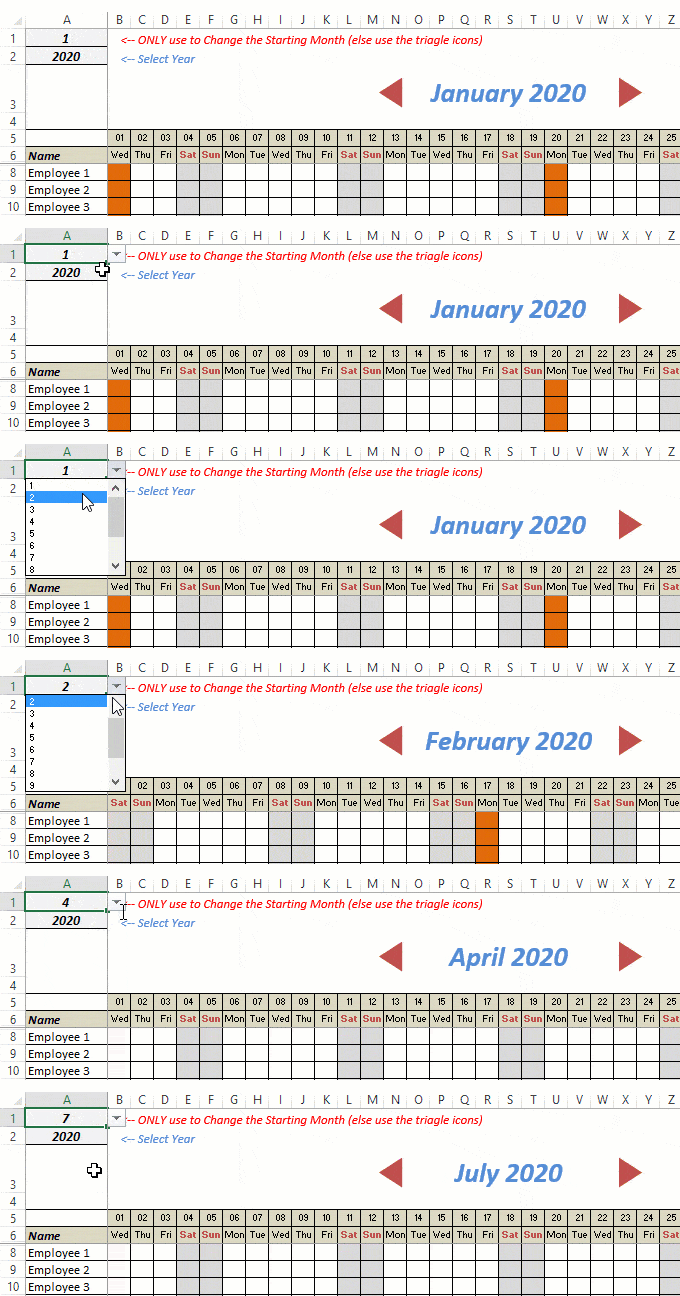
- This Excel template can be used to track leaves for over a year. You can select a start month and can track leaves for a year. For example, if you follow the April-March cycle, select April 2023 as the starting month.
- Note: The value in cell A1 is to change the time period of the leave tracker ONLY. DO NOT use Cell A1 to move to the next month while recording leaves. Use the triangle icons next to the month names to go to the next/previous month and mark leaves.

- You can specify the working days and non-working days (Weekends). At the right of the leave tracker, there is functionality to specify the working days by selecting Yes from the drop-down. If you select No, that day is marked as a non-working day in the leave tracker.
- As soon as you specify the non-working days, those weekdays get highlighted in gray color in the leave tracker.

- You can update the holiday list in the worksheet named “Holiday List”. It will automatically be reflected in the tracker by highlighting those days in Orange color.
- To enter the leave record for employees, use the relevant codes based on the leave type (you can customize these leave codes). For example, in the case of sick leave, use S, in the case of Vacation, use V, as so on.
- There are two codes reserved for half-day leaves. you can enter H1 or H2 for a half-day leave.

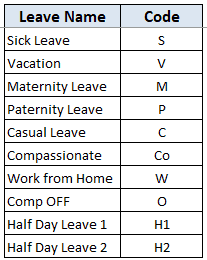
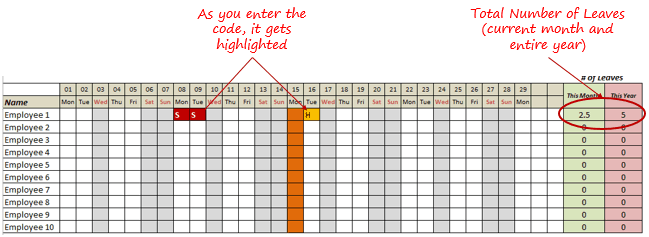
- As soon as you enter the leave code for any employee, it gets highlighted in red (in the case of half-day, it gets highlighted in yellow). If that day is a weekend or holiday, the color would not change.
- Column NJ (highlighted in green in the pic below) has the number of leaves of that employee in that month. It counts the leaves on working days only (those on weekends and/or holidays are not counted). Half-day leaves are counted as 0.5.
- UPDATED: Column NK (highlighted in light red in the pic below) has the number of annual leaves taken by an employee. It counts the leaves on working days only (those on weekends and/or holidays are not counted). Half-day leaves are counted as 0.5.
- Columns NL to NU gives the leave break-up by leave code (for the entire year). This could be helpful to keep a track of the type of leave that has been availed. Note that while Half Leaves are counted as .5 leaves in the total count, in the leave break-up, it is counted as whole numbers. For example, 2 half leaves would lead to 1 leave count, but you’ll see two half leaves in the leave breakup.
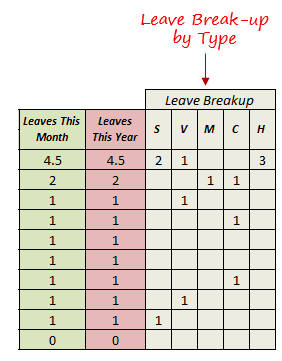
I have created this leave/attendance tracker template for 20 employees. If you want to add more, just copy-paste the formatting and formulas for additional rows.
Also, since there is a VBA code involved, make sure you always save it with .xls or .xlsm extension.
Download the Leave Tracker Template
Note: To update this template for any year, simply change the year value in cell A2. For example, to make it for 2017, just change the value in A2 to 2017. Also, you need to update the holiday list for the specified year.
The download file is completely unlocked so you can customize it to your needs.
Here is another version of the template that can track leaves for 50 employees.
Want to learn how to create awesome templates and dashboards? Check out the Excel Dashboard Course
FAQs on using this Leave Tracker Template
Since I created this vacation/leave tracker, I have been inundated with emails and comments. What you see now is a refined version that has been possible due to all the feedback that I have got.
Based on the questions I get repeatedly, I have created this FAQ section so that you can get an answer faster (instead of waiting for me to respond).
Here are the most common questions I get about the Leave tracker template:

Q: I tried downloading the file but it downloaded as a zip. How do I use it?
A: I have fixed this issue, and now you should be able to download the Excel file directly.

Q: When I change the month, the existing leaves are reflected in the changed month as well.
A: This happens when you use cell A1 to change the month. You need to use the arrow icons to change months. Cell A1 is to be used only to set the starting month of the calendar. For example, if you want the calendar to start from April, make cell A1 value 4. Now to move to March, use the triangle icons.

Q: I need to track multiple years of leaves. Do I need to create a new worksheet for each year (financial year)?
A: Yes! This leave tracker can only track leaves for a 12 month period. You need to create a copy for each year.

Q: Can I use my own leave codes?
A: Yes! You can change the leave code in cells NX8:NX17. You also need to specify the same code in cells NL5:NU5. For example, if you change the Work from Home leave code to X, you also need to change it in NR5.
I hope you find this leave/vacation tracker helpful.
Are there any other areas where you think an Excel template could be helpful? I am hungry for ideas and you are my gold mine. Do share your thoughts in the comments section 🙂
Related Excel Project Management Tutorials and Templates:

This is very wonderful. My question is about the maximum number of leaves allowed.
Hi, great tracker although I am a little confused – when i put in a day off / vacation / sick leave etc. and I change the month it then has it on every single month not just the one I placed it in!? Help would be great!
Thanks
Hello Heather.. Kindly use the scroll bar to change the month value. I believe you are changing the value in A1.
Hi Sumit This is Great Thank you. 🙂
Having started to use it, I have a suggestion for you.
It would be nice if the working days changes as per employee as I manage a company with staff working on different days. Wondering if that is a possible tweak?
Hello Ramya.. If you have different employees working on different days, You can create different versions of this tracker. To have it all in the same tracker will complicate it a lot.
Thanks for commenting Ramya.. Glad you liked it.
If you have different employees working on different days, You can create different versions of this tracker. To have it all in the same tracker might complicate it a lot.
This tracker is impressive, I can see a lot of use in the future. I do have a little request for you.
Is there some way to easily change the totals at the end of the row to equal hours instead of days?
Example:
Sick Leave = 8 hours
Vacation = 8 hours
Half Day = 4 hours
(or if someone happens to leave for an appointment)
Appointment = 2 hours
and in the final column have a calculation that would take those hours and give a total amount of days?
Hello Kris.. You can achieve that by multiplying the leave count with the number of working hours in a day. For example, if the total leaves for a month is 2, then hours could be 2*8 (considering an eight hour work day)
Hello Sumit, First of all, your tracker is amazing. I have been trying to modify the formula by multiplying the leave count by 8 and I keep getting an error message. Any suggestions
Is there a way to account for Lieu days? I am trying to insert a formula but it is counting as a day away.
Hello Jewels.. Currently there is no way to account for lieu days. You can have the Lieu days in a separate cell for each employee and add it to the total leave count if you want
Thank-you very much Sumit, I love the tracker. It is extremely user friendly.
Hi, Would it be possible to edit this so standard year is 01/04 to 31/03?
I have updated the tracker and now you can select the starting month (for example Apr 2016-Mar 2017). You can download the new tracker from the link in the tutorial.
hi, could you help me with this the same format yet the month will be Jul to dec only and it be starting on column 2
this is a great help.
Hello faye.. I have updated the tracker and now you can select the starting month (for example July 2016-June 2017). You can download the new tracker from the link in the tutorial.
hi.. loved it…….. want to know if there is a way to get total of the codes at month end.. like total number of sick days…. or V days…
Hello Elizabeth.. I have updated the tracker and now you can get the leave break-up by leave type. You can download the updated tracker from the link in the tutorial.
Hello Sumit, how have you been? Have a thing or two l would like you to help me out with. In my company, we do not take out sick leave from a staff leave schedule. would like to know how l can use the (S) sick leave with out it being deducted from the staff leave
Hello Liz.. I’ve been good.. Nice to see you again. For marking sick leave but not counting it, a better way would be to simply highlight the cell with a background color, but not enter anything in it. That way it will be marked and wouldn’t be counted in the total leave count.
Hello Liz.. An easy way would be highlight the sick days (using fill cell), but not enter any leave code. That way, it will not count it in total leave count
Hi Sumit, this template really helped me. I need a small change would you be able to show the leaves separately.
Hello Malsha.. I have updated the tracker and now you can get the leave break-up by leave type. You can download the updated tracker from the link in the tutorial.
Thanks a bunch 🙂
Thanks a bunch 🙂
Thanks a bunch 🙂
Wow! fantastic.Thank you for this template .Can you create an Excel sheet whereby sheet one is able to update other sheets in the same work book .If so please let us get in touch through skype
Hello Sebastian.. It can be done but by interlinking cells across sheets. Kindly let me know what you are looking for, and I’ll try my best to guide you
The leave tracker is the closest I’ve seen to what I am looking for. I am trying to create an employee time tracker spreadsheet that will record working hours, calculate overtime hours based on a 40 hour work week, sick time, and vacation time. I want this spreadsheet by pay period with the ability to record a portion of day vacation/sick and portion of day working. This is where I am running into difficulty. Ideally this spreadsheet would provide a pay period summary for each employee for the following; hours worked, vacation hours taken, sick hours, and overtime hours, as well as a yearly summary for managers showing total sick time taken/remaining, vacation time taken/remaining, etc.
Hello Lori.. Have a look at the Timesheet calculator template here: http://trumpexcel.com/2015/07/employee-timesheet-calculator-template/
Hope this helps
Is it possible to have the total separately? like annual paid leave is separated from sick leave on the calculation?
Hello Mar, if you don’t want the total count to include sick leaves, it would be best to highlight sick leaves with a background color, but not insert any alphabet code in it. That way the total leave count wouldn’t have the sick leave count in it.
Hello Mar.. One easy way to do this would be to highlight sick leaves with a background color, but not enter any code in the cell. That ways, it wouldn’t be counted in the total
Hi Sumit, I have a few specific changes that I am trying to make to the sheet. Would it be possible for me to send this to you over email so that i can explain it well. I can then post a summary on the comments section for everyone else.
Hello Krutika.. You can send me via email and I’ll try my best to help
I really like this tracker, any ideas on how I would go about setting up an automated system for personal and sick time accrual so i dont have to go in each month and do it manually?
How could you change this to be a jul 1 – jun 30 fiscal year?
Hello Carolyn.. As of now I have created it for Jan-Dec.. Will soon create one for custom periods and share here with you
I would like to amend the sumproduct formula in NJ to exclude a all leave codes except annual leave and half days so they do not get counted. All other leave is recorded but does not need to be counted. I have tried to get to grips with this formula, but am finding it difficult. Also if I click on any cell in NJ, click in the formula bar and hit enter, it comes up with #value! even though I have made no changes. Can you please break your formula down so I can try to amend it. I have never used sumproduct before.
I had a Eureka moment. I changed the “” to =$nn$3 and it has worked. However, if I needed to include other leave types, I would not know how to accomplish that.
Hello Dawn.. there are five types of leave codes already.. if you need to have more, simply use any alphabet code. As soon as you enter any code, it will be counted as one.
Hi Dawn,
I have the same question. I don’t want Sick day to count as Annual Leave. How did you figure it out? Thanks
Hello Sumit, can’t tell you how grateful l am, l have downloaded it through the link and l have gotten what l wanted. Thank you so much 🙂
Welcome Liz.. Glad I could help 🙂
For instance, an employee takes two days in January and five days in February, l don’t get to see the total seven days when am on February, l only see the 5day in february and when l go to January l see the 2day.
Hi Sumit, l have downloaded the template again and it still calculates how many days taken per month, it still does not summarize the whole days being taken as the months go by.
Hey Liz.. Maybe it’s the cache issue in your browser.. Here is the direct download link – https://www.dropbox.com/s/8tv8rgeyrna70pg/Excel-Leave-Tracker-2016-TrumpExcel_v3.xlsm?dl=0
This would show you monthly as well as total leaves taken so far.
Hello. Does this allow one input the total number of leave days allowable and also track the number of leave days outstanding for an employee?
Hello Chido.. I have updated the template so now it will also show the leaves availed in the entire year. This would be helpful in knowing how many leaves can still be availed by each employee
Thanks so much. This is so nice.
If you could include 2 more columns to show “Allowable Leave Days” and “Leave days balance”, it would be great.
Thanks Sumit.
Kindly make provisions for total leave days allowable as well and leave days balance if its possible.
Hello Sumit, thanks for leave tracker, l have figured out how to change the holidays to the ones we observe but still wish l can get the leaves taken calculate totally as the months go by rather than the monthly calculations we already have
Hello Liz.. I have updated the template and now you can get total leaves as well (availed so far in all the months). Kindly download the template again
This is awesome, thanks! Is there a way to ‘select working days’ for each employee? Also, is there a way to change the “leave code” highlight color from red to a different color for each? I’d like to color code the leave days. Thanks again!!
Hello Lynnae.. It wouldn’t be possible to have different working days for different employees.. You can however, change the color codes by changing the conditional formatting setting
Sumit could you please explain how? I’ve added a leave code and want to assign a colour to it but can’t and every leave code is coming up red. Your spreadsheet is amazing btw.
and by the way this is just awesome!!!!! You save me heaps of time
Glad it’s making a difference 🙂
You are just awesome! Thanks mate!
Hi Sumit,
How can I have the total Leaves for the entire year?
Thanks
Jet
Hello Jet.. Thanks for dropping by and commenting.. I have updated the template so now you can get total leaves for the entire year as well. Kindly download the template again from the link in the article.
Thanks for the Employee Leave Tracker Template – Can it be customised to include more leave variation like Working from Home but not calculate those days in the # of leaves column
Hello Sumit, l like the planner but here in Nigeria our holidays are different from yours so how do l cancel the holidays that we in Nigeria don’t have and also change the orange colour on those days so it can reflect as normal days?
Hello Liz, you can change the holidays in the Holidays tab.. There is a table with dates. Just change it the ones that you follow. The tracker would automatically show the orange color for only the ones that you have specified as holidays
oh, I figured it out myself, its how you save it. clever me!
Hi, when I use the slidebar to change the months, the dates are only showing for the first month January, not any other months- what am I doing wrong please- there is a pop up message about macros disabled, how to I enable them, I am a novice sorry.
Hi, thanks for an awesome tool. Would it be at all possible to add a table where each employee’s types of leave are shown as a sub-total then also show a total? It will give an overview of all the leave taken.
Hello Astroud.. I have updated the template so now you can get total leaves for the entire year as well. Kindly download the template again from the link in the article.
Hi Sumit, thank you for that, much appreciated.
Hi There, Is there any chance I could change this from April 2016 – March 2017 as that is when our next leave year runs! Thanks!
Hi Sumit. I would like to add the employee ID and department before the name but when i do so the formula eliminates the first 2 days of the month. Please help 🙂
Hello Farah.. You can download the file from this link., I have added an additional column for Employee id in it – https://www.dropbox.com/s/qsubvcfounytzqn/Excel-Leave-Tracker-2016-TrumpExcel%20Additional%20Column.xlsm?dl=0
hi when the same sheet is uploaded for spreadsheet the scrol bar and months are not visible any help on this matter
Hello Naveen.. What do you mean when you say “uploaded for spreadsheet”?
the issue I have with the half day is that it doesn’t seem to allow the user to input they type of leave that is being utilized…..just records that a half day of “leave” was taken. also, I would like to see a summary of each employees’ type of leave that has been used as opposed to the sum of all leave for example, 3 days sick, 1.5 days vacation, 2 days compensatory.
Hello All,
Our employees work one week in the whole, so I don’t record the PTO used until the week after it has been used. When I opened up the sheet today, the only dates in January showing were from the 11th (today’s date) through the end of the month). Is there a way for the entire sheet to show for the entire month and thereafter??
Hello Kelli.. The template shows the dates for the entire month. You can use the scrollbar to change the months.
hi sumit. leave tracker updated is really great and helpful . please let me know how to add column before emp name .. i want to add emp id column however while doing so the whole sheet gets messed .. Please help
Hello Reenu.. You can download the file from the link below. I have added an additional column for employee id – https://www.dropbox.com/s/qsubvcfounytzqn/Excel-Leave-Tracker-2016-TrumpExcel%20Additional%20Column.xlsm?dl=0.
Great spreadsheet Sumit. Is there an easy way to use this sheet to track days my employees are late, be great to have that total in a separate total Column?
Hello Jamie. You can use this formula in cell NK (and drag for all the remaining cells). =COUNTIF(B8:NI8,”L”)
Now when you enter ‘L’ (for Late) in any of the cells, it will be counted.
How could I put actual hours in here and have it add them up also I tried to add a column B for the employee id and it skews the January date to start with 2. I found where to change it to hide from C in the Macro.
Hello Dale.. If you are looking to add an additional column, try the file from this link – https://www.dropbox.com/s/qsubvcfounytzqn/Excel-Leave-Tracker-2016-TrumpExcel%20Additional%20Column.xlsm?dl=0
I have added a column for employee id
Thank You for the update.
In the formula mention to Sheet 3 but there is no Sheet 3 or i was missing while i downloading, pls explain, it is very helpful for me
Thx
Glad you are find this helpful.. Sheet 3 is hidden. You can make it visible by right clicking on any of the tabs and selecting unhide. It will show a box with Sheet 3 in it. Select it and click on OK
Hi Mr. Sumit
Thanks for the sheet 3 purpose but i have 3 more Questions
– What if i’d like to adjust date of the month start from 21.Dec.2015 to 20.Jan.2016 (For 1 month)
– Change Leave code
– Add Holiday
is it able to adjust?
Thank you 🙂
– Changing month start and end date would be difficult.
– You can change the leave codes in cells NN2 to NN6. The tracker, however can track any code you enter in it.
– You can easily add holidays in the table in the holidays tab.
Hi, wondering if there is a way to change the position of the scroll bar, after adding more employees?
Hello Chelle.. You can right click on the scroll bar and then move it like any other object. In case you wish to add more employees, here is the same leave trackers for 100 employees – https://www.dropbox.com/s/ydyl3nltqk08a6v/Excel-Leave-Tracker-2016-100Employees-TrumpExcel.xlsm?dl=0
Love this leave tracker but having some issues. When I scroll to Feb, March, etc… all the calendar dates disappear. January is beautifully labeled 01, 02, 03, etc… However, when I choose a different month there is no data in row 5. There is a formula but the cells in row 5 are blank.
Thanks for commenting Al.. Since this workbook contain a macro, you need to enable the macros in it. When you open the workbook, you would see a yellow button that says -‘enable content’. Once you click on it, the tracker should work. I just checked it on my system and seems to be working fine.
hi! how do i add a column to the right of “employee” to say something like “title” or “time zone” without messing up the entire formula?
Hello Rachel.. Here is a template where I have added an additional column to the right of Employee Name Column https://www.dropbox.com/s/qsubvcfounytzqn/Excel-Leave-Tracker-2016-TrumpExcel%20Additional%20Column.xlsm?dl=0
Hi, can you please help me creating a dashboard sheet where we can get total leaves of each employee
Hi Sumit,
Can you please help me in creating a dashboard where I can get total leaves of each employee. Please do need full help.
Hello Suma.. I have updated the template and now you can get the total number of leaves as well. Kindly download the template again using the link in the tutorial.
Hi Sumit, when I tried making amendments to formula such as changing “=SUMPRODUCT((OFFSET($A8,0,31*($A$3-1)+1,1,31)””)*(IF(OFFSET($A8,0,31*($A$3-1)+1,1,31)=$NN$6,0.5,1)*(OFFSET($A$4,0,31*($A$3-1)+1,1,31))))” to “=SUMPRODUCT((OFFSET($A8,0,31*($A$3-1)+1,1,31)””)*(IF(OFFSET($A8,0,31*($A$3-1)+1,1,31)=$NN$5,0.5,1)*(OFFSET($A$4,0,31*($A$3-1)+1,1,31))))”
The $NN$5 causes the formual to display #Value . Urgently need help
Hi! Will it be possible to track the no. of SL and VL separately minus from SL and VL credits for a year?
Couple of questions. Will the sheet keep a running total the time taken off for every employee (For example, so you can see in May how much time was taken?) If I revert the sheet to a google doc with the formulas transfer?
Hi Please! How can I include Half day Vacation and Half Day Sick leave?
Hello Maria.. You can record half leaves by using the code H. Half day leaves are highlighted in yellow, while full day leaves are highlighted in red.
Hello Jennifer.. It keeps a track of all the leaves taken in the entire year for all the employees. So if you mark the leaves for May, it will show the total for May. If you then mark the leaves for June, it will show the total for June, however, if you go back to May, it will have the leaves for May as well.
I haven’t checked this on Google Doc, but I feel this wont work in Google Docs.
Sumit, I really like the lay out and ease of use of the spreadsheet, the only component that I am missing is the ability to see the yearly total of vacation days used and be able to subtract it from each employees yearly vacation accrual. This would then allow me to see what vacation total for the year has been used and what is remaining. Just curious if there is a way I can add these functions. If you have any tips on how it would be greatly appreciated.
Thanks
Hello Kacey.. I have updated the template and now you can get the total number of leaves as well. Kindly download the template again using the link in the tutorial.
Amazing! So helpful
Thanks for commenting Kiran.. Glad you liked it 🙂
This is great! I am trying to modify it to calculate the amount of PTO a given employee has remaining, as well as to count the number of days off that the employee takes without pay. Any suggestions??
Hello Kelli.. I have updated the template and now you can get the total number of leaves as well. Kindly download the template again using the link in the tutorial.
Great! Thank you very much! this template is excellent!
Hi Sumit.
How can I make some of the leave types not countable? Or is there a way to get totals of each type of leave in a separate column? rather then counting all the leave together?
It will be good and useful if Sumit can do this
hello Darren.. I have updated the template and now you can get the total number of leaves taken so far (along with the monthly leaves). Hope this helps