

One of my teammates has the responsibility of creating a leave tracker template in Excel for the entire team. This tracker template is then used to track vacations/holidays and planned leaves of the team members.
Till now, she used a simple Gantt chart in Excel but wanted something better with more functionalities.
So, I created this Excel Leave Tracker Template to make leaves management easy and track monthly and annual leaves by her team members.
You can also use this as a vacation tracker template or student attendance tracker if you want.
Excel Leave Tracker Template
This Excel Leave Tracker template can be used to record and monitor employee leaves for a year (of a financial year where you can choose the starting month of the year).
You can track 10 different leave codes for an employee – vacation leaves, sick leaves, maternity/paternity leaves, casual leave tracking, leave in lieu of overtime, and half days, etc.
It also provides a monthly and yearly total of different types of leaves that can be helpful in project planning and leave management.
It uses a bit of conditional formatting, a few DATE functions, array formulas, and a simple VBA code.
Download the Excel Leave Tracker Template (tracking for 20 employees/people)

Looking for the Google Sheets version of this Leave Tracker Template? Click here!
How this Excel Leave Tracker Template Works?
- Use the triangle icons next to the month name to move to the next/previous month (the template updates itself to show the dates for the selected month). There is a short VBA code that runs in the background whenever you change the month. It shows you the selected month only and hides all the other months.
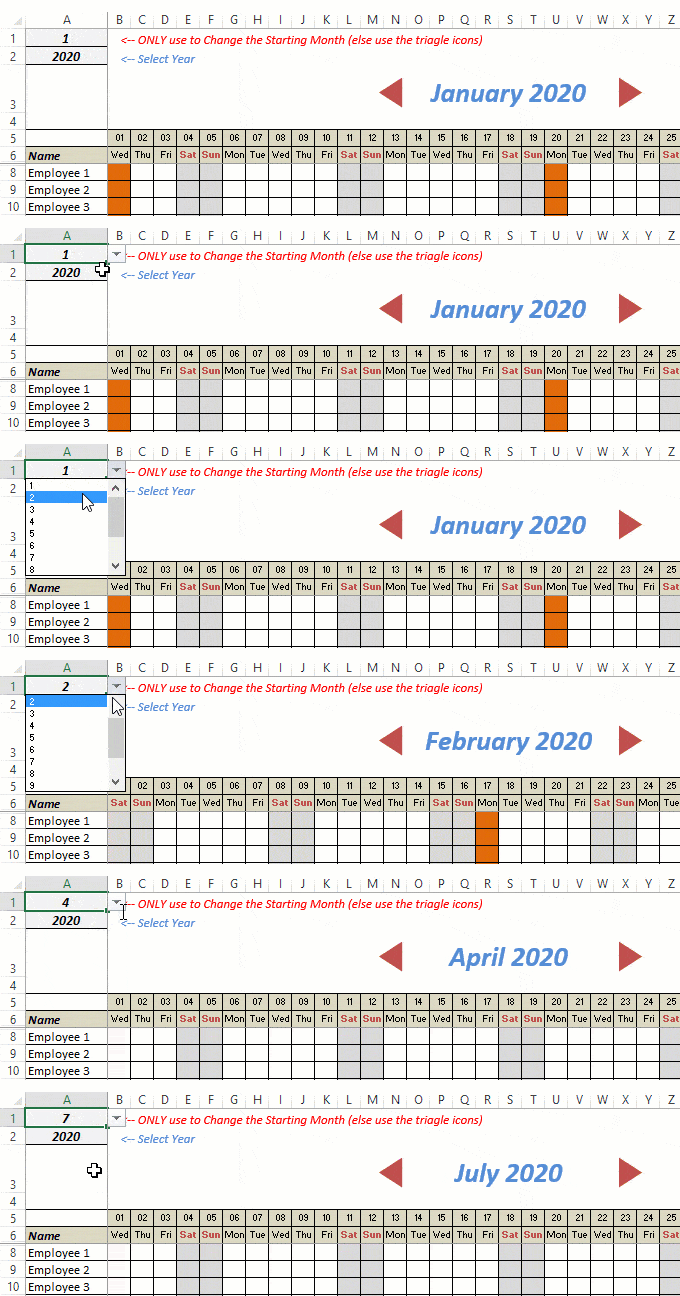
- This Excel template can be used to track leaves for over a year. You can select a start month and can track leaves for a year. For example, if you follow the April-March cycle, select April 2023 as the starting month.
- Note: The value in cell A1 is to change the time period of the leave tracker ONLY. DO NOT use Cell A1 to move to the next month while recording leaves. Use the triangle icons next to the month names to go to the next/previous month and mark leaves.

- You can specify the working days and non-working days (Weekends). At the right of the leave tracker, there is functionality to specify the working days by selecting Yes from the drop-down. If you select No, that day is marked as a non-working day in the leave tracker.
- As soon as you specify the non-working days, those weekdays get highlighted in gray color in the leave tracker.

- You can update the holiday list in the worksheet named “Holiday List”. It will automatically be reflected in the tracker by highlighting those days in Orange color.
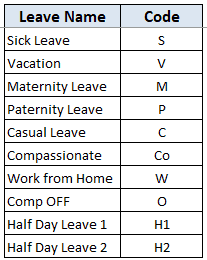
- To enter the leave record for employees, use the relevant codes based on the leave type (you can customize these leave codes). For example, in the case of sick leave, use S, in the case of Vacation, use V, as so on.
- There are two codes reserved for half-day leaves. you can enter H1 or H2 for a half-day leave.

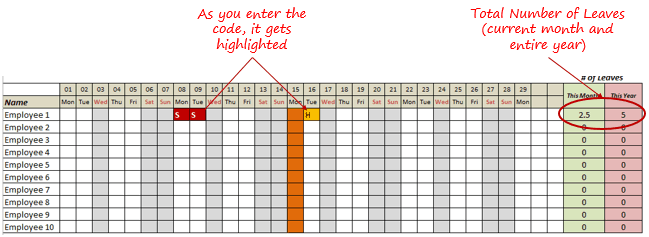
- As soon as you enter the leave code for any employee, it gets highlighted in red (in the case of half-day, it gets highlighted in yellow). If that day is a weekend or holiday, the color would not change.
- Column NJ (highlighted in green in the pic below) has the number of leaves of that employee in that month. It counts the leaves on working days only (those on weekends and/or holidays are not counted). Half-day leaves are counted as 0.5.
- UPDATED: Column NK (highlighted in light red in the pic below) has the number of annual leaves taken by an employee. It counts the leaves on working days only (those on weekends and/or holidays are not counted). Half-day leaves are counted as 0.5.
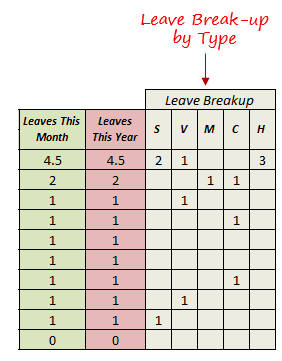
- Columns NL to NU gives the leave break-up by leave code (for the entire year). This could be helpful to keep a track of the type of leave that has been availed. Note that while Half Leaves are counted as .5 leaves in the total count, in the leave break-up, it is counted as whole numbers. For example, 2 half leaves would lead to 1 leave count, but you’ll see two half leaves in the leave breakup.
I have created this leave/attendance tracker template for 20 employees. If you want to add more, just copy-paste the formatting and formulas for additional rows.
Also, since there is a VBA code involved, make sure you always save it with .xls or .xlsm extension.
Download the Leave Tracker Template
Note: To update this template for any year, simply change the year value in cell A2. For example, to make it for 2017, just change the value in A2 to 2017. Also, you need to update the holiday list for the specified year.
The download file is completely unlocked so you can customize it to your needs.
Here is another version of the template that can track leaves for 50 employees.
Want to learn how to create awesome templates and dashboards? Check out the Excel Dashboard Course
FAQs on using this Leave Tracker Template
Since I created this vacation/leave tracker, I have been inundated with emails and comments. What you see now is a refined version that has been possible due to all the feedback that I have got.
Based on the questions I get repeatedly, I have created this FAQ section so that you can get an answer faster (instead of waiting for me to respond).
Here are the most common questions I get about the Leave tracker template:

Q: I tried downloading the file but it downloaded as a zip. How do I use it?
A: I have fixed this issue, and now you should be able to download the Excel file directly.

Q: When I change the month, the existing leaves are reflected in the changed month as well.
A: This happens when you use cell A1 to change the month. You need to use the arrow icons to change months. Cell A1 is to be used only to set the starting month of the calendar. For example, if you want the calendar to start from April, make cell A1 value 4. Now to move to March, use the triangle icons.

Q: I need to track multiple years of leaves. Do I need to create a new worksheet for each year (financial year)?
A: Yes! This leave tracker can only track leaves for a 12 month period. You need to create a copy for each year.

Q: Can I use my own leave codes?
A: Yes! You can change the leave code in cells NX8:NX17. You also need to specify the same code in cells NL5:NU5. For example, if you change the Work from Home leave code to X, you also need to change it in NR5.
I hope you find this leave/vacation tracker helpful.
Are there any other areas where you think an Excel template could be helpful? I am hungry for ideas and you are my gold mine. Do share your thoughts in the comments section 🙂
Related Excel Project Management Tutorials and Templates:

Hello Sir, could you please assist me with how to modify the Half Day calculation from 0.5 Day to 1 Day
Dear Sumit, It’s been a while, How are you? Please i would like to know if i can i use this leave tracker template to track other hr functions? If yes, please how do i go about it?
Hey Sumit! Thank for this amazing template. Is it possible to tweak this template to count weekends when it comes to vacation?
Hi – I have 2 additional codes like half day which need to be 0.5 and then once it had added them up in total leaves this month and total leaves this year I need it to add 0.5 into these columns and not add 1 like it currently is. Can you help please.
the leave tracker is great but i have an issue with this sheet.When you use S code or M Code or any other code for instant, on 15 of April was a sick leave the sheet records in all other months same date as sick leave instead on each month to be blank for you to input your records
Hi Sumit,
Its a great template. Thanks. I need 2 different section with Half Casual and Half Sick leave. I could not formulate the template. Would appreciate it if you could help me. I need four different options : Annual Leave, Sick Leave, Half Sick, Casual Leave,Half Casual. I was not able to add formula to account another half day leave.
Would be great if you could help.
Thanks
The leave tracker is fantastic – many thanks. However, the horizontal scroll doesn’t appear to work very well. When I try to toggle from month to month, it starts off well, then slides to the end by itself, makin git hard to see specific months. Anybody else having this challenge?
How can I add a quarter day. Any help would be appreciated
Hi Summit, that’s one of the best tracker i have seen so far, CONGRATS. but plss if i want to copy the template from one sheet to another in the same workbook, how do i do that please? i tried with some VBA code and it works but the scroll bar was unable to select the months. can you help please. it gives some runtime error
Hi Sumit, Wonderful progress !
I rebuild the leave tracker to learn but when it comes to the macro code it’s not working.
B12: where the month number appears using a scroll bar
H:NO is the year days columns range
showcalendar()
SCHEDULE.Range(Columns(Range(“B12”).Value * 37 – 35), Columns(Range(“B12”).Value * 37 + 1)).Hidden = False
End Sub
I’m trying to change the equation numbers but it’s not working .. Don’t hide columns or the correct ones .. can you give a hand !?
Appreciate your help !
I can you help and let me know I change the years I need to add january 2017 and foward
Hello Sumit!
I have downloaded the template, thank you very much for allowing free access to it, very helpful.
However, when I try to move the scroll bar to change the month, it shows the Runtime error 1004 : application defined or object defined error. Why could it be so and can I do something to fix it? Thank you in advance!
Hi Sumit, I think your template is excellent. I have some questions about some of the formulas, though, as I am far from an expert. I have been able to add extra holiday types, etc, but am struggling with the part where a sick day is added to the number of leave days per month and year. I have added a holiday entitlement column, also, which then works out how much leave is still available. However, I am struggling to workout for leave which taken in hours rather than a full day. Do you have any advice, please? Thanks, Deb
Thank you for your sharing! But i experienced one issue regarding entry leave code. The leave code wont change when i want to key another month. For example, employee one took annual leave on first April so i typed A on first April. However, the A will exist on first May when i change to another month. Do you have any advice about this? Appreciate if you can give me the solution. Thank.
Hello, This excel template has the potential to be absolutely fantastic – thank you very much!
I am just stuck on one thing though. I need to enter retroactive leave for the years of 2014 and 2015 to accurately check leave balances for staff in the present. I added in all of the relevant Holidays for 2014/2015/2016 into the [Holidays] worksheet.
I then changed the value in A2 to read ‘2014’. I then scrolled through the months and entered in the leave. However, when I change the A2 value to read ‘2015’ and then I scroll through the months to add leave for 2015, the leave I added for 2014 is still associated to those days.
Is there a way I can add in leave days for multiple years without it affecting each year’s data?
Thanks a lot Sumit.. A great help.. 🙂 easy and helpful..
Thanks for sharing this! It’s sooooooooooooooooooooo helpful. God bless you.
How do you create additional leave codes for full and half days?
Thank you for the perfect leave tracker! I do have a question however. If i wanted to include a column next to “leaves this year” titled “vacation days taken”. How would I code that? Essential i want that total to include only vacation, half flex day and full flex day(i included the last one). Also, what formula would I use if I wanted to log only a half sick day taken?
Hi Submit,
Is it possible to have have multiple leave types that are half day-0.5. For instance,i would like to include Sick-S as half day leave as well.
Hi Sumit, the leave tracker is so awesome!. Could you please help me on counting the leave breakup every month beside the yearly summary?
Hello Jade.. Glad you liked the tracker. If you want monthly breakup (instead of yearly), use the following formula in cell NL8 and copy paste in all the cell (NL8:NP17)
=SUMPRODUCT((OFFSET($A8,0,31*($A$3-1)+1,1,31)””)*((OFFSET($A$4,0,31*($A$3-1)+1,1,31)))*((OFFSET($A8,0,31*($A$3-1)+1,1,31)””)))
Hi Sumit..can you help me to do this excel spreadsheet
in google excel? my company is using google excel.. Please assist thanks.
Hello.. I am afraid I won’t be able to replicate it in Google Spreadsheets. While the formulas are almost the same in Excel and Google Sheets, VBA is exclusive to Excel.
Hi I am still having problem with this excel work sheet when I put in
the V under dates and then switch to next month why am I seeing the V
for previous month, please help.
Hi Tony, You have to use the left and right arrows on the scroll bar to move to the next month or the previous month.
The month number is cell A1 is to give the user the flexibility to
change the lave year. For example, to have the year as Jan-Dec, make A1
value 1, for Apr-Mar, make it 4. . Once you have set leave year, you
need to use the scroll bar only to go to next/previous month.
There is a bug in the month selection. A1 and A3 are both being used to determine the month, but they change independently. For example, if I scroll forward to March, A1 will stay static. If I then select the third month using A1, I am taken to June instead of March.
Hello Andre.. The month number is cell A1 is to give the user the flexibility to change the lave year. For example, to have the year as Jan-Dec, make A1 value 1, for Apr-Mar, make it 4. . Once you have set leave year, you need to use the scroll bar only to go to next/previous month.
Thank you Sumit, loved this tracker… it is very much user friendly. Since am very new to excel formulas, can we edit this sheet?
What we are looking for is like need to add something in the leave description section, Half Day (forenoon and afternoon) and also add some shift codes to use this leave tracker and as a shift tracker as well like (Morning(M), After noon(A) and Night (N). Really appreciate your help in this
Hello Austin.. The leave tracker only tracks the Half leave using the code H, but you can add comments if you like. However, you’ll need to stick to H as the leave code for half day
Thank you for the quick reply Sumit, as asked in earlier question can I add some codes for the shift as Morning(M), After noon(A) and Night (N) and these should not count as leave. Currently the formula is set like if hit any character, it counts as one day leave.
Hey Austin.. You can highlight the cells by filling it with a background color. That would not make it count as a leave and you can still make out the shift based on a color code.
Thanks a lot Sumit, that was a quick fix!!!
Hi Suimt, Thanks for the great tool, Is if possible for you to add Work From Home option and highlight with different color and give the total counts separately for the whole year.
Hello Dinesh, as of now there is a provision for five types of leaves (sick, vacation, maternity, casual, and half leaves). You can change any of these with the leave code you want. For example, if you want W for work from home, replace the S with W in NL5 and NS2
Hello Sumit..I added additional column for Work from home this year(W) however i dont want work from home to be counted on Leaves this month and Leaves this year.could you please give me the formula for that.
If you want to highlight Work from home but don’t want to count it, a quick fix is to highlight the cell by filling it with a background color. That way’s it will be marked but not counted
Hi this is such a good and user friendly template. Thank you for creating it. Only problem I am having is when I book a holiday off for an employee, it comes up in the future years too. I only want it for that one year. How do we do that?
Hello Krupa.. This tracker is made for one year only. If you want to have multiple years, you can create copies of it
Do need to add additional columns (need 3 before Name) without breaking the dates please.
Managed to add the additional columns, using the dropbox link below in the comments.
Hey Vivian.. Glad it worked.. I just saw your comments, but I guess you managed it before I could jump in 🙂
Hi Vivian !
Could you please help me with how to add more columns before Name using dropbox as you have already succeeded in the same.
thanks.
Hi Vivian…..please help on the addition of more columns.
Hello, When I add a vacation day let’s say January 10th 2016 and then I want to change the month on the upper A1 case the vacation day (january 10th) appears on february 10th, march 10th and so on. How can I have the vacation day ony highlighted on january and not o the rest of the months? becasue it work when I change the month on the scrolling bar but not on the A1 (select month) case. thank you
Hi Sumit, One question when I add for example a vacation day for one employee let’s say January 2nd 2016 and I go on the top to select february or any month of the following year 2016 you can see the V from vacation on the 2nd of each months 2016. This happens only when I choose the month in cell A1 but when I scroll the moths it doesn’t happend how can I fix this?
Hello Janine.. To change the months in a specified interval, only use the scroll bar. Cell A1 is to be used only when you want to change the year (let’s say from Jan- Dec to Apr-Mar). Once you have the desired year range, scroll bar should be used to go to next/previous months
Thanks for the amazing template Sumit. I saw that you have added an additional column and helped with the template, but it is very difficult to add extra columns I think. If there was some instructions to add columns to the template, it would make it so much easier. As, I wanted to add 3 columns before the Name column and adding them spoils the date formula. However, I appreciate your efforts in this and thank you for sharing the template. Please do consider making the adding of columns a little easier.
Question: when I add employees, the months scroll bar remains in the same place. How to move the scroll bar down, or how to properly insert additional employees?
Hello Gordana, Hold the Control key and left click on the scorll bar. Now you’ll be able to move it.
awesome template!
Still no response from you,,.Sumit……When protecting the sheet …scrollbar doesn’t work and also I have not locked or protected the cell link to scrollbar….pls help on this..
Please see my response in your comment above.
Please advise how I can add further UK holidays to the table.
You can add holidays in the table in the holidays tab
When I make an entry in one month why does those entries show up when I change months.
Hello Tony.. You need to use the scroll bar to change the month. I believe you are using cell A1 as of now.
Hello Sumit, really nice work! one comment. If I want add different holiday (for two countries) with different color to be displayed it is possible?
Hello Jaro, you can do that. First you need to have the list of holidays somewhere in the workbook. A similar table as the one in the holidays tab. Then you need to add a conditional formatting formula to all the cells in the leave tracker.
Thanks for reply Sumit. In conditional formatting I can see “HolidayListNamedRange” and worksheet with bank holiday are called Holiday
What exactly in code mean “HolidayListNamedRange” ?
I want add couple holiday workseets (holiday_US, holiday_UK..) For all of new add new formatting with different colors.
but where define different worksheets name?
Hello Sumit, First, I would like to say that the leave tracker which you have made is superb and very easy to use!
I’m trying to customized base on requirement, and trying to use the same sheet as a shift tracker.
As part of this I need your support:
1) I’ve to put the log-in time of each employees when they are present. So, in column NJ (Leaves This Months) & in NK (Leaves This Year) should pull the total no. of days and ignore the cell were the log-in time is mentioned
.currently if we put the login time then it is getting added as leaves.
2) I’ve added three more column, which in NU, NV & NW this column will count the no. days he/she had login in particular region so that in end of the month it will be easy to calculate the shift allowance. for eg. if a person log-in at 12:15 3 days, then column NU (UK Login i.e 11:15 am to 8:30 PM) will show as 3 days.
It will be really helpful if you can help me in putting the formula to get the desire results,
When protecting the sheet …scrollbar doesn’t work and also I have not locked or protected the cell link to scrollbar….pls help on this..
Hi Sumit,
Awaiting your response…pls help on query.
You need to make sure the cells that are dependent on the scroll bar are not protected. Simply protecting the entire sheet wont work
This is such a awesome tool! I tried to follow the thread below as I am trying enter additional leave codes for half days for vacation, sick and personal. Any idea on how I can accmplish this?
Hello.. As of now I have made this for five leave codes. If you want to use more leave codes for full day leaves, you can simply enter the code in the leave tracker and it will count it as a leave. It would however not highlight it. As of now, you can only use h/H for half day leave.
I understand but I was trying to get the half days to apply to the appropriate leave breakup, hence SH, VH, etc. Where is the tutorial I can download an updated version from?
You can download the updated version from the tutorial above. There is no video tutorial on this, just the template
why is it that when i select a day in one month it gets selected in all other months?
Hello Henry.. I believe you are using the value in cell A1 to change the month. Instead use the scroll bar at the bottom.
wonderful template.Please assist me with one issue.suppose i sel;ected Jan Month and entered the leave in the columns of the respective employees.and when i scroll for the next month i.e feb and try to add the leaves for the month,the leave balance for the Jan month is affected.whatever changes i try to make it happens for previous month too
Hello Neha.. When you use the scroll bar and change the month, column NJ shows leaves only for the selected month. So if you have 2 leaves in January, and you use the scroll bar to come to february, column NJ would show leaves of Feb only. However, Colunm NK tracks all the leaves in that year.
Thanks Sumith, it realy works
Thanks Nilaksha 🙂
Thank you for this goog job. Seems there is an error in the sheet as when I enter the vacations for example in January then I move to Feb to enter another vacations, The vaction which I entered in Jan coming to Fenruary automatically! Can you please find whats the problem?
Hello Abeer,, I believe you are changing the month value in cell A1. Instead, use the scroll bar to change the month.
does the tracker only track fr one year i want to save the leaves for one year nd continue wth the nxt year is it possibble
Hello.. The tracker is made for 1 year for now. If you want to make it for multiple years, you can have create multiple copied for different years.
thank you
Is it possible to do this within the same workbook?
Thanks for good tracker!
When leaves are updated for Feb month ie 25 Feb, same leave codes are copied for other months as well which duplicates the work and same case for previous months ie Feb 2016 data is reflecting in Jan 2016.
Hello Mahe.. Just want to make sure you are using the scroll bar to change the month (and not the month value in cell A1).
Yes, I was changing the month value….thanks will scroll to change the month…whether I can display the scroll bar vertically?
Also in holiday list whether I can name it as public holiday and optional holiday for each month with color code to view in main.sheet?
You can make the scroll bar vertical. Hold the Control key and left click on the scroll bar. You will see an outline on the scrollbar. Then you can resize and make it vertical.
As of now, there is no way to classify holidays in the tracker
After finishing the tracker for a month, when I change the month in column A1 the holidays do not wipe out. If I delete them, then the entire spreadsheet becomes zero. Is there a fix?
Hello Kathryn.. To change the month, use the scroll bar at the bottom. As you click on the scroll bar, the months would change and the leave record would remain intact.
The holiday cells are staying highlighted no matter what the month is. I’ve saved the doc as a xlms – but it’s still not working properly 🙁
If you don’t want the holidays to get highlighted, you can remove these by deleting the holidays data from the Holidays Tab.
When I change the month ont he column A1 after finishing the tracker for a month. The holidays do not wipe out, if I delete them then the entire thing becomes zero. Is there a fix?
I am so happy that I found this template and downloaded it immediately. But, when I marked “C” casual leave for one of the employees on a date, let say 10th of February. All other months are marked with C on the 10th! I am very confused here, please help!
That’s what happened with mine! I am hoping I will get a response soon as it is a really helpful template other than that small glitch!
Hello Heather.. To change the month in the leave tracker, you need to use the scroll bar. Don’t use the value in cell A1 to change months (it’s just to specify the time period for the leave tracker)
Hello Sharon.. To change the month in the leave tracker, you need to use the scroll bar. Don’t use the value in cell A1 to change months (it’s just to specify the time period for the leave tracker)
The control bar is not going to the next month, hard to control. Is there a way to make it more responsive? And, sometimes the entire spreadsheet was highlighted and hang there. Hoping for your help soon.
Hey Sharon.. A lot also depends on the computers configuration. Scroll Bar tend to just keep scrolling if you are using a machine is less memory. It seems to work fine a multiple machines I tried
Is there a way to create more than one half days, say for sick leave or casual leave
For some reason, every time I enter a day in april it reflects on all the other days. How can I change that? For example I put a V day in april, and when I went to the next month it showed up on that as well.
Hello Sahar.. To change the month in the leave tracker, you need to use the scroll bar. Don’t use the value in cell A1 to change months (it’s just to specify the time period for the leave tracker)