

One of my teammates has the responsibility of creating a leave tracker template in Excel for the entire team. This tracker template is then used to track vacations/holidays and planned leaves of the team members.
Till now, she used a simple Gantt chart in Excel but wanted something better with more functionalities.
So, I created this Excel Leave Tracker Template to make leaves management easy and track monthly and annual leaves by her team members.
You can also use this as a vacation tracker template or student attendance tracker if you want.
Excel Leave Tracker Template
This Excel Leave Tracker template can be used to record and monitor employee leaves for a year (of a financial year where you can choose the starting month of the year).
You can track 10 different leave codes for an employee – vacation leaves, sick leaves, maternity/paternity leaves, casual leave tracking, leave in lieu of overtime, and half days, etc.
It also provides a monthly and yearly total of different types of leaves that can be helpful in project planning and leave management.
It uses a bit of conditional formatting, a few DATE functions, array formulas, and a simple VBA code.
Download the Excel Leave Tracker Template (tracking for 20 employees/people)

Looking for the Google Sheets version of this Leave Tracker Template? Click here!
How this Excel Leave Tracker Template Works?
- Use the triangle icons next to the month name to move to the next/previous month (the template updates itself to show the dates for the selected month). There is a short VBA code that runs in the background whenever you change the month. It shows you the selected month only and hides all the other months.
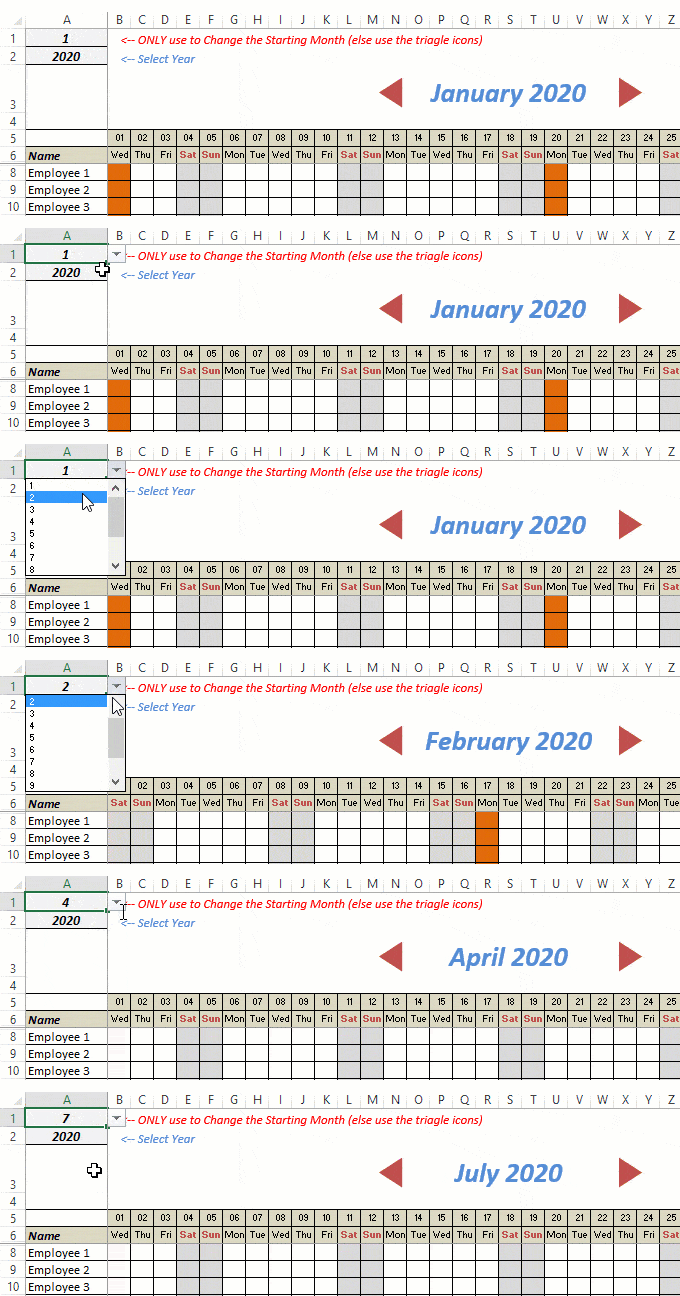
- This Excel template can be used to track leaves for over a year. You can select a start month and can track leaves for a year. For example, if you follow the April-March cycle, select April 2023 as the starting month.
- Note: The value in cell A1 is to change the time period of the leave tracker ONLY. DO NOT use Cell A1 to move to the next month while recording leaves. Use the triangle icons next to the month names to go to the next/previous month and mark leaves.

- You can specify the working days and non-working days (Weekends). At the right of the leave tracker, there is functionality to specify the working days by selecting Yes from the drop-down. If you select No, that day is marked as a non-working day in the leave tracker.
- As soon as you specify the non-working days, those weekdays get highlighted in gray color in the leave tracker.

- You can update the holiday list in the worksheet named “Holiday List”. It will automatically be reflected in the tracker by highlighting those days in Orange color.
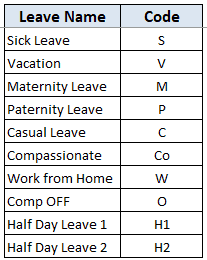
- To enter the leave record for employees, use the relevant codes based on the leave type (you can customize these leave codes). For example, in the case of sick leave, use S, in the case of Vacation, use V, as so on.
- There are two codes reserved for half-day leaves. you can enter H1 or H2 for a half-day leave.

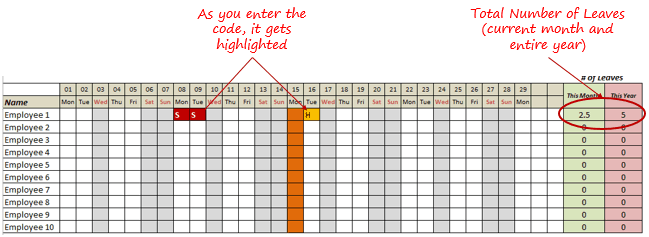
- As soon as you enter the leave code for any employee, it gets highlighted in red (in the case of half-day, it gets highlighted in yellow). If that day is a weekend or holiday, the color would not change.
- Column NJ (highlighted in green in the pic below) has the number of leaves of that employee in that month. It counts the leaves on working days only (those on weekends and/or holidays are not counted). Half-day leaves are counted as 0.5.
- UPDATED: Column NK (highlighted in light red in the pic below) has the number of annual leaves taken by an employee. It counts the leaves on working days only (those on weekends and/or holidays are not counted). Half-day leaves are counted as 0.5.
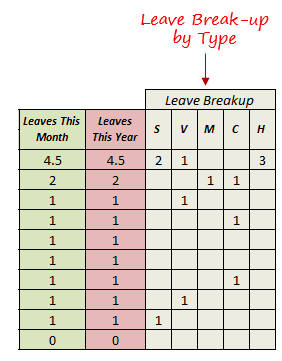
- Columns NL to NU gives the leave break-up by leave code (for the entire year). This could be helpful to keep a track of the type of leave that has been availed. Note that while Half Leaves are counted as .5 leaves in the total count, in the leave break-up, it is counted as whole numbers. For example, 2 half leaves would lead to 1 leave count, but you’ll see two half leaves in the leave breakup.
I have created this leave/attendance tracker template for 20 employees. If you want to add more, just copy-paste the formatting and formulas for additional rows.
Also, since there is a VBA code involved, make sure you always save it with .xls or .xlsm extension.
Download the Leave Tracker Template
Note: To update this template for any year, simply change the year value in cell A2. For example, to make it for 2017, just change the value in A2 to 2017. Also, you need to update the holiday list for the specified year.
The download file is completely unlocked so you can customize it to your needs.
Here is another version of the template that can track leaves for 50 employees.
Want to learn how to create awesome templates and dashboards? Check out the Excel Dashboard Course
FAQs on using this Leave Tracker Template
Since I created this vacation/leave tracker, I have been inundated with emails and comments. What you see now is a refined version that has been possible due to all the feedback that I have got.
Based on the questions I get repeatedly, I have created this FAQ section so that you can get an answer faster (instead of waiting for me to respond).
Here are the most common questions I get about the Leave tracker template:

Q: I tried downloading the file but it downloaded as a zip. How do I use it?
A: I have fixed this issue, and now you should be able to download the Excel file directly.

Q: When I change the month, the existing leaves are reflected in the changed month as well.
A: This happens when you use cell A1 to change the month. You need to use the arrow icons to change months. Cell A1 is to be used only to set the starting month of the calendar. For example, if you want the calendar to start from April, make cell A1 value 4. Now to move to March, use the triangle icons.

Q: I need to track multiple years of leaves. Do I need to create a new worksheet for each year (financial year)?
A: Yes! This leave tracker can only track leaves for a 12 month period. You need to create a copy for each year.

Q: Can I use my own leave codes?
A: Yes! You can change the leave code in cells NX8:NX17. You also need to specify the same code in cells NL5:NU5. For example, if you change the Work from Home leave code to X, you also need to change it in NR5.
I hope you find this leave/vacation tracker helpful.
Are there any other areas where you think an Excel template could be helpful? I am hungry for ideas and you are my gold mine. Do share your thoughts in the comments section 🙂
Related Excel Project Management Tutorials and Templates:

Hi Sumit, thanking you kindly for making your hard work available for everyone to use!
I need some assistance regarding protecting the sheet. I need my employees to have access to view the planner but no edit permissions. I have tried many avenues however I’m unable to make the scrollbar the only accessible function. Are you able to assist? Many thanks!!
Hi Sumit,
how to add in-lieu leave, my team sometimes work during weekend or holiday… Thanks
how to change the colour in leave code there are only showing RED colour
any know body know please let me know please
You can use conditional formatting to change the color
Please let me know clearly
Please let me know clearly
Hi,when i update as S”Sick leave” for the month Jan 4th Example of employee 1,when i change the month to febrauary also, the 4th date Sickleave will remain same in the sheet,request you to do the needful.thanks
Hello.. You need to use the scroll bar to change the month and not the value in cell A1
Hi, i’m planning to do up a firefighter leave tracker. I need to tweak the excel sheet but i’m clueless. Can i get your email to discuss with you?
Yes indeed. My email is s.thomas@betterhomehealthcarega.com.
Muhud you would need to speak directly with Sumit as I’m not familiar with the chart to that extent. I believe you posted under my question and I thought it was Sumit needing more information for my specific chart needs. Sorry!
Hi Sumit, I have been using the awesome leave tracker and I find it very useful. I’m having problem with the scroll bar. When I scroll, it didn’t go to the month I wanted, instead it scroll to the end. Is there a way to adjust the scrolling?
Hello Morni.. This happens as the file is a bit heavy. Here is the workaround. Click on the edge of the scroll bar and then remove the cursor from it. It will stop
Hello Morni.. This happens as the file is a bit heavy. Here is the workaround. Click on the edge of the scroll bar and then remove the cursor from it. It will stop
I LOVE this leave tracker and have tried to manipulate this form to track the services but can only enter 1 “letter” in a daily box.
Do you have any type of excel form whereas you can still track the services each day but are able to add 2 or 3 codes in one box and it tallys it at the end based upon each client’s needs??
For example, each client is given 100 units for Behavorial Health for either a 3, 6, 9 or 12 month period. As I enter the services daily, it will deduct from the available units till the next authorization period.
Thanks,
Hi Submit, it is great to work with your template and my compliments for this tool! Only if I try to change the holiday list, as I am from Europe, I doesn’t succeed to change it. For instance, we don’t have the holiday 4th July. When I update the holiday list, it remains in the tracker. What am I doing wrong?
Hey.. Since the holiday are in an excel table, you need to make sure you delete and replace the dates (and not delete the rows as that will delete the table as well)
HI Sumit, i want to use this for 100 employees, but i can not move the scroll bar down to add rows
To get the scroll bar down, right click on it and then drag it down. To add more employees, simply add employees and copy the formatting and formula.
To get the scroll bar down, right click on it and then drag it down. To add more employees, simply add employees and copy the formatting and formula.
Hello Sumit, great template!!! it is very useful! One question, I try to add a column to have the balance (deducting from the number of vacations they have for the year but the formula didn´t work. Could you help me with it?
Hello Liza… Try this formula: =Total Leaves-SUM(NL8:NO8)-0.5*NP8 (in cell NQ8 and copy for all the cells in NQ column).
In the formula, replace ‘Total Leaves’ with the number of total leaves in your company.
Hello Liza… Try this formula: =Total Leaves-SUM(NL8:NO8)-0.5*NP8 (in cell NQ8 and copy for all the cells in NQ column).
In the formula, replace ‘Total Leaves’ with the number of total leaves in your company.
Hi Sumit. Love this especially as you can start the year anywhere. Great for us whose holiday year doesn’t run from Jan to Dec. One thing..Feb 29th doesn’t seem to show up for 2016
Hey Russ.. Glad you liked the template. I just tried and 29 Feb is showing in the template when 2016 is selected.
Hey Russ.. Glad you liked the template. I just tried and 29 Feb is showing in the template when 2016 is selected.
For some reason the days seem to be out by 1 (Jan 1st is showing as a Saturday when in fact is was a Friday – at least for me in the UK). How would I go about changing this?
This only seems to be an issue when opening in Google Sheets (Dates are fine when opening in excel). The whole document however is not setup to work in Google Sheets.
Hello Adam.. This won’t work in Google Sheet since this uses VBA as well
Hello Adam.. This won’t work in Google Sheet since this uses VBA as well. Also, for me it’s showing Friday on Jan 1.
Hello Adam.. For me it’s showing Friday on Jan 1.
Hi, I also wanted to calculate shrinkage of the month for a team and also set a shrinkage limit. How do i do that?
Please explain.
Hello Summit! Please can you reply to my email….please please…
Is there a way to set the Year to run from June to May instead of Calendar year
Hi Aaron. I’ve just done this. Just put June and the year in the boxes on the top left and it calculates 12 months from there.
Hi Sumit.
The leave tracker is not working for me.
I have to maintain leave record of about 100 employees
As I had one column the other column will hide automatically and also the scroll bar will remain in middle of the page
Hello Shilpa.. To get the scroll bar down, right click on it and then drag it down. Also, when you insert a column, you need to make sure the formulas are intact. You can however, easily add more employees by adding more rows and copy paste the formulas and formatting.
Thank You
Hi Sumit! So far you have assisted us with a most impressive and useful excel leave sheet and I have been searching for one for months now! Thank you for this!
I have managed to figured out how to move the scroll bar in the sheet. Unfortunatley on a few occasions it has completely messed up my leave sheet wtih the error message “run time error message 1004” and I have had to start from scratch…..I have no idea how to fix it.
Please can you assist me by;
Inserting colums with NAME/SURNAME/ SITE/ EMPLOYEE #/START DATE
Vacation leave – after each month have the vacation balance (this will make it easier to see what vacation leave balance they have at that month (however still leave the total vacation days as you have it too)
Is there a way to have a column with a leave amount that the staffmember has like at end June 2016 Mr x has 8days owing to him and so continue is this manner?
I also need for the CASUAL LEAVE to be changed to CAME LATE (THIS SHOULD BE HIGHLIGHTED IN RED) BUT NO DEDUCTIONS SHOULD BE MADE
ALSO, SOME STAFF WORK ON A SUNDAY AND GET A DAY OFF (CAN YOU INSERT A COLUMN FOR “O” OFF DAY?
I also tried to update the calendar with our Holidays and it give me the run time error also.
Friday 1 January 2016 – New Years Day
Mon 21 March 2016 – Human Rights Day
Friday 25 March 2016 – Good Friday
Monday 28 March 2016 – Family Day
Wed 27 April 2016 – Freedom Day
Sunday 1 May 2016 – Workers Day
Monday 2 May 2016 – “Public Holiday”
Thursday 16 June 2016 – Youth Day
Tuesday 9 August 2016 – National Women’s Day
Sat 24 September 2016 – Heritage Day
Friday 16 December 2016 – Day of Reconciliation
Sunday 25 December 2016 – Christmas Day
Monday 26 December 2016 – Day Of Goodwill
(if you add all these dates in, then I can just update it next year without any problem)
Your assistance is much appreciated!!!!!
Hello, adding columns to the tracker will mess with the formulas. If you need to add columns, I suggest you do it to the right of the tracker area. You can mark casual leaves by simply coloring the cell and not entering anything in it. Also, to change the holidays, simply delete the data in the holidays tab and add the days you want to show up as holidays. Make sure you don’t delete the rows, only the data.
Is there a way to lounch filtering mode in the “Name” heading, I would like to filter just one employee at a time. Great template by the way.
i want to join your class if you offer any classes plz let me know e-mail sheikh_imranz@yahoo.com
super like bansal
Hi Mr. Sumit,
How can I remove half and causal day without damaging the formal in total leave for the month and year?
Also, sir, is there a way that if i type “x” into the calendar then it wont count it towards a leave? (all of my employees have a different off days, therefore I am putting an “x” for there off days. The formula thinks it’s a leave).
hi all how to mark present
Hi sir in my company alternate saturday is OFF. How is possible to change that with your template
i want to add more employees in the sheet, but the scroll bar at the bottom to change the month does not move down, hence hindering my view of additional employees. how do i move the scroll bar further down the page?
hi how do i change the year cycle from april 2016 to march 2017.?
Hi Sumit, thank you for the awesome template. Just a qns, I would like to add in AM / PM half day leave into the templates so the sheet will reflect either a half day leave taken during the AM session of the day or half day leave taken in the afternoon session of the day.
Can you guide me thru how to edit the formulas in the excel sheet? Thanks alot in advance for your reply !
Hello, is it possible to get 2 half leaves? Example – if Maternity leave is not needed can we replace by VAC Half day and still keep the other Half day as Personal Half day? I tried to copy the formula but it just links both cells. Thank you!
Hi Sumit, Thank you for this excellent tool. But I have a tricky situation. I have added two more codes W(Work from home) and F(Comp Off). I dont want these to add up to the leaves for the month or the year. However I just need a count of the number of Work from Home and the Comp offs availed separatly for audit purposes. Can you help me here? Thanks in advance- Vasanth
Hi there, I have been looking for something like this for a very long time!! thank you” will the excel sheet still work if the employee holiday year starts at different months? they do not all start on the same month.
Hi,
Sumit I love the excel leave tracker. But i need some changes in it so would u plese healp me for the same.
I want to change the colours of the Assigned leave for example consider as vacation(V) should be in dark green insted of red. And i also need the working days to split according from employee to employees as if now if we select the working days it applys to all employees so it should be split working days.Also its should show persent of absent days. Please help.
Thanks once again.
Hi, This is so close to what I am looking for and tweaked it to add more number of employees. My organization has comp offs that I would like to capture too but they need to be counted as 0 (similar to H being counted as 0.5). How do I tweak to accomodate this.
This was excellent! Thank you. Is there a way to change the colors of the time off. Sick day have own color, vacation own color etc?
Hi, Is there any way to amend the formula so sick days and maternity days do not calculate as leave but can be recorded?
Hi Sumit Bansal… i would like to modify your tracker but i have hard time understanding it.. hehehe
This is a great template! However there is a little glitch such that if i take leave on 1 Jan 2016, the same leave would appear every year for 1 Jan, please help 🙂
Hello 🙂 There is a little problem in the excel sheet. If i take sick leave on 2 Jan 2016, the same leave will appear in 2 Jan 2017 🙁 But anyway thanks for this excel sheet! It’s great!
Dear Sumit,
its a great work,
but how can i add another columns, it change the date ?
Dear Sumit,
I already key in in excel attendance but when i key in january why in february leave symbol still there
the tracker is amazing you did a great job!!!! I was wondereong if how can i change the years , I plan holidays following the uk financial year (from april to april) and need to ad 2017 months!!! will be possible show me how this can be done!!
In addition to days taken, some employees take a couple of hours here and there and I would like to be able to track those hours. How can I change it to show hours taken as well?
Another random bug I just discovered. I added a new column after Column A to allow for First Name and Last Name Columns of employees. This new column removes the first day of the first month in the calendar. Everything else seems to be fine (I did adjust the slider macro format control to leave that column from moving but that seems to be unrelated). All other cells, formulas, and conditional formatting adjust when I insert that new column except for January 1 or June 1 or whatever the first month is set at. Any ideas?
(Did I mention how much a truly LOVE this workbook! Amazing job and thank you so much for making it and sharing it! Has REALLY helped my job)
I LOVE this tracker so much. So adaptable to my needs. Thanks for making it and thanks for having it unlocked and open. I have discovered one small bug that I cannot figure out how to fix. I changed the start month to June to coincide with our fiscal year (using the dropdown menu in A1) and the the year to 2015 so it goes June 2015-May 2016. It does not account for the leap year in February of this year. But when I have it set to the calendar year of 2016 (Jan-Dec) the leap year is there. I have been able to simply type “29” in the box where it should be and everything seems to work fine, but was wondering if that is causing any unseen issues that I haven’t noticed. Thanks again for such an amazing workbook template! Amazing!
I LOVE this tracker so much. So adaptable to my needs. Thanks for making it and thanks for having it unlocked and open. I have discovered one small bug that I cannot figure out how to fix. I changed the start month to June to coincide with our fiscal year (using the dropdown menu in A1) and the the year to 2015 so it goes June 2015-May 2016. It does not account for the leap year in February of this year. But when I have it set to the calendar year of 2016 (Jan-Dec) the leap year is there. I have been able to simply type “29” in the box where it should be and everything seems to work fine, but was wondering if that is causing any unseen issues that I haven’t noticed. Thanks again for such an amazing workbook template! Amazing!
Hi Sumit. Awesome work with the tracker. You have a breakup for the year, can you please advise how can I break up the leaves taken per month the same way. Secondly, how can I assign a different colour for different leave types?
Changing the colors is super simple (I literally just did that to mine 5 mins ago). Go to Conditional Formatting > Manage Rules. Notice the rule for the Red and Yellow (those are the ones to pay attention to).For yellow (for example) it is only the half day. It looks at B8(don’t put $ in this piece) and compares that (or whatever date cell you are on) to $NT$6 (use the $ here) which is the code ‘H’ for half day listed in the small area on the top right of the worksheet listing codes. You can add more codes like this. Conditional Formatting > Manage Rules > ‘+’ > Style = ‘Classic’, Next drop down menu = ‘Use formula to determine which cells to format’. formula would look like ‘=B8=$NT$2. Custom Format – whatever color(s)/Fill(s) you want. Click OK. Change ‘Applies to’ to “‘Leave Tracker’!$B$8:$NI$25” which is the entire calendar piece. Make sure you then edit the current “Red” formula to remove the $NT$2 code in that formula (“=OR(B8=$NT$2, B8=$NT$3, etc). If you have one color for each code, you will remove that entire formula and just have one that looks like “=B8=$NT$x” for each code. Hope this isn’t too confusing.
Hi Sumit! I’m having an issue with my template, when ever I highlight a cell in March 2016 as a Half Day (H) for example, it duplicates it in the other years (March 2015), and when we erase the duplicate, the original cell highlight disappears as well. Not sure how to fix this, any ideas?
Hi, it seems problem when I edit the file and when I move the scroll bar, it show the table of mistake and say that “mircrosoft visual basic, run-time error”1004″, application defined or object defined error”” I have tried to download the file again to PC and again the same problem happened? How can I fix it? please help.
can the half days be converted to hours?
I locked A1 and A3 Cells and made it invisible so you cannot change. Now I use tracker to move between the months and it works so much better. Vacations are not copied to the other months. I could not post the new tweaked spreadsheet here unfortunately. Please help us add the department besides the employee name and then it would work like a charm. If anybody need my tweaked spreadsheet please send me an email.
Hii Chavi,
Please share your spreadsheet to alikhansiraj1@gmail.com
Please add another column for department besides employee name (Sales, Marketing etc) and allow us to Filter by department or show by all department. It will be very useful. appreciate in advance.
Hello Sir, could you please assist me with how to modify the Half Day calculation from 0.5 Day to 1 Day