

One of my teammates has the responsibility of creating a leave tracker template in Excel for the entire team. This tracker template is then used to track vacations/holidays and planned leaves of the team members.
Till now, she used a simple Gantt chart in Excel but wanted something better with more functionalities.
So, I created this Excel Leave Tracker Template to make leaves management easy and track monthly and annual leaves by her team members.
You can also use this as a vacation tracker template or student attendance tracker if you want.
Excel Leave Tracker Template
This Excel Leave Tracker template can be used to record and monitor employee leaves for a year (of a financial year where you can choose the starting month of the year).
You can track 10 different leave codes for an employee – vacation leaves, sick leaves, maternity/paternity leaves, casual leave tracking, leave in lieu of overtime, and half days, etc.
It also provides a monthly and yearly total of different types of leaves that can be helpful in project planning and leave management.
It uses a bit of conditional formatting, a few DATE functions, array formulas, and a simple VBA code.
Download the Excel Leave Tracker Template (tracking for 20 employees/people)

Looking for the Google Sheets version of this Leave Tracker Template? Click here!
How this Excel Leave Tracker Template Works?
- Use the triangle icons next to the month name to move to the next/previous month (the template updates itself to show the dates for the selected month). There is a short VBA code that runs in the background whenever you change the month. It shows you the selected month only and hides all the other months.
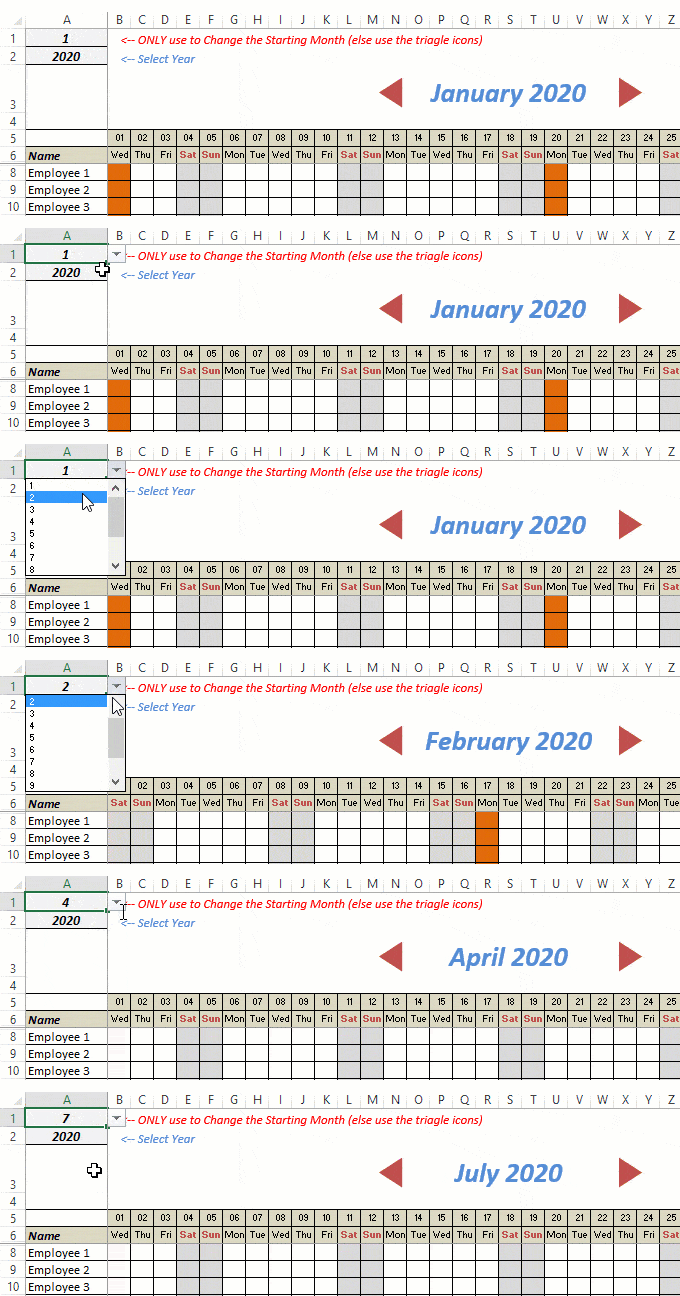
- This Excel template can be used to track leaves for over a year. You can select a start month and can track leaves for a year. For example, if you follow the April-March cycle, select April 2023 as the starting month.
- Note: The value in cell A1 is to change the time period of the leave tracker ONLY. DO NOT use Cell A1 to move to the next month while recording leaves. Use the triangle icons next to the month names to go to the next/previous month and mark leaves.

- You can specify the working days and non-working days (Weekends). At the right of the leave tracker, there is functionality to specify the working days by selecting Yes from the drop-down. If you select No, that day is marked as a non-working day in the leave tracker.
- As soon as you specify the non-working days, those weekdays get highlighted in gray color in the leave tracker.

- You can update the holiday list in the worksheet named “Holiday List”. It will automatically be reflected in the tracker by highlighting those days in Orange color.
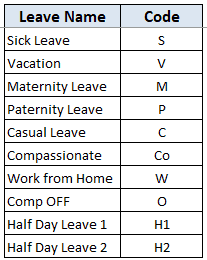
- To enter the leave record for employees, use the relevant codes based on the leave type (you can customize these leave codes). For example, in the case of sick leave, use S, in the case of Vacation, use V, as so on.
- There are two codes reserved for half-day leaves. you can enter H1 or H2 for a half-day leave.

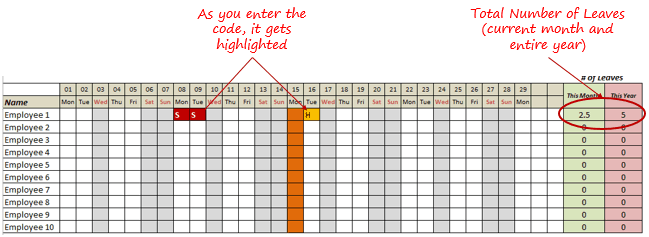
- As soon as you enter the leave code for any employee, it gets highlighted in red (in the case of half-day, it gets highlighted in yellow). If that day is a weekend or holiday, the color would not change.
- Column NJ (highlighted in green in the pic below) has the number of leaves of that employee in that month. It counts the leaves on working days only (those on weekends and/or holidays are not counted). Half-day leaves are counted as 0.5.
- UPDATED: Column NK (highlighted in light red in the pic below) has the number of annual leaves taken by an employee. It counts the leaves on working days only (those on weekends and/or holidays are not counted). Half-day leaves are counted as 0.5.
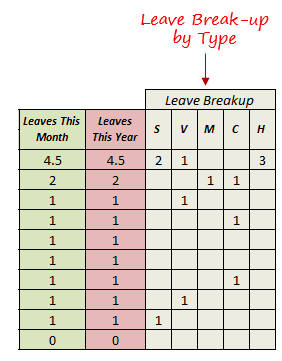
- Columns NL to NU gives the leave break-up by leave code (for the entire year). This could be helpful to keep a track of the type of leave that has been availed. Note that while Half Leaves are counted as .5 leaves in the total count, in the leave break-up, it is counted as whole numbers. For example, 2 half leaves would lead to 1 leave count, but you’ll see two half leaves in the leave breakup.
I have created this leave/attendance tracker template for 20 employees. If you want to add more, just copy-paste the formatting and formulas for additional rows.
Also, since there is a VBA code involved, make sure you always save it with .xls or .xlsm extension.
Download the Leave Tracker Template
Note: To update this template for any year, simply change the year value in cell A2. For example, to make it for 2017, just change the value in A2 to 2017. Also, you need to update the holiday list for the specified year.
The download file is completely unlocked so you can customize it to your needs.
Here is another version of the template that can track leaves for 50 employees.
Want to learn how to create awesome templates and dashboards? Check out the Excel Dashboard Course
FAQs on using this Leave Tracker Template
Since I created this vacation/leave tracker, I have been inundated with emails and comments. What you see now is a refined version that has been possible due to all the feedback that I have got.
Based on the questions I get repeatedly, I have created this FAQ section so that you can get an answer faster (instead of waiting for me to respond).
Here are the most common questions I get about the Leave tracker template:

Q: I tried downloading the file but it downloaded as a zip. How do I use it?
A: I have fixed this issue, and now you should be able to download the Excel file directly.

Q: When I change the month, the existing leaves are reflected in the changed month as well.
A: This happens when you use cell A1 to change the month. You need to use the arrow icons to change months. Cell A1 is to be used only to set the starting month of the calendar. For example, if you want the calendar to start from April, make cell A1 value 4. Now to move to March, use the triangle icons.

Q: I need to track multiple years of leaves. Do I need to create a new worksheet for each year (financial year)?
A: Yes! This leave tracker can only track leaves for a 12 month period. You need to create a copy for each year.

Q: Can I use my own leave codes?
A: Yes! You can change the leave code in cells NX8:NX17. You also need to specify the same code in cells NL5:NU5. For example, if you change the Work from Home leave code to X, you also need to change it in NR5.
I hope you find this leave/vacation tracker helpful.
Are there any other areas where you think an Excel template could be helpful? I am hungry for ideas and you are my gold mine. Do share your thoughts in the comments section 🙂
Related Excel Project Management Tutorials and Templates:

hi sumit i like your template very much but how can i change the calendar i mean i need to use Ethiopian calendar we have 13 months each contains 30 days except the last one which contains 5 days and the year is 2008 can you help me please?
Hi, i have some staff that work different hours and there leave is calculated in hours rather than days – anyone know how i can work this into the formula? Also i need to add a column next to the employee name, but when i do this the 1st day of the month disappears – can any one help?
Great piece of work by the way – works really well!
Hello Sumit,
You have the best tracker I have been able to find so far! There are a couple tweaks I have been trying to do specifically for my job and I was wondering if you could assist me? I could email you the changes I have made and what my goals are in each area that I’m having issues with. Thank for your help!
Matthew
Hello Sumit, first of all great file, im learning a lot with all your posts.
I have been playing with this file trying to make it show me the weeks per year, and also im trying to make it show me the leaves not only the total of the month but for the week. (first week this many leaves, second week this many…)
Hope you can help me and once again Thanks for sharing your knowledge.
Regards from Mexico!! Amigo.
Hi Sumit Am I doing something wrong? When I add any type of leave into a month it copies over into all the subsequent months,
Hi there, I really love this excel. Simple and beauty.
Then I’m trying to convert this excel to google spreadsheet. So me and my friend could collaborate when using it. By simply do import from excel on G spreadsheet, basic function are working well . And i love it, until I realized, the day the date are not correct. 1st Jan 2016 should be on Friday. In fact it show Sat on google spreadsheet.
Anyone could help ?
Many thanks.
– Alex
Hello Alex.. This can be converted into Google Sheets as it uses VBA. I am working on a Google Sheet leave tracker and will share it soon.
I’d love to see this tracker calculate the amount of PTO hours used (and how many hours are remaining) not just the amount of occurrences. Otherwise it’s great!
Is there any way you can upload a formula for that? I can’t seem to figure it out :o/
Hi Sumit, just awesome to track leave. Here by us sick leave must be calculated even over NON working days, the other leave types only on workings days. I can make the complete week a working week, but then my cell shading is gone making it more difficult to enter data. Please tell me where I must change the formula to include NON working days for my SICK leave count. Thanks again, Chris
Hi – thank you so much for this leave tracker.. it helped me a lot. However, I have one slight problem. Whenever I place a leave on a specific date for example on March 2016, what happens is its duplicated on all months. For example I placed an Emergency leave for March 15 2016.. all months every 15th has an Emergency leave on it. Please teach me how I can fix it. Thank You. 🙂
Hello Renee.. Please use the scroll bar to change months (and not cell A1).
Hi Admin, How can this template be used for over 100 staff of a restaurants business that has many outlets. something . This question is because you have only 10 staff on the template . kindly send a private mail if possible. seyibabatunde01@gmail.com
Hi Sumit, I need to change the value of the Casual leave to be 0.5 instead of 1. Another user mentioned he used the array formula. It would be great if you could suggest how I can change this. Loving your spreadsheet 🙂
Hello Venessa. Use this formula in cell NJ8 (and copy for all cells): =SUMPRODUCT((OFFSET($A8,0,31*($A$3-1)+1,1,31)””)*(IF(OR(OFFSET($A8,0,31*($A$3-1)+1,1,31)=$NS$6,OFFSET($A8,0,31*($A$3-1)+1,1,31)=$NS$5),0.5,1)*(OFFSET($A$4,0,31*($A$3-1)+1,1,31))))
Use this one for NK8 (and copy for all cells): =SUMPRODUCT((OFFSET($A8,0,1,1,372)””)*(IF(OR(OFFSET($A8,0,1,1,372)=$NS$6,OFFSET($A8,0,1,1,372)=$NS$5),0.5,1)*(OFFSET($A$3,0,1,1,372))))
Hi Sumit, I tried to copy and paste this formula but it’s not working.
You will need to use Control + Shift + Enter instead of just Enter.
Hi Sumit. This is amazing. However, there is a slight glitch on the sheet. Data populated on a particular month is also showing on other months. Can you help me with that please?
Hello Mirasol.. Please use the scroll bar to change the months. Don’t use cell A1 to do this.
How do you print this template?
You can print it but it may not fit into the print area. Have a look at this to set the print area: http://trumpexcel.com/2015/12/how-to-set-the-print-area-in-excel/
Hi, This is amazing and just what I’ve been looking for, but when i download, the scroll bar isn’t working, any idea on what may be wrong or how I fix it?
Hello.. When you open the workbook, it might prompt yo enable macros. You need to click on that prompt button so that macros can work.
HI,
Hi, thanks for this! however I am having trouble when entering annual leave in January it maps to all the other months. how can i stop this? … thank you
Hello Ella.. Please use the scroll bar to change the months. Don’t use cell A1 to do this.
Sumit ..this tracker is really neat. Do you have a suggestion on how to enter actual times instead of using codes? I am needing to enter leave time used in increments as small as 15 minutes up to 12 hours depending on what individual employees use on any given day. I was hoping I could modify this wonderful layout if there was a way..thank you so much
Hi, looking to add a additional sheet to the tracker called Comp Offs, I work for an AUS client so we take Australian holidays, if I work o the list of AUS holidays im eligible for a Comp Off, how do I add that to the tracker so that after I update the holiday list and it shows as orange in the tracker now if I mark as Present (P) it should showup as a comp off
Secondly need to track the comp off’s each person is eligible for and if utilized or not
Please help
Not forgetting that the tracker is awesome
Hello, I would like to delete everything but vacation. When I try, I delete all the hard work that you put into this so is there a way I can only track vacation only?
Hi Megan. I would suggest, when you type “V” into the cells the person takes their vacation, this will put in “V” for vacation – just ignore all other types of leave and do not use those codes. I need the same and that is what I am doing.
Hi, this template is super! However, I’d appreciate if you could help me out with my scenario – I’ve selected the year Jan’16-Dec’16, and updated the leave plans for my team. However, if I now change the A2 as 2017 (in order to plan for 2017 leaves starting Jan), the 2016 highlighted leave plans reflect in 2017 months, and are all messed up. I was expecting the cells to be reset as soon as I select another fiscal year! Is there a fix?
Thanks
Hello Amrit, You can use this planner only for one financial year. In you want to use it for multiple years, you need to create a copy of this, so one for 2016 and a different one for 2017.
Also, to change months, use the scroll bar and not cell A1.
Hi, to use this for more than one year, I have moved the holiday list on the year sheet and then made copies of that sheet. I then added another sheet to give me totals for all the years. But to do this you need a little bit about Formula and VBA skills
i want to add one more code for leaves but don’t want to count it in total leaves of a year.. how i can make changes?
In that case, a better way would be to apply a backgroud color to the cell. That way, it will be highlighted but not get counted.
Hello,
We want to maintain 2016 and 2017 in one excel, can you please help us
You need to create separate copies (preferably separate workbooks) for this. This leave tracker only covers one year,
hi! amazing sheet thanks a lot! how to count as well over time?
eg: my staff working on weekends or during national days, i need to count so that i replace their over time by holidays
thanks
thanks sumit …. its awesome but kindly help me all the month sheet are of same holidays after using scroll bar.also how it is possible to change holidays for a particular month.
Any way to add vacation accrual based on hire date to calculate time remaining for each employee?
I would like to change the half day value. How do I change it from 0.5 to 1?
Does anyone know if hours versus codes could be entered? Thanks
How can I copy the calender so that the vbn module works on more then one sheet in that workbook?
Hi Sumit,
This is Arikrishnan. So pleasure to get in touch with you. I need a favour from you regarding a Tracker you updated for Attendance (http://trumpexcel.com/2015/03/….
In this Tracker you have made the fields “Leave this Month (Cell NJ)”, “Leaves This Year (Cell NK)” till Cell NQ as constant and only cells allocated for every month changes.
My requirement is that, I need those aforementioned fields needs to be changed as I would like to use those fields for monthly report. Can you assist me in this !!!!
Hello.. Cell NL to NP are not constants. The value changes when you mark a leave for any month. However, these would show you the value for the entire year, and not monthly
Can the templete be altered to enter actual hours used for leave time? For instance, employees have 480 hours of FMLA, family medical leave, in a rolling calendar year. They can use in increments of 15 minutes. Would like to be able to see what they have used and how much is available. Any help would be appreciated! Thank you
hi! Sumit,
I have just downloaded the leave tracker. It looks really good but I just cant change the months.
Can you please advise.
Appreciate your help and great template.
Thanks,
Nilam
Hi – This is awesome, thanks! Could you tell me though how to modify the time off values (i.e. maternity leave – i don’t want this to show as days taken, because it doesn’t count towards their vacation, it’s protected time away). So, if I wanted to make mat leave = 0 days taken, how would I do that?
Its amazing, thanks for the same. Can you please help assist how can we move the Scroll bar down while adding more employees
ahh.. I found the answer in the comments, thanks 🙂
Hi,
Whenever I put a leave in a cell it reflects on the other months. Kindly help advise. Thanks. 🙂
Hello.. please use the scroll bar to change months and the value in cell A1
Hello.. please use the scroll bar to change months and the value in cell A1
Hi Sumit ! Thanks for this wonderful tracker, I have slightly tweaked the formulas to add the days present. these efforts wont be counted in no of leaves for the month and year https://uploads.disquscdn.com/images/156a36b1d988100d97549cbca759b81ae5f2a17d700e17e1df6d5b173ec26456.png .leaves this month:=SUMPRODUCT((OFFSET($A8,0,31*($A$3-1)+1,1,31)””)*(IF(OFFSET($A8,0,31*($A$3-1)+1,1,31)=$NS$6,0.5,1)*(IF(OFFSET($A8,0,31*($A$3-1)+1,1,31)=$NS$7,0,1)*(IF(OFFSET($A8,0,31*($A$3-1)+1,1,31)=$NS$8,0,1)*(IF(OFFSET($A8,0,31*($A$3-1)+1,1,31)=$NS$9,0,1)*(IF(OFFSET($A8,0,31*($A$3-1)+1,1,31)=$NS$10,0,1)*(OFFSET($A$4,0,31*($A$3-1)+1,1,31)))))))) leaves this year:=SUMPRODUCT((OFFSET($A8,0,1,1,372)””)*(IF(OFFSET($A8,0,1,1,372)=$NS$6,0.5,1)*(IF(OFFSET($A8,0,1,1,372)=$NS$7,0,1)*(IF(OFFSET($A8,0,1,1,372)=$NS$8,0,1)*(IF(OFFSET($A8,0,1,1,372)=$NS$9,0,1)*(IF(OFFSET($A8,0,1,1,372)=$NS$10,0,1)*(OFFSET($A$3,0,1,1,372)))))))) paste there use control +shift+enter
how could I edit .. can you send me yours
Mohamed_shaaban@outlook.com
Any answer on this question pls guide me Some of the additional “leave codes” I would like to have counted as 0.5, however, they are all being counted as 1.0. How do I change that?
SUMPRODUCT((OFFSET($A10,0,31*($A$3-1)+1,1,31)””)*(IF(OFFSET($A10,0,31*($A$3-1)+1,1,31)=$NS$6,0.5,1)*(OFFSET($A$4,0,31*($A$3-1)+1,1,31)))) here =$NS$6,0.5,1 similarly i want =$NS$5 also counted to be 0.5 thanks!
Thx for this great spreadsheet. Can I ask for a version where You can also add two columns on the right from the employee which would include number of the employee group and current shifht. I need those informations to quickly manage shifts in the company. Those 3 columns wolud have to be visible all the time.
Pls right me back.
Hello Lukas.. You can add new columns to the right of the tracker (column NT onwards). That would keep the tracker intact and also have the columns visible at all time
Hello Lukas.. You can add new columns to the right of the tracker (column NT onwards). That would keep the tracker intact and also have the columns visible at all time
Hi sumit
i need to add columns to the left, please help
Hi Sumit,
I have figured out what I was doing wrong! I had the right formula but missed that the formula was an Array Formula so consequently I was getting the #VALUE! when I spotted the { } brackets at the start and end of the formula I did some research which suggested after entering the additional information I use the key combination
CTRL-SHIFT-ENTER rather than just Enter and it worked!
Now have the spreadsheet working perfectly with 3 options for half-days and an additional column noting the lateness.
Patrick
Great! Since there are so many variables, array formulas were the way to go. and they need Control + Shift + Enter
Thanks again!!
Savvy piece , Apropos , others need a HI DoT BB-1 , my colleagues filled out a blank document here http://goo.gl/MFT7jpCan we use 1 tab for 2016 and 1 for 2017 in the same file with 1 tab for combined holidays?
You can create a copy of this tracker and keep in the same workbook.
I tried copying the sheet and changing the year to have 2 leave sheets in one workbook. I received a VBA debug error. Any help would be much appreciated. Love this leave sheet.
You can create a copy of this tracker and keep in the same workbook.
Can we use 1 tab for 2016 and 1 for 2017?
Excuse me, how can I remove the Half day cell. I do not want two half day to change to one day leave. How can i Change it , please?
You want to remove the half day leave? You can use other codes except H which is for half leave.
Hi, I’ve recently start using this great spreadsheet as it really fulfills all my needs but unfortunately I’m not as good expert of excel as this sheet. So, would like to know few things:
– How I can customize/add/remove the leave codes
– How can I update new code on leave break up section
Hello Shujat.. The tracker is a bit complicated so to add new codes, you will need to modify the formulas and make sure new codes are part of it. Alternatively, you can create a copy of the tracker and split the codes
Hello Shujat.. The tracker is a bit complicated so to add new codes, you will need to modify the formulas and make sure new codes are part of it. Alternatively, you can create a copy of the tracker and split the codes
Is there anyway to know the VBA Code that runs in the back to keep the month changing?
Activate the worksheet and press Alt + F11. The only thing that VBA does in this is hide columns when you use the scrollbar
Activate the worksheet and press Alt + F11. The only thing that VBA does in this is hide columns when you use the scrollbar
Hi Sumit,
I am not sure where my last post went but we actually need 3 1/2 day options and to increase the Leave tracker to 6 categories rather than 5. I have managed to add the sixth category but cannot seem to get the other two 1/2 day formulas to work I keep getting #VALUE! error. Please can you help. For the record, our 1/2 day options are Half day holiday (HH), Half day sick (HS) and Half day other (HO).
Thank you in advance,
Patrick
Hi Patrick! I am having the same issue as you! I need to change to change one of the leave options to account for a half day holiday! Would be awesome if you could share how you got around this! Thanks!
Hi Vanessa, Are you adding an extra row/ column or just amending one of the formulas?
I had to add to add an extra row so firstly make sure you only move the rows directly below where you insert the formula so that the main spreadsheet is kept in its format. I copied one of the leave codes and then “Inserted Copied Cells” shifting the others down and changed the letters to the Code I wanted i.e. HS
When you add the extra column, Copy the whole cell range and again insert the copied cells, this will shift the whole lot to the right then again change the code to match the one you want.
Once you have completed the first two actions, you will then need to amend the formulas in the first cell you want to change, make the relevant changes directly into the cell then before exiting the line use the key combination
CTRL-SHIFT-ENTER (This is because the formula is an Array formula)
This will then save the amended formula for you. Once you have done this once, you can copy the cell and paste and this should work fine.
I hope this helps, let me know if I can help any more, good luck,
Patrick
Hi Patrick, thanks a bunch for your help. However, I need to change value of C to equal a half day instead of 1 full day. I don’t understand how to change the formula let alone find it. Any help or guidance would be greatly appreciated! Thank you again for being so kind!
Hi Vanessa,
It is a bit complex but I think I can put something together to show you how to change C to show a 1/2 day. I am training staff today but will try to get an answer to you tomorrow.
In the meantime, please can you let me know which cell the letter “C” sits in i.e. NP4 etc
Thanks,
Patrick
Hi Vanessa,
Just wondering if you could let me know which Cell the letter C sits in on your spreadsheet.
Thanks,
Patrick
Hi Patrick,
I managed to edit the formula and it worked! Thanks again for your help though!
Do you happen to know how to create one for 2017? Do we change the dates and holidays manually?
Thanks,
Vanessa
Hi Vanessa,
I am delighted that you have managed to make the changes!!! All you need to do is amend the Year on the spreadsheet to 2017 and it will do the rest for you. What we have done here is to copy the sheet and change the date and save it as 2017.
I hope this helps best regards,
Patrick
I also need to know how to change the formula to include 6 half day options. I have them changed on the right but they dont figure in as half. I understand the crtl, shift etc but where do I put that in the formula? The formula shows as
=SUMPRODUCT((OFFSET($A8,0,31*($A$3-1)+1,1,31)””)*(IF(OFFSET($A8,0,31*($A$3-1)+1,1,31)=$NS$6,0.5,1)*(OFFSET($A$4,0,31*($A$3-1)+1,1,31))))
I know I the NS is no longer correct and should be OS but when I add the range it adds them to the total even without any entries being made
Hello Kary,
As you will see I have had to put in a new set of formula for each separate half day that I had to record.
=SUMPRODUCT((OFFSET($A70,0,1,1,372)””)*(IF(OFFSET($A70,0,1,1,372)=$OG$8,0.5,1)*(IF(OFFSET($A70,0,1,1,372)=$OG$5,0.5,1)*(IF(OFFSET($A70,0,1,1,372)=$OG$9,0,1)*(IF(OFFSET($A70,0,1,1,372)=$OG$3,0.5,1)*(OFFSET($A$3,0,1,1,372)))))))
Before I did this, I had to create the half day holiday reference cells so I added to the existing table pushing the Days of the week table down. (I hope this makes sense where you have “NS$6” I changed mine to “OG$” then the cell number this is because I moved the cells to the right when I created the extra columns to show the half days under the “Annual Leave Breakup” columns (I simply copied the Holiday Column, pasted copied cells, shifting to the right and renamed the column).
I hope this helps,
Patrick
Yes this does make sense. I’m pretty good at excel but this one was beating me. I could get it to show .5 but then nothing else I entered for that month would add in the monthly total, just the yearly total. Thank you
I hope that it is now working, I must admit it took me a few goes…. 🙂
Hi Vanessa,
So sorry for my slow reply. I just copied the spreadsheet then amended the year to 2017 and it did the rest.
Patrick
how to edit the formula & add some category of leave… I’ve been trying this for 2 days now, but everytime i change the formula even for the row number it shows error.
Hi Casper,
You can make the changes as normal but as the formula is an Array formula you have to shut it down differently, you cannot just select ENTER you have to use the key combination CTRL-SHIFT-ENTER – here is a link with more detail, which helped me:
http://www.excelforum.com/excel-formulas-and-functions/553799-what-do-brackets-mean-when-they-encompass-a-function.html
Hope this helps, let me know if you want to know how I added in the additional codes etc
Patrick
how can i add for the category or kinds of leave , we have halfday for sickleave and halfday for sickleave? how will i add it to the formula. thanks
Hi sumit
Your leave tracker is very nice.thanks.i have modified the leave tracker to include onshore and offshore and hence have created two list in holidays.its working fine except the sum section in column NJ.I am just replacing the holiday list in formula with my one but its not working.its showing 1 only.also i am not able to understand the logic also.can you please help.
HI Sumit,
Please help me with tab-wise employee sheet instead of month-wise view,
This will help to see annual details of a single employee on one sheet.
Can you please upload anything like that?
Hello.. The tracker is made to have all employees in a single sheet. Currently I don’t have anything that shows each employee detail in a separate tab
Hello.. The tracker is made to have all employees in a single sheet. Currently I don’t have anything that shows each employee detail in a separate tab
Hi this looks superb,
i would like to have employee wise tabs instead of month wise,
so one sheet will have annual details for one employee.
With months on the place of employee names and the heading will be the name of employee.
Please hep