

One of my teammates has the responsibility of creating a leave tracker template in Excel for the entire team. This tracker template is then used to track vacations/holidays and planned leaves of the team members.
Till now, she used a simple Gantt chart in Excel but wanted something better with more functionalities.
So, I created this Excel Leave Tracker Template to make leaves management easy and track monthly and annual leaves by her team members.
You can also use this as a vacation tracker template or student attendance tracker if you want.
Excel Leave Tracker Template
This Excel Leave Tracker template can be used to record and monitor employee leaves for a year (of a financial year where you can choose the starting month of the year).
You can track 10 different leave codes for an employee – vacation leaves, sick leaves, maternity/paternity leaves, casual leave tracking, leave in lieu of overtime, and half days, etc.
It also provides a monthly and yearly total of different types of leaves that can be helpful in project planning and leave management.
It uses a bit of conditional formatting, a few DATE functions, array formulas, and a simple VBA code.
Download the Excel Leave Tracker Template (tracking for 20 employees/people)

Looking for the Google Sheets version of this Leave Tracker Template? Click here!
How this Excel Leave Tracker Template Works?
- Use the triangle icons next to the month name to move to the next/previous month (the template updates itself to show the dates for the selected month). There is a short VBA code that runs in the background whenever you change the month. It shows you the selected month only and hides all the other months.
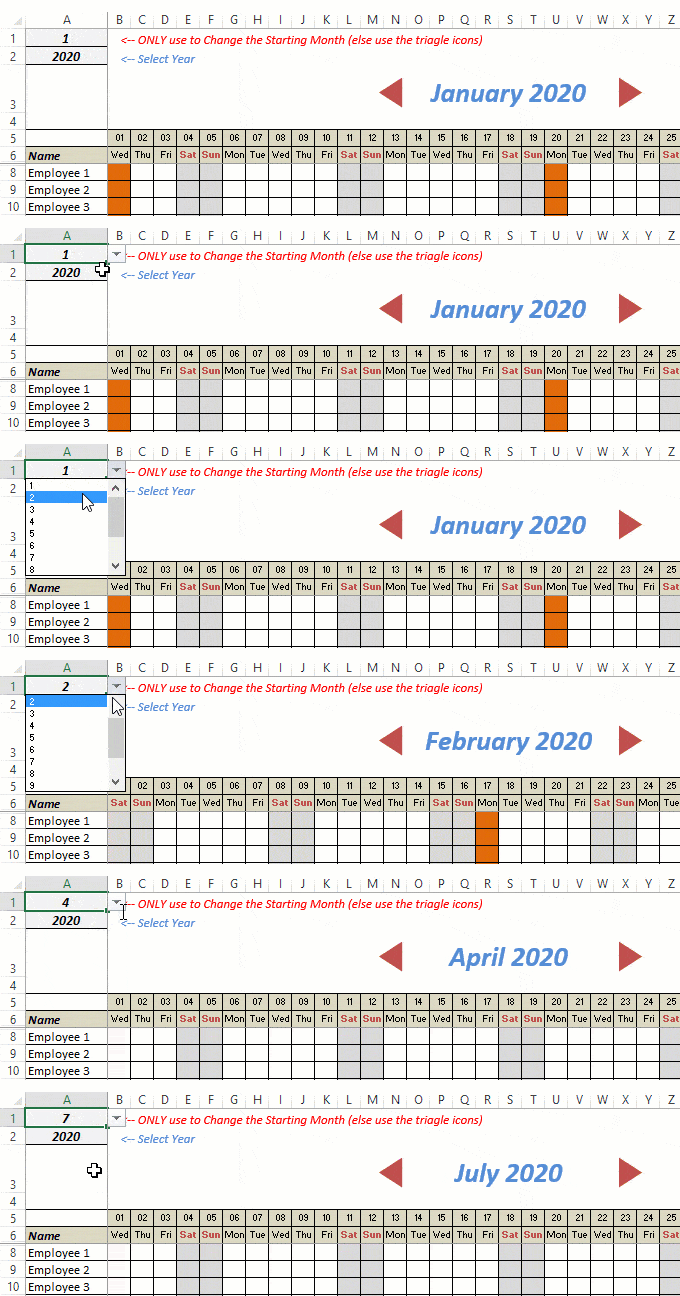
- This Excel template can be used to track leaves for over a year. You can select a start month and can track leaves for a year. For example, if you follow the April-March cycle, select April 2023 as the starting month.
- Note: The value in cell A1 is to change the time period of the leave tracker ONLY. DO NOT use Cell A1 to move to the next month while recording leaves. Use the triangle icons next to the month names to go to the next/previous month and mark leaves.

- You can specify the working days and non-working days (Weekends). At the right of the leave tracker, there is functionality to specify the working days by selecting Yes from the drop-down. If you select No, that day is marked as a non-working day in the leave tracker.
- As soon as you specify the non-working days, those weekdays get highlighted in gray color in the leave tracker.

- You can update the holiday list in the worksheet named “Holiday List”. It will automatically be reflected in the tracker by highlighting those days in Orange color.
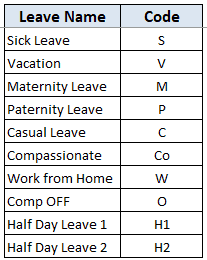
- To enter the leave record for employees, use the relevant codes based on the leave type (you can customize these leave codes). For example, in the case of sick leave, use S, in the case of Vacation, use V, as so on.
- There are two codes reserved for half-day leaves. you can enter H1 or H2 for a half-day leave.

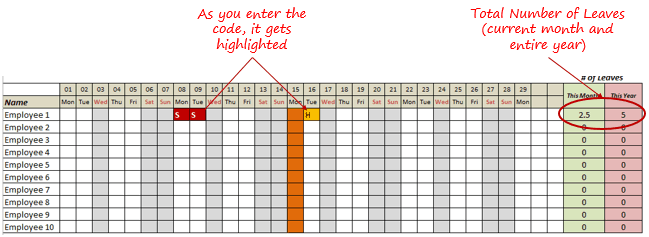
- As soon as you enter the leave code for any employee, it gets highlighted in red (in the case of half-day, it gets highlighted in yellow). If that day is a weekend or holiday, the color would not change.
- Column NJ (highlighted in green in the pic below) has the number of leaves of that employee in that month. It counts the leaves on working days only (those on weekends and/or holidays are not counted). Half-day leaves are counted as 0.5.
- UPDATED: Column NK (highlighted in light red in the pic below) has the number of annual leaves taken by an employee. It counts the leaves on working days only (those on weekends and/or holidays are not counted). Half-day leaves are counted as 0.5.
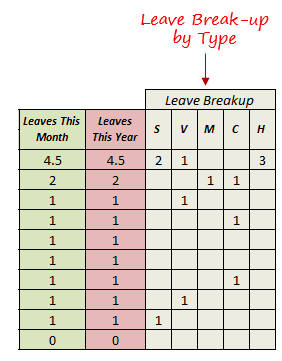
- Columns NL to NU gives the leave break-up by leave code (for the entire year). This could be helpful to keep a track of the type of leave that has been availed. Note that while Half Leaves are counted as .5 leaves in the total count, in the leave break-up, it is counted as whole numbers. For example, 2 half leaves would lead to 1 leave count, but you’ll see two half leaves in the leave breakup.
I have created this leave/attendance tracker template for 20 employees. If you want to add more, just copy-paste the formatting and formulas for additional rows.
Also, since there is a VBA code involved, make sure you always save it with .xls or .xlsm extension.
Download the Leave Tracker Template
Note: To update this template for any year, simply change the year value in cell A2. For example, to make it for 2017, just change the value in A2 to 2017. Also, you need to update the holiday list for the specified year.
The download file is completely unlocked so you can customize it to your needs.
Here is another version of the template that can track leaves for 50 employees.
Want to learn how to create awesome templates and dashboards? Check out the Excel Dashboard Course
FAQs on using this Leave Tracker Template
Since I created this vacation/leave tracker, I have been inundated with emails and comments. What you see now is a refined version that has been possible due to all the feedback that I have got.
Based on the questions I get repeatedly, I have created this FAQ section so that you can get an answer faster (instead of waiting for me to respond).
Here are the most common questions I get about the Leave tracker template:

Q: I tried downloading the file but it downloaded as a zip. How do I use it?
A: I have fixed this issue, and now you should be able to download the Excel file directly.

Q: When I change the month, the existing leaves are reflected in the changed month as well.
A: This happens when you use cell A1 to change the month. You need to use the arrow icons to change months. Cell A1 is to be used only to set the starting month of the calendar. For example, if you want the calendar to start from April, make cell A1 value 4. Now to move to March, use the triangle icons.

Q: I need to track multiple years of leaves. Do I need to create a new worksheet for each year (financial year)?
A: Yes! This leave tracker can only track leaves for a 12 month period. You need to create a copy for each year.

Q: Can I use my own leave codes?
A: Yes! You can change the leave code in cells NX8:NX17. You also need to specify the same code in cells NL5:NU5. For example, if you change the Work from Home leave code to X, you also need to change it in NR5.
I hope you find this leave/vacation tracker helpful.
Are there any other areas where you think an Excel template could be helpful? I am hungry for ideas and you are my gold mine. Do share your thoughts in the comments section 🙂
Related Excel Project Management Tutorials and Templates:

Hi! The leave tracker is extremely helpful. Just a small question. I want to upload it as Google Spreadsheet and share it with the management. However, when I upload it, the scroll bar doesnt show in Google Spreadsheet. Any suggestions on how to do it? Thanks.
Same problem here 🙂 As per Sumit, he’s currently working on another file for Google Spreadsheet
Hi Sumit,
Would it be possible to amend the tracker so it was date specific, eg if a worker started working on the 20th of the month, the tracker would then show 12 months based on the 20th being the first day of the month?
What a beautiful spreadsheet. Is there perhaps a video on how to start it from scratch?
Great template, one question/problem:
– if I modify the formula in NJ8 (trying to change the 0.5 to 1 so that all leave types will be counted as a full day) then I end up with a #VALUE error in the cell, not sure how to fix this
I am also trying to do this. Did you find out how to make all leave types count as full days?
Hello There,
The leave tracker one of the best..!Love the Tool..!
One que i am not able to find same format and formula in next month Exp-if i scroll jan to Feb found the that the micro may not be available in this workbook or all macros may be disable..can you suggest me for the same
thanks.
Hi there.
Love the tool – so useful!!!!!
Are you aware of a way that will stack 3 months at a time and show the month prior and after the selected month? So a manager can see 3 months of planned leave at a time?
I have thought about linking multiple macros but I did find it difficult and kept getting errors.
For example, if we have 3 employees and instead of viewing 3 months horizontally, we want to see vertically. Using what we would like to see for feb as an example I have listed it below…
January 1 2 3 4 5 6 7 8 9 10 11 12 etc
Employee 1
Employee 2
Employee 3
Feb 1 2 3 4 5 6 7 8 9 10 11 12 etc
Employee 1
Employee 2
Employee 3
March 1 2 3 4 5 6 7 8 9 10 11 12 etc
Employee 1
Employee 2
Employee 3
Hello Matthew.. That would have to be a completely new tracker.. Stacking these months would mean a complete overhaul of formula and VBA
This is excellent! Thank you for the tracker but i have one doubt if i enter SL on Jan 5th its taking automatically next month also ???
Hello Vinoth, You need to use the scroll bar to change the months, and not cell A1
This is excellent! Thank you for the tracker. I’m customizing it for my team, however I’m having trouble adding more employees. Need help. I tried copy-pasting the formula to add more members but the scroll bar is overlapping.
Hello Ashwini, Right-click on the scroll bar and then you can move it.
Hi Sumit, where can I input a staff’s leave entitlement for the year?
Hello Jan, you can put these at the end of the tracker. Next to the leave count
Sumit, you have made my life easier creating this. I love it. I am having difficulty tweaking it just a little, I’d like to know if you can help. I want to add 3 columns after the name column, to enter the employees hire date/accrual time/ days left. I’ve been trying, but all the formulas get mixed up one way or another. I’m still a beginner so I have no idea what I’m doing (clearly).
Hello Leslie.. You can insert details about the employees after the tracker ends (from column NQ onward). That ways it will not mess with the formulas and VBA
Hi Sumit!
Thanks so much! It worked perfectly. Really appreciate you sharing 🙂
This is AMAZING! I can not wait to use this for a portion of our company. Your making me look good Sumit.
I was wondering, could i get your email or a way to reach out regarding how we do the remaining of our employees to see if you could help. We track our staff (no managers) by hours. IS there anyway to do that with this excel sheet? Really look forward to hearing from you
Hello Shannon. Glad you found the template useful. You can reach out to me at sumitbansal@trumpexcel.com
Shannon, did Sumit ever solve this issue for you? We have the same request.
the scroll bar simply skips few months
It happens if you have a slow system or too many applications open. To handle this, click on the tip of the scroll bar and then move away the cursor.
Hey thanks for the reply. Appreciate it.
Once we move to next month, then the leaves tracked for previous month are reflecting. This makes it unusable.
Please help.
Use the scroll bar to change months, and not cell A1
When I save to google drive the scroll bar disappears (all the other functions appear available). How do I create/copy the scroll bar?
Hey Jenene.. You can’t save this is Google Sheets as it does not have a scroll bar feature and does not use VBA. I am working on creating a leave tracker in Google Sheets. Will share soon.
This looks great but the month changer scroll bar either moves one month or scrolls all the way to the end of the year?
Hey Jonathan.. It happens if you have a slow system or too many applications open. To handle this, click on the tip of the scroll bar and then move away the cursor. Hope this helps!
awesome! Thank you Sumit!
Thanks for commenting Jan.. Glad you liked it!
Hi,
I tried to mark Feb 7, 2016 as VL for 2016, but when I changed the year to 2017, Feb 7, 2017 was automatically VL. Do we have fix to delete the entries for another year if you moved to the next year?
Also, what if I want to add a “Half Day SL” in the leave breakup? How to do this one?
Hello Paul.. This tracker works for one financial year only. So If you want to have one for multiple years, you need to create a copy of the workbook. There is already a Half Day leave in the tracker (use the code H)
Its a very very useful tracker..kudos… however , it doens’t allow for designations, locations, DOJ etc. to be added
Hello Rachna.. You can add these additional details at the end of the tracker in the same row. That ways it wouldn’t break the tracker but still allow you to have the details
Thank you for this wonderful tracker! It is very useful. I would like to track the “Leave this Year” for the period 1 July 2016 to 30 June 2017 (instead of the calendar year.) Can you please advise how I can do this?
Hello Angie.. You can do that by selecting 7 from the drop down in cell A1.
CAN U UNDERSTAND ME DEEP TO ATTENDANCE SHEET OF EMPLOYEE
how to add coverage: if any one is on leave some one is assigned to cover. How to add name of person covering to cell where type of leave entered
The easy way would be to add the name in the same row after the tracker ends.
When using the spreadsheet the leave calculator only show formulas but no numbers/
the formula you entered in NJ AND NK DOES NOT COUNT THE LEAVES PROPERLY. CRATEFUL IF YOU COULS SEE TO THE MATTER. THANKS
Hi! May I know how would I be able to change the value of casual leave to 0.5? Thanks!!!
Hi Sumit. I need to add 2 columns to the right of Name and before the first date. but when I do it shifts the days. How can I add a column for Employee ID and DoH?
Hello Fran.. while the tracker breaks if you try and insert columns, it would work fine if you have these details in column NT or to the right of it.
Hi sir thanks alots for this helpful sheet that’s what I’m looking for from long time but really you would help me to add some colume after the name if you can share the sheet with extra colume after the name coz ineed around 7 colume to add all staff details
Hi Sumit. Excellent work. I really like the excel leave planner. However I have to include weekends as well in the leave breakup columns. Right now it gives the leave count for week days only but if we need to consider weekends as well, then the leave breakup column is not considering the weekends days.
In the select working days options, just make all the days as working days (select yes for all)
Fantastic spreadsheet, thanks. I need to add more rows for employees but the scroll bar stays in the same place. If I move it it doesn’t work properly. How can I do this?
Denise
Dear Sir, how to add more types in leave breakup and also to add present column which counts the present number for everymonth or entire year.
do you have tracker for 2017
hi how do you add no of employees to the tracker
Hi, thanks for an awesome spreadsheet.
1. How do I add more leave options – I want to add a leave option for “unpaid leave” and a few others.
Hi Sumit. The leave planner is fantastic. Quick question though, I need to add in TOIL in half days. I’ve tried copying and pasting the half day formula but it doesn’t work. Please could you tell me how I can add another leave type that counts half days.
Thank you for the great template you created.
I am looking to create a copy of the “leave tracker” sheet, within the same workbook so that I can track year 1, year 2 etc. all in one document rather than creating a new one for each year.
The only block I can see to this is the VB logic to show the calendar. As soon as I copy the sheet and start moving the scrolling bar the VB crashes to debug. Any idea on how to fix this. I expect it would be changing the VB logic / macro to apply to a sheet rather than workbook but cannot work it out.
Hi Sumit, this is really helpful however when i am trying to add more rows the scroll bar is reflecting in between, i try to hide but it is not working can u help
ALSO IF I UPDATE ONE MONTH THEN IT REFLECTS IN OTHER MONTH TOO
To change month, don’t use cell A1. Use Scroll bar only
Hello Nivedita.. Right click on the scroll bar and drag it wherever you want it!
Hi Sumit…
I downloaded your excellent Leave Tracker and I’ve added some other functionality to it. Great spreadsheet – love the slider changing to the relevant month. I’ve since added 4 sheets to it showing an Individual Calendar (showing all annual absences of all types), a group summary and a Management summary dashboard along with a Master data spreadsheet controlling some new functionality. Couldn’t have done it with your starting sheet though.
As an idea for a future spreadsheet what about and ‘Issues / Risk Log Tracker’. This should ideally include the following:
The same log should be able to track Issues or Risks.
Each record must include
‘Unique Reference’ e.g. I-001 or R-001,
‘Raised By’ (Creator Name)
‘Date Logged’,
‘Issue Name’ (or ‘Customer Name’),
‘Description of Issue / Risk’ field (free text),
‘Current Owner’ (Owner name)
‘Priority’ (High, Medium, Low),
‘Age’ field (Age of issue in days)
‘Last Updated on’ (Date / Time field – flagged and highlighted if not updated in X days),
‘Status’ (Open, Closed, On Hold (with a triggered ‘Off Hold’ date),
an associated ‘Audit’ record and, most importantly… Each record must be able to accommodate multiple Actions with each Action having a Time / Date stamp.
A Log Dashboard would be useful e.g. X Records over Y days, XX Records over YY days, had XX records open, etc., etc.
There are lots of Templates out there but all a little basic and importantly they don’t accommodate multiple actions (most Issues / rRsks are resolved with a series of actions which need to be recorded and tracked). The ability to produce a formatted history / report for an individual record would be nice – especially if it can be emailed to the person / persons responsible for the next action.
What do you think? I developed a spreadsheet that does all the above but it is a little clumsy and probably not that efficient – I’m sure it can be improved on.
Hey Sumit, love the holiday tracker. I created a similar one, also free to download, check it out here http://www.excel-macros.co.uk/free-excel-tool-for-recording-and-tracking-employee-vacations/
Hi, I have 2 questions as below:
1)0.5day can be sick leave, annual leave or unpaid leave. How can I do to count this particular 0.5day at the respective breakup column as 0.5 instead of counting as 1?
2)Some employee are 5 working day, some is 6 working day and some is 5.5 day within departments. Can I record altogether in this template?
hii.. first thanks for your amazing template.
when i add a column before the name column. the january shows only 30 days while it should be 31 days. i tried adding an extra column but when i scroll to the february and came back it is again 30 days. what should I do?
need to ask how could I make H code for day off full day not half day
Hello, Is there a possibility to add the holidays too during vacation?
Hi Sumit, I am trying to scroll through to the next month but it keeps jumping all the way to the last month.. the scroll bar moves automatically even when I click just once on the forward arrow, all the way to the last month. I am using Microsoft Excel 2016.
Exactly what I was looking for! I want to modify the name of the leave types and have a different color for each one. Is there a simple way to do this?
I also would like to modify the names of the leave types?? I am NOT familiar with Excel formulas and would greatly appreciate step by step instructions, especially for changing the colors. Thanks!
Further to my post below, Sumit, One more question, Sometimes a staff may work on a weekend. Normally this is added back on from the leave days (effectively increasing the eligible leave days by one). How would that be done?
Hi Sumit, Just downloaded the template and am trying to learn to work it. So far it seems like it will make life a lot easier for me. Maybe an extra day or two of vacations for me. On question though, our staff all have different working years and not necessarily 1st Jan to 31st Dec. How would that account for in this system?
Hi Sumit – great chart. I’ve been looking for something like this for a while. You say we can add more employees by copying and pasting additional rows – and that works well. However, I need to print the chart so staff know who is on leave when – we have 150 staff and only a certain number can be off at any time 🙂 When I add more rows, the scroll bar for the months is also printed. I tried moving it – but somehow that interferes with the VBA code and I have no idea how to alter that. Can you assist and/or tell me what I need to do to make this alteration. Generally there would only be 40 staff listed on one chart as I have created a different worksheet for each category of staff. Thanks again.
Hi Sumit
I think I found the answer. I had copied the worksheet so I could have different categories on staff on separate worksheets in the one workbook. That created a bug in the VBA code somehow – which was why I couldn’t move the scroll bar. Is there a way to duplicate the worksheet so I can have four categories of staff on different worksheets in the one workbook? I don’t really want to have to save it as four separate files. Will be a little tedious for the staff inputting the data if I do that?
The question about the highlighting the cells without the “V” showing in the cell is still relevant if you can answer that as well please. Thanks
Sue
Hi Sumit, how do we change the color for those holidays that fall on a weekend (Sat/ Sun) to the ORANGE highlight.
Wow!! It’s exactly what I was looking for. Thank you.
Hello! I would like to ask why every time i am adding columns, the 1-31 dates is changing. when i add one column, the date one number will be removed, and so on. How can i add columns without changing the dates? Please help! Thanks ahead 🙂
hi, with the newest version available, how do add more employees? at least 40 for example, but with the version that we can edit the working days and sums up the whole year leaves too.? @sumitbansal23:disqus
Hi Sumit,
You are god sent! The excel is god’s gift!
However, i have added 2 more leave codes and how do i color code them using conditional formatting?
Thanks! Ivy
Can someone please tell me how you add Bank Holidays into the spreadsheet?
If you look on the second tab on the workbook, the US bank holidays are all listed, just change the date and the description and it automatically updates on the main spreadsheet 🙂