

One of my teammates has the responsibility of creating a leave tracker template in Excel for the entire team. This tracker template is then used to track vacations/holidays and planned leaves of the team members.
Till now, she used a simple Gantt chart in Excel but wanted something better with more functionalities.
So, I created this Excel Leave Tracker Template to make leaves management easy and track monthly and annual leaves by her team members.
You can also use this as a vacation tracker template or student attendance tracker if you want.
Excel Leave Tracker Template
This Excel Leave Tracker template can be used to record and monitor employee leaves for a year (of a financial year where you can choose the starting month of the year).
You can track 10 different leave codes for an employee – vacation leaves, sick leaves, maternity/paternity leaves, casual leave tracking, leave in lieu of overtime, and half days, etc.
It also provides a monthly and yearly total of different types of leaves that can be helpful in project planning and leave management.
It uses a bit of conditional formatting, a few DATE functions, array formulas, and a simple VBA code.
Download the Excel Leave Tracker Template (tracking for 20 employees/people)

Looking for the Google Sheets version of this Leave Tracker Template? Click here!
How this Excel Leave Tracker Template Works?
- Use the triangle icons next to the month name to move to the next/previous month (the template updates itself to show the dates for the selected month). There is a short VBA code that runs in the background whenever you change the month. It shows you the selected month only and hides all the other months.
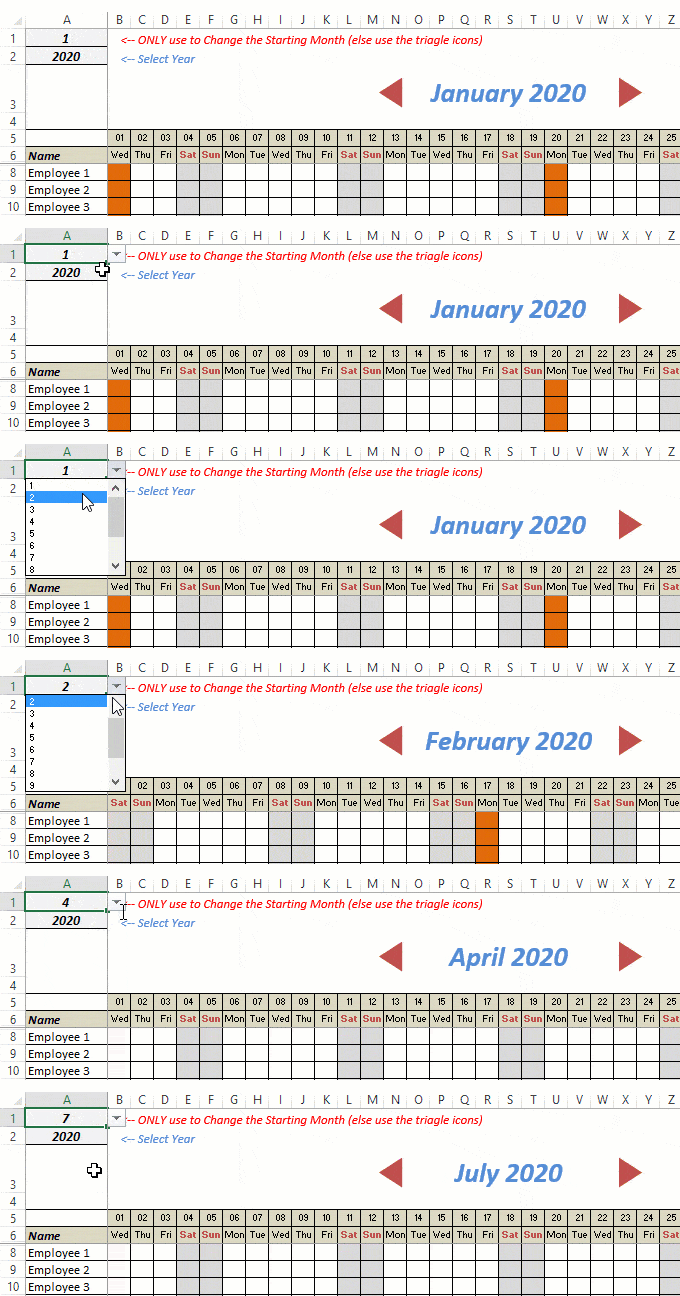
- This Excel template can be used to track leaves for over a year. You can select a start month and can track leaves for a year. For example, if you follow the April-March cycle, select April 2023 as the starting month.
- Note: The value in cell A1 is to change the time period of the leave tracker ONLY. DO NOT use Cell A1 to move to the next month while recording leaves. Use the triangle icons next to the month names to go to the next/previous month and mark leaves.

- You can specify the working days and non-working days (Weekends). At the right of the leave tracker, there is functionality to specify the working days by selecting Yes from the drop-down. If you select No, that day is marked as a non-working day in the leave tracker.
- As soon as you specify the non-working days, those weekdays get highlighted in gray color in the leave tracker.

- You can update the holiday list in the worksheet named “Holiday List”. It will automatically be reflected in the tracker by highlighting those days in Orange color.
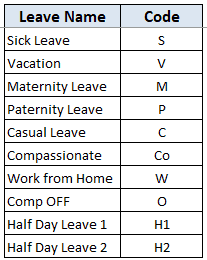
- To enter the leave record for employees, use the relevant codes based on the leave type (you can customize these leave codes). For example, in the case of sick leave, use S, in the case of Vacation, use V, as so on.
- There are two codes reserved for half-day leaves. you can enter H1 or H2 for a half-day leave.

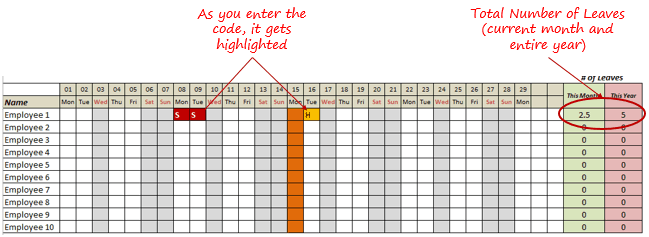
- As soon as you enter the leave code for any employee, it gets highlighted in red (in the case of half-day, it gets highlighted in yellow). If that day is a weekend or holiday, the color would not change.
- Column NJ (highlighted in green in the pic below) has the number of leaves of that employee in that month. It counts the leaves on working days only (those on weekends and/or holidays are not counted). Half-day leaves are counted as 0.5.
- UPDATED: Column NK (highlighted in light red in the pic below) has the number of annual leaves taken by an employee. It counts the leaves on working days only (those on weekends and/or holidays are not counted). Half-day leaves are counted as 0.5.
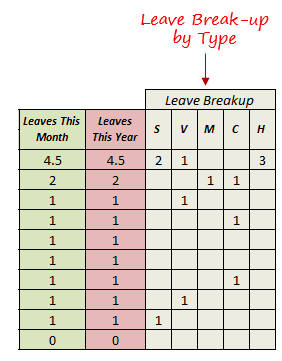
- Columns NL to NU gives the leave break-up by leave code (for the entire year). This could be helpful to keep a track of the type of leave that has been availed. Note that while Half Leaves are counted as .5 leaves in the total count, in the leave break-up, it is counted as whole numbers. For example, 2 half leaves would lead to 1 leave count, but you’ll see two half leaves in the leave breakup.
I have created this leave/attendance tracker template for 20 employees. If you want to add more, just copy-paste the formatting and formulas for additional rows.
Also, since there is a VBA code involved, make sure you always save it with .xls or .xlsm extension.
Download the Leave Tracker Template
Note: To update this template for any year, simply change the year value in cell A2. For example, to make it for 2017, just change the value in A2 to 2017. Also, you need to update the holiday list for the specified year.
The download file is completely unlocked so you can customize it to your needs.
Here is another version of the template that can track leaves for 50 employees.
Want to learn how to create awesome templates and dashboards? Check out the Excel Dashboard Course
FAQs on using this Leave Tracker Template
Since I created this vacation/leave tracker, I have been inundated with emails and comments. What you see now is a refined version that has been possible due to all the feedback that I have got.
Based on the questions I get repeatedly, I have created this FAQ section so that you can get an answer faster (instead of waiting for me to respond).
Here are the most common questions I get about the Leave tracker template:

Q: I tried downloading the file but it downloaded as a zip. How do I use it?
A: I have fixed this issue, and now you should be able to download the Excel file directly.

Q: When I change the month, the existing leaves are reflected in the changed month as well.
A: This happens when you use cell A1 to change the month. You need to use the arrow icons to change months. Cell A1 is to be used only to set the starting month of the calendar. For example, if you want the calendar to start from April, make cell A1 value 4. Now to move to March, use the triangle icons.

Q: I need to track multiple years of leaves. Do I need to create a new worksheet for each year (financial year)?
A: Yes! This leave tracker can only track leaves for a 12 month period. You need to create a copy for each year.

Q: Can I use my own leave codes?
A: Yes! You can change the leave code in cells NX8:NX17. You also need to specify the same code in cells NL5:NU5. For example, if you change the Work from Home leave code to X, you also need to change it in NR5.
I hope you find this leave/vacation tracker helpful.
Are there any other areas where you think an Excel template could be helpful? I am hungry for ideas and you are my gold mine. Do share your thoughts in the comments section 🙂
Related Excel Project Management Tutorials and Templates:

Thanks a lot
This is a total useful …. Thanks
Hi Sumit, I tried, the months are not changing properly and once i try switiching from Jan to Feb the leaves entered are wiped out or stay there.
Hi Sumit, I just downloaded. I am not sure how to get to the template. I see al XML files. Could you assist please. Do I need to open those XML files with any application?
I need to add additional leave codes, both full day and half day. Can you send instructions? My email is suzettemarino1@gmail.com.
Thanks for the help!!
Excellent program and I use it regularly. However, can I have it amended to not subtract Sick, Personal Days etc. I just need to add these days, not subtract from any other entitlements. Since our company has no benefits, I use sick days/personal days as 1 day and I need to add these up through out the year….Thanks. John
Wow… what a great post! That helped me a lot. I would like to share with you a great service to fill a form online. If you ever need to fill out a form, here is
https://goo.gl/76rzxpHi Sumit
I have added an overview sheet that uses a drop down to select the employee and then show the annual leave.
Not as colourful as your original so far. Thanks for the template. Column AI is the starting point for each month assuming no changes have been made to layout.
https://uploads.disquscdn.com/images/b1929dd3a6c1ffec104313a6a44e7d23172692086e11dbb6ce0de8a5abaaab8a.png
Hi Paul, can you share this spreadsheet you made? I would like to use it
Cool! Thanks for sharing!
I like this tracker, but how do add time to it. It only goes to March 2018?
could you please do a tutorial of this leave tracker
I have 80 employees to be added but not able to add employees in the sheet.If I insert new Rows then all formula gets disturbed. Please suggest me how Can I add new employees?
I download the sheet and start working, but i move to the next month all the leave history in the previous month are shown, and pop macro may not be available in the w.b or all macros may be disabled.
Hi, thanks for this amazing template.
However, can the same template be used as a year calendar, where I can have a year overview of absences.
Hello sir, this is very useful template for me. i would like to know how did you do the scroll bar. it scrolls the column labels with it. could you please do a tutorial of it?
Hey, I tried using the excel in office online through sharepoint, but seems the scroll bar to change the months is not working at all. Could you kindly assist how the scroll bar can be enabled in the online version so that your excel sheet can be used. Its very urgent, would appreciate if you could respond asap. Thanks
This tracker is great. Except for one thing. I updated the list of holidays, but some of them are not highlighted orange for some reason. Anybody knows why? How can it be fixed?
When I want to add different employees in other month the employee also delete from first moth what is the solution? can anyone help.
This is awesome!
How can I move the scroll bar down if I insert additional rows?
right click on scroll bar and then cut , past where you want.
I really like this Leave Tracker, but have one question about it. Is there a way to add a couple more columns next to the “Name” column?
You can add column after NQ not anywhere else
Hello Sumit, Thanks for your template it is great , can you please help me how to add additional column fjor ID and position in template 2017 I could not use the template you added additional column in version
2016.
Hello Sumit, thanks for your template it is great 🙂
Can you please help me how to add additional column for ID and position in template of 2017 I could not use the template you added for 2016 ?
When I click on the scroll bar; it says; “Run Time Error: 1004 – Application defined or object define error”
Need help.
I download the zip file, but unsure of how to set up the file in excel.
Hi
I had the same issue, rename the .ZIP file extension to .XLSM and the file will open in Excel.
HTH
Thanks!
I will make the name change.
Hi Sumit,
Would it be possible to add extra columns next to name, such as team,…?
Because every time I add a column, the first day of the month January disapears
ı have same ıssue can anyone help?
HI Sumit
I can download the 2016 version fine and runs in Excel.
However Excel-leave-tracker-2017.zip when extracted produces several folders with XML content and not an Excel workbook .XLSM.
I’m probably being really dim but I downloaded and unzipped the file but cannot find an excel spreadsheet to open?
Which file in what directory opens the tracker?
pete@computertechnix.co.uk
Hi, I am in need of an excel sheet which can record attendance with exact time of login and log out automatically. When the employee opens this excel sheet he/she shouldn’t be entering anything. Excel should record the time of login and cannot be changed in any case. Should have a button, when pressed excel should record the log out time. This will show how much time has he/she worked. No manual intervention.
Thanks for sharing this. It’s very helpful. I wonder if you would be able to customize some parts of it for me. Some of my staff have weekends as work days. How do I make weekends work days for selected staff. Also, some staff have some public holidays as work days. How can I make some public holidays work days for selected staff? I’m happy to pay for customization to achieve these outcomes.
This is the most important thing i have so far got from the internet this year
Thanks for the template!!! If we also want to track WFH (Work from Home) count of employees, how should we do it? It should not add up to holidays, but should have two similar columns to WFH per month and per year. Can you please update it to track WFH also?
Thanks in advance!!
The Leave Tracker is awesome. I need to track 2017,2018,2019 and so on in one excel sheet.
When i copy worksheet from one to another the scroll bar doesnot work. Please help
Hi, this is an absolutely amazing tool but I have one question for the 2017 version. When I downloaded it and opened on my desktop everything worked perfectly. But when I wanted to open it in my drive google docs it started to change the dates – now January 2017 is not starting with day 01 (Sunday) but starts on 31st (Sunday) and the month of January does not end with 31st Tuesday as it should, but Tuesday 30. Does anybody has an idea why?
You need to set the starting month from the A1 cell for once and use the scroll bar to change the months. If you change the months from A1 cell the dates would be mapped randomly to show some different value but exact.
hi there. This is going to sound a little weird, but what program does this use and what file do I open? I downloaded the above and tried to open it in Excel but nothing…. please help?
I have the same issue. Please advise!
@sumitbansal23:disqus ,
First let me say thank you for this awesome template, I am having a little bit of trouble getting it or any other schedule to accomplish what is needed and would love to talk to you about it and see if you can help.
Hi, in the our office set up, people instead of getting paid double for working on holidays, they earn an extra VL that they can use for some other day. How do I incorporate this? Awesome template btw, thanks!
This is awesome! Do you plan on doing a Google Sheets version?
Hello Sumit,
Your Leave Tracker is amazing, and I am trying my best to use it. However, I will like to upload it on Google Sheets so that I can share it with my entire team, but I do not want them to be able to make changes, just to view the sheet. Anytime I upload it, it changes the last day of the month to the first day, is there anything you can do to help. This is going to be a life saver for me if this works. Thanks a lot and I do hope to hear from you soon.
Hello Sumit, It is a very nice excel sheet which you have prepared & completely puts me at ease. I just wanted know from you how to add shift details. My team works in 24*5 form hence I am require to collect their login details. How can I create a LIST to record the same & then use other codes highlighting leaves.
HI Sumith- Is there a 2017 version for this?
Hi Sumit! Please help me remove the 0.5 value and make it to 1. How do I do that? Thank you so much.
Our holidays are February to end January .. how can I amend the dates for the year
Thank you. It is really helpful. I just have 1 questtion.
If I don’t want to count U, M as 1 in “Leaves this year” column, what should I do?
Tracker is good, but i am facing some issues. For example if i enter two days as vacation for the month on January and i change the month from the dropdown on the left hand corner then the vacation days which i entered in the month of January are reflecting in other months too. Also if i click the scroll bar, it is taking to the end of the month for the year instead of the next month.
This is really is a brilliant template, thank you,
I have added additional “leave codes”. Some of these additional “leave codes” I would like to have counted as 0.5, however, they are all being counted as 1.0. How do I change that?
Thanks for sharing however the issue with tracker is that if you fill in one of the cell for any leave type, then the cell remains filled even if you change the month. Ideally, the data from the cell should remain restricted to that month only.
This spreadsheet is great however when I tried plotting the leaves for January, the leaves for that month still shows up on the rest of the months. If you delete the code, it will remove everything. How do you fix this?
As per sumit, you need to use the scroll bar for changing the months 🙂
But using the scroll bar, the month is not changing to the immediate next month. Instead it is taking to the last month of the year and some times to the middle month of the year
Is it possible to change one of the other categories, for example the Personal Day to a 0.5 day as well?
Hi Sumit,
Hope that you have a template for this for Google Docs 🙂
Awesome leave tracker, thank you. How can I add in columns to reflect the employee surname, employee code, and job description please?
This tracker is exactly what I’ve been looking for! Question though, I’ve updated the year to 2017, but the days of the week don’t match up properly. How do I update the day of the week row to be accurate?