

One of my teammates has the responsibility of creating a leave tracker template in Excel for the entire team. This tracker template is then used to track vacations/holidays and planned leaves of the team members.
Till now, she used a simple Gantt chart in Excel but wanted something better with more functionalities.
So, I created this Excel Leave Tracker Template to make leaves management easy and track monthly and annual leaves by her team members.
You can also use this as a vacation tracker template or student attendance tracker if you want.
Excel Leave Tracker Template
This Excel Leave Tracker template can be used to record and monitor employee leaves for a year (of a financial year where you can choose the starting month of the year).
You can track 10 different leave codes for an employee – vacation leaves, sick leaves, maternity/paternity leaves, casual leave tracking, leave in lieu of overtime, and half days, etc.
It also provides a monthly and yearly total of different types of leaves that can be helpful in project planning and leave management.
It uses a bit of conditional formatting, a few DATE functions, array formulas, and a simple VBA code.
Download the Excel Leave Tracker Template (tracking for 20 employees/people)

Looking for the Google Sheets version of this Leave Tracker Template? Click here!
How this Excel Leave Tracker Template Works?
- Use the triangle icons next to the month name to move to the next/previous month (the template updates itself to show the dates for the selected month). There is a short VBA code that runs in the background whenever you change the month. It shows you the selected month only and hides all the other months.
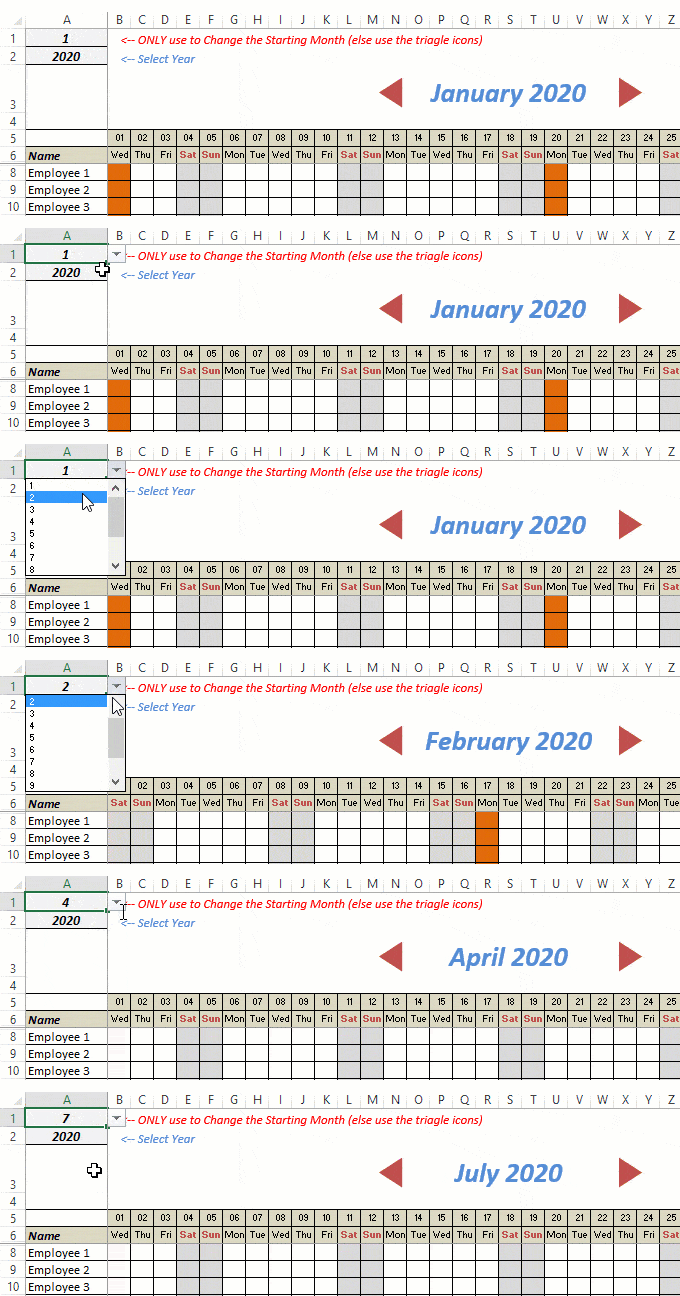
- This Excel template can be used to track leaves for over a year. You can select a start month and can track leaves for a year. For example, if you follow the April-March cycle, select April 2023 as the starting month.
- Note: The value in cell A1 is to change the time period of the leave tracker ONLY. DO NOT use Cell A1 to move to the next month while recording leaves. Use the triangle icons next to the month names to go to the next/previous month and mark leaves.

- You can specify the working days and non-working days (Weekends). At the right of the leave tracker, there is functionality to specify the working days by selecting Yes from the drop-down. If you select No, that day is marked as a non-working day in the leave tracker.
- As soon as you specify the non-working days, those weekdays get highlighted in gray color in the leave tracker.

- You can update the holiday list in the worksheet named “Holiday List”. It will automatically be reflected in the tracker by highlighting those days in Orange color.
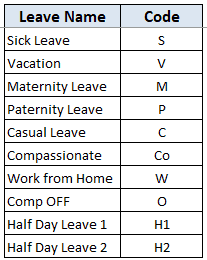
- To enter the leave record for employees, use the relevant codes based on the leave type (you can customize these leave codes). For example, in the case of sick leave, use S, in the case of Vacation, use V, as so on.
- There are two codes reserved for half-day leaves. you can enter H1 or H2 for a half-day leave.

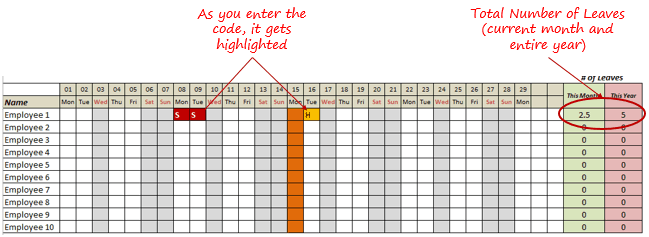
- As soon as you enter the leave code for any employee, it gets highlighted in red (in the case of half-day, it gets highlighted in yellow). If that day is a weekend or holiday, the color would not change.
- Column NJ (highlighted in green in the pic below) has the number of leaves of that employee in that month. It counts the leaves on working days only (those on weekends and/or holidays are not counted). Half-day leaves are counted as 0.5.
- UPDATED: Column NK (highlighted in light red in the pic below) has the number of annual leaves taken by an employee. It counts the leaves on working days only (those on weekends and/or holidays are not counted). Half-day leaves are counted as 0.5.
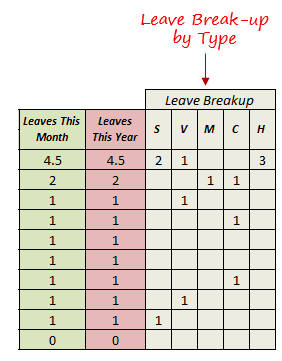
- Columns NL to NU gives the leave break-up by leave code (for the entire year). This could be helpful to keep a track of the type of leave that has been availed. Note that while Half Leaves are counted as .5 leaves in the total count, in the leave break-up, it is counted as whole numbers. For example, 2 half leaves would lead to 1 leave count, but you’ll see two half leaves in the leave breakup.
I have created this leave/attendance tracker template for 20 employees. If you want to add more, just copy-paste the formatting and formulas for additional rows.
Also, since there is a VBA code involved, make sure you always save it with .xls or .xlsm extension.
Download the Leave Tracker Template
Note: To update this template for any year, simply change the year value in cell A2. For example, to make it for 2017, just change the value in A2 to 2017. Also, you need to update the holiday list for the specified year.
The download file is completely unlocked so you can customize it to your needs.
Here is another version of the template that can track leaves for 50 employees.
Want to learn how to create awesome templates and dashboards? Check out the Excel Dashboard Course
FAQs on using this Leave Tracker Template
Since I created this vacation/leave tracker, I have been inundated with emails and comments. What you see now is a refined version that has been possible due to all the feedback that I have got.
Based on the questions I get repeatedly, I have created this FAQ section so that you can get an answer faster (instead of waiting for me to respond).
Here are the most common questions I get about the Leave tracker template:

Q: I tried downloading the file but it downloaded as a zip. How do I use it?
A: I have fixed this issue, and now you should be able to download the Excel file directly.

Q: When I change the month, the existing leaves are reflected in the changed month as well.
A: This happens when you use cell A1 to change the month. You need to use the arrow icons to change months. Cell A1 is to be used only to set the starting month of the calendar. For example, if you want the calendar to start from April, make cell A1 value 4. Now to move to March, use the triangle icons.

Q: I need to track multiple years of leaves. Do I need to create a new worksheet for each year (financial year)?
A: Yes! This leave tracker can only track leaves for a 12 month period. You need to create a copy for each year.

Q: Can I use my own leave codes?
A: Yes! You can change the leave code in cells NX8:NX17. You also need to specify the same code in cells NL5:NU5. For example, if you change the Work from Home leave code to X, you also need to change it in NR5.
I hope you find this leave/vacation tracker helpful.
Are there any other areas where you think an Excel template could be helpful? I am hungry for ideas and you are my gold mine. Do share your thoughts in the comments section 🙂
Related Excel Project Management Tutorials and Templates:

Hello, is there a way to change the color? i mean, i would like it to be green instead of red, how could be it done? Thanks
I just downloaded the tracker, but not able to find how to open the xls, where it’s located in the downloaded folder
your holiday tracker is excellent with one issue. the scroll bar doesnt work and doesnt advance by a month, it just goes to the end of the year. I cannot see a fix for this. Do you have any suggestions?
Hi Sumit, How to change the year..im looking for 2018 version
Hey Siti, you can change the value in cell A2 to change the year. Note that if you already have one for 2017, you need to create a copy, delete all leave already marked in the tracker, and change the value in cell A2 to 2018.
OK.. another matter for me is how i can add listing for the leave break up? because we have half day unpaid leave and half day for annual leave
btw, thank you so much for sharing this excel leave tracker..
can i mark time also if employee leaves early in the same sheet?
hello, thank you as this is a very very fantastic template,i am wondering how do I add more employees as I have 160 employees. it would be great if you can advise me how to do that.
I love this template. I’m not good at Excel, but this doesn’t require me to be. How would I change the casual leave, which we don’t use, to something that we do use, comp time? I would love to have this box allow me to put in, for example, C2, which would equal two hours of comp time and have that reflected in the month and year totals. I figure the values would be based on .125 per hour, i.e. C8 would equal 1 day. Is this possible? I already added columns for the fluctuation in comp time off to the right and did a sum formula for the columns to reflect adding and subtracting comp hours. It would just be nice to look back on the month and see how much and when comp time was taken. As of now though if I put anything in a day box it equals one and I have to go back and change the total, which really doesn’t work because the template is not set up for three decimals and it rounds up.
I have employees with different days off on a regular basis, how can it be customized for each employees days off? When I try to change each days off, it is applied to all employees. We work shift works and have schedule through the week with employees having different days off. thank you
Hi Mr. Sumit, awesome work, I just stuck with one, you didn’t add Time off In Lieu (TOIL) here
Dear Sumit whenever i add new rows the scroll down bar comes in the middle of the sheet please tell me the solution for it so that can manage the template accordingly. and by the way uve done an awsome job. kindly do reply its very urgent
First right click and drag the scroll bar down and then keep adding the rows
Hi Sumit,
I love this tracker, I was wondering if its possible to add .25 hours to it?
how to add another row of employee.. our employee are more then 10
Hello, no matter how many times I’ve tried, the zip file doesn’t open to an excel spreadsheet. I do get a variety of folders but couldn’t find a spreadsheet within it. Is there a different way of downloading and accessing this template?
Hello Dana, Try this drop link: https://www.dropbox.com/s/omkx619gctco0ot/Excel-Leave-Tracker-2017%20%284%29.xlsm?dl=0
You can download the file using the Download button at the top-right.
https://uploads.disquscdn.com/images/3686c879d37abd0e2e14a266ec3df44b559735bbef8a1168c123c50c4a4296ad.jpg Thank you. That worked. Can you help me with how I can alter the formula for the total days off per month/year to reflect half day? I have written down the codes “M” and “A” for either a morning half day or afternoon day. I’d like for both to reflect 0.5 in the totals
Hi there, may I know how do you change the colour of the leave record and how to you add more column into the leave record? please assist me. Thank you.
This is really great! Thanks Sumit!
I have one question, how can I add a field after the Employee Name? I’d like to add more like ID, Team, etc. Thank you!
Hi I’m downloading the file but there’s no excel file? Is this still available?
I had the same problem. I was using Microsoft Edge. Use Google Chrome and it should download the excel file instead of a zip folder that Edge did.
hi , this leave template is so amazing.
can we add training leave without adding to the total in leave column?
Hey Serena.. You can use a code for training leaves (for example, replace C with T) and the leave breakup section will show the total for that leave code for all months.
Thanks Sumit. I tried to do that but it’s adding up to the leave total. How to exclude the training leaves from the total ?
Thanks a lot. Love your templates
Sereba
Hey Serena.. The easiest way would be to use a separate column (may be column NQ) and subtract the training leaves from total leaves.
Oh i tried to do that too on Column NJ and NK to subtract the training leaves but maybe i did it wrongly, its not getting a value after that
Did you try and do this column NJ or NK? If yes, it wouldn’t work as it will break the formulas in it. You can do this in a separate column that doesn’t have any formula in it. For example column NT or NU
oh ok thanks. I got what you mean but then it will stay put when i change the month, Hem its ok then thanks. i figure out something else.
Hi Sumit,
I tried deleting few leave codes but after that I do not see the color code. Please advise.
Regards,
Vijeta
Hi this is amazing. i love it. im just trying to add to the leave training days without having to add to the total number of leaves. is that possible?
Hello Sumit!
First of all, thanks for the awesome excel spreadsheet! It is definitely efficient, clean, and pretty easy to use.
I’ve added some changes to the excel, I’ve added additional years since we’re halfway into 2017 and modify some of the codes to be in alignment with our policy. With that being said, the modifications took place, I’ve crossed path with issues with the additional years.
As I was scrolling through next year 2018, the excel spreadsheet did not clear all data from the current year. What codes that was already plugged in this current year carried over to 2018. How can I go about clearing the codes for next calendar year?
Also, I would like to update the Holidays page for the year of 2018. How can I go about updating next years holidays chart and so forth? If I am able to update the holidays sheet, will the holidays carry over in the leave tracker sheet for the year of 2018?
Thanks a bunch!!
Thanks a lot for this template. I have one question: How can I count friday as half day?
Splendid work Sumit !!
I want to add one more column as “comp-off” in Leave break up as well as in absence code mentioning comp-off as “Comp”. But the thing is Comp-off code should not get calculated or added to Leaves This Month and Leaves This Year but should get calculated or added only in Leave Break up.
Please let me know how to do this ?
I cannot run macros due to restrictions in work area. How can i use this template without macros
Hi, I would like to add more Employees however please can someone help as to how you move the scroll bar down in the document once employees are add?
Thanks Sumit for the tracker, however the half day leave is not summed up with the corresponding types of leave like Vacation or Sick. For example since half day is not a separate types of leave but if I need mark half day vacation or sick leave it should be summed up with vacation or Sick leave instead of separate H list.
When you create the leave tracker for 2018, can you add a column after the employee name. I’d like to add information for each employees without having to scroll all the way to the right of the spreadsheet. Thank you
How can you change the scroll bar to advance by one month?
superb!! Thanks 🙂
I love this tracker so much; well done — thank you for the share! We use all time off (sick, personal, vacation, etc.) as PTO (Paid Time Off) which is accrued on bi-monthly pay periods (26 per year). Do you have any spreadsheets to calculate accrual PTO for salaried and non-salaried employees?
Hi Sumit. Love this template. I was wondering if you could explain how you set up H/h to equal .5 and all other values to equal 1. I was hoping to adjust this leave tracker to focus only on one type of leave, and then break it down by the amount of time, in quarters of hour, taken in one day: W=1.0, H=0.5, Q=0.25, HQ=0.75…
Not sure if that’s possible. Any thoughts?
Hello Sumit,
Can you add three more columns on the right like Back Up Resource, Approved By Client and other? I need that for 30 employees
hi, can i use this template of year 2017 & 2018 in one sheet?
Is there a way to add a second half day or change one of the existing days to a half day as well?
What if I want to deduct the half day from the available leave types (EL,CL or SL)?
Hi.. the leave tracker is one time saving workbook specially for the startups. Thank you for this creation. But I am facing an issue with the sheet. When I mark half day for an employee the leave breakup counts it as 1 and not as 0.5. Please help me in resolving this.
Hi Sumit!
I am trying to add Employee ID & Location in the beginning of the sheet but I am not able to move the formulas. Is there a way to fix this please?
I really like this tracker, but would like to do some customizations. The first one is a bit of color coding. Right now a half day shows up as yellow & all other absences are red. I am hoping that I can custom color it to have vacation days as green. Can you tell me how to do this?
Hi
On all saturdays my employees work half day. Is there a logic that I can input such that if i put in unpaid leave/urgent leave, it will become 0.5?
Hi, I have just downloaded this template. It’s fantastic, but i’m not sure if it will work for me. At my organisation we all work different hours, so our leave entitlement is recorded as hours and not days. I am no good with formula’s or VBA’s. Does anyone know how I change the formula from daily annual leave to hours? Any help would be appreciated. Thanks
hello Summit, thanks a lot for this template. saved my day. keep up with the good job.
is it possible to move the scroll bar down to add more employees on the list?
Hi. I am using the 50+Employee excel and its great!
But I need to add 200 names….so I though copy and paste formulas down……however the scroll bar starts doing weird things. Instead of scrolling per month on the right, it scroll all the way to the end of the year on one click.
I looked at the VBA code and couldn’t figure out why it is doing this….
Any ideas?
once download it was a zip file.. how to use?
hello sumit thanks for this file, i’m getting error when i select 1st month it is displaying as march 2017….what may be the error. can you please help me the get this resolved. thanks in advance
Hello, I am unable to unzip the file, does it still work? thanks!
Hi Sumit, is there a way to add two half days one for vacation and one for sick day?
This seems to work great. My company CEO uses it. I have a question/problem though. After he has entered 12 months of data, is there any way to add months, or do you have to start a fresh, blank template? He would like to have a continuous, single spreadsheet that keeps adding months to the end, or has 60 months or more. Otherwise, when a new sheet is created, the previous few months of data will be on a different sheet.
In other words, is there any way to have a sheet which was started in May of 2016 have data through December of 2018 or longer?
Dear Mr. Sumit Bansal
Thank you very much. This template is useful and simplified. I’ve solved all the problems.again thank you very much i really appreciate .
Hi Sumit,
This is a great spreadsheet, thanks for sharing.
I’m trying to adapt it to use it to track all hours worked by my employees for the month, quarter, and year.
So in each day on the calendar, I enter the hours worked by the employee. Can you advise how I can create columns that total the hours worked for the current month, current quarter, and the entire year? I’m trying to learn how you set up your {sumproduct:offset} forumula, but don’t quite understand them as of yet.
Thanks again,
Shawn
Is it possible to calculate monthly absent and present in this template?
hey Yogesh, did you find the way to do this?
Hi Sumit, Thanks for the template. However, I am unable to open the worksheet. Its downloads a zip file in all kinds of xml and other formats which are not accessible. can this be shared on email – sjaveed85@gmail.com
Hi Sumit thanks for the great work. I am trying to add more employees in the list but the scroll button is not moving down when I am trying to add more rows can you help me on this please.
Hey, where you able to access the excel file?
I am not able to. can you please share it with me – sjaveed85@gmail.com
HI SUmit,
I would like to add to column with repsect to leave breakup like “L” for Late and “P” for permission. But I do not want to add this in Leaves this month and Leaves this Year column
How do I proceed for this
Regards
Visu.V