

One of my teammates has the responsibility of creating a leave tracker template in Excel for the entire team. This tracker template is then used to track vacations/holidays and planned leaves of the team members.
Till now, she used a simple Gantt chart in Excel but wanted something better with more functionalities.
So, I created this Excel Leave Tracker Template to make leaves management easy and track monthly and annual leaves by her team members.
You can also use this as a vacation tracker template or student attendance tracker if you want.
Excel Leave Tracker Template
This Excel Leave Tracker template can be used to record and monitor employee leaves for a year (of a financial year where you can choose the starting month of the year).
You can track 10 different leave codes for an employee – vacation leaves, sick leaves, maternity/paternity leaves, casual leave tracking, leave in lieu of overtime, and half days, etc.
It also provides a monthly and yearly total of different types of leaves that can be helpful in project planning and leave management.
It uses a bit of conditional formatting, a few DATE functions, array formulas, and a simple VBA code.
Download the Excel Leave Tracker Template (tracking for 20 employees/people)

Looking for the Google Sheets version of this Leave Tracker Template? Click here!
How this Excel Leave Tracker Template Works?
- Use the triangle icons next to the month name to move to the next/previous month (the template updates itself to show the dates for the selected month). There is a short VBA code that runs in the background whenever you change the month. It shows you the selected month only and hides all the other months.
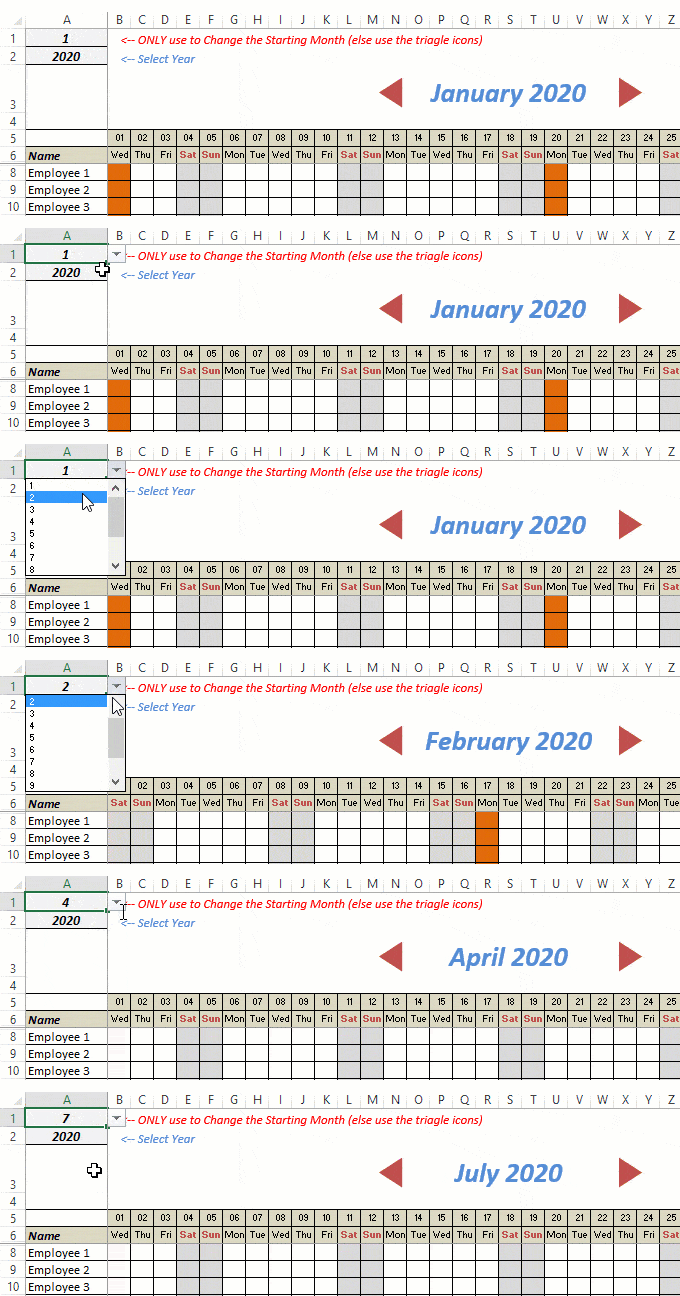
- This Excel template can be used to track leaves for over a year. You can select a start month and can track leaves for a year. For example, if you follow the April-March cycle, select April 2023 as the starting month.
- Note: The value in cell A1 is to change the time period of the leave tracker ONLY. DO NOT use Cell A1 to move to the next month while recording leaves. Use the triangle icons next to the month names to go to the next/previous month and mark leaves.

- You can specify the working days and non-working days (Weekends). At the right of the leave tracker, there is functionality to specify the working days by selecting Yes from the drop-down. If you select No, that day is marked as a non-working day in the leave tracker.
- As soon as you specify the non-working days, those weekdays get highlighted in gray color in the leave tracker.

- You can update the holiday list in the worksheet named “Holiday List”. It will automatically be reflected in the tracker by highlighting those days in Orange color.
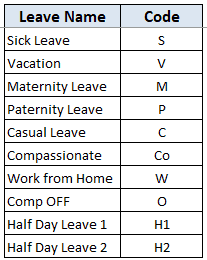
- To enter the leave record for employees, use the relevant codes based on the leave type (you can customize these leave codes). For example, in the case of sick leave, use S, in the case of Vacation, use V, as so on.
- There are two codes reserved for half-day leaves. you can enter H1 or H2 for a half-day leave.

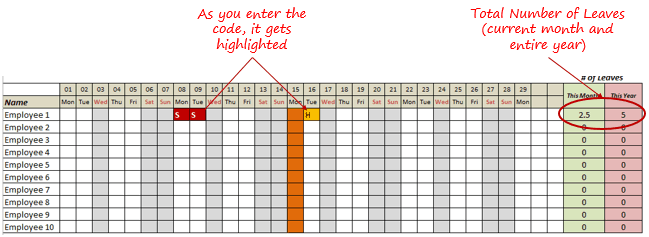
- As soon as you enter the leave code for any employee, it gets highlighted in red (in the case of half-day, it gets highlighted in yellow). If that day is a weekend or holiday, the color would not change.
- Column NJ (highlighted in green in the pic below) has the number of leaves of that employee in that month. It counts the leaves on working days only (those on weekends and/or holidays are not counted). Half-day leaves are counted as 0.5.
- UPDATED: Column NK (highlighted in light red in the pic below) has the number of annual leaves taken by an employee. It counts the leaves on working days only (those on weekends and/or holidays are not counted). Half-day leaves are counted as 0.5.
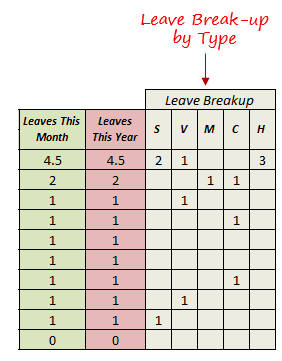
- Columns NL to NU gives the leave break-up by leave code (for the entire year). This could be helpful to keep a track of the type of leave that has been availed. Note that while Half Leaves are counted as .5 leaves in the total count, in the leave break-up, it is counted as whole numbers. For example, 2 half leaves would lead to 1 leave count, but you’ll see two half leaves in the leave breakup.
I have created this leave/attendance tracker template for 20 employees. If you want to add more, just copy-paste the formatting and formulas for additional rows.
Also, since there is a VBA code involved, make sure you always save it with .xls or .xlsm extension.
Download the Leave Tracker Template
Note: To update this template for any year, simply change the year value in cell A2. For example, to make it for 2017, just change the value in A2 to 2017. Also, you need to update the holiday list for the specified year.
The download file is completely unlocked so you can customize it to your needs.
Here is another version of the template that can track leaves for 50 employees.
Want to learn how to create awesome templates and dashboards? Check out the Excel Dashboard Course
FAQs on using this Leave Tracker Template
Since I created this vacation/leave tracker, I have been inundated with emails and comments. What you see now is a refined version that has been possible due to all the feedback that I have got.
Based on the questions I get repeatedly, I have created this FAQ section so that you can get an answer faster (instead of waiting for me to respond).
Here are the most common questions I get about the Leave tracker template:

Q: I tried downloading the file but it downloaded as a zip. How do I use it?
A: I have fixed this issue, and now you should be able to download the Excel file directly.

Q: When I change the month, the existing leaves are reflected in the changed month as well.
A: This happens when you use cell A1 to change the month. You need to use the arrow icons to change months. Cell A1 is to be used only to set the starting month of the calendar. For example, if you want the calendar to start from April, make cell A1 value 4. Now to move to March, use the triangle icons.

Q: I need to track multiple years of leaves. Do I need to create a new worksheet for each year (financial year)?
A: Yes! This leave tracker can only track leaves for a 12 month period. You need to create a copy for each year.

Q: Can I use my own leave codes?
A: Yes! You can change the leave code in cells NX8:NX17. You also need to specify the same code in cells NL5:NU5. For example, if you change the Work from Home leave code to X, you also need to change it in NR5.
I hope you find this leave/vacation tracker helpful.
Are there any other areas where you think an Excel template could be helpful? I am hungry for ideas and you are my gold mine. Do share your thoughts in the comments section 🙂
Related Excel Project Management Tutorials and Templates:

Excellent sheet… one question… is it possible to insert leave by the hour… we allow staff to take single or multiple hours of leave that do not necessarily fall under the bracket of a half or full day. Was wondering if this sheet could be edited to incorporate this.
Hi This is a great software but I’m having trouble with the month scroll arrows. When I start at January, 2018, and click the orange arrow next to January to go to February, there is only a blank page with the columns and rows but no info in them. I had already done a couple of people in January and wanted to see February. So I filled in the columns for February then went back to January and the names are there but the columns are empty but the days off that I filled in are there.
hi i have a question how did you link those arrows to the next month ive tried everything. please help btw very inspiring template well done
Hi Steven:
DId you ever figure out how to go to the next month? I’m still having problems with those scroll arrows. Thanks
Melody
Hi Summit, in my case I have to select different weekly off days for each employee. How to execute it.
That somebody can do this and leave it for us for free is quite very commendable.
Whao! May God bless you real good.
Thanks ,very good nice Excel Leave Tracker Template
Amazing ~ Thank you very much.
Could I insert more row for over 50 employees like 130? I am try to insert the employees code and number column before employees name. But the sheet does not work. How can I fix it?
Hello, Well done for the planner. Is it possible to deduct two days for a Public holiday instead?
Thanks
Was wondering if there is a way to enter a code for unpaid leave days that would allow for there to still be a count of paid leave days used/left
i would really like the spreadsheet for Excel vacation tracker. I would like to have a sheet with 50 plus employee and one that i can copy and paste to another sheet within the same workbook. We have 3 shifts with different departments. I would like to set this up so that each department in on a different tab.
can i copy and paste the vacation tracker to another spreadsheet within the same workbook?
I tried removing some of the unwanted leave codes.. it changes the cell color. Also, I don’t want Work from Home to be marked as red…please help
Its really helpful thanx, my issue is a little different although. Can we set a limit for the no. of leaves that each employee can avail for eg: Annual Leaves should be less than or equal to 15 and also that the no. of leaves available to each employee can be set differently as per their allotted leaves.
Hi Sumit,
I enjoyed using 2017 tracker. Will you be going to release 2018 tracker soon?
Thanks,
Hi, is there a way to set it to keep track of hours taken and not days? I believe right now it is set to days only.
How to use Use the triangle icons next to the month name to move to the next/previous month (the template updates itself to show the dates for the selected month). There is a short VBA code that runs in the background whenever you change the month. It shows you the selected month only and hides all the other months.
Let me know how to select it.
.
Hi. Need to add “P” (Number of days present) to the list which needs to be highlighted in green. How to do it?
How to add another column without affecting the other column? Is that possible
When you be releasing 2018 Vacation Tracker?
Hi Sumit,
First of all a big thanks to you. Great work Dude !!
I need to include “Comp-Off” in my leave type which should not be considered as leave. Please let me know if there is a way to accomplish that?
Thanks in advance
Hi Sumit! Thanks so much for this! I was trying to add two identifier columns in addition to employee name but i was unable to do so without making the sheet incorrect. Could you please inform me how to complete this?
Hey , the zip file does not have any excel,pls help
Great work Sumit! If an employee takes a 1/2 day sick how do I get it to reflect on the sheet as a half day sick?
Also if I have to keep track of historical data e.g. 2017-2020, would I be required to develop a new sheet for each year?
Hi Sumit, So glad to see this really i was in need of this.Thank you so much. Please teach me more because want to learn more from you.
Hello, I downloaded this template and it come in a zip folder. And I do not see any xl sheet there. Can you please guide me ? Thank you
I downloaded the zip file… how do I open the template?
Hi Do you have template for 70 people
Hi Sumit, I’d like to add 2 more rows from A sections, please advise how do i do that? 🙂
Hello. This is awesome. But how can I make it for atleast 100 people?
Hi Summit is it possible to add Summary Sheet for easy checking of Employee? and showing Employee and all the date of the leaves they taken for whole year?
when can you update the leave tracker template for 2018 🙂
Hi Sumit. Thanks a lot for sharing this Leave Tracker. Really good. Please how can I move the Scroll Bar from the bottom of the sheet to the top? Thanks. Abraham
Hi Sumit, I need your help on this. How can I change the colour of the leave record for employees? and am I able to create A1 to select for different department? Please assist me on this. Many Thanks
This there any way to return the dates from which the S,C,V,H,M (types) are applied to the calendar, and output them to a cell via I’m guessing what would need to be an INDEX by type?
Hi – I have downloaded the zip and did the extraction. I am not seeing the executable file to launch the spreadsheet. I’m not sure if I’m doing something wrong, so would appreciate help in opening the spreadsheet. Thank you!
Hey Brenda.. You can download the leave tracker now and it will be saved as an Excel file (not a zip).
hey Sumit need your help in doing AHT and other call center Dashboard .
Sumit, I made tons of changes in December to prepare for 2018….and just saw your revised version… 🙂
I just want to add more half days – the new version has 2 half days and I tried adding other codes but counldn’t get them to count as 1/2 day. How is that done?
Hi I love this spreadsheet thank you for sharing. Is there a possibility of editing the employee’s? So say we have some employees who work full time and part time. So It calculates the leave of their individual hours?
The VBA for the scroll bar needs an edit but I can’t determine what that is…when clicking on the right arrow of the scroll bar it jumps from February to December.
Hi- Is there a way to change the highlighted colour for leave code? Process is for the TL to enter the leave type, and then once confirmed in Pulse update that particular leave to another colour – this will help to track any non updated leave for Payroll purposes.
Thanks in advance!
Trying to leave a blank column before A1 but it seem not working. How can I insert an addition column without affecting the formula?
can i add another leave type for which it counts it as 0.5 day like it does for half day??
i want to bifurcate planned half day and unplanned half day.
Hi Sumit, thank you for the amazing piece of work.. i want to have a link of updates sheet .. which include summary of the leaves as well as employee ID and position.
Also whenever i try to create a copy it always show error of Debug .. s
This is the best format out there for leave trackers, as it deals with the whole team not just individual employees. But I’m running into 2 issues. (1) I change the number in A1 and use the scroll bar to switch months. But while it’s in one month, say November, and I click on the right arrow on the scroll bar, it doesn’t go to Dec. It’ll go straight to Feb of the next year or some other random month. It skips, it never just goes to next month. (2) I want to add more employees. So I copy the data and formulas and insert a new row. Everything works, formula-wise, but then now the scroll bar is covering the bottom most row, since the scroll bar doesn’t move even if you add rows.
can anyone guide me how to calculate the leave balance, considering leave balance is different every year
Mr. ABC joined 01 Jan 2014- what should be his leave entitlement until December 2018
everyone is entitled for a leave balance as per below
2014 – 34 days
2015 – 34 days
2016 – 30 days
until 08 July 2017- 30 days
after 9 July 2017 – 34 days
2018 – 34 days
same worry for me .. how to calculate the leave balances with reference to the joining date
Hi,
Is there any way I can add additional sheets as tabs at the bottom of the spread sheet? When i try copy the tab and use the scroll bar i receive a run time error 🙁
Brilliant other than this Sumit… top marks sir!
Hiya, This is great, would you be able to release a 2018 version please?
Thanks!
Emily
the file only downloads as a XML am I doing something wrong? I’ve also tried your direct link
Hi Sumit – I desperately need to use the leave tracker but we track based on anniversary date rather than calendar year. Can the Tracker be tweaked to accommodate me? Thanks! This tracker is the best on the internet!
Hi Sumit, is there anyway to make this template based on a bi-weekly (2weeks) schedule? With teh first bi-week defined by the template user?
Hi, maybe a silly question but where must I download it too for it to work? It looks great
HI. Please assist.. I am not to sure how to create a leave cycle on the leave tracking template you created
admin1@cloetetransport.co.za