

One of my teammates has the responsibility of creating a leave tracker template in Excel for the entire team. This tracker template is then used to track vacations/holidays and planned leaves of the team members.
Till now, she used a simple Gantt chart in Excel but wanted something better with more functionalities.
So, I created this Excel Leave Tracker Template to make leaves management easy and track monthly and annual leaves by her team members.
You can also use this as a vacation tracker template or student attendance tracker if you want.
Excel Leave Tracker Template
This Excel Leave Tracker template can be used to record and monitor employee leaves for a year (of a financial year where you can choose the starting month of the year).
You can track 10 different leave codes for an employee – vacation leaves, sick leaves, maternity/paternity leaves, casual leave tracking, leave in lieu of overtime, and half days, etc.
It also provides a monthly and yearly total of different types of leaves that can be helpful in project planning and leave management.
It uses a bit of conditional formatting, a few DATE functions, array formulas, and a simple VBA code.
Download the Excel Leave Tracker Template (tracking for 20 employees/people)

Looking for the Google Sheets version of this Leave Tracker Template? Click here!
How this Excel Leave Tracker Template Works?
- Use the triangle icons next to the month name to move to the next/previous month (the template updates itself to show the dates for the selected month). There is a short VBA code that runs in the background whenever you change the month. It shows you the selected month only and hides all the other months.
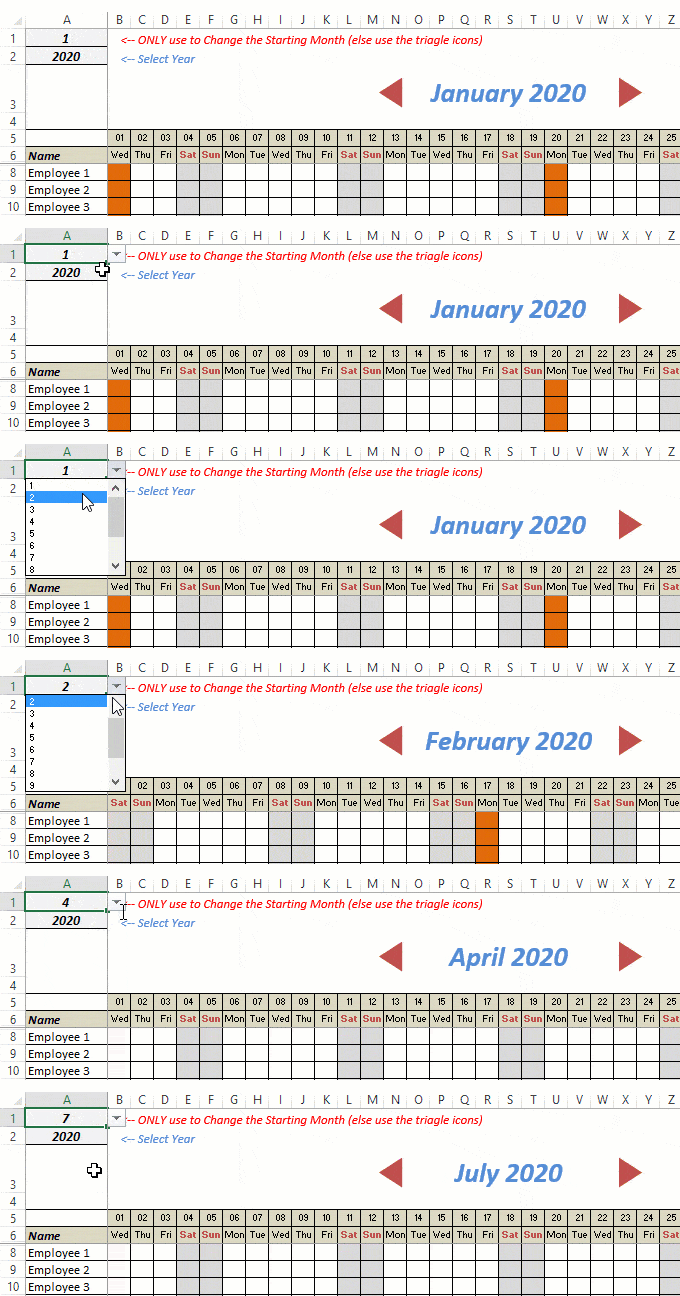
- This Excel template can be used to track leaves for over a year. You can select a start month and can track leaves for a year. For example, if you follow the April-March cycle, select April 2023 as the starting month.
- Note: The value in cell A1 is to change the time period of the leave tracker ONLY. DO NOT use Cell A1 to move to the next month while recording leaves. Use the triangle icons next to the month names to go to the next/previous month and mark leaves.

- You can specify the working days and non-working days (Weekends). At the right of the leave tracker, there is functionality to specify the working days by selecting Yes from the drop-down. If you select No, that day is marked as a non-working day in the leave tracker.
- As soon as you specify the non-working days, those weekdays get highlighted in gray color in the leave tracker.

- You can update the holiday list in the worksheet named “Holiday List”. It will automatically be reflected in the tracker by highlighting those days in Orange color.
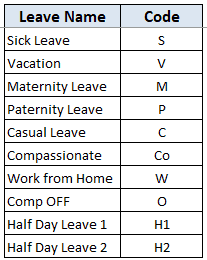
- To enter the leave record for employees, use the relevant codes based on the leave type (you can customize these leave codes). For example, in the case of sick leave, use S, in the case of Vacation, use V, as so on.
- There are two codes reserved for half-day leaves. you can enter H1 or H2 for a half-day leave.

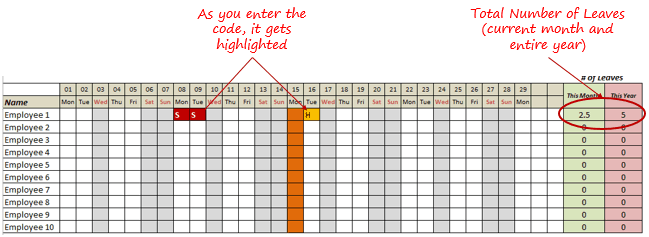
- As soon as you enter the leave code for any employee, it gets highlighted in red (in the case of half-day, it gets highlighted in yellow). If that day is a weekend or holiday, the color would not change.
- Column NJ (highlighted in green in the pic below) has the number of leaves of that employee in that month. It counts the leaves on working days only (those on weekends and/or holidays are not counted). Half-day leaves are counted as 0.5.
- UPDATED: Column NK (highlighted in light red in the pic below) has the number of annual leaves taken by an employee. It counts the leaves on working days only (those on weekends and/or holidays are not counted). Half-day leaves are counted as 0.5.
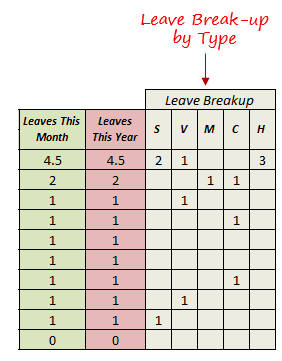
- Columns NL to NU gives the leave break-up by leave code (for the entire year). This could be helpful to keep a track of the type of leave that has been availed. Note that while Half Leaves are counted as .5 leaves in the total count, in the leave break-up, it is counted as whole numbers. For example, 2 half leaves would lead to 1 leave count, but you’ll see two half leaves in the leave breakup.
I have created this leave/attendance tracker template for 20 employees. If you want to add more, just copy-paste the formatting and formulas for additional rows.
Also, since there is a VBA code involved, make sure you always save it with .xls or .xlsm extension.
Download the Leave Tracker Template
Note: To update this template for any year, simply change the year value in cell A2. For example, to make it for 2017, just change the value in A2 to 2017. Also, you need to update the holiday list for the specified year.
The download file is completely unlocked so you can customize it to your needs.
Here is another version of the template that can track leaves for 50 employees.
Want to learn how to create awesome templates and dashboards? Check out the Excel Dashboard Course
FAQs on using this Leave Tracker Template
Since I created this vacation/leave tracker, I have been inundated with emails and comments. What you see now is a refined version that has been possible due to all the feedback that I have got.
Based on the questions I get repeatedly, I have created this FAQ section so that you can get an answer faster (instead of waiting for me to respond).
Here are the most common questions I get about the Leave tracker template:

Q: I tried downloading the file but it downloaded as a zip. How do I use it?
A: I have fixed this issue, and now you should be able to download the Excel file directly.

Q: When I change the month, the existing leaves are reflected in the changed month as well.
A: This happens when you use cell A1 to change the month. You need to use the arrow icons to change months. Cell A1 is to be used only to set the starting month of the calendar. For example, if you want the calendar to start from April, make cell A1 value 4. Now to move to March, use the triangle icons.

Q: I need to track multiple years of leaves. Do I need to create a new worksheet for each year (financial year)?
A: Yes! This leave tracker can only track leaves for a 12 month period. You need to create a copy for each year.

Q: Can I use my own leave codes?
A: Yes! You can change the leave code in cells NX8:NX17. You also need to specify the same code in cells NL5:NU5. For example, if you change the Work from Home leave code to X, you also need to change it in NR5.
I hope you find this leave/vacation tracker helpful.
Are there any other areas where you think an Excel template could be helpful? I am hungry for ideas and you are my gold mine. Do share your thoughts in the comments section 🙂
Related Excel Project Management Tutorials and Templates:

Hi
hi. is it possible to exclude some leave type in the calculation of the leaves?
How do you use the triangle icons next to the month names to go to the next/previous month? so that it shows you the selected month only and hides all the other months. can you plz share the method?
Hi Sumit. The leave tracker is good. I have one query though. When I select Work from Home, it gets added as a leave in the “leaves this month” and “leaves this year” column. I don’t want it to be counted under the “Leaves this Month” and “Leaves this Year” column. How can I enter WFH without increasing the leave count?
Awesome Work, Sumit. Thanks a lot for your great efforts… It helps!
Hi, Many Thanks for the template. However, even though the boxes change color when I enter staff leave codes, there are no changes at all from column NJ to column NV. Please assist.
Hey Sumit, you have done awesome work with this excel sheet. One request, if you can also break up monthly leaves instead of just giving total for the month would be very helpful. I tired playing with it with countif formula but once i change the month count of monthly leaves don’t change as columns gets changed for that month. Can you please email me if I am not asking too much. Thanks
Can you track the hours they took on the day they took the designated leave
hi, if an employee is already separated and supposedly not included let say in december..how do you arrange the employee column? thanks!
Hi Sumit,
Thank you for sharing this spreadsheet. I am trying to add something that would show the number of PTO/Vacation/Leave days each individual employee had and then as they used them and they were inputted in the tracker, it would minus them from the individual employees “bank” of days. Can you please help?
Is a 2019 version available?
May i know how can we change the leave break up code for half days as well. If i want it to be reflected as .5 and not 1 in the leave break up of half day. Thank you
HI Sumit, thank you for this very helpful tracker.. Quick question, how to add more leave code?
I can’t Find the working days and non-working days to change it
Is there a way to show each staff’s remaining holidays as well as holidays taken? Thanks
Hi, I’m not able to change the month by clicking the triangle icon.
It says “The macro may not be available in this workbook or all macros may be disabled”
Hi, I’m not able to change the month by clicking the triangle icon.
It says “The macro may not be available in this workbook or all macros may be disabled”
Hi Sir,
Your Leave Tracker templet design is wonderful If it possible for you, a humble request from my end please make a tutorial video on this.
Thanks,
Rajib Das
Hi! First, your work is just great! Thank you that you share it, making my life easier 🙂 I have one question regarding the leve types. I would like to remove possibility of half day leave. When I do it however, the table becomes marked with gold (yellow). How can I get rid off those options (H1 and H2) and still keep the functionality of the table?
Hello Summit,
Thank you for this excel sheet – I am trying to change the colors to the different leave codes, can you tell he how to do that?
Thank you so much for this! Actually, our employees have different days off… Is there a way to reflect this?
What should i do if individual staff a have a different off date? How do i indicate in the excel sheet?
hello – thanks for this great spreadsheet. Is it possible to assign a different color to the different leave types.
thanks
Hey Tracey .. You can do that by changing the conditional formatting rules. In the current tracker I have kept only 2 colors – red for full day and yellow for halfday
Hey Sumit I need you help. in your summary of leave. It shows the total of leaves continued from previous months . for eg.
june I added Sicksheet 2 and annual leave 3 and while again going to enter in july month it gives the same total + adding the july sickksheet and annual leave.
Isnt there anyway where it shows the summary for only july aug sept n so on..please do let me know.
If possible please reply me on my email.
Great tool!! Some of the holidays you have listed are not holidays for us. I deleted that row from the Holiday table but it did not change in the leave tracker. What am I doing wrong?
Hey Michelle.. instead of deleting the row, simply delete the data and enter the one you want to be considered as a holiday.
can you make one for shift workers, 7 working days and 2 off then 7 working days and 2 off then 7 working days and 3 off
Hi Sumit, I love your template thank you!! Question though, I need to add another category, Leave upcoming approved. Are you able to assist in how I would add this and the formula I need to use? Thanks Faye
Hello, is there a way to copy this sheet multiple times? I tried to do this to separate groups of people to track, and the month arrows give me an error when I try to change it. the debug highlighted this:
“LeaveTracker.Range(Columns(Range(“A3”).Value * 31 – 29), Columns(Range(“A3″).Value * 31 + 1)).Hidden = False”
I’m not sure why it wont work, the first sheet works just fine.
I’m having the exact same issue. Were you able to find a solution?
This is awesome Sumit! Is there a way to break up the holidays between off-shore and on-shore?
Hi, there is possible to add multiple Holidays for 2 or more different country??
Only my Sunday is highlighted in Grey, How can I get back the Saturday one? I used last years and made the changes to the year as discussed above
Hi, My team members are located in some different countries. Is it possible to add Location , and according to the location – National Holidays, and accociate the location to a team member?
Hi, first I want to say how handy and easy and amazing this leave tracker is; however when I shared it with my boss via excel online it does not allow you to click to the next month. Why?
can’t upload onto google drive coz of the macros…
Where can I put the monthly leave. For ex. 1.7 days per month, as well as the leave brought forward from previous months?
It would be nice to be able to have different colours for different leave. i.e Sick Leave red with white text, Vacation Leave green with white text so you can easily see what leave is taken
Great template – amazing what Excel can do. There seems to be a typo in the formula for Leaves this Year – the IF statement is checking if H1 or H2 are used for calculating 1/2 days, but the second part of the formula repeats $NX$16 instead of $NX$17. For some reason, any change I make to a formula results in a #VALUE error and not sure why.
I’m having exactly the same issue. Need to include a H2 value and it’s subtotalling correctly in the leave for that month but not for the year total. Anybody have any suggestions please?
How will I add additional column for the name/
Hi Sumit. great thank you.
Could you please add the following.
I need to be alerted if there is an employee who took more than 2 leave days in a 8 week cycle. And if an employee takes more than 1 consecutive leave days.
Can I delete every code but vacation days? we do not need it broken up. Also, how do I go about putting our company header on it?
Hi! Thanks so much for this template. It works very well. I was wondering though if it would be possible to customise the ‘weekend’ days for each employee, as where I work we take different days off. Or maybe you could give me some tips on how to do that. 🙂
this is a great template
hello. i have altered the holiday list,but i cant get the automatic change in color on the tracker
this is great.
Is there a way to track hours instead of whole days or half days…. for example we had an employee leave to bring his child to the doctor and was gone for two hours.
@ Sumit Bansal :
Hi, I found this tracker very helpful and easy to handle in the single sheet for various months. I was trying to change the leave categories and add new one as some are not applicable in my working context. Could you please help me in getting to know how to change the categories/Delete Categories. my email id anoopjuesi@gmail.com
This spreadsheet is great! How do I change the colours of the different types of leave please? I need to be able to see standard vacation leave in a different colour to compassionate leave, paternity leave, etc.
Very nice template Sumit, thank you!
Is there an easy way to modify the template to show 2 or more month at the same time? I would like to use it to log vacation that usually span either jul-aug or dec-jan.
Hello,
I only need certain leave name, code, and leave breakup information. Once I delete certain columns and information, the dates are automatically filled. Please assist.
Hello,
I have employee working different days of the week, how I allocate the working days to each employee, thank you
hELLO,
How I add new employee/