

On my first day in my job in a small consulting firm, I was staffed on a short project for three days.
The work was simple.
There were many folders on the network drive and each folder had hundreds of files in it.
I had to follow these three steps:
- Select the file and copy its name.
- Paste that name in a cell in Excel and hit Enter.
- Move to the next file and repeat step 1 & 2.
Sounds simple right?
It was – Simple and a huge waste of time.
What took me three days could have been done in a few minutes if I knew the right techniques.
In this tutorial, I will show you different ways to make this entire process super fast and super easy (with and without VBA).
Limitations of the methods shown in this tutorial: With the techniques shown below, you will only be able to get the names of the files within the main folder. You will not get the names of the files in the sub-folders within the main folder. Here is a way to get names of files from folders and sub-folders using Power Query
Using FILES Function to Get a List of File Names from a Folder
Heard of FILES function before?
Don’t worry if you haven’t.
It is from the childhood days of Excel spreadsheets (a version 4 formula).
While this formula does not work in the worksheet cells, it still works in named ranges. We will use this fact to get the list of file names from a specified folder.
Now, suppose you have a folder with the name – ‘Test Folder‘ on the desktop, and you want to get a list of file names for all the files in this folder.
Here are the steps that will give you the file names from this folder:
- In cell A1, enter the folder complete address followed by an asterisk sign (*)
- For example, if your folder in the C drive, then the address would look like C:\Users\Sumit\Desktop\Test Folder\*
- If you are not sure how to get the folder address, use the following method:
- In the folder from which you want to get the file names, either create a new Excel Workbook or open an existing workbook in the folder and use the below formula in any cell. This formula will give you the folder address and adds an asterisks sign (*) at the end. Now you can copy-paste (paste as value) this address in any cell (A1 in this example) in the workbook in which you want the file names.
=REPLACE(CELL("filename"),FIND("[",CELL("filename")),LEN(CELL("filename")),"*")[If you have created a new workbook in the folder to use the above formula and get the folder address, you may want to delete it so that it doesn't feature in the list of files in that folder]
- In the folder from which you want to get the file names, either create a new Excel Workbook or open an existing workbook in the folder and use the below formula in any cell. This formula will give you the folder address and adds an asterisks sign (*) at the end. Now you can copy-paste (paste as value) this address in any cell (A1 in this example) in the workbook in which you want the file names.

- Go to the ‘Formulas’ tab and click on the ‘Define Name’ option.

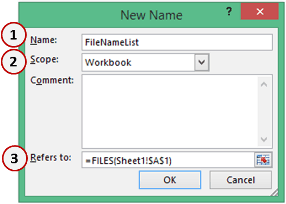
- In the New Name dialogue box, use the following details
- Name: FileNameList (feel free to choose whatever name you like)
- Scope: Workbook
- Refers to: =FILES(Sheet1!$A$1)
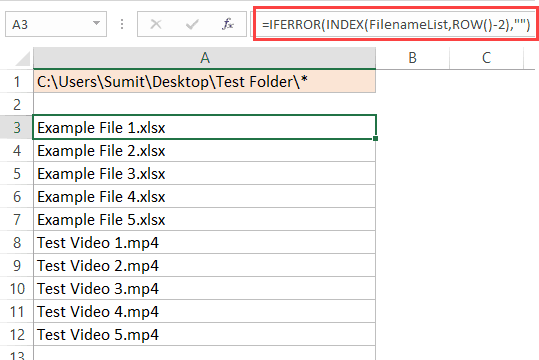
- Now to get the list of files, we will use the named range within an INDEX function. Go to cell A3 (or any cell where you want the list of names to start) and enter the following formula:
=IFERROR(INDEX(FileNameList,ROW()-2),"") - Drag this down and it will give you a list of all the file names in the folder
Want to Extract Files with a Specific Extension??
If you want to get all the files with a particular extension, just change the asterisk with that file extension. For example, if you want only excel files, you can use *xls* instead of *
So the folder address that you need to use would be C:\Users\Sumit\Desktop\Test Folder\*xls*
Similarly, for word document files, use *doc*
How does this work?
FILES formula retrieves the names of all the files of the specified extension in the specified folder.
In the INDEX formula, we have given the file names as the array and we return the 1st, 2nd, 3rd file names and so on using the ROW function.
Note that I have used ROW()-2, as we started from the third row onwards. So ROW()-2 would be 1 for the first instance, 2 for the second instance when the row number is 4, and so on and so forth.
Watch Video – Get List of File Names from a Folder in Excel
Using VBA Get a List of All the File Names from a Folder
Now, I must say that the above method is a bit complex (with a number of steps).
It’s, however, a lot better than doing this manually.
But if you’re comfortable with using VBA (or if you’re good at following exact steps that I am going to list below), you can create a custom function (UDF) that can easily get you the names of all the files.
The benefit of using a User Defined Function (UDF) is that you can save the function in a personal macro workbook and reuse it easily without repeating the steps again and again. You can also create an add-in and share this function with others.
Now let me first give you the VBA code that will create a function to get the list of all the file names from a folder in Excel.
Function GetFileNames(ByVal FolderPath As String) As Variant
Dim Result As Variant
Dim i As Integer
Dim MyFile As Object
Dim MyFSO As Object
Dim MyFolder As Object
Dim MyFiles As Object
Set MyFSO = CreateObject("Scripting.FileSystemObject")
Set MyFolder = MyFSO.GetFolder(FolderPath)
Set MyFiles = MyFolder.Files
ReDim Result(1 To MyFiles.Count)
i = 1
For Each MyFile In MyFiles
Result(i) = MyFile.Name
i = i + 1
Next MyFile
GetFileNames = Result
End FunctionThe above code will create a function GetFileNames that can be used in the worksheets (just like regular functions).
Where to put this code?
Follow the steps below to copy this code in the VB Editor.
- Go to the Developer tab.

- Click on the Visual Basic button. This will open the VB Editor.

- In the VB Editor, right-click on any of the objects of the workbook you’re working in, go to Insert and click on Module. If you don’t see the Project Explorer, use the keyboard shortcut Control + R (hold the control key and press the ‘R’ key).
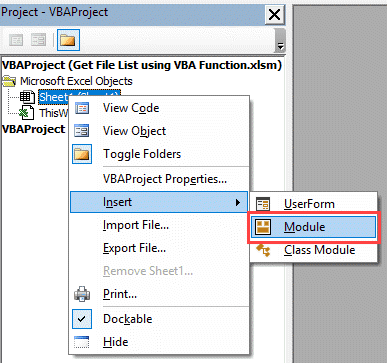
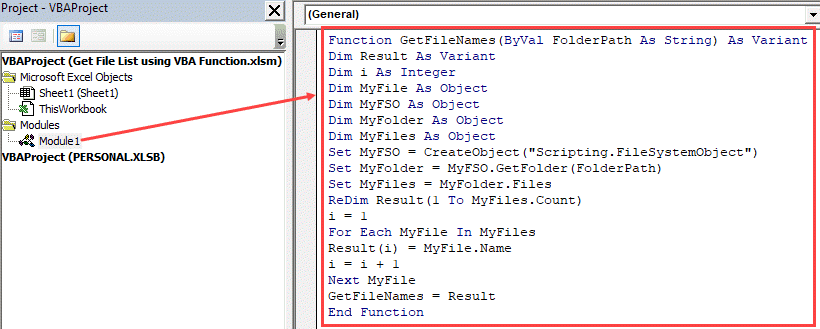
- Double click on the Module object and copy and paste the above code into the module code window.
How to Use this Function?
Below are the steps to use this function in a worksheet:
- In any cell, enter the folder address of the folder from which you want to list the file names.
- In the cell where you want the list, enter the following formula (I am entering it in cell A3):
=IFERROR(INDEX(GetFileNames($A$1),ROW()-2),"") - Copy and paste the formula in the cells below to get a list of all the files.
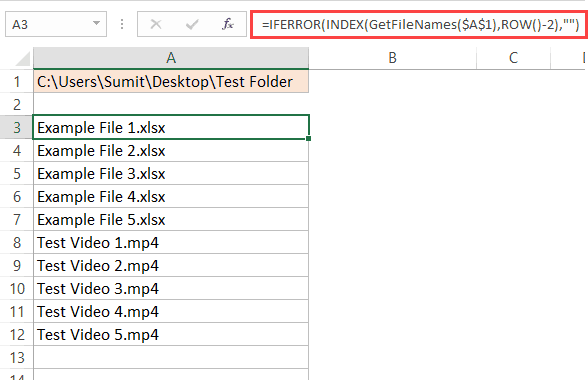
Note that I entered the folder location in a cell and then used that cell in the GetFileNames formula. You can also hard code the folder address in the formula as shown below:
=IFERROR(INDEX(GetFileNames("C:\Users\Sumit\Desktop\Test Folder"),ROW()-2),"")
In the above formula, we have used ROW()-2 and we started from the third row onwards. This made sure that as I copy the formula in the cells below, it will get incremented by 1. In case you’re entering the formula in the first row of a column, you can simply use ROW().
How does this formula work?
The GetFileNames formula returns an array that holds the names of all the files in the folder.
The INDEX function is used to list one file name per cell, starting from the first one.
IFERROR function is used to return blank instead of the #REF! error which is shown when a formula is copied in a cell but there are no more file names to list.
Using VBA Get a List of All the File Names with a Specific Extension
The above formula works great when you want to get a list of all the file names from a folder in Excel.
But what if you want to get the names of only the video files, or only the Excel files, or only the file names that contain a specific keyword.
In that case, you can use a slightly different function.
Below is the code that will allow you get all the file names with a specific keyword in it (or of a specific extension).
Function GetFileNamesbyExt(ByVal FolderPath As String, FileExt As String) As Variant
Dim Result As Variant
Dim i As Integer
Dim MyFile As Object
Dim MyFSO As Object
Dim MyFolder As Object
Dim MyFiles As Object
Set MyFSO = CreateObject("Scripting.FileSystemObject")
Set MyFolder = MyFSO.GetFolder(FolderPath)
Set MyFiles = MyFolder.Files
ReDim Result(1 To MyFiles.Count)
i = 1
For Each MyFile In MyFiles
If InStr(1, MyFile.Name, FileExt) <> 0 Then
Result(i) = MyFile.Name
i = i + 1
End If
Next MyFile
ReDim Preserve Result(1 To i - 1)
GetFileNamesbyExt = Result
End FunctionThe above code will create a function ‘GetFileNamesbyExt‘ that can be used in the worksheets (just like regular functions).
This function takes two arguments – the folder location and the extension keyword. It returns an array of file names that match the given extension. If no extension or keyword is specified, it will return all the file names in the specified folder.
Syntax: =GetFileNamesbyExt("Folder Location","Extension")
Where to put this code?
Follow the steps below to copy this code in the VB Editor.
- Go to the Developer tab.
- Click on the Visual Basic button. This will open the VB Editor.
- In the VB Editor, right-click on any of the objects of the workbook you’re working in, go to Insert and click on Module. If you don’t see the Project Explorer, use the keyboard shortcut Control + R (hold the control key and press the ‘R’ key).
- Double click on the Module object and copy and paste the above code into the module code window.
How to Use this Function?
Below are the steps to use this function in a worksheet:
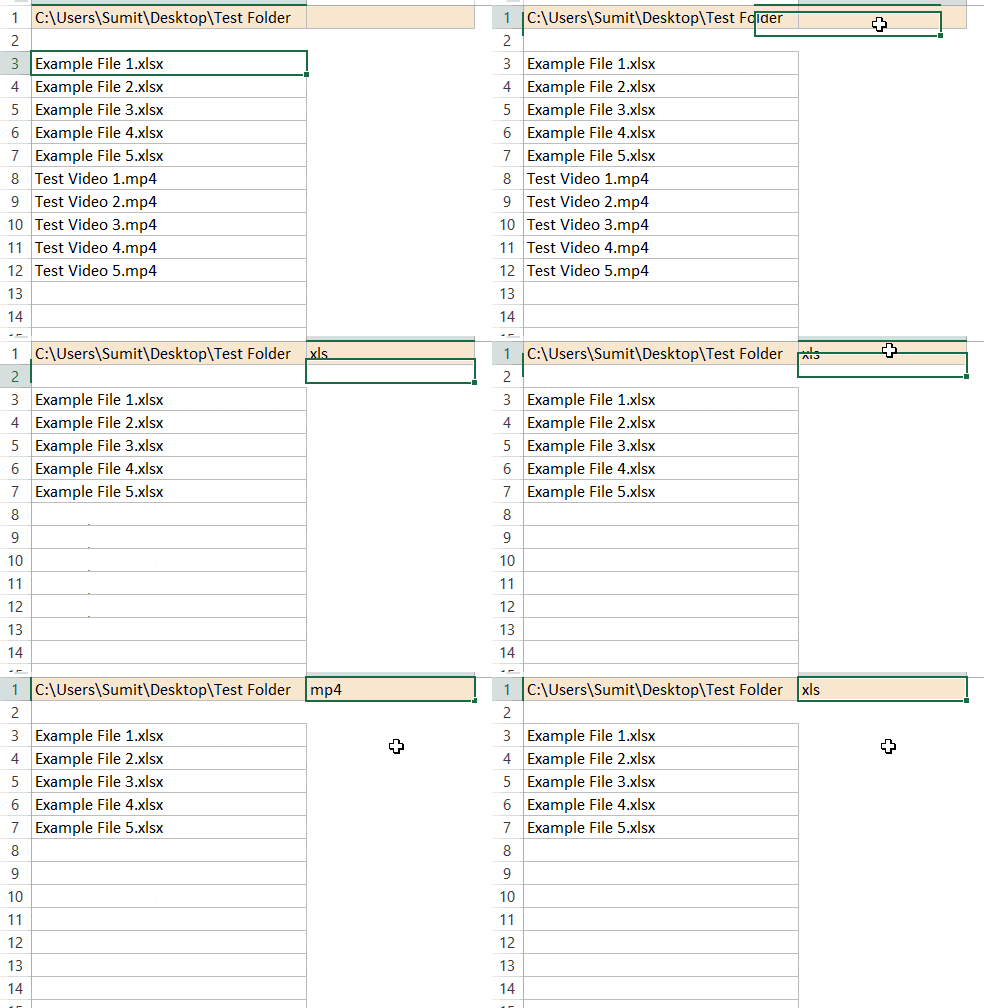
- In any cell, enter the folder address of the folder from which you want to list the file names. I have entered this in cell A1.
- In a cell, enter the extension (or the keyword), for which you want all the file names. I have entered this in cell B1.
- In the cell where you want the list, enter the following formula (I am entering it in cell A3):
=IFERROR(INDEX(GetFileNamesbyExt($A$1,$B$1),ROW()-2),"")
- Copy and paste the formula in the cells below to get a list of all the files.
How about you? Any Excel tricks that you use to make life easy. I would love to learn from you. Share it in the comment section!
You May Also Like the Following Excel Tutorials:

thanks a lot for this neat trick – but i couldn’t help improving it.
simply writing =FileNameList gives the result, but as one file per column. however, adding the transpose function spits out the exact same list at your code =transpose(FileNameList), only you dont have to worry about placing the list at a specific row
Awesome, Thanks. really helpful….Though i guess this works only for local drive folders. Is there a way to get the sever location work? As, if there are huge amounts of data it’s not wise to copy paste on my local drive and then do this. There should be a way to get the files names from the severs connected. Could you please help me out with that?
Fantastic, thanks many tonnes.
1. select file in folder
2. hold shit and right click
3. select “copy as path”
4. paste in excel
5. Use find/replace to find “folder path” and replace with ” “
Amazing solutions both with/without VBA.
It works in my PC but I would like to know why is doesn’t work if the folder is in Onedrive?
I´m using in cell A1 =REPLACE(CELL(“filename”),FIND(“[“,CELL(“filename”)),LEN(CELL(“filename”)),”MyFolder/”)
to obtain the folderpath that is in One drive and in B1=INDEX(GetFileNames(A1,1),””)
This is awesome!! Thanks
Super bro! worked out correctly for me (using the Excel formula). Many thanks for sharing your knowledge.
Very well. I like the code of vba. But i think you have some issue with ReDim Result(1 To MyFiles.Count) and with the ReDim Preserve Result(1 To i – 1). Because i run the code and 1 of files i can’t see.
I think the best to change
ReDim Result(0 To MyFiles.Count)
ReDim Preserve Result(0 To i – 1).
And after this all works.
Thanks for great job.
i have more sub folder in one folder in need formula to get all folder name in excl
Awesome!!! Thanks a lot, man! Got it done, what I needed to, following your video. Kudos to you!
Is there a way to select file names based on their created date or last modified date? For example, I want files created in the last 24 hrs, 36 hrs, and 5 days?
Hi, this is great, but I need a list of the file names without their extension.. how to do this in one step?
You can use below formula
=IFERROR(LEFT(INDEX(FileNameList,ROW()-2),FIND(“.”,INDEX(FileNameList,ROW()-2))-1),””)
is that any way to update excel list when one of the file in the folder delete ?
if one of the file in the folder delete this program can not update that and old file name remain in the list
I find it faster to stick the folder path into a browser and then copy and paste into excel.
But yes, even better when excel is set up to extract the data with a click of the button.
Great!
Why doesn’t it work?
Hi, what i like to know is….
i have a cell A1 in sheet1, and i like to output the highest file number of a folder in that cell.
So when the folder name = userinvoice and the file name in pdf and xlsm is for example 20190001.pdf range 20190199 and 20190001.xlsm to 20190199 i like to display the value of the highest number in that folder to cell A1 in sheet1. In this example it would be 20190199.pdf and 20190199.xlsm
Thank you very much for you effort.
Thanks very much. Saved me hours of manual entry!
hi
thankyou for the post
I need a macro which can automate the work of renaming the pdf with amount within the pdf, instead of depending on a software
I want to see Respective File Name with Save Time & Date…
Please help for the Macro Code for the same.
Thank you for this wonderful post !!!
I see the method for only listing specific extensions but is there a way to exclude extensions?
Thanks a lot for your tip. it’s helped me a lot.. 🙂 ..
Thanks for the tip – worked like a charm!
I need to get at the place to make a file name and go where I took pictures at yesterday
Nice work
it made our work very easy with our macro
oh
Amazing ! i’m mind blown here,
I knew of to do it with marco but with a simple formula! wonderful!
DEVE
hoping someone could help, hoping I could automate my excel list using VBA or other procedure,
For A, the idea is I have a PDF file, let say rev. 1,2,3,4 etc, and I will put it in one folder, what I need is I need to capture the latest revision with hyperlink using formula.
For B, the idea is almost same as above except for one revision, let say rev. 01 and I will put it in one folder (same folder as formula A), what I need is I need to capture the exact revision with hyperlink using formula.
I get this this formula but i don’t know how it will work- thanks in advance.
A) Formula for latest “rev number” column
=IF(Bfile(“Z:3 M+ MWC3.1 M+_RSSM+ (CC_2015_3A_022)3_DrawingsUSBM+ WS4_Drawings”&MIDB($A50,11,3)&”PDF”&MIDB($A50,1,35)&”-“&LOOKUP(1,0/($K50:$DF50” “),$K50:$DF50)&”.PDF”),HYPERLINK(“Z:3 M+ MWC3.1 M+_RSSM+ (CC_2015_3A_022)3_DrawingsUSBM+ WS4_Drawings”&MIDB($A50,11,3)&”PDF”&MIDB($A50,1,35)&”-“&LOOKUP(1,0/($K50:$DF50” “),$K50:$DF50)&”.PDF”,LOOKUP(1,0/($K50:$DF50″ “),$K50:$DF50)),”*”&LOOKUP(1,0/($K50:$DF50” “),$K50:$DF50))
B) Formula for latest “rev number individual” column
=IF(Bfile(“Z:3 M+ MWC3.1 M+_RSSM+ (CC_2015_3A_022)3_DrawingsUSBM+ WS4_Drawings”&MIDB($A52,11,3)&”PDF”&MIDB($A52,1,35)&”-00.PDF”),HYPERLINK(“Z:3 M+ MWC3.1 M+_RSSM+ (CC_2015_3A_022)3_DrawingsUSBM+ WS4_Drawings”&MIDB($A52,11,3)&”PDF”&MIDB($A52,1,35)&”-00.PDF”,”00″),”*00″)
I only tried the first method and it works perfectly for me… thank you so much for saving me days of boring inputing!!
How to get the file name list in Date Modified order in this excel workbook ??