

If you want to calculate the number of months between two dates in Excel, subtracting one date from the other will only give you days.
That is because months do not all contain the same number of days.
Excel can return completed months, decimal months, or every calendar month touched. In this article, I’ll show you the formula for each result, including versions that update automatically with TODAY.
All formulas below assume the end date is on or after the start date. If it is not, swap the dates or validate them first.
Follow along with the example file
Calculate Months Between Two Dates Excel.xlsx
Calculate Completed Months Between Two Dates Using DATEDIF
Use this method when you only need the number of complete months that have passed between the start and end dates.
Below I have project start and end dates, and I want the number of completed months for each project in column D.
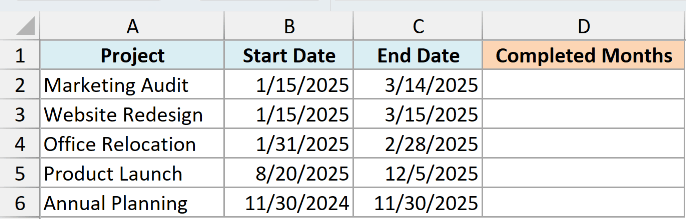
Enter this formula in cell D2:
=DATEDIF(B2:B6,C2:C6,"m")
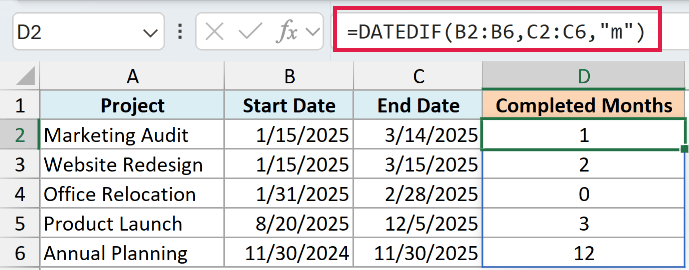
The DATEDIF formula measures the gap between each pair of dates. The “m” argument tells Excel to return only completed months.
Pro Tip: The syntax is DATEDIF(start_date,end_date,unit).
For example, January 15 to March 14 returns 1 because two complete months have not passed. January 15 to March 15 returns 2.
In Excel versions that support dynamic arrays, this one formula spills all five results into column D.
Pro Tip: If your Excel version does not spill the results, use =DATEDIF(B2,C2,"m") in D2 and fill it down.
If you get a #SPILL! error, clear the cells below the formula so Excel has room to show the results.
Spilling formulas cannot be used in an Excel Table’s calculated column, so if your data is in a Table, use the per-row formula above instead.
Important: If the start date comes after the end date, the DATEDIF function returns a #NUM! error.
Dates stored as text can also cause a #VALUE! error. If you get either error, correct the source dates instead of hiding it.
Calculate Months From a Date to Today
When one side of the calculation is the current date, the TODAY function can keep the result up to date automatically.
Below I have project start and planned end dates, and I want the completed months so far in column D and the complete months remaining in column E.
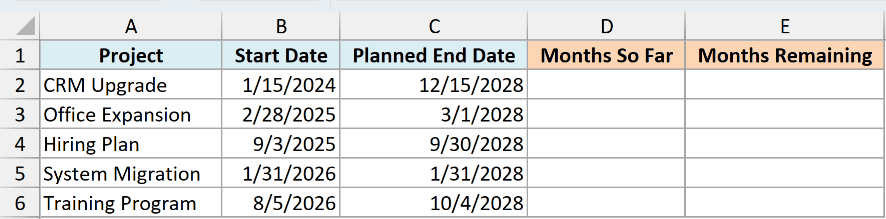
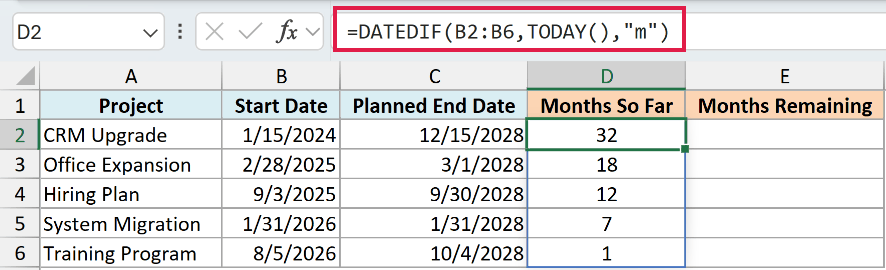
Enter this formula in D2 to calculate the completed months from each start date through today:
=DATEDIF(B2:B6,TODAY(),"m")
To calculate the complete months remaining from today to each planned end date, enter this formula in E2:
=DATEDIF(TODAY(),C2:C6,"m")
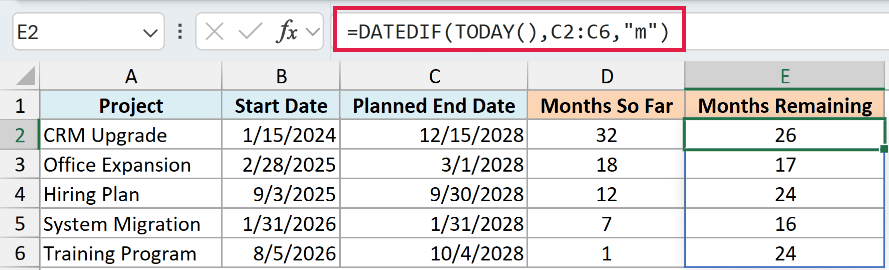
The TODAY() formula supplies the current date. Excel updates the result whenever the workbook recalculates.
You can also use the DATEDIF and TODAY functions to calculate age in Excel from a date of birth.
Pro Tip: The TODAY function changes with the date. For a historical report that should stay the same, use a fixed date in another cell instead.
Important: The first formula returns #NUM! for a future start date. The second returns #NUM! after a planned end date has passed. Check the date order before using either formula.
Calculate Months Between Two Dates Without DATEDIF
If you do not want to use the DATEDIF function, you can calculate completed months with the YEAR, MONTH, and DAY functions.
Below I have project start and end dates, and I want the number of completed months for each project in column D.
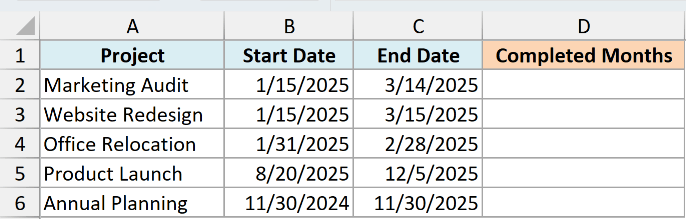
Enter this formula in D2:
=12*(YEAR(C2:C6)-YEAR(B2:B6))+MONTH(C2:C6)-MONTH(B2:B6)-(DAY(C2:C6)<DAY(B2:B6))
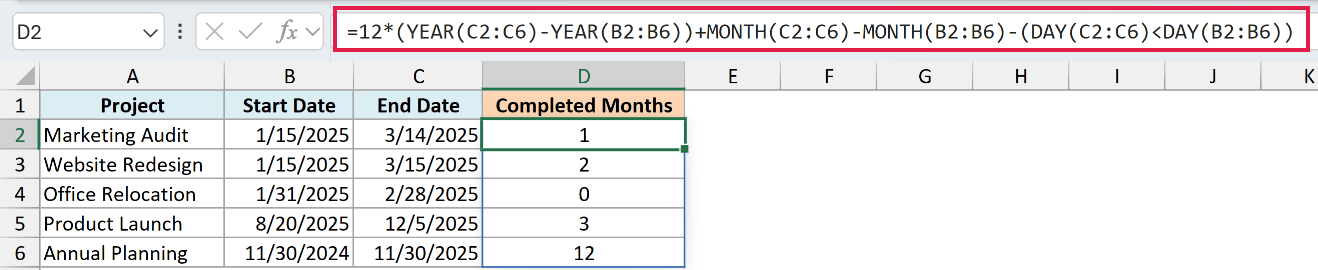
The part with the YEAR function converts the difference in years to months. The part with the MONTH function adds the difference in month numbers.
The DAY function compares the day numbers. If the end day is earlier than the start day, the formula subtracts 1 because that month is not complete.
This formula spills down automatically in Excel versions that support dynamic arrays. In older versions, change the ranges to B2 and C2, then fill the formula down.
Follow along with the example file
Calculate Months Between Two Dates Excel.xlsx
Show the Difference as Months and Days
Sometimes a completed-month count is too broad, and you also need the remaining days after the last monthly anniversary.
Below I have project start and end dates, and I want the time between them as months and days, such as “2 Months 14 Days”, in column D.
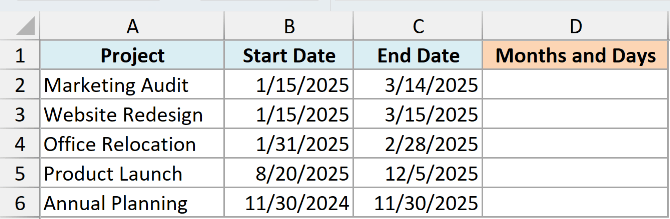
Enter this formula in D2 and fill it down:
=LET(start,B2,finish,C2,wholeMonths,12*(YEAR(finish)-YEAR(start))+MONTH(finish)-MONTH(start)-(DAY(finish)<DAY(start)),remainingDays,finish-EDATE(start,wholeMonths),wholeMonths&IF(wholeMonths=1," Month "," Months ")&remainingDays&IF(remainingDays=1," Day"," Days"))
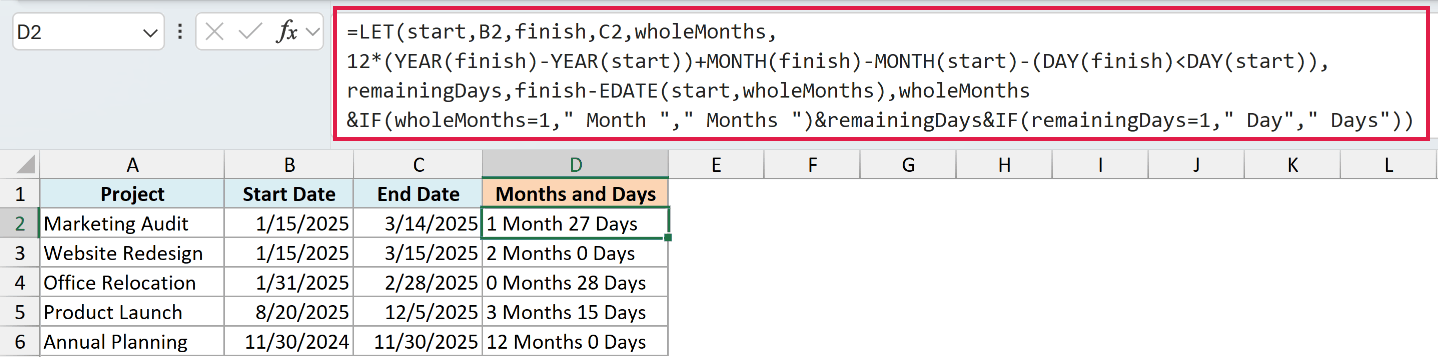
The formula first finds the completed months using the same YEAR, MONTH, and DAY functions shown earlier.
The EDATE function then moves the start date forward by that many months. Excel subtracts that anniversary date from the end date to get the remaining days.
This avoids DATEDIF’s “md” argument. Microsoft warns that “md” can return a negative, zero, or inaccurate result for some date combinations.
The LET function is available in Microsoft 365, Excel 2024, and Excel 2021.
This formula calculates one row at a time because the EDATE function does not spill the results for this calculation.
Calculate Decimal Months Using YEARFRAC
Use the YEARFRAC function when you need the difference expressed as an approximate decimal number of months.
Below I have project start and end dates, and I want the number of decimal months between them, rounded to two places, in column D.
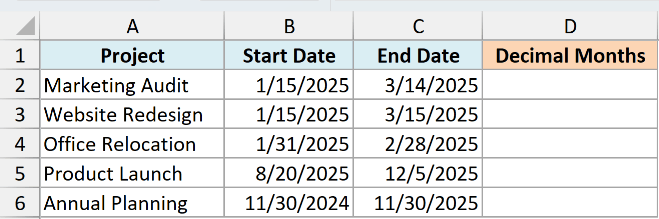
Enter this formula in D2 and fill it down:
=ROUND(YEARFRAC(B2,C2,1)*12,2)
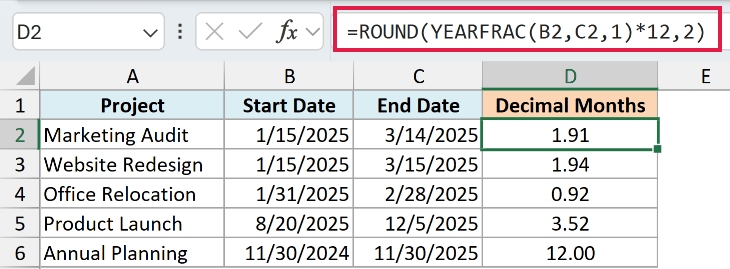
The YEARFRAC function returns the fraction of a year between the two dates. Multiplying that fraction by 12 converts it to months.
The third argument, 1, tells the YEARFRAC function to use the actual number of days in the relevant years when calculating that fraction.
The ROUND function then rounds the number of months to two decimal places.
Important: Months vary in length, so decimal months are approximate. The decimal part is a year fraction converted to months, not a count of leftover days.
If your calculation depends on the exact number of days in a month, calculate that separately instead of treating every month as 30 days.
If you are starting with a number of days rather than two dates, use the separate guide to Convert Days to Months in Excel.
Count Month Boundaries or Calendar Months Touched
The formulas above measure elapsed time. A project report may instead need the number of month changes or every calendar month in which the project was active.
Below I have project start and end dates, and I want the month boundaries crossed in column D and the calendar months touched in column E.
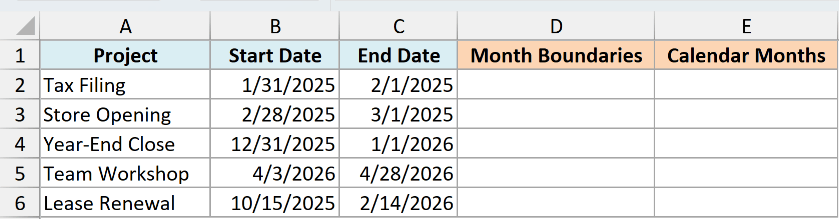
Enter this formula in D2 to count the month boundaries crossed:
=(YEAR(C2:C6)-YEAR(B2:B6))*12+MONTH(C2:C6)-MONTH(B2:B6)
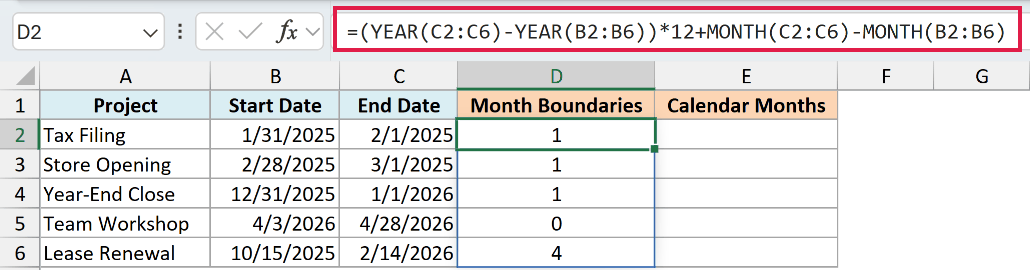
January 31 to February 1 crosses one month boundary, so this formula returns 1 even though only one day has passed.
To count every calendar month touched, including the start month, enter this formula in E2:
=(YEAR(C2:C6)-YEAR(B2:B6))*12+MONTH(C2:C6)-MONTH(B2:B6)+1
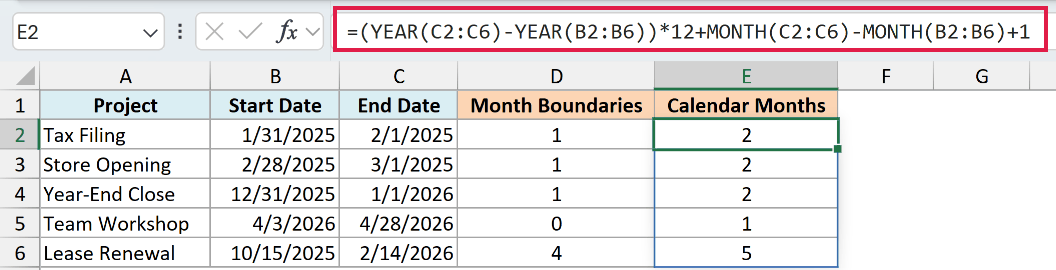
For January 31 to February 1, the inclusive formula returns 2 because the project was active in both January and February.
This calendar-month method is useful for monthly activity reports. It does not measure complete elapsed months, so do not use it as a substitute for the DATEDIF function.
The Calculating Time In Excel guide covers differences that include hours, minutes, or seconds.
I covered completed months, decimal months, month boundaries, and calendar months touched. I also showed formulas that use TODAY when one of the dates needs to update automatically.
I hope you found this article helpful.
Other Excel Articles You May Also Like:
- How to Calculate the Number of Days Between Two Dates in Excel
- How to Remove Time from Date/Timestamp in Excel
- Convert Time to Decimal Number in Excel (Hours, Minutes, Seconds)
- How to Quickly Insert Date and Timestamp in Excel
- Convert Date to Text in Excel
- How to SUM values between two dates in Excel
- How to Add Months to Date in Excel
- How to Calculate Years of Service in Excel (Easy Formulas)
- How to Make an Interactive Calendar in Excel? (FREE Template)
- Calculate Date Difference in Power Query
