

The MEDIAN function in Excel gives you the middle value in a set of numbers, so half the numbers are above it and half are below it.
The median is really useful when a few unusually large or small numbers would pull an average away from what’s typical. In this article, I’ll show you how MEDIAN works with odd and even counts, how it treats blanks, text, and zeros, and how to get a median with a condition or for every row.
Follow along with the example file
MEDIAN Function Examples.xlsx
MEDIAN Function Syntax
Here is the syntax of the MEDIAN function:
=MEDIAN(number1,[number2],...)
- number1 – the first number, cell, or range you want the median of.
- [number2], … – optional. More numbers, cells, or ranges to include. MEDIAN takes up to 255 arguments in total.
Every argument you give ends up in the same pool of numbers. So =MEDIAN(B2:B6,D2:D6) returns one median for the numbers in both ranges together, not a separate median for each range.
The MEDIAN function works in all Excel versions, including 365, 2024, 2021, 2019, 2016, Mac, and the web.
When to Use the MEDIAN Function
Use this function when you need to:
- Find the typical value in a list, like a usual price, time, or amount
- Get a middle value that a few extreme numbers can’t drag up or down
- Find the middle value for one group in your data, or for each row of a table
Let me show you a few practical examples of how to use the MEDIAN function.
Example 1: Find the Median in Excel (Odd Number of Values)
Let’s start with a simple example.
Below I have the commute times in minutes for 11 workdays, and I want to get the median commute time in cell E2.
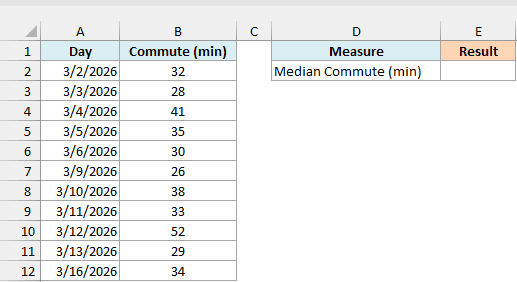
Here is the formula:
=MEDIAN(B2:B12)
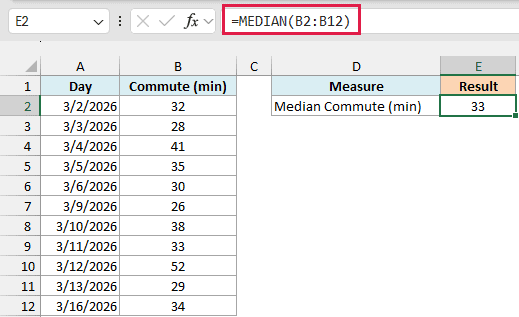
In the above formula, MEDIAN looks at the 11 commute times in B2:B12 and returns 33. If you sorted those times from shortest to longest, 33 would sit right in the middle, with five days below it and five days above it.
You don’t have to sort the list yourself, because MEDIAN ranks the values on its own, so the days can stay in date order.
Example 2: Median of an Even Number of Values
When the list has an even count, there’s no single number in the middle, so MEDIAN has to do one extra step.
Below I have the asking prices for 10 used bikes, and I want to get the median asking price in cell E2.
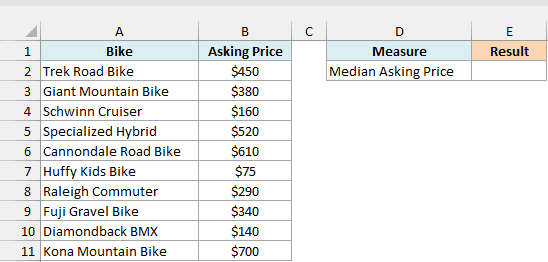
Here is the formula:
=MEDIAN(B2:B11)
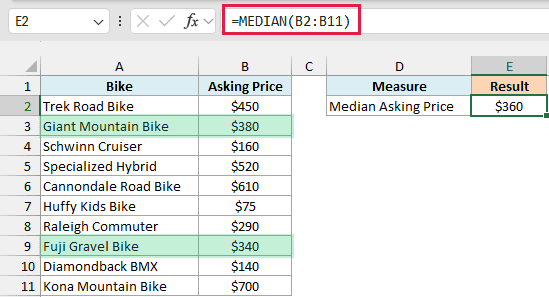
With 10 prices, the two middle ones (after sorting) are $340 and $380. MEDIAN takes the average of those two, so the result is $360.
Note that no bike in the list costs $360. With an even count, the median is often a value that doesn’t appear in your data at all, and that’s exactly how it’s supposed to work.
Example 3: MEDIAN vs AVERAGE (When One Value Is Way Off)
This is where you can see why the median is so useful.
Below I have the sale prices of 10 houses on the same street, where one house sold for a lot more than the rest, and I want to compare the median price with the average price in column E.
Here is the formula for the median sale price:
=MEDIAN(B2:B11)
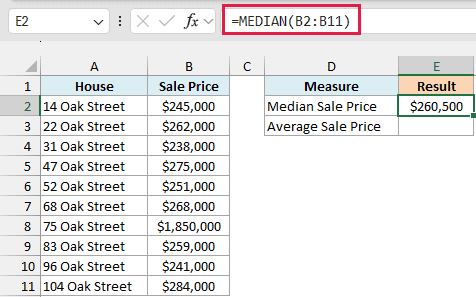
The median is $260,500, which is right where most of these houses sold. Nine of the ten prices are between $238,000 and $284,000.
And here is the average sale price for comparison:
=AVERAGE(B2:B11)
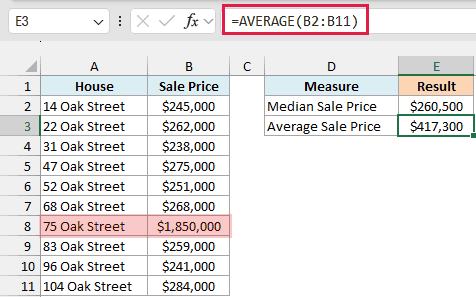
The AVERAGE function returns $417,300. That’s higher than every house on the street except one, because the $1,850,000 sale at 75 Oak Street pulls the average way up.
The median doesn’t move like that, because it only cares about which value sits in the middle, not how far away the biggest one is. So when your data has a few extreme values (prices, incomes, wait times), the median usually tells you more about the typical case.
Example 4: Find the Median Time
MEDIAN also works with times and dates, because Excel stores both of them as numbers.
Below I have the length of 11 podcast episodes in minutes and seconds, and I want to get the median episode length in cell E2.
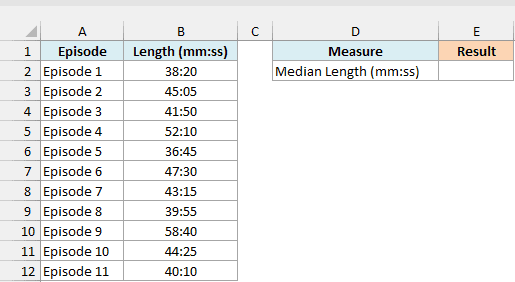
Here is the formula:
=MEDIAN(B2:B12)
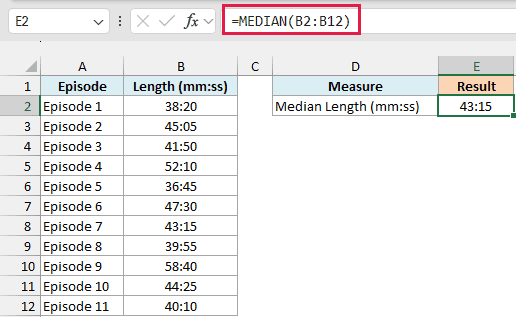
The median episode length is 43:15, which is the length of Episode 7, the middle one of the 11 when they’re sorted.
Important: MEDIAN returns the time as a number, so a cell with the General format shows a small decimal (about 0.03) instead of 43:15. Select the cell, press Ctrl+1, and use a custom format such as [m]:ss for minutes and seconds.
Example 5: How MEDIAN Handles Blanks, Text, and Zeros
Real data is rarely a clean list of numbers, so it helps to know what MEDIAN counts and what it skips.
Below I have the Saturday sales for a farmers’ market stall, and I want to get the median sales in column E. Two rained-out days were entered as $0, one day was never recorded, and one day says “Closed”.
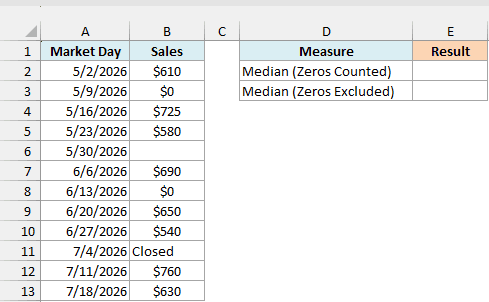
Here is the formula:
=MEDIAN(B2:B13)
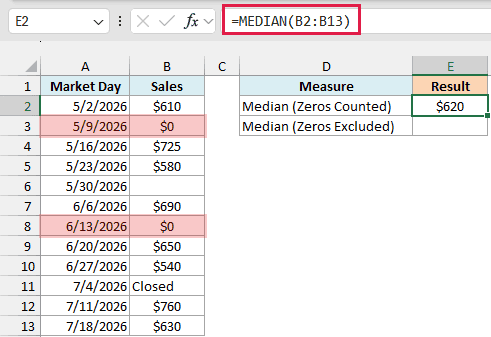
This returns $620. MEDIAN skipped the blank cell (5/30/2026) and the “Closed” text (7/4/2026), so only 10 of the 12 cells were used.
But the two $0 days were counted, because zero is a real number. They sit at the bottom of the sorted list and pull the middle down, which is a problem here since the stall didn’t actually open on those days.
To get the median of only the days the stall was open, you can remove the zeros with the FILTER function before MEDIAN sees them:
=MEDIAN(FILTER(B2:B13,B2:B13<>0))
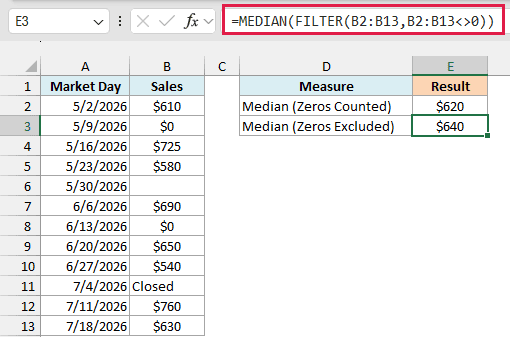
Now the result is $640, the median of the eight days with real sales.
FILTER keeps only the values that are not equal to 0. The blank cell is left out too (Excel treats it as 0 in this comparison), and while “Closed” passes the filter, MEDIAN still ignores it because it’s text.
FILTER needs Excel 365, 2024, or 2021. If you are using Excel 2019 or earlier, enter the below formula in cell E3 and press Ctrl+Shift+Enter instead of just Enter:
=MEDIAN(IF(B2:B13<>0,B2:B13))
One thing MEDIAN does not skip is an error. If any cell in the range has an error like #N/A or #DIV/0!, the formula returns that error instead of a median.
Example 6: Get the Median With a Condition
Excel doesn’t have a MEDIANIF function, but you can get a median for just one group by combining MEDIAN with FILTER.
Below I have a list of apartments with their neighborhood and monthly rent, and I want to get the median rent in cell F2 for the neighborhood typed in cell E2.
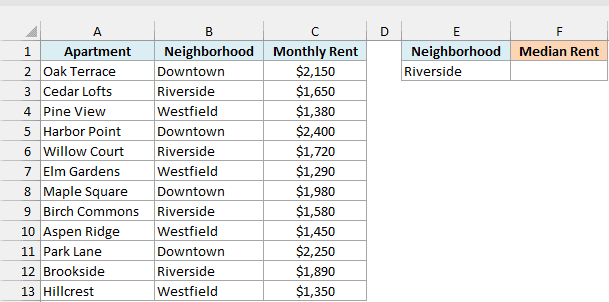
Here is the formula:
=MEDIAN(FILTER(C2:C13,B2:B13=E2))
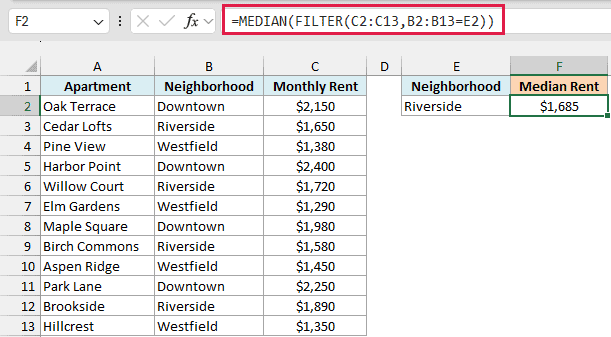
How this formula works:
B2:B13=E2checks each apartment’s neighborhood against Riverside (the value in E2).- FILTER returns only the rents where that check is TRUE, which gives the four Riverside rents.
- MEDIAN then finds the middle of those four rents, which is $1,685.
Since the condition points to cell E2, you can change the neighborhood there and the result updates. Typing Downtown in E2 gives $2,200, and Westfield gives $1,365.
If E2 has a neighborhood that isn’t in the list, FILTER finds nothing and the formula returns the #CALC! error. So make sure the value in E2 is spelled the same way as in column B.
FILTER isn’t available in Excel 2019 or earlier, so if you’re using one of those versions, enter the below formula in cell F2 and press Ctrl+Shift+Enter instead of just Enter:
=MEDIAN(IF(B2:B13=E2,C2:C13))
If you need a median that checks more than one condition, have a look at my tutorial on MEDIAN IF in Excel.
Example 7: Calculate the Median for Each Row
So far, every example has returned one median for a whole list. But sometimes you need a separate median for every row.
Below I have a baking contest where five judges scored each baker out of 10, and I want to get each baker’s median score in column G.
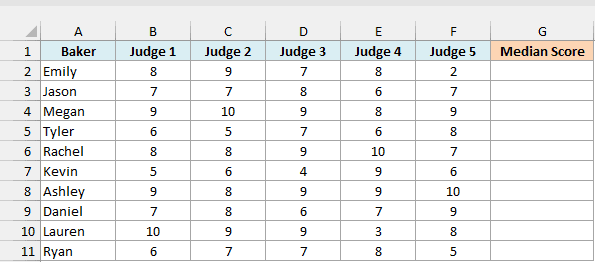
Here is the formula:
=BYROW(B2:F11,LAMBDA(r,MEDIAN(r)))
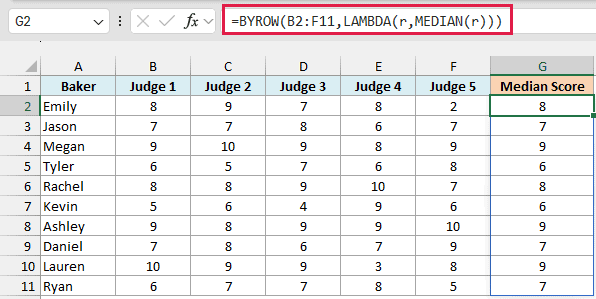
How this formula works:
- BYROW goes through B2:F11 one row at a time, so each baker’s five scores are handled separately.
- The LAMBDA part,
LAMBDA(r,MEDIAN(r)), tells BYROW what to do with each row, whereris that row’s five scores and MEDIAN returns their middle value. - The results spill down from G2 to G11, one median score per baker.
Emily got a 2 from Judge 5, but her median score is still 8 (her average would be 6.8), so one harsh judge doesn’t drag her score down.
If you used =MEDIAN(B2:F11) on its own, you’d get a single number (8) for the entire table, because MEDIAN puts every cell from all the rows into one pool.
BYROW only works in Excel 365 and Excel 2024. If you are using an older version, enter the below formula in cell G2 and then copy it down the range:
=MEDIAN(B2:F2)
So these are seven practical ways to use the MEDIAN function in Excel. It finds the middle value whether your list has an odd or even count, it works with times, and it pairs well with FILTER and BYROW when you need a median for a group or for every row.
I hope you found this Excel tutorial useful.
Other Excel Articles You May Also Like:
