

The GEOMEAN function in Excel returns the geometric mean of a set of positive numbers. Instead of adding the numbers and dividing, it multiplies them and takes the nth root, so the geometric mean of 4 and 9 is 6 (the square root of 36).
That makes it the right way to average values that build on each other, like yearly rent increases or monthly growth rates. In this article, I’ll show you five practical examples, including the small trick you need when your numbers are percentages.
Follow along with the example file
GEOMEAN Function Examples.xlsx
GEOMEAN Function Syntax
Here is the syntax of the GEOMEAN function:
=GEOMEAN(number1, [number2], ...)
- number1 – The first number, cell reference, or range you want the geometric mean of.
- [number2], … – (Optional) More numbers, cell references, or ranges. You can use up to 255 arguments in total.
Every value has to be greater than 0. If even one number in the list is zero or negative, GEOMEAN returns the #NUM! error.
This is why growth rates, which can be negative, go into GEOMEAN as 1 plus the rate. The examples below show how that works.
When you give GEOMEAN a range, it skips any text, TRUE/FALSE values, and empty cells, and uses only the numbers. But if a cell in the range has an error (like #DIV/0!), the formula returns that same error.
The GEOMEAN function works in all Excel versions, including 365, 2024, 2021, 2019, 2016, Mac, and the web.
When to Use the GEOMEAN Function
Use this function when you need to:
- Find the average growth rate when the rate changes from one period to the next
- Average yearly price, rent, or salary increases that build on each other
- Combine several scores into one overall score where a single weak area pulls the result down
- Get the average growth for one category in a list, such as one product or one platform
Let me show you a few practical examples of how to use the GEOMEAN function in Excel.
Example 1: Geometric Mean of Yearly Rent Increases
Let’s start with a simple example.
Below I have the yearly rent increase for an apartment over the last 10 years, and I want the average yearly increase in cell E2.
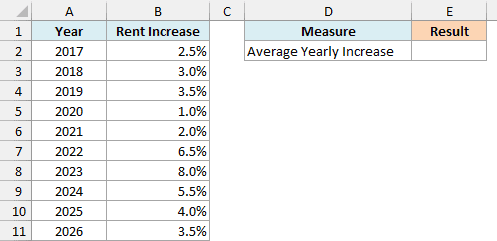
Here is the formula:
=GEOMEAN(1+B2:B11)-1
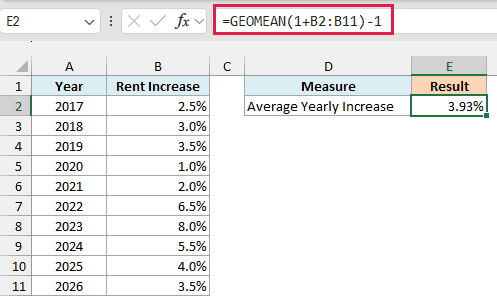
This gives 3.93%, which means the rent went up by 3.93% a year on average over these 10 years.
How this formula works:
1+B2:B11turns each percentage into a growth factor. A 2.5% increase becomes 1.025, which is the number the rent gets multiplied by that year.- GEOMEAN then finds the geometric mean of those 10 growth factors, which is 1.0393.
- The
-1at the end turns that growth factor back into a percentage, 3.93%.
Important: Don’t point GEOMEAN straight at the percentages. =GEOMEAN(B2:B11) returns 3.41%, which looks believable but is wrong, because it multiplies the small percentages together instead of the growth factors.
In Excel 2019 or earlier, adding 1 to a whole range inside a formula only works when you enter it as an array formula. So after typing the formula, press Ctrl + Shift + Enter instead of just Enter.
If you press just Enter in an older version, you get a #VALUE! error or a wrong result. This applies to every formula in this article that adds 1 to a range.
Example 2: GEOMEAN vs AVERAGE for Percent Changes
Now let’s see why the regular average is the wrong tool for percent changes.
Below I have the monthly views on a YouTube channel from January to July, along with the percentage change from the previous month, and I want the average monthly change in column F.
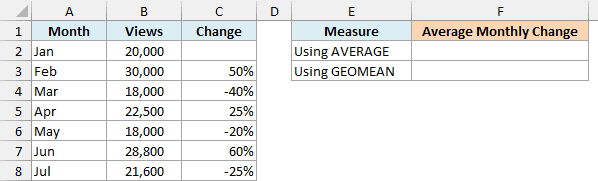
First, here is the regular AVERAGE formula, so we have something to compare against. The range starts at C3 because January is the starting month and has no change:
=AVERAGE(C3:C8)
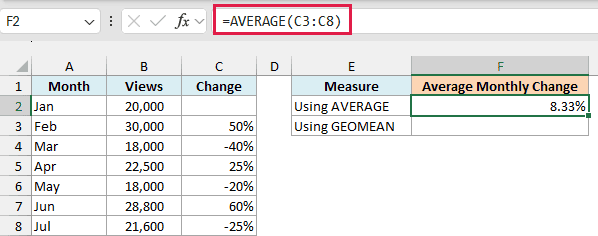
This gives 8.33%, which makes it look like the channel grew by more than 8% a month. But the views only went from 20,000 in January to 21,600 in July, which is an 8% increase in total.
If you start with 20,000 views and grow them by 8.33% every month for six months, you end up with about 32,330 views, not 21,600.
The problem is that the changes build on each other. A 50% jump takes 20,000 views to 30,000, and the 40% drop that follows takes 30,000 down to 18,000, which is below where you started.
The AVERAGE function doesn’t know that. It treats the +50% and the -40% as if they mostly cancel out.
And here is the GEOMEAN formula:
=GEOMEAN(1+C3:C8)-1
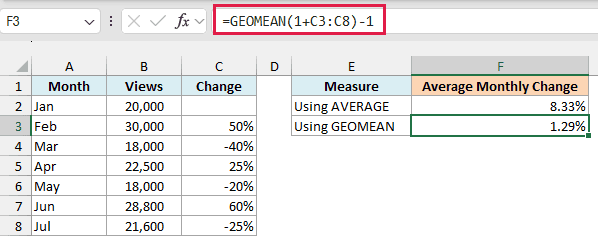
This gives 1.29%. If you grow 20,000 views by 1.29% a month for six months, you land on 21,600, which is exactly the July number.
Some of these changes are negative, and GEOMEAN only works with numbers greater than 0. Adding 1 also keeps every value above zero, since it turns a 40% drop into 0.6, which GEOMEAN can use.
Pro Tip: If you have the starting and ending values, the RRI function gives the same 1.29% with =RRI(6,B2,B8), just like a CAGR calculation. GEOMEAN is the one to use when all you have are the percent changes.
Example 3: Overall Score That Rewards Balance (Using BYROW)
This next one isn’t about growth at all.
Below I have scores out of 10 for eight apartments on location, space, price, and condition, and I want an overall score for each apartment in column F.
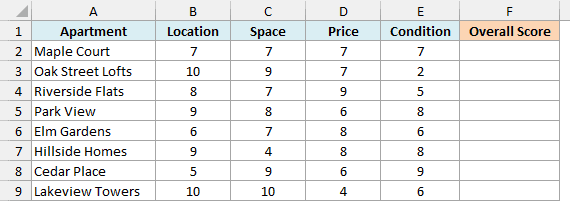
Here is the formula:
=BYROW(B2:E9,LAMBDA(r,GEOMEAN(r)))
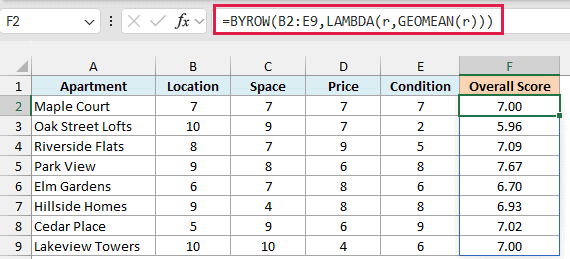
How this formula works:
- If you use GEOMEAN on B2:E9 directly, it treats all 32 scores as one list and returns a single number. So we need a way to run it on each row separately.
- The BYROW function does exactly that. It passes one row at a time to the LAMBDA, where
ris that apartment’s four scores. GEOMEAN(r)then returns the geometric mean of those four scores. The results spill into F2:F9.
To see why this is useful, let’s put the regular average next to it in column G:
=BYROW(B2:E9,LAMBDA(r,AVERAGE(r)))
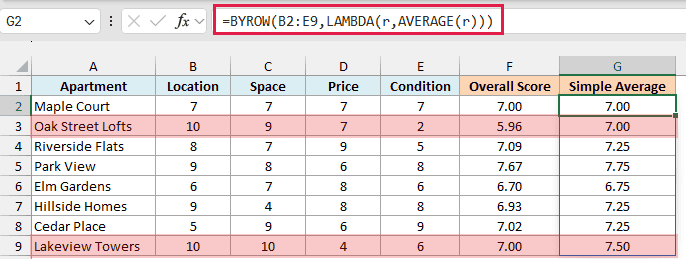
Maple Court and Oak Street Lofts both have an average of 7.00. But Oak Street Lofts scored a 2 for condition, so its overall score drops to 5.96, the lowest in the list.
This happens because GEOMEAN multiplies the scores, so one low score pulls the result down much more than it does in a regular average. An apartment can’t hide a big weakness behind a couple of great scores.
Lakeview Towers shows the same thing. Its average of 7.50 is the second highest, but its 4 for price brings its overall score down to 7.00.
Since GEOMEAN needs numbers greater than 0, this works only with a scoring scale that starts at 1. A score of 0 anywhere in a row gives you a #NUM! error for that apartment.
BYROW is available in Excel 365 and Excel 2024. If you are using an older version, enter the below formula in cell F2 and then copy it down the range:
=GEOMEAN(B2:E2)
Example 4: Geometric Mean With a Condition (Using FILTER)
Let’s step it up with a geometric mean for only part of the data. Excel doesn’t have a GEOMEANIF function, but you can get the same result by putting the FILTER function inside GEOMEAN.
Below I have the monthly follower growth for an Instagram account and a TikTok account, and I want the average monthly growth for one platform in cell F3. The platform name (TikTok) is in cell F2.
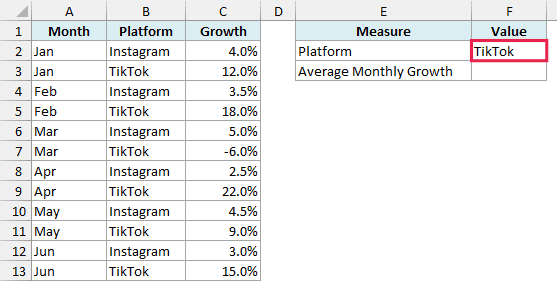
Here is the formula:
=GEOMEAN(1+FILTER(C2:C13,B2:B13=F2))-1
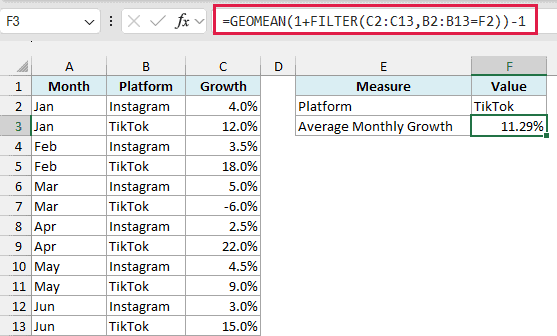
This gives 11.29% for TikTok.
How this formula works:
FILTER(C2:C13,B2:B13=F2)returns only the growth numbers where the platform is TikTok. That’s six months of data.1+turns those six percentages into growth factors, GEOMEAN finds their geometric mean, and the-1turns the result back into a percentage.
Since the platform comes from F2, you can type Instagram in that cell, and the formula gives you 3.75% instead.
If the name in F2 doesn’t match any platform, FILTER has nothing to return and the formula gives a #CALC! error. So check the spelling if you see it.
FILTER is available in Excel 2021, 2024, and Microsoft 365. If you are using Excel 2019 or earlier, enter the below formula in cell F3 and press Ctrl + Shift + Enter (instead of just Enter):
=GEOMEAN(IF(B2:B13=F2,1+C2:C13))-1
Here, the IF function keeps the TikTok growth factors and turns the rest into FALSE, which GEOMEAN skips.
Example 5: Skip Blank Months in a Growth Tracker
Now let’s look at a problem you can run into with a tracker that you fill in as the year goes on.
Below I have the monthly growth in downloads for a podcast, with October to December still blank, and I want the average monthly growth so far in column E.
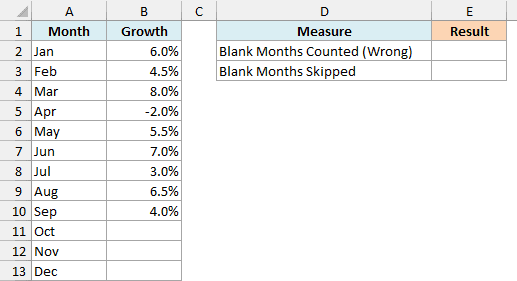
First, here is the formula you would probably try, using the whole year’s range:
=GEOMEAN(1+B2:B13)-1
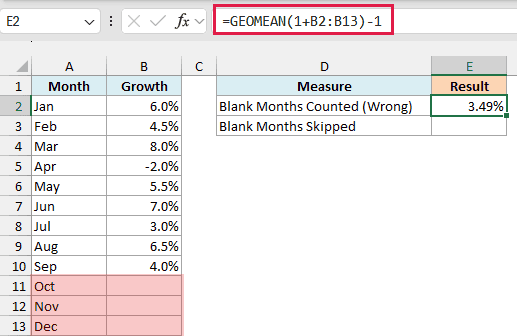
This gives 3.49%, which is too low.
GEOMEAN on its own skips empty cells. But here, 1+B2:B13 runs first, and an empty cell plus 1 is just 1.
So the three blank months reach GEOMEAN as 1, which is the same as 0% growth, and they drag the average down.
And here is the formula that skips the blank months:
=GEOMEAN(1+TOCOL(B2:B13,1))-1
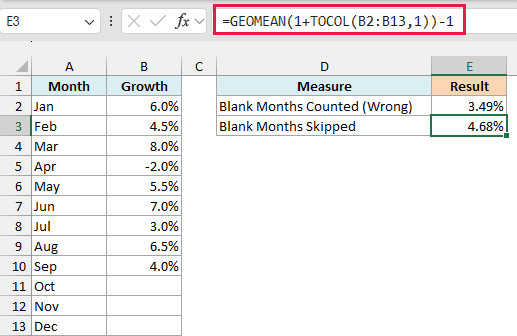
This gives 4.68%, which is the correct average for the nine months that have data.
Here, TOCOL(B2:B13,1) returns the values in B2:B13 as a single column, and the 1 tells it to leave out blank cells. So only the nine months with numbers get the 1 added to them.
As you fill in October, November, and December, the formula picks them up automatically.
TOCOL only leaves out cells that are truly empty. If your blank cells come from a formula that returns an empty string (“”), the TOCOL version gives a #VALUE! error.
TOCOL is also limited to Excel 365 and Excel 2024. If your blank cells come from a formula, or you are using Excel 2021, enter the below formula in cell E3:
=GEOMEAN(1+FILTER(B2:B13,B2:B13<>""))-1
Here, B2:B13<>"" drops both truly empty cells and cells holding an empty string, so FILTER passes just the nine months with data to GEOMEAN.
If you are using Excel 2019 or earlier, enter the below formula in cell E3 and press Ctrl + Shift + Enter (instead of just Enter):
=GEOMEAN(IF(B2:B13<>"",1+B2:B13))-1
Here, the IF function adds 1 only to the months that have a number and turns the blank months into FALSE, which GEOMEAN skips.
So these are five ways you can use the GEOMEAN function in Excel, whether you’re averaging growth rates or combining scores into one overall score.
Just remember that GEOMEAN only works with numbers greater than 0. So when you’re averaging percentage changes, add 1 before GEOMEAN and subtract 1 after it.
I hope you found this article helpful.
Other Excel Articles You May Also Like:
