

The VARPA function calculates the variance of an entire population, and it doesn’t skip the cells that aren’t numbers. A word such as “Absent” counts as 0, TRUE counts as 1, and FALSE counts as 0.
Variance measures how spread out your values are from their average. Population means your data covers the whole group you care about, like every student in a class, not a sample picked from a bigger group.
That text-as-zero rule is the main reason to use VARPA, but it has a catch. It only applies to cells on the sheet, so text can quietly drop out when VARPA gets a list of values from a function like FILTER.
In this tutorial, I’ll show you how VARPA treats text, TRUE/FALSE values, and blank cells, how it compares with the VAR.P function, and how it behaves with the XLOOKUP and FILTER functions.
Follow along with the example file
VARPA Function Examples.xlsx
VARPA Function Syntax
Here is the syntax of the VARPA function:
=VARPA(value1, [value2], ...)
- value1 – The first number, cell reference, or range in your population. This argument is required.
- value2, … – Optional additional numbers, cell references, or ranges. You can use up to 255 arguments in total.
Here’s how VARPA reads the cells you point it to:
- Numbers are used as they are.
- Text, such as “Absent” or “N/A”, counts as 0. A number stored as text and an empty string (“”) returned by a formula also count as 0.
- TRUE counts as 1 and FALSE counts as 0.
- Empty cells are skipped.
- An error in any cell, such as #N/A, makes VARPA return that error.
Values you type straight into the formula follow different rules. A number in quotes, such as “5”, counts as 5, while a word in quotes, as in =VARPA(2,4,"abc"), returns a #VALUE! error.
If every cell in the range is empty, VARPA has nothing to work with and returns a #DIV/0! error.
The VARPA function works in Excel for Microsoft 365, Excel 2024, 2021, 2019, 2016, and older versions, on Windows and Mac, and in Excel for the web.
When to Use the VARPA Function
Use this function when you need to:
- Find the variance of a whole group where some cells hold words that should count as zero, like “Absent” or “Closed”.
- Measure how much a TRUE/FALSE column varies, such as a daily goal tracker.
- Get one population variance from several separate ranges.
Let me show you a few practical examples of how the VARPA function works.
Example 1: Population Variance When Text Means Zero
Let’s start with a simple example.
Below are the quiz scores for all 10 students in a class, where two students were absent, and I want the variance with those absences counted as zero in cell B14.
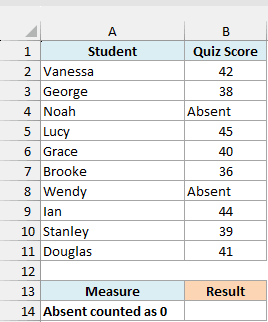
Here is the formula:
=VARPA(B2:B11)
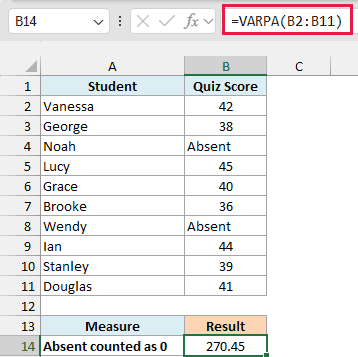
The formula returns 270.45. VARPA reads the two “Absent” cells as 0, so it works with 10 values: the eight scores plus two zeros.
The average of those 10 values (what the AVERAGEA function would return) is 32.5. The two zeros sit far away from it, and that’s why the variance is so large.
I used a population function because these 10 students are the whole class, not a sample of a larger group. If your data is a sample, the VARA function does the same job but divides by one less than the number of values.
If you’re not sure which one fits your data, here’s how to calculate variance in Excel for both samples and populations.
To see what happens when the text is skipped instead, enter this formula in cell B15:
=VAR.P(B2:B11)
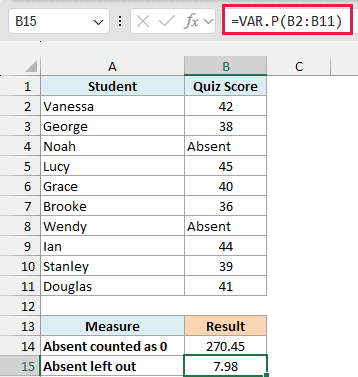
The VAR.P function returns 7.98, because it ignores text and only looks at the eight students who took the quiz. It tells you how close those eight scores are to each other, which is a different question.
So the choice comes down to what the word in the cell means. If it stands for zero, use VARPA, and if it just means the value is missing, use VAR.P.
Important: VARPA also counts a number stored as text as 0, such as a score pasted in from another system. If some numbers sit on the left side of their cells, convert them to real numbers first, or VARPA treats them as zeros.
Example 2: Variance of TRUE and FALSE Values
Next, let’s see what VARPA does with TRUE and FALSE values.
Below is a 12-day step tracker that shows TRUE on the days the 10,000-step goal was hit and FALSE on the days it wasn’t, and I want the variance of that column in cell B16.
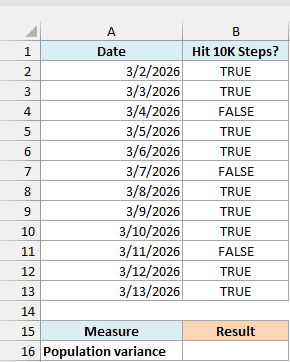
Here is the formula:
=VARPA(B2:B13)
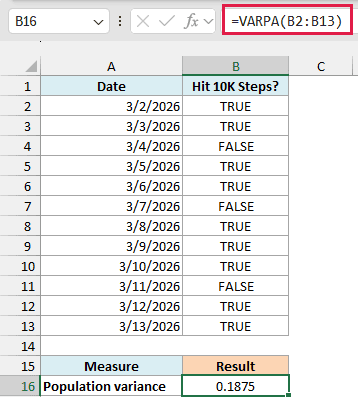
The formula returns 0.1875. VARPA reads every TRUE as 1 and every FALSE as 0, so this is the variance of nine 1s and three 0s.
For a TRUE/FALSE column, there’s a quick way to check the result. The goal was hit on 9 of the 12 days (0.75), and 0.75 × 0.25 (the share of days it was missed) is 0.1875.
If you try the VAR.P function on this column, you get a #DIV/0! error. It skips TRUE/FALSE values in cells, so it finds nothing left to calculate.
This only works with real TRUE/FALSE values. Words like “Yes” and “No” are text, so VARPA would count every one of them as 0 and return 0.
Example 3: Population Variance Across Two Separate Ranges
Here’s another practical scenario.
Below are the cakes sold each day this week at a bakery’s two branches, where “Closed” marks a day the branch didn’t open, and I want one variance for both branches in cell B11.
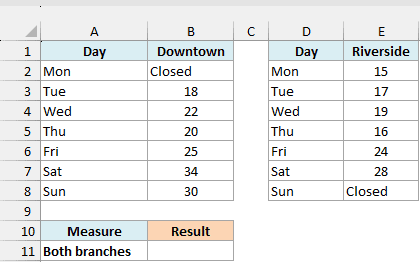
Here is the formula:
=VARPA(B2:B8,E2:E8)
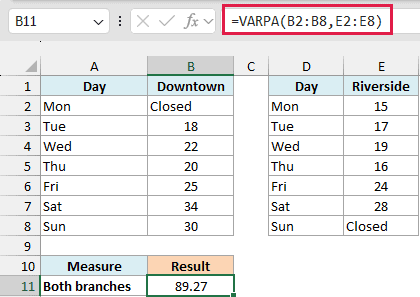
The formula returns 89.27. VARPA treats B2:B8 and E2:E8 as one population of 14 branch-days, and it counts the two “Closed” days as 0 cakes, which is true, since nothing was sold.
You can add more ranges the same way, separated by commas. This is handy when each branch keeps its own table and you don’t want to copy everything into one column first.
If a day hasn’t been recorded yet, leave its cell empty instead of typing a note. VARPA skips empty cells, so the day won’t be counted as a zero-sales day.
Example 4: Pick the Column to Analyze With XLOOKUP
Now let’s look at something a bit more interesting.
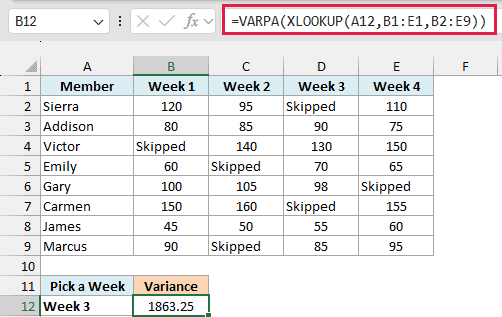
Below is a book club’s reading log with the pages each member read over four weeks, where “Skipped” marks a week a member didn’t read, and I want the variance for the week entered in cell A12, with the result in B12.
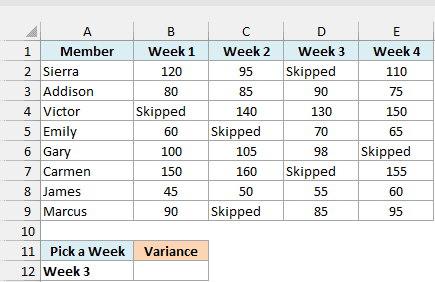
Here is the formula:
=VARPA(XLOOKUP(A12,B1:E1,B2:E9))
How this formula works:
XLOOKUP(A12,B1:E1,B2:E9)looks for “Week 3” in the header row B1:E1 and returns the matching column of the data, D2:D9.- VARPA then calculates the variance of that column, counting the two “Skipped” cells as 0, which gives 1863.25.
Type Week 1 in cell A12 instead, and the same formula returns 1877.73 for that week.
This works because the XLOOKUP function returns the actual cells from the sheet, not just a list of their values. VARPA still sees the text in those cells and counts it as 0.
Not every function that picks a column works this way. The CHOOSECOLS function returns a list of values instead of cells, so the two “Skipped” cells would drop out and the result would be wrong.
XLOOKUP needs Excel 2021 or later, or Microsoft 365. If you are using Excel 2019 or earlier, enter the below formula in cell B12 instead:
=VARPA(INDEX(B2:E9,0,MATCH(A12,B1:E1,0)))
Here, INDEX and MATCH pick the column. INDEX also returns the actual cells, so the “Skipped” cells still count as 0 and you get the same 1863.25.
Example 5: Population Variance for One Group With FILTER
Let’s step it up with a more advanced use case.
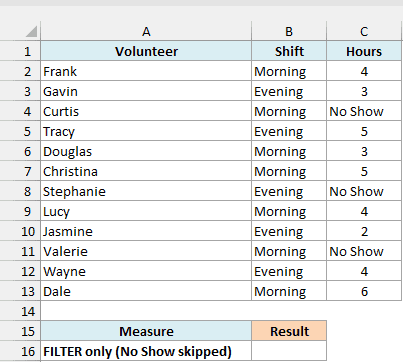
Below is a food drive’s volunteer list with each person’s shift and hours, where “No Show” marks someone who signed up but didn’t come, and I want the variance of the Morning shift’s hours in cell B16.
Here is the formula:
=VARPA(FILTER(C2:C13,B2:B13="Morning"))
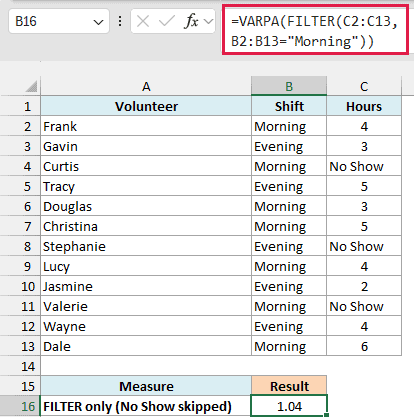
The FILTER function pulls out the seven Morning rows, but the result is 1.04. That only uses the five Morning volunteers with hours, because the two “No Show” entries were skipped.
This happens because FILTER hands VARPA a list of values (an array), not cells on the sheet. VARPA counts text as 0 only when it sits in cells, so inside an array the text is ignored, just as the VAR.P function would ignore it.
The FILTER function needs Excel 2021 or later, or Microsoft 365.
To count the no-shows as zero, use the IF function to turn the text into 0 before FILTER picks the rows. Enter this formula in cell B17:
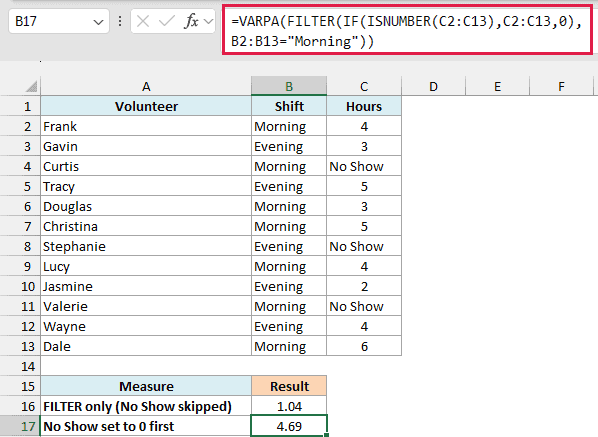
=VARPA(FILTER(IF(ISNUMBER(C2:C13),C2:C13,0),B2:B13="Morning"))
How this formula works:
IF(ISNUMBER(C2:C13),C2:C13,0)keeps every number in the Hours column and replaces anything else, like “No Show”, with 0.FILTER(...,B2:B13="Morning")keeps only the Morning rows, which gives 4, 0, 3, 5, 4, 0, and 6.- VARPA returns the variance of those seven values, 4.69.
Once IF has turned the text into zeros, every value is a number, so the VAR.P function would return the same 4.69 here.
Important: Any function that returns a list of values instead of cells, such as CHOOSECOLS, makes VARPA skip text this way. The fix above works because IF turns the text into 0 before VARPA ever sees it.
So these are some examples of how to use the VARPA function in Excel. It counts text and TRUE/FALSE values in your cells, which makes it a good fit when your whole group is in the data and those entries really mean a number.
I hope you found this article helpful.
Other Excel Articles You May Also Like:
