

The IMSIN function in Excel gives you the sine of a complex number, a number with a real part and an imaginary part, like 3+2i. You’ll mostly run into it in math and engineering worksheets, where things like AC circuits are written this way.
What IMSIN gives back is text, not a regular number. The result looks like 1.29845758141598+0.634963914784736i, and it’s correct, but you can’t round it or add it up the way you would a normal value.
There’s also a small trap with ranges. IMSIN won’t take a cell range directly, so pointing it at A2:A9 returns a single #VALUE! error instead of a list of results.
The fix is just one extra character, a plus sign in front of the range, and I’ll show you how it works in Example 2.
In this article, I’ll show you five examples, from a simple list of complex numbers to splitting the result into regular numbers and skipping blank cells.
Follow along with the example file
IMSIN Function Examples.xlsx
IMSIN Function Syntax
Here is the syntax of the IMSIN function:
=IMSIN(inumber)
- inumber – The complex number you want the sine of.
The inumber argument takes a complex number written as text in the “x+yi” or “x+yj” form, either typed in double quotes or in a cell. If you type it without the quotes, like =IMSIN(1+i), Excel doesn’t know what i is and returns the #NAME? error.
The letter at the end has to be a lowercase i or j, and IMSIN gives you back the same letter you used. A capital letter, like in “1+I”, isn’t recognized as a complex number, so IMSIN returns the #NUM! error.
You can also give it a regular number. IMSIN reads it as an angle in radians, just like the SIN function, so =IMSIN(1) returns 0.841470984807897 (still as text).
The IMSIN function works in Excel for Microsoft 365, Excel 2024, 2021, 2019, 2016, and Excel for Mac.
When to Use the IMSIN Function
Use this function when you need to:
- Find the sine of complex numbers in a math, physics, or engineering worksheet
- Check homework or textbook answers that involve the sine of a complex number
- Work with values written in j notation, which is common in electrical engineering
- Get the sine of a whole column of complex numbers with a single formula
Let me show you a few practical examples of how to use the IMSIN function.
Example 1: Find the Sine of a Complex Number
Let’s start with a simple example.
Below is a list of complex numbers, and I want to get the sine of each one in column B.
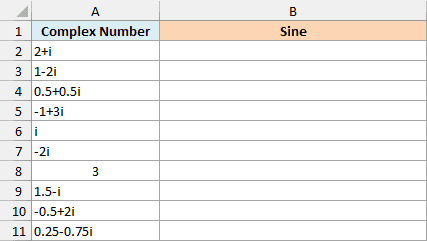
Here is the formula to enter in cell B2 and copy down:
=IMSIN(A2)
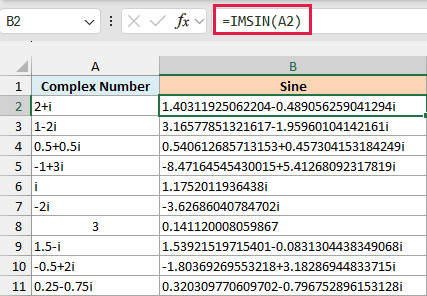
IMSIN takes the complex number in A2 and returns its sine, which is also a complex number. So 2+i gives 1.40311925062204-0.489056259041294i, with a real part and an imaginary part just like the input.
Now look at i and -2i in A6 and A7. When the input has only an imaginary part, the sine has only an imaginary part too, so i gives 1.1752011936438i.
A8 has a regular number, 3, instead of a complex number written as text. IMSIN treats it as a complex number with no imaginary part and returns 0.141120008059867, which is the same value the SIN function gives for 3.
All the results sit on the left side of their cells, and that’s because IMSIN always returns text. Other complex number functions can read that text, but the SUM function skips it, and Example 4 shows how to turn the results into regular numbers.
I’ve kept this first example as a per-row formula so you can see one input and its result at a time. The next example handles a whole column with one formula.
Example 2: Get the Sine of a Whole Column with One Formula
If you work with AC circuits, you’ve probably seen complex numbers written with j instead of i. IMSIN handles both, and it keeps whichever letter you use.
Below is a list of values in j notation, and I want the sine of each one in column B using a single formula.
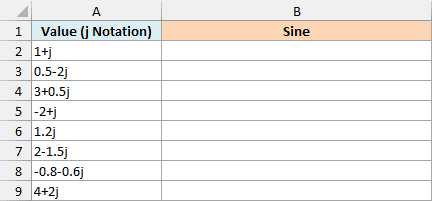
Here is the formula to enter in cell B2:
=IMSIN(+A2:A9)
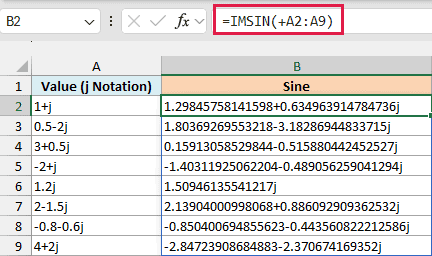
This one formula spills the results down to B9, and each result keeps the j. For example, 1+j gives 1.29845758141598+0.634963914784736j.
The plus sign in front of the range is what makes this work. Without it, =IMSIN(A2:A9) returns a single #VALUE! error, because IMSIN won’t take a cell range directly.
The plus sign turns the range into an array of values, one for each cell, and IMSIN does accept an array. So it returns one result for every value in the list.
The same plus-sign trick works with the other complex number functions too, and you can see it with another one in the IMSUB function tutorial.
This spilling formula needs Excel 365 or Excel 2021 and later. If you are using Excel 2019 or earlier, enter the below formula in cell B2 and then copy it down the range:
=IMSIN(A2)
Example 3: Sine of Complex Numbers Stored in Two Columns
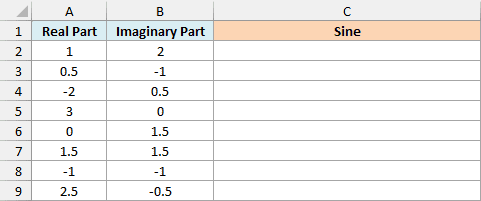
Sometimes your complex numbers aren’t written as “x+yi” at all. The real part is in one column and the imaginary part is in another, which is common when the numbers come from another calculation.
Below is a list with the real and imaginary parts in separate columns, and I want the sine of each complex number in column C.
Here is the formula to enter in cell C2:
=IMSIN(COMPLEX(+A2:A9,+B2:B9))
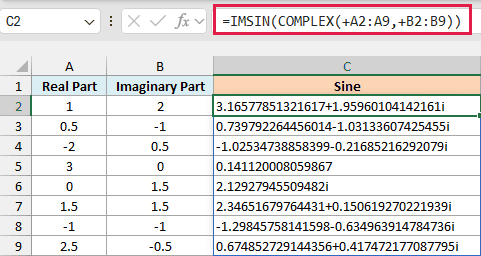
This one formula spills the results down to C9.
How this formula works:
- COMPLEX(+A2:A9,+B2:B9) joins each real part with its imaginary part, so the first row becomes 1+2i.
- IMSIN then returns the sine of each of those complex numbers.
The plus signs are needed here too, because the COMPLEX function also won’t take a cell range directly. Without them, =IMSIN(COMPLEX(A2:A9,B2:B9)) returns a single #VALUE! error.
Look at row 5, where the imaginary part is 0. The result is 0.141120008059867 with no i at all, because a complex number with no imaginary part is just a regular number.
If you are using Excel 2019 or earlier, enter the below formula in cell C2 and then copy it down the range:
=IMSIN(COMPLEX(A2,B2))
Example 4: Split the IMSIN Result into Real and Imaginary Parts
Since the IMSIN result is text, you can’t round it or total it. Try =ROUND(IMSIN("1+i"),2) and you get the #VALUE! error, so you need the two parts as regular numbers first.
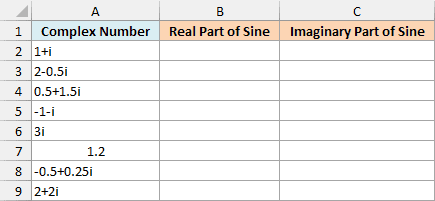
Below is a list of complex numbers, and I want the real part of each sine in column B and the imaginary part in column C.
Here is the formula to enter in cell B2:
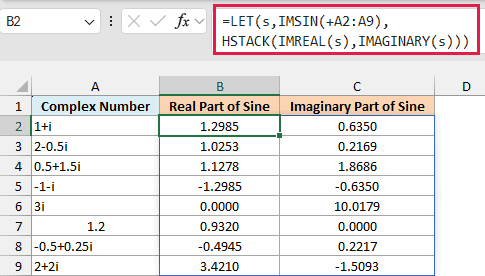
=LET(s,IMSIN(+A2:A9),HSTACK(IMREAL(s),IMAGINARY(s)))
How this formula works:
- IMSIN(+A2:A9) calculates the sine of every number in the list, and the LET function stores those results as s, so IMSIN only runs once.
- IMREAL(s) pulls out the real part of each result as a number, and IMAGINARY(s) pulls out the imaginary part.
- The HSTACK function puts the two lists side by side, so this one formula fills both column B and column C.
The results are now regular numbers, so you can round them or add them up like any other number. In the example file, columns B and C are formatted to show four decimal places, so 1+i shows 1.2985 and 0.6350.
The HSTACK function is only available in Excel 365 and Excel 2024. If you are using an older version, enter the below formula in cell B2 and then copy it down the range:
=IMREAL(IMSIN(A2))
And for the imaginary part, enter the below formula in cell C2 and then copy it down the range:
=IMAGINARY(IMSIN(A2))
Example 5: Skip Blank Cells When Using IMSIN
This last example is about a result that looks fine but is quietly wrong.
Below is a practice sheet where a few questions don’t have an answer entered yet, and I want the sine of each answer in column C.
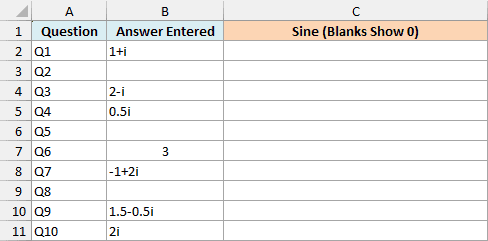
Here is the formula to enter in cell C2:
=IMSIN(+B2:B11)
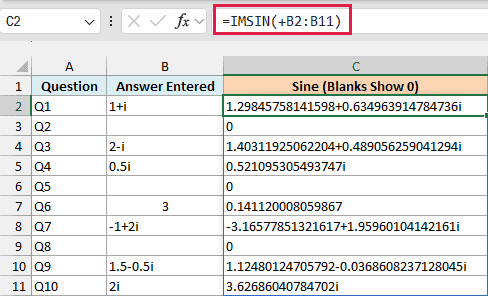
Look at Q2, Q5, and Q8. Those answers are blank, but IMSIN still returns 0 for them, because it treats an empty cell as 0, and the sine of 0 is 0.
That 0 looks like a real answer, so anyone reading the sheet could think those questions were answered. The fix is to check for blank cells first, so here is the formula to enter in cell D2:
=IF(B2:B11="","",IMSIN(+B2:B11))
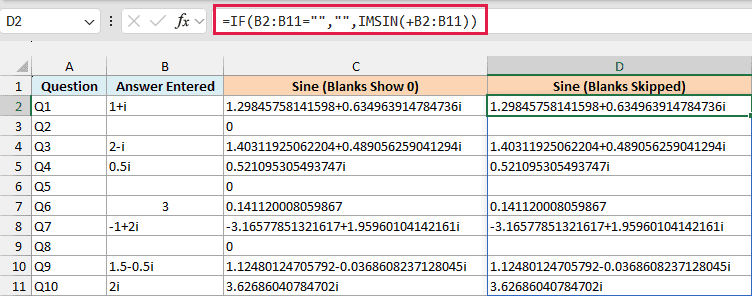
The IF function checks each cell in B2:B11. When a cell is blank, it returns an empty string, and when it has an answer, it returns the sine, so the blank questions now stay blank.
Important: If you leave out the plus sign, =IF(B2:B11="","",IMSIN(B2:B11)) returns the #VALUE! error in every row that has an answer. IMSIN still can’t take the range directly inside IF, so keep the plus sign there too.
If you are using Excel 2019 or earlier, enter the below formula in cell D2 and then copy it down the range:
=IF(B2="","",IMSIN(B2))
So these are some practical ways to use the IMSIN function in Excel. Just remember that the result is text, so use IMREAL and IMAGINARY when you need numbers, and put a plus sign in front of a range for a whole column.
If you need the cosine of a complex number, the IMCOS function works the same way. I hope you found this article helpful.
Other Excel Articles You May Also Like:
