

One of my teammates has the responsibility of creating a leave tracker template in Excel for the entire team. This tracker template is then used to track vacations/holidays and planned leaves of the team members.
Till now, she used a simple Gantt chart in Excel but wanted something better with more functionalities.
So, I created this Excel Leave Tracker Template to make leaves management easy and track monthly and annual leaves by her team members.
You can also use this as a vacation tracker template or student attendance tracker if you want.
Excel Leave Tracker Template
This Excel Leave Tracker template can be used to record and monitor employee leaves for a year (of a financial year where you can choose the starting month of the year).
You can track 10 different leave codes for an employee – vacation leaves, sick leaves, maternity/paternity leaves, casual leave tracking, leave in lieu of overtime, and half days, etc.
It also provides a monthly and yearly total of different types of leaves that can be helpful in project planning and leave management.
It uses a bit of conditional formatting, a few DATE functions, array formulas, and a simple VBA code.
Download the Excel Leave Tracker Template (tracking for 20 employees/people)

Looking for the Google Sheets version of this Leave Tracker Template? Click here!
How this Excel Leave Tracker Template Works?
- Use the triangle icons next to the month name to move to the next/previous month (the template updates itself to show the dates for the selected month). There is a short VBA code that runs in the background whenever you change the month. It shows you the selected month only and hides all the other months.
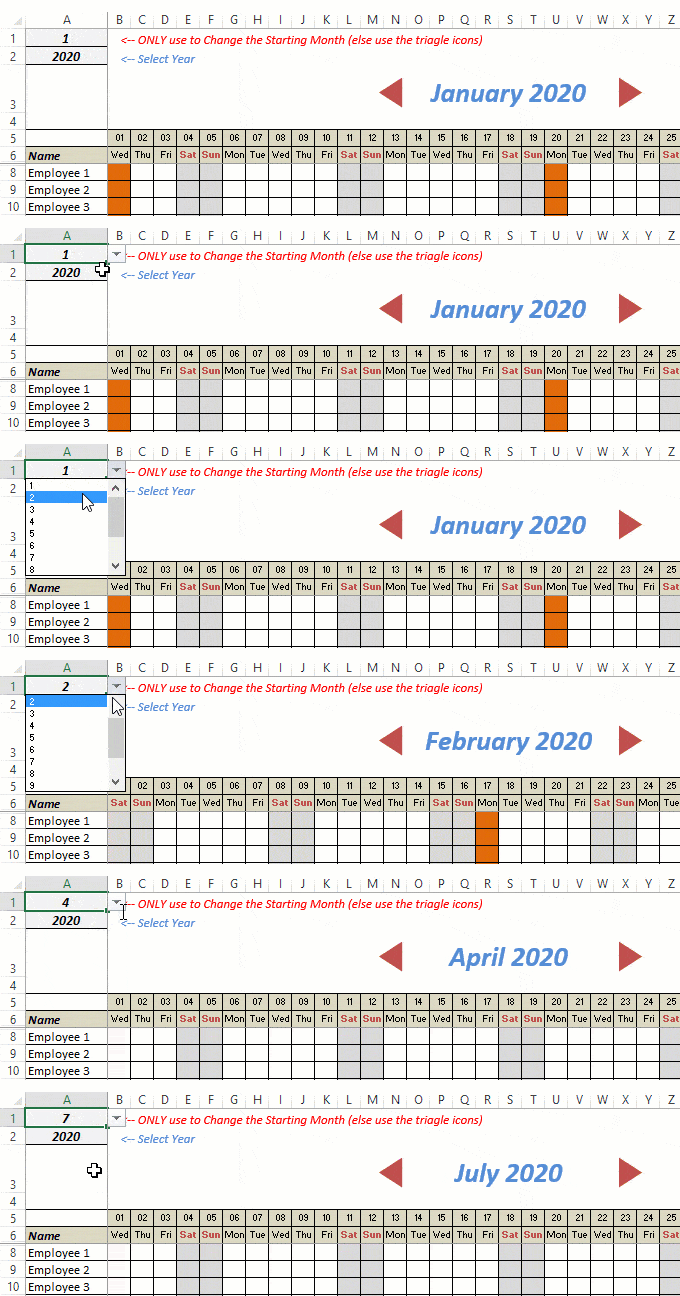
- This Excel template can be used to track leaves for over a year. You can select a start month and can track leaves for a year. For example, if you follow the April-March cycle, select April 2023 as the starting month.
- Note: The value in cell A1 is to change the time period of the leave tracker ONLY. DO NOT use Cell A1 to move to the next month while recording leaves. Use the triangle icons next to the month names to go to the next/previous month and mark leaves.

- You can specify the working days and non-working days (Weekends). At the right of the leave tracker, there is functionality to specify the working days by selecting Yes from the drop-down. If you select No, that day is marked as a non-working day in the leave tracker.
- As soon as you specify the non-working days, those weekdays get highlighted in gray color in the leave tracker.

- You can update the holiday list in the worksheet named “Holiday List”. It will automatically be reflected in the tracker by highlighting those days in Orange color.
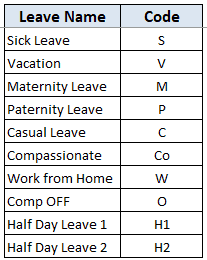
- To enter the leave record for employees, use the relevant codes based on the leave type (you can customize these leave codes). For example, in the case of sick leave, use S, in the case of Vacation, use V, as so on.
- There are two codes reserved for half-day leaves. you can enter H1 or H2 for a half-day leave.

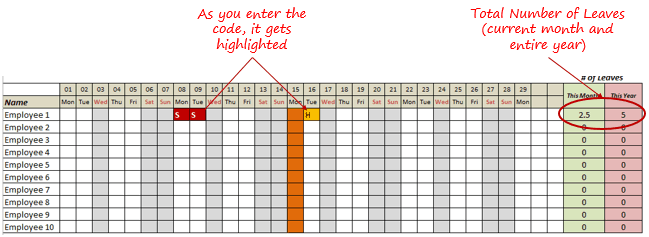
- As soon as you enter the leave code for any employee, it gets highlighted in red (in the case of half-day, it gets highlighted in yellow). If that day is a weekend or holiday, the color would not change.
- Column NJ (highlighted in green in the pic below) has the number of leaves of that employee in that month. It counts the leaves on working days only (those on weekends and/or holidays are not counted). Half-day leaves are counted as 0.5.
- UPDATED: Column NK (highlighted in light red in the pic below) has the number of annual leaves taken by an employee. It counts the leaves on working days only (those on weekends and/or holidays are not counted). Half-day leaves are counted as 0.5.
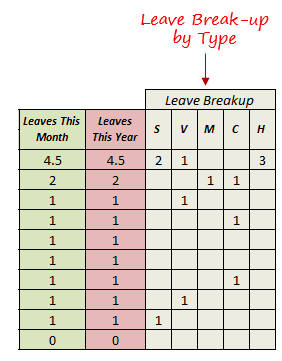
- Columns NL to NU gives the leave break-up by leave code (for the entire year). This could be helpful to keep a track of the type of leave that has been availed. Note that while Half Leaves are counted as .5 leaves in the total count, in the leave break-up, it is counted as whole numbers. For example, 2 half leaves would lead to 1 leave count, but you’ll see two half leaves in the leave breakup.
I have created this leave/attendance tracker template for 20 employees. If you want to add more, just copy-paste the formatting and formulas for additional rows.
Also, since there is a VBA code involved, make sure you always save it with .xls or .xlsm extension.
Download the Leave Tracker Template
Note: To update this template for any year, simply change the year value in cell A2. For example, to make it for 2017, just change the value in A2 to 2017. Also, you need to update the holiday list for the specified year.
The download file is completely unlocked so you can customize it to your needs.
Here is another version of the template that can track leaves for 50 employees.
Want to learn how to create awesome templates and dashboards? Check out the Excel Dashboard Course
FAQs on using this Leave Tracker Template
Since I created this vacation/leave tracker, I have been inundated with emails and comments. What you see now is a refined version that has been possible due to all the feedback that I have got.
Based on the questions I get repeatedly, I have created this FAQ section so that you can get an answer faster (instead of waiting for me to respond).
Here are the most common questions I get about the Leave tracker template:

Q: I tried downloading the file but it downloaded as a zip. How do I use it?
A: I have fixed this issue, and now you should be able to download the Excel file directly.

Q: When I change the month, the existing leaves are reflected in the changed month as well.
A: This happens when you use cell A1 to change the month. You need to use the arrow icons to change months. Cell A1 is to be used only to set the starting month of the calendar. For example, if you want the calendar to start from April, make cell A1 value 4. Now to move to March, use the triangle icons.

Q: I need to track multiple years of leaves. Do I need to create a new worksheet for each year (financial year)?
A: Yes! This leave tracker can only track leaves for a 12 month period. You need to create a copy for each year.

Q: Can I use my own leave codes?
A: Yes! You can change the leave code in cells NX8:NX17. You also need to specify the same code in cells NL5:NU5. For example, if you change the Work from Home leave code to X, you also need to change it in NR5.
I hope you find this leave/vacation tracker helpful.
Are there any other areas where you think an Excel template could be helpful? I am hungry for ideas and you are my gold mine. Do share your thoughts in the comments section 🙂
Related Excel Project Management Tutorials and Templates:

This template is the best. I’d like to change the fill color for the Sat & Sun columns. Can I do that? Thank you.
Is there a way to assign points to this spreadsheet to automatically calculate your company’s assigned point system based upon absence, tardy, etc?
Love this sheet, thank you! How do you recommend using time carried over from a previous year?
Very useful! Thank you!
I am only over five employees, how do I take off the extra Employee’s.
How do I change the color for each Code? How can I put in by hours instead of days?
I need a 12 month rolling for sick leave, but each employee has different allowances depending on length of service, so I need to be shown a total of amount used and what’s left each month…can you help?
How can we change the color for the code we enter, for example i want to change color of P code from red to other color?
Is it possible to have the Working Days only Grey out Non Working Days, but still include counts in the totals?
hi
when using the arrow buttons to change the month – it still reflects as January 2020
I absolutely love this and has been a great help for my team, I have a challenge though:-
We all work with different start dates so for example my leave year runs 1st May until 30th April.
My colleagues may run 1st June – 31st May.
Thank you though as it’s brilliant.
I would like to have the leave count not consider W (Work From Home) – how do i do that?
Thank you for the Leave Tracker. Can we calculate the leave hours instead of days? Sometimes employes take vacation hours not full days The sheet calculate by days. How can I change to hours?
I like having the leave codes but need to do this by hours, too.
Thank you for the Leave Tracker. Can we calculate the leave hours instead of days? Sometimes employees take 2 hours for an errand or a Dr.’s Appointment. The sheet calculate by days. How can I change to hours?
This is fantastic! Exactly what I’m looking for. However I’d like to be able to track work from home days, over time days, sick days etc without it counting as leave in columns NJ & NK? Whats the best way to amend this formula?
I am unable to download the file. Following error occurs. Please help
This site can’t be reacheduc654e21be693a433fe40dd5fd40.dl.dropboxusercontent.com’s server IP address could not be found.
Hello! I have added 21 columns before all calculation (changed in VBA module new ranges), but facing issue with macros while moving months, as currently I see half JAN, full FEB and rest months of half starting in the middle of 31 columns. Could you advise what needs to be changed?
Hi can you help me knowing if I need to change Vacation from V to AL. How do I do that ?
Would also like some additional Half Day Leave Types/Columns. I can’t figure out how to change the formula to accommodate when I replace other existing categories. Help please!
Hi there, is it possible to add more Half Day Leave Types/Columns?
Hi, I would like to additional enter personnel number to the column before the name. Is this possible? I tried to enter it but it messes up the dates of the month.
Did you get an answer on how to do this?
Why on each month do I get random days coloured in orange?
A person take leave from 8th Feb to 10th Feb i.e sat, sun & mon. After entering leaves on 8,9 & 10th Feb, excel formula only count leaves of 8th & 10th Feb. It should count all three days right? can you help me for that formula for the leave tracker template given in this page for all the months?
how can i change on of the h2 to count as a quarter day holiday? I have changed the code, but the formula is the same and it still counts quarter day as half day.
Could you advise how to use this fantastic template as a session worked for e.g. I have GP’s who work just the am and on another day a full day. I can do the half day which is great but I don’t know how to change the leave (vacation) to two sessions worked as it is not calculating the true amount of leave taken
Hi
I want the leave total column to add the leave days .
Ex : If an employee is on vacation continuously for 30 Days. It should also consider the other (off) days as annual leave. Currently if vacation is marked on the leave days/off days, it is not capturing they. How would I make count the leavs uncluding the off dasy.
I have the same concern. Kindly please advise how can I make the holiday and off day counted on leaves. Thank you.
I have the same question.
Hi….just downloaded but the triangle icon is not working.
Can you help me please I need to add column before column A but when add any column reflect to the days of the month 🙁
This is fantastic! Exactly what I’m looking for. However I’d like to be able to track work from home days without it counting as leave in columns NJ & NK? Whats the best way to amend this formula?
How can i remove H1 and H2? When i do so the formula is changing
I want to lock the past date cells to prevent to edit because if some one took the leave and record it in the template it should not be edited after leave date passed , can you modify this and share the template on below email
How do i add more employees to the sheet
Hi,
I have downloaded the excel template and it is very good to use and I have a query can we update the template based upon location for holidays.
Ex: If suppose in a team there are total 12 members and 4 are from Banglore, 2 from Pune, 2 from Gurgaon, 4 from Hyd so the holidays differ from location to locaion so how can we distinguish the holidays among the team members.
HOW CAN I ADD COLUMN TO THE RIGHT AND LEFT OF NAME COLUMN I.E. EMPLOYEE CODE AND EMPLOYEE DESIGNATION. KINDLY HELP ME I NEED IT BADLY
I also need the same solution, can someone help
The excel spreadsheet for tracking leaves of 50 Employee’s isnt working properly. I am unable to move to the next month. Is there any way the spreadsheet can be reviewed by your website?
there is no column showing leave available? How would I incorporate that?
How to create this in excel. can you send the vedio?
Thank you so much for this. You save me so much time!
Regards,
M
I would like to use your tracker but I am trying to modify it. I would like to add a functionality wherein, I will put only the range of date leave on a separate sheet, example Jan. 15, 2020 until, feb. 1, 2020. I should not be manually plotting the dates one by one. Instead, after clicking an approve button, it will automatically be plotted.
“The file is corrupt and cannot be opened”.
Hi,
I have downloaded the 50 employees version and have changed the year for 2020, however in the process the macro to change month has become defective.When I saw to debug code, it highlights this part – Range(“A3”).Value = Range(“A3”).Value + 1 Could you please advise how I fix this so that I can continue to use.
Please ignore my post. I found a workmate had protected the sheet and therefore it had restricted the access. Thankyou.
Hello! Love the template. Thank you for making it available!
I’m trying to tweak it some to add additional tracking capability. When I add the columns and codes for what I want to check it is working just fine, but I would like to exclude 3 codes of the 9 being used from being tallied in the ‘Leaves this Month’ and ‘Leaves this Year’ sum cells. I’m not having luck modifying the formula as I don’t have a lot of experience with so many layers of nesting.
Could you point me in the right direction? Thanks!
Is it possible to import it to gmail/google account so my co-employees can edit it and view it.?
Actually, I tried to import it and send the link to them to access, but some details missing like the month with ‘arrow left’ and ‘arrow right’. Also the holidays marked are missing.
And the ‘click here’ to copy the leave tracker is not accessible.
Hope you could help me with these.
Thank you so much.
Hi, I also want to track the number of times a person is late within the month. Is there a formula for that?
TIA
My company allows leave to be taken in hourly increments, is there a way to create codes such as V1(0.125) V2 (.25) V3 (.375) V5 (.625) V6 (.75)& V7 (.875) into the leaves formula’s? The complexity of the formula is beyond my scope I cant figure out how to edit it myself help!!
may i asked how you did the formula or total leaves
Is it possible to make an entry for 1/4 DAY worked?
Hi, I have uploaded the excel sheet in SharePoint but the triangle icon is not working. When I tried to use the filter, it’s not going to any month. Please advise how this gonna work? Thank you
I have DL the 50 Employee template, i have selected the full 7 days as working days in my industry. Within the tracker there are orange columns which when you edit with any of the Leave Names it does not collate this in the totals, why is this and can it be rectified?
I downloaded the excel sheet but the red arrows aren’t working. What can I do?
Click on the second worksheet titled HOLIDAY a yellow icon will pop up just above the sheet requesting you to enable, just click enable, then return to the first worksheet, the arrows would now be able to work. I hope this is helpful to u.
i have been using this tracker for over a year now as we have over 250 employees in our department. it is working well so far. thank you. I have a question, what if an employee gets separated from the company for example in October but i have data in previous months, I don’t want to delete the record, i want to keep the data for record keeping, how & what can i do ???
Is it possible to have 3 Half Day Codes and have those half day included in other codes? i.e: Vacation Half Day also gets added to regular Vacation code, etc.