

The VALUE function in Excel converts text that looks like a number into a real number. It reads plain digits, currency signs, commas, percentages, dates, and times.
You’ll need it when numbers land in your sheet as text, which happens a lot with downloads, copied web data, and exports from other apps. They look fine, but SUM skips them and lookups can’t match them.
In this article, I’ll show you how to use VALUE with seven examples, including totals, lookups, and the #VALUE! errors that come from web data.
Follow along with the example file
VALUE Function Examples.xlsx
VALUE Function Syntax
Here is the syntax of the VALUE function:
=VALUE(text)
- text – The text you want to convert to a number. This can be a cell reference, a range, or text typed straight into the formula in double quotes, like “$1,250”.
The text has to be something Excel recognizes as a number, date, or time. That includes text with a currency sign, commas, or a percent sign, so “45%” becomes 0.45.
If Excel can’t read the text as a number, for example “12kg” or “N/A”, VALUE returns a #VALUE! error.
If the cell already holds a real number, VALUE just returns that number, so it’s safe to use on a column that mixes numbers and text numbers. A blank cell returns 0.
Since the result is a number, any leading zeros are dropped. VALUE(“00482”) returns 482, so keep codes like ZIP codes or part numbers as text.
The VALUE function works in all Excel versions, including 365, 2024, 2021, 2019, 2016, Mac, and the web.
When to Use the VALUE Function
Use this function when you need to:
- Turn numbers stored as text into real numbers you can calculate with
- Convert text with dollar signs, commas, or brackets into proper amounts
- Change text dates and times into real dates you can sort and format
- Get a correct total when SUM returns 0 on text numbers
- Use a number you pulled out of a text string, like “25 min”
- Fix lookups that fail because one side is text and the other is a number
Let me show you a few practical examples of how to use the VALUE function.
Example 1: Convert Text to Numbers With the VALUE Function
Let’s start with a simple example.
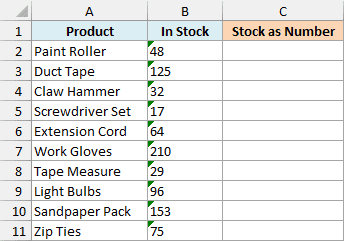
Below is a stock list exported from a store’s inventory system, where the counts came in as text, and I want to convert them into real numbers in column C.
Here is the formula:
=VALUE(B2:B11)
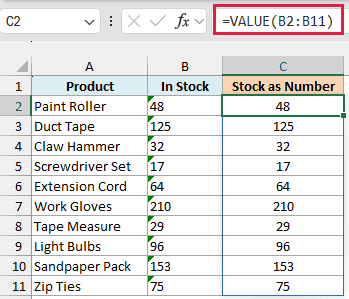
In the above formula, I’ve given VALUE the whole range B2:B11. It converts all ten counts in one go, and the results spill into C2:C11.
You can spot the difference by alignment. The text counts in column B sit on the left of their cells, while the real numbers in column C sit on the right (unless someone changed the alignment).
Spilling a formula across a range works in Excel 365 and Excel 2021 or later, and it needs the cells below C2 to be empty (otherwise you get a #SPILL! error). This applies to every spilling formula in this article.
If you are using Excel 2019 or earlier, enter the below formula in cell C2 and then copy it down to C11:
=VALUE(B2)
Example 2: Convert Currency Text to Numbers (Including Negatives)
Here’s another practical scenario where the text has more than just digits.
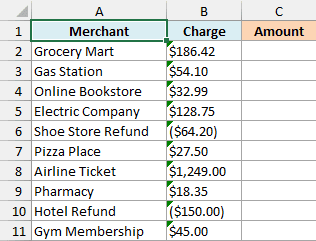
Below is a credit card statement pasted from a bank’s website, where the charges came in as text with dollar signs, commas, and refunds in brackets, and I want to convert them into amounts in column C.
Here is the formula:
=VALUE(B2:B11)
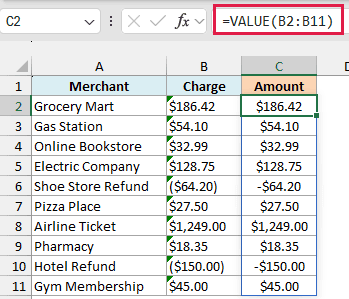
VALUE reads the dollar sign and the comma, so “$1,249.00” becomes 1249. You don’t need to strip those characters out first.
It also understands the accounting style for negatives. The two refunds, “($64.20)” and “($150.00)”, come back as -64.2 and -150, so they reduce the total like they should.
Column C has a currency number format applied, which is why the results show as $186.42 and -$64.20. VALUE itself returns plain numbers, so format the cells however you like.
If your statement uses a comma as the decimal separator, like “1.234,56”, and your computer uses a period, VALUE returns #VALUE!. The NUMBERVALUE function handles that case, because it lets you tell Excel which character is the decimal.
Example 3: Convert Text Dates and Times to Real Dates
VALUE can also turn a date or time that’s stored as text into a real date.
Below is a list of webinar sign-ups exported from a registration form, where the timestamps came in as text, and I want to convert them into real date-times in column C.
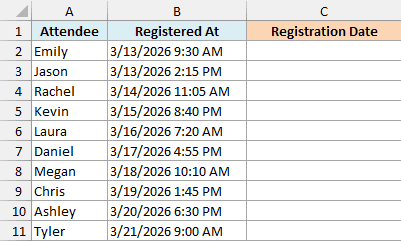
Here is the formula:
=VALUE(B2:B11)
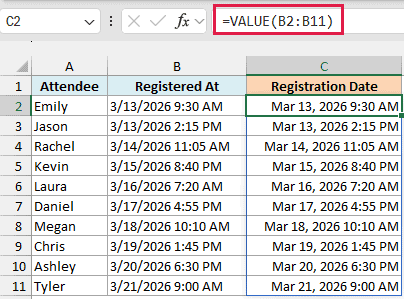
Excel stores a date as a whole number and a time as a fraction of a day. So VALUE turns “3/13/2026 9:30 AM” into 46094.395833, where 46094 is the date and .395833 is the time.
I’ve formatted column C as a date and time (mmm d, yyyy h:mm AM/PM), which is why you see Mar 13, 2026 9:30 AM. Without a format, you’d see the plain number.
Now that these are real dates, you can sort them, filter them by date, or work out how many days before the event each person signed up.
Important: VALUE reads text dates in your computer’s regional date order, so the same text can become a different date (or a #VALUE! error) on a day/month computer. If your dates come from a system with a different order, check a few results first.
Example 4: SUM Numbers Stored as Text
This next one is probably the most common reason people need VALUE.
Below is a list of raffle tickets sold by each volunteer at a school fundraiser, where the counts were entered as text, and I want the total number of tickets in column E.
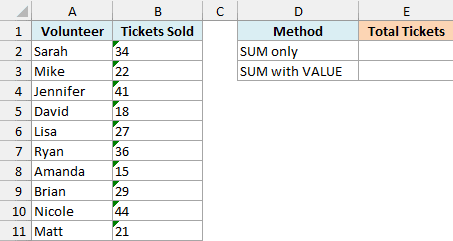
First, let’s see what a plain SUM does with this data:
=SUM(B2:B11)
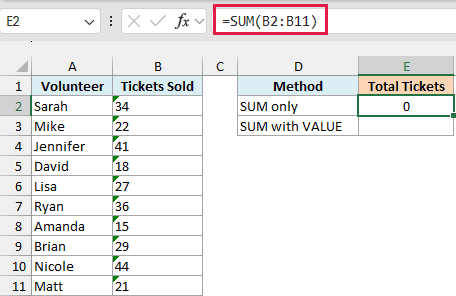
It returns 0. The SUM function ignores text when you give it a range, and every count in column B is text, so there’s nothing left for it to add.
Now here is the formula that gives the right total:
=SUM(VALUE(B2:B11))
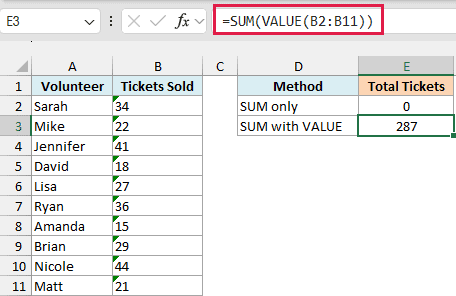
This returns 287.
VALUE converts all ten text counts into numbers first, and then SUM adds them up. You don’t need a helper column, because the conversion happens inside the formula.
The same thing happens with COUNT, AVERAGE, MAX, and MIN. They all skip text numbers in a range, so wrapping the range in VALUE fixes them the same way.
Simple math with operators is different, because a plus sign converts text numbers on its own (=B2+B3 returns 56). It’s the functions that take a whole range that skip them.
Pro Tip: You’ll also see =SUM(–B2:B11) used for this, where the double minus converts text to numbers just like VALUE does. It’s shorter, but a bit harder to read.
In Excel 2019 and earlier, the =SUM(VALUE(B2:B11)) formula only works if you enter it with Control + Shift + Enter. If you are using one of those versions, use the below formula instead, which works with a regular Enter:
=SUMPRODUCT(VALUE(B2:B11))
Example 5: Extract a Number From Text and Convert It
Let’s step it up with a more interesting use case.
Below is a list of recipes with the prep time written as text, like “25 min”, and I want just the number of minutes in column C.
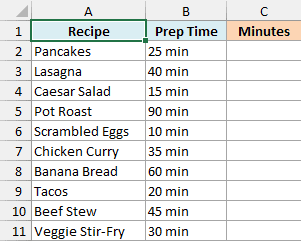
Here is the formula:
=VALUE(TEXTBEFORE(B2:B11," "))
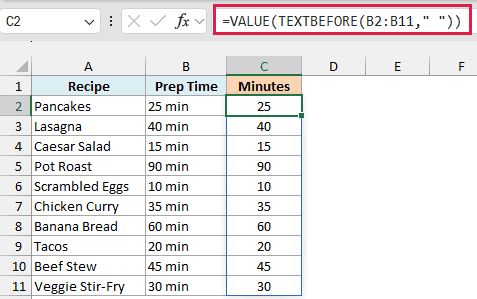
How this formula works:
- TEXTBEFORE(B2:B11,” “) returns everything before the first space in each cell, so “25 min” becomes “25” and “90 min” becomes “90”. It works no matter how many digits the number has.
- VALUE then converts those results into numbers. This step matters because TEXTBEFORE always returns text, even when the text is all digits.
Without VALUE, column C would look right but hold text, so an average or a total of the prep times would come out wrong.
The same goes for LEFT, RIGHT, MID, and TEXTSPLIT. Anything you pull out of a text string is still text, so wrap it in VALUE when you need to do math with it.
The TEXTBEFORE function is available in Excel 365 and Excel 2024. If you are using an older version, enter the below formula in cell C2 and then copy it down to C11:
=VALUE(LEFT(B2,FIND(" ",B2)-1))
Example 6: Fix a Lookup That Fails Because of Text Numbers
This is one of the more frustrating problems with text numbers, because nothing looks wrong.
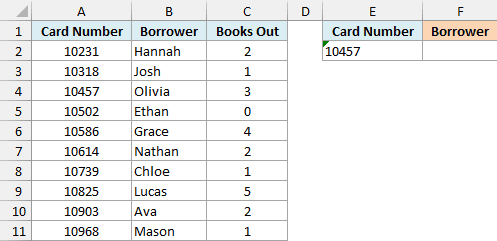
Below is a list of library card numbers with each borrower’s name, and I want to get the borrower in cell F2 for the card number in E2, which was pasted in as text.
Here is the formula:
=XLOOKUP(VALUE(E2),A2:A11,B2:B11)
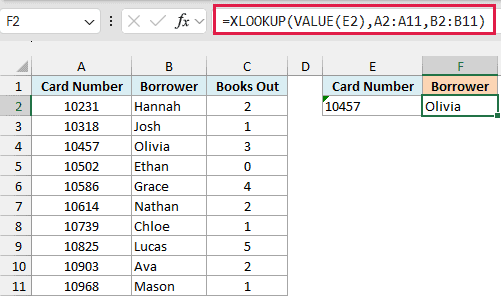
This returns Olivia, who has card number 10457.
The card numbers in column A are real numbers, but E2 holds “10457” as text. To Excel, the number 10457 and the text “10457” are different things.
So a plain =XLOOKUP(E2,A2:A11,B2:B11) can’t find a match and returns #N/A. Wrapping E2 in VALUE turns it into the number 10457, and the lookup works.
If it’s the other way around, with a real number in the lookup cell and text numbers in the list, wrap the list in VALUE instead, like VALUE(A2:A11).
The XLOOKUP function is available in Excel 365 and Excel 2021 or later. If you are using an older version, use the below formula instead:
=INDEX(B2:B11,MATCH(VALUE(E2),A2:A11,0))
Example 7: Fix the #VALUE! Error From Copied Web Data
Sometimes VALUE gives you a #VALUE! error on text that looks perfectly normal. This happens most often with data copied from a website.
Below is a list of product prices copied from an online store, and I want to convert them into numbers in column D.
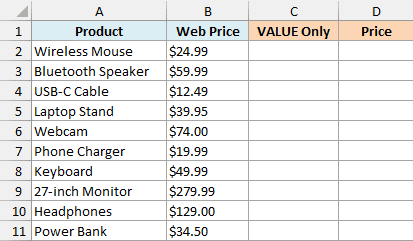
First, let’s try the plain VALUE formula in column C:
=VALUE(B2:B11)
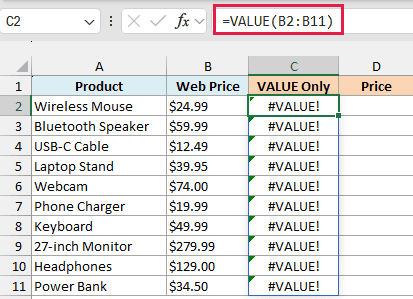
Every row returns #VALUE!, even though “$24.99” is exactly the kind of text VALUE handled in Example 2.
The problem is a character you can’t see. Web pages often use a non-breaking space (character code 160), and here each price ends with one.
VALUE ignores normal spaces before and after the number, but it doesn’t treat a non-breaking space as a space. The TRIM function doesn’t remove it either, so =VALUE(TRIM(B2)) still fails.
Here is the formula that fixes it:
=VALUE(SUBSTITUTE(B2:B11,CHAR(160),""))
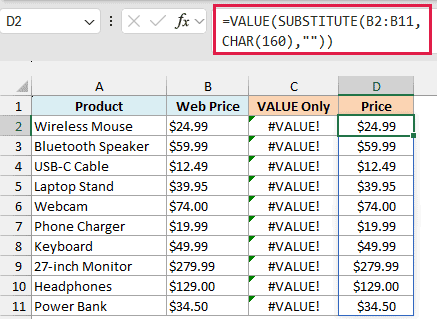
CHAR(160) is the non-breaking space. The SUBSTITUTE function replaces every one of them with nothing, and VALUE can then read what’s left, so $24.99 comes back as 24.99.
So that’s how the VALUE function works. It turns text numbers, amounts, dates, and times into real values, and it fixes totals and lookups that quietly go wrong because of text.
I hope you found this Excel tutorial useful.
Other Excel Articles You May Also Like:
