

The BIN2DEC function in Excel converts a binary number (one made of only 0s and 1s) into a regular decimal number. So 1010 becomes 10, and 11111111 becomes 255.
It’s useful when binary values come to you from another system, a class exercise, or network settings, and you need the actual numbers to work with in Excel.
There are two catches. BIN2DEC only takes up to 10 binary digits, and it doesn’t accept a whole range directly, so a formula like =BIN2DEC(A2:A11) returns an error instead of a list of results.
In this article, I’ll show you how BIN2DEC works with six practical examples, along with simple ways around both of these limits.
Follow along with the example file
BIN2DEC Function Examples.xlsx
BIN2DEC Function Syntax
Here is the syntax of the BIN2DEC function:
=BIN2DEC(number)
- number – The binary number you want to convert. It can be a number like 1010, text in double quotes like “00101101”, or a reference to a cell that holds the binary value.
The number can have up to 10 binary digits. When it has all 10, the first digit decides whether the result is positive or negative (more on this in Example 3).
If the value has anything other than 0s and 1s, or it’s longer than 10 digits, BIN2DEC returns the #NUM! error. That includes a stray space before or after the digits.
An empty cell doesn’t give an error. BIN2DEC returns 0 for it, so a blank row in your data can quietly show up as a 0 result.
The BIN2DEC function works in all Excel versions, including Excel 365, 2024, 2021, 2019, 2016, and Excel for Mac.
When to Use the BIN2DEC Function
Use this function when you need to:
- Convert binary numbers into regular decimal numbers you can calculate with
- Check answers or values that were written in binary
- Read 10-digit binary values where the first digit marks a negative number
- Turn a binary IP address into the dotted decimal form you normally see
Let me show you a few practical examples of how to use the BIN2DEC function in Excel.
Example 1: Convert Binary to Decimal in Excel
Let’s start with a simple example.
Below is a list of binary numbers, and I want to convert each one into a decimal number in column B.
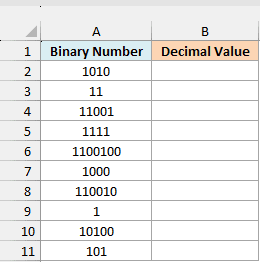
Here is the formula I entered in cell B2 and then copied down to B11:
=BIN2DEC(A2)
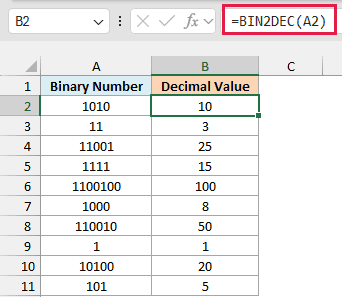
BIN2DEC reads the value in A2 as a binary number and returns its decimal value. As you copy the formula down, A2 changes to A3, A4, and so on, so each row gets its own result.
In case you’re wondering how 1010 becomes 10, each place in a binary number is worth double the place to its right, so the places are worth 1, 2, 4, 8, and so on, counting from the right.
A 1 counts the value of its place, and a 0 counts nothing. 1010 has a 1 in the 8 place and the 2 place, so it’s 8 + 2 = 10.
You might expect =BIN2DEC(A2:A11) to convert the whole list in one go, but it returns the #VALUE! error. Example 2 shows a simple way to make it work.
Example 2: Convert a Whole List of Binary Numbers With One Formula
Now let’s convert an entire list with a single formula.
Below is a list of 8-digit binary values with leading zeros, and I want the decimal value of each one in column B.
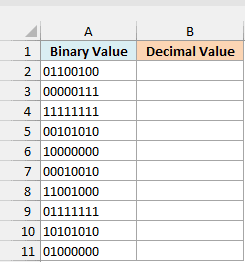
Here is the formula:
=BIN2DEC(+A2:A11)
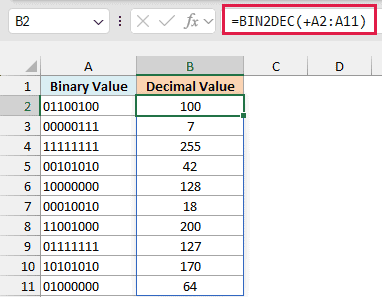
The only thing that’s different from a plain BIN2DEC formula is the plus sign before the range. Without it, BIN2DEC returns #VALUE!, because it’s one of the older Excel functions that can’t take a range reference.
The plus sign makes Excel work out +A2:A11 first, which turns the range into a list of values. BIN2DEC can handle a list, so it converts every value and the results spill into B2:B11 on their own.
This same trick fixes a whole group of functions that won’t spill, such as EOMONTH and EDATE.
Also notice that the leading zeros don’t change anything. 01100100 returns 100, exactly what 1100100 would return.
If you are using Excel 2019 or earlier, enter the below formula in cell B2 and then copy it down the column (the same approach works for Example 3):
=BIN2DEC(A2)
Example 3: Convert Negative Binary Numbers
This next one can catch you off guard, because some binary values come back as negative numbers.
Below is a list of 10-digit binary values, some starting with 0 and some with 1, and I want the decimal value of each one in column B.
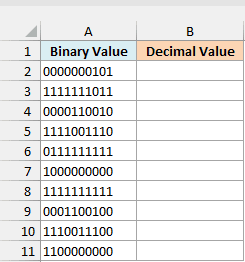
Here is the formula:
=BIN2DEC(+A2:A11)
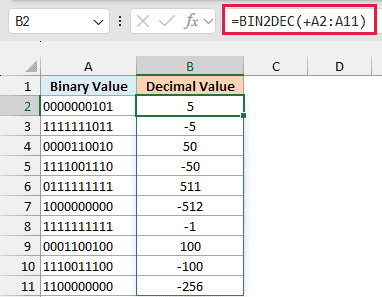
When a binary value has all 10 digits, BIN2DEC treats the first digit as a sign. A 0 at the start gives a positive result, and a 1 at the start gives a negative one.
The negative values use a system called two’s complement. You can work one out by reading the 10 digits as a normal binary number and then subtracting 1,024.
For example, 1111111011 is 1,019 as a normal binary number, and 1,019 minus 1,024 is -5. That’s also why 1111111111 returns -1 and 1000000000 returns -512.
So with 10 digits, BIN2DEC covers numbers from -512 to 511. A value with 9 digits or fewer is never negative, even when it starts with 1.
This is the right behavior when your binary values really are signed numbers. If they’re just plain positive numbers, a result like -5 is wrong, and Example 4 shows what to use instead.
Example 4: BIN2DEC vs DECIMAL for Long Binary Numbers
Since BIN2DEC stops at 10 digits, it’s fair to ask what to do with longer binary values.
Below is a list of binary values that get longer as you go down, and I want to convert each one, first with BIN2DEC in column B and then with the DECIMAL function in column C.
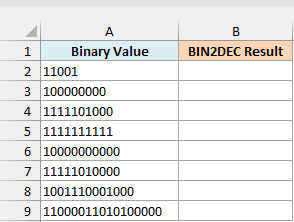
Here is the BIN2DEC formula:
=BIN2DEC(+A2:A9)
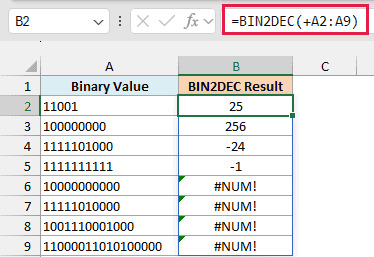
The first two values convert fine. The next two have exactly 10 digits and start with 1, so BIN2DEC reads them as negative numbers, which is why 1111101000 returns -24 instead of 1,000.
The last four values have more than 10 digits, so BIN2DEC returns #NUM! for all of them.
Now here is the DECIMAL formula in column C:
=DECIMAL(A2:A9,2)
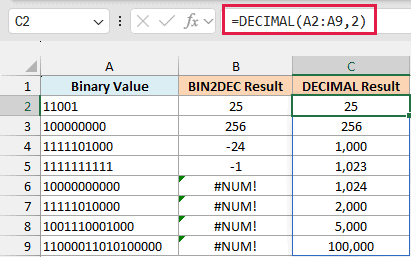
The DECIMAL function converts a number from any base, and the 2 tells it the values are binary. It returns the correct value for every row, including 1,000 for 1111101000 and 100,000 for the 17-digit value at the bottom.
DECIMAL also takes the range directly, so you don’t need the plus sign here. The DECIMAL function itself is available in Excel 2013 and later versions.
Also note that the binary values in column A are stored as text. Excel keeps only 15 digits of a number, so a longer binary value typed as a number would have its last digits turned into zeros.
Important: If your binary values are plain positive numbers that can be 10 digits or longer, use DECIMAL instead of BIN2DEC. A negative result like -24 looks like a real number, so this mistake is easy to miss.
If you are using Excel 2019 or earlier, enter the below formula in cell B2 and then copy it down to B9:
=BIN2DEC(A2)
Then enter the below formula in cell C2 and copy it down to C9:
=DECIMAL(A2,2)
Example 5: Check Binary Values for Errors
Let’s look at what happens when the binary values have typos in them.
Below are the answers some students gave in a binary quiz, and I want to convert each answer to decimal in column C so I can check them.
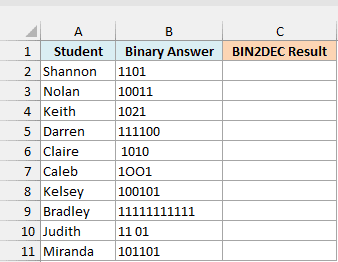
Here is the formula:
=BIN2DEC(+B2:B11)
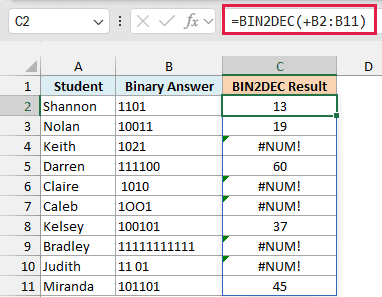
Five answers return #NUM!, and each one has a different problem. Keith’s answer has a 2 in it, Caleb typed the letter O instead of zero, and Bradley’s answer has 11 digits.
The other two are harder to spot. Claire’s answer has a space before the digits, and Judith’s has a space in the middle.
Here is a formula that cleans up the extra spaces and flags whatever is still wrong, in column D:
=IFERROR(BIN2DEC(TRIM(B2:B11)),"Check answer")
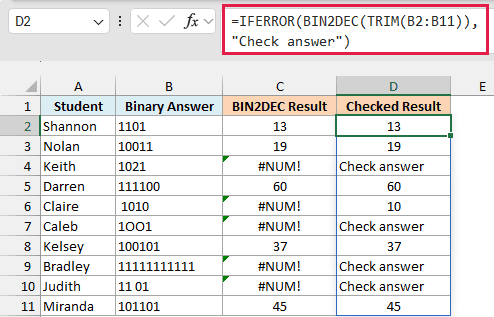
How this formula works:
- TRIM(B2:B11) removes any spaces before or after each answer, so Claire’s answer now converts to 10. TRIM returns a list of values, so BIN2DEC accepts it without the plus sign.
- BIN2DEC(…) converts each cleaned answer to decimal.
- IFERROR(…,”Check answer”) replaces any error that’s left with the text “Check answer”.
Judith’s answer is still flagged, because TRIM keeps a single space between characters. That’s a good thing here, since there’s no way to know what she meant.
If you are using Excel 2019 or earlier, enter the below formula in cell C2 and then copy it down to C11:
=BIN2DEC(B2)
Then enter the below formula in cell D2 and copy it down to D11:
=IFERROR(BIN2DEC(TRIM(B2)),"Check answer")
Example 6: Convert a Binary IP Address to Decimal
Let’s finish with a practical one, where BIN2DEC works together with a couple of other functions.
Below is a list of office devices with their IP addresses written in binary, and I want the regular IP address of each device in column C.
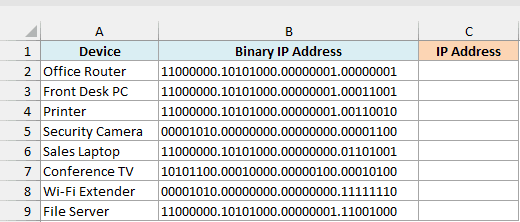
Here is the formula I entered in cell C2 and then copied down to C9:
=TEXTJOIN(".",TRUE,BIN2DEC(TEXTSPLIT(B2,".")))
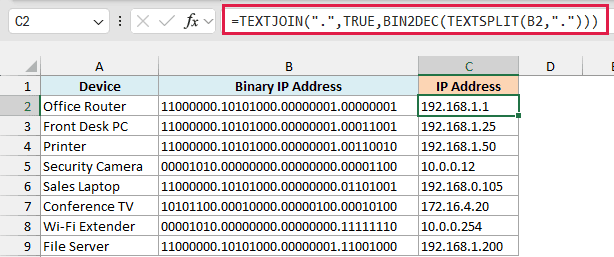
How this formula works:
- An IP address in binary is four groups of 8 digits, separated by dots. TEXTSPLIT(B2,”.”) splits it at each dot into those four groups.
- BIN2DEC(…) converts each group into a number. For the Office Router, that gives 192, 168, 1, and 1.
- TEXTJOIN(“.”,TRUE,…) joins the four numbers back together with dots, so you get 192.168.1.1.
Here we keep this as a per-row formula because TEXTSPLIT returns only the first group of each address when you give it a whole range. So one formula per device is the simplest way to do it.
The TEXTSPLIT function is only available in Excel 365 and Excel 2024. If you are using an older version, enter the below formula in cell C2 and then copy it down the column:
=BIN2DEC(MID(B2,1,8))&"."&BIN2DEC(MID(B2,10,8))&"."&BIN2DEC(MID(B2,19,8))&"."&BIN2DEC(MID(B2,28,8))
This version picks out each group of 8 digits by its position, so it only works when every group has all 8 digits, like the addresses in this example.
So that’s how you can use the BIN2DEC function in Excel to turn binary numbers into regular decimal numbers, one at a time or a whole list at once. Just remember the 10-digit limit, and switch to DECIMAL when your values get longer.
If you need to go the other way and turn a decimal number into binary, use the DEC2BIN function. And to convert binary into hex or octal, Excel has the BIN2HEX and BIN2OCT functions.
I hope you found this tutorial useful.
Other Excel Articles You May Also Like:
